
howtosimply.com/guides/how-to-turn-off-the-startup-sound-on-a-mac/ · Checked October 2026 · MacBook Pro · macOS Tahoe 26
In this guide
Open System Settings, click Sound, and switch off Play sound on startup. The Mac then starts without the startup chime. Switch it on again to hear the chime when you restart.
3 of 3 steps with real screenshots · 2 official sources below
- Device
- Mac
- Shown on
- macOS Tahoe 26 (MacBook Pro)
- App
- System Settings
- Path
- System Settings › Sound
- Real screenshots
- 3 of 3 steps
- Checked
- October 2026
- Sources
- 2 official, linked below
Step by step
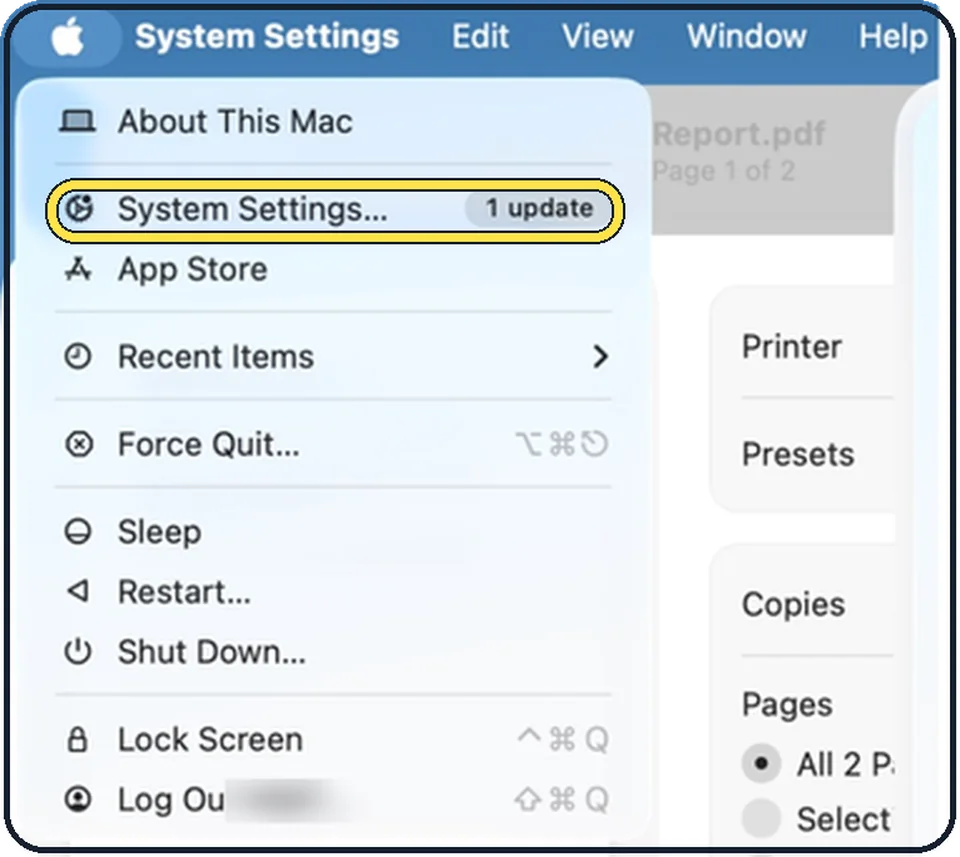
Tap the picture to see it full size Open System Settings
Click the Apple menu in the top left corner of the screen and choose System Settings.
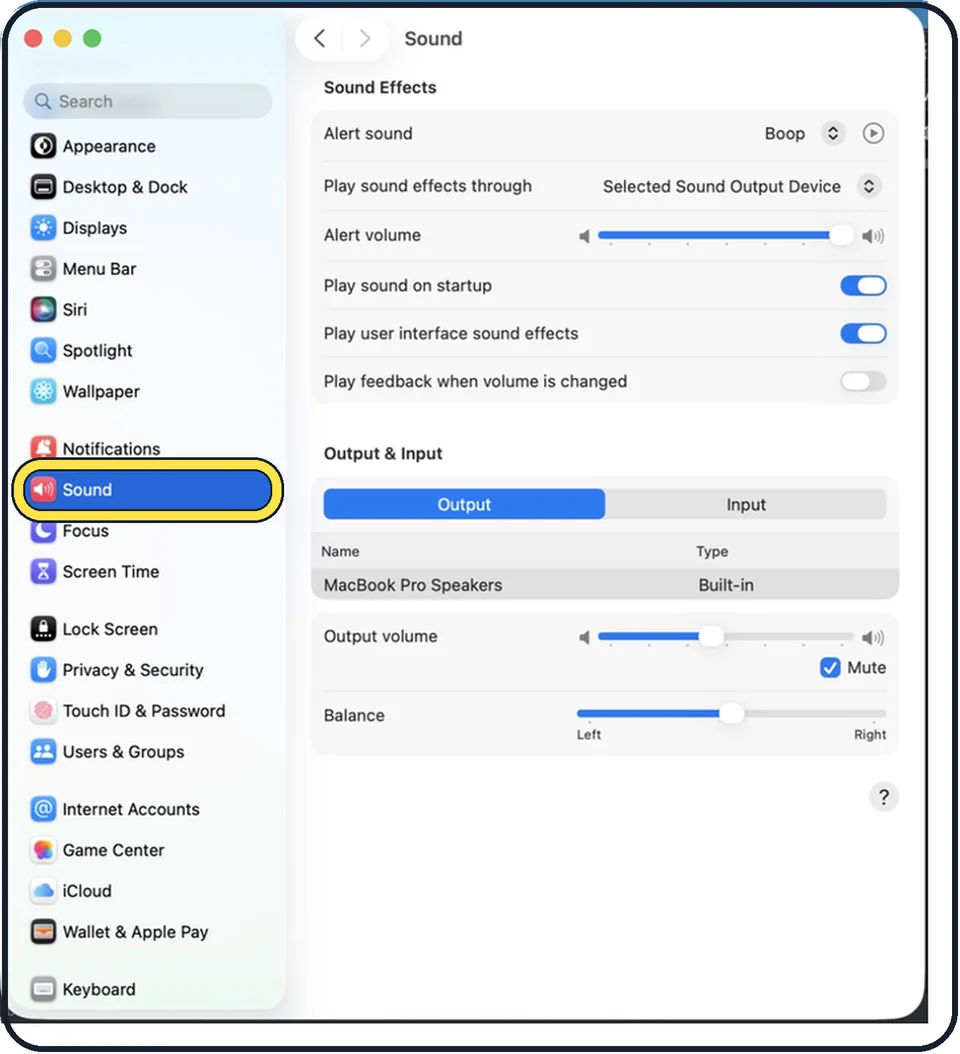
Zoomed in on the setting. Tap to see the whole screenTap the picture to see it full size Click Sound in the sidebar
Sound is in the group with Notifications and Focus. You may need to scroll down in the sidebar.
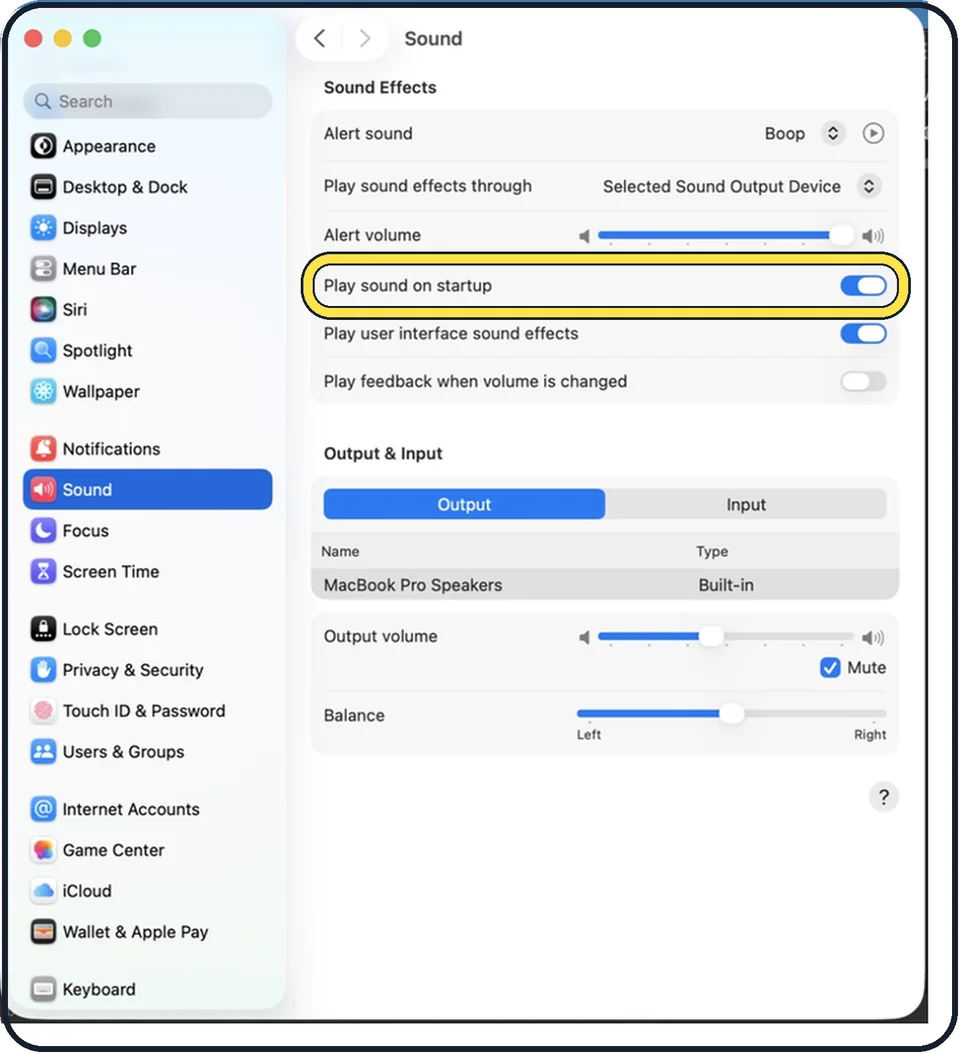
Tap the picture to see it full size Switch off Play sound on startup
It is in the Sound Effects group. In the picture it is on.
If you do not see this option
- Your Mac has System Preferences, not System Settings. Apple says that on macOS Monterey 12 and Big Sur 11 you choose System Preferences, click Sound and use Play sound on startup in the Sound Effects pane. Source: Turn the Mac startup sound on or off
- There is no startup sound setting at all. Apple says versions of macOS before Big Sur 11 do not offer a setting for the startup sound. Source: Turn the Mac startup sound on or off
If this does not work
- The Mac still makes sounds after it starts. Those come from the switches below, Play user interface sound effects and Play feedback when volume is changed. Switch them off as well if you want silence. Source: Change Sound settings on Mac
- Alert sounds are still too loud. Apple says the alert volume is relative to the output volume of your Mac. Lower the Alert volume slider in the same Sound Effects group, or the Mac volume. Source: Change Sound settings on Mac
About this guide
A Mac plays a chime when it starts. In a library, a lecture or a bedroom at night that is unwelcome. The switch for it is in the Sound settings, under Sound Effects.
The screenshots show System Settings on macOS Tahoe 26.
Good to know
Apple notes that not all options on this page appear on all Mac models.
The two switches below it are for other sounds: Play user interface sound effects, for actions such as dragging an item to the Trash, and Play feedback when volume is changed.
In short: System Settings, Sound, Play sound on startup off.
Links checked in October 2026. Menus and features can change after software updates. These steps match the version named at the top.
Did this guide work for you?
Sorry about that. What happened?