
howtosimply.com/guides/how-to-share-files-between-a-samsung-galaxy-and-an-iphone-with-quick-share/ · Checked October 2026 · Samsung Galaxy S26 (SM-S942N, Korean model), One UI 9, Android 17
In this guide
Open Settings, Connected devices, Quick Share and check that Share with Apple devices is on. To send, the iPhone must have AirDrop set to Everyone. To receive, tap Quick Share in the quick panel. Samsung says this works only on the Galaxy S26 series so far.
5 of 5 steps with real screenshots · 1 official source below
- Device
- Android
- Shown on
- Samsung Galaxy S26 (SM-S942N, Korean model), One UI 9, Android 17
- App
- Settings
- Path
- Settings › Connected devices
- Real screenshots
- 5 of 5 steps
- Checked
- October 2026
- Sources
- 1 official, linked below
Step by step
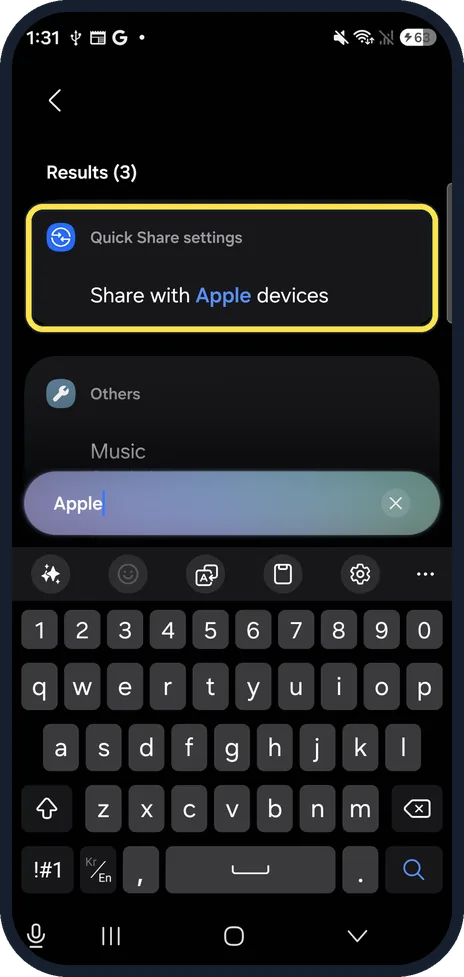
Search Settings for Apple
Open Settings, tap Search and type Apple. On ours the first result was Share with Apple devices under Quick Share settings. Tap it. Searching AirDrop only finds Quick Share.
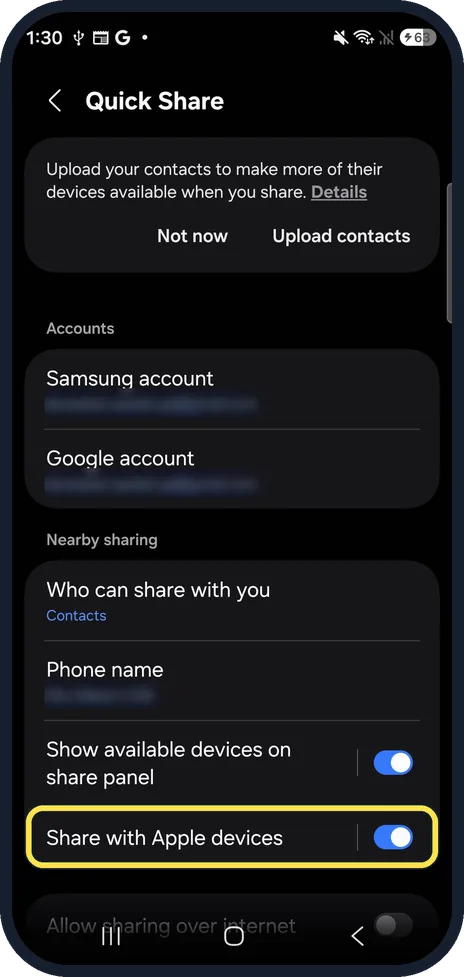
Check that Share with Apple devices is on
You land in Quick Share settings. Under Nearby sharing, Share with Apple devices has a switch. Ours was already on. Without search: Settings, Connected devices, Quick Share.
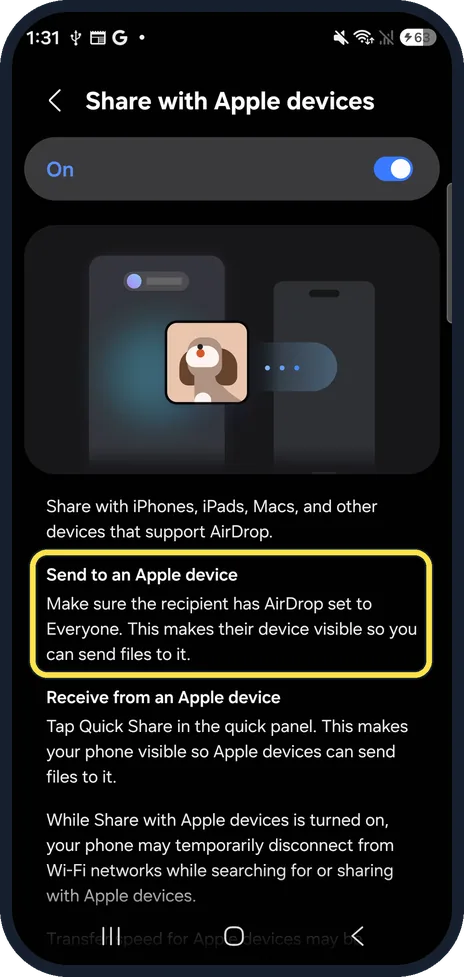
Read what each direction needs
Tap the row itself for its page. To send to an Apple device, the person on the iPhone or Mac must set AirDrop to Everyone so your Galaxy can see it.
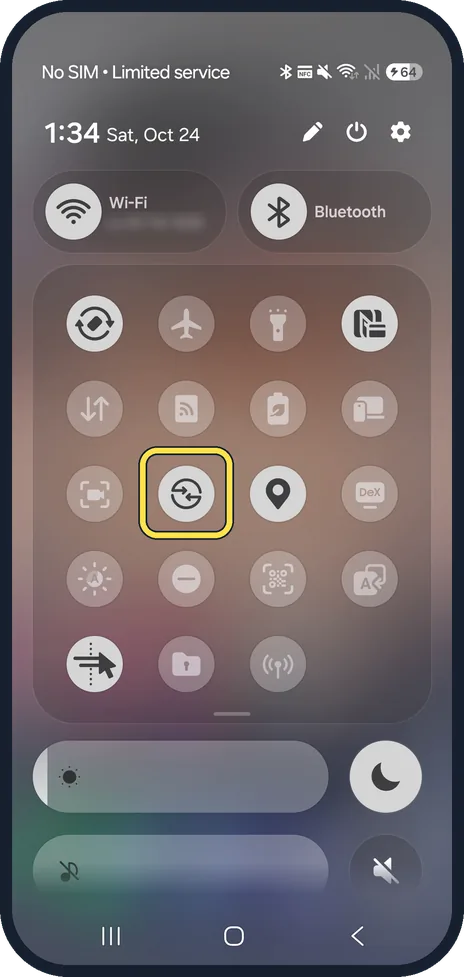
To receive, tap Quick Share in the quick panel
The same page says to tap Quick Share in the quick panel: that makes your phone visible so Apple devices can send to it. Swipe down from the top right; ours had the Quick Share button in the third row.
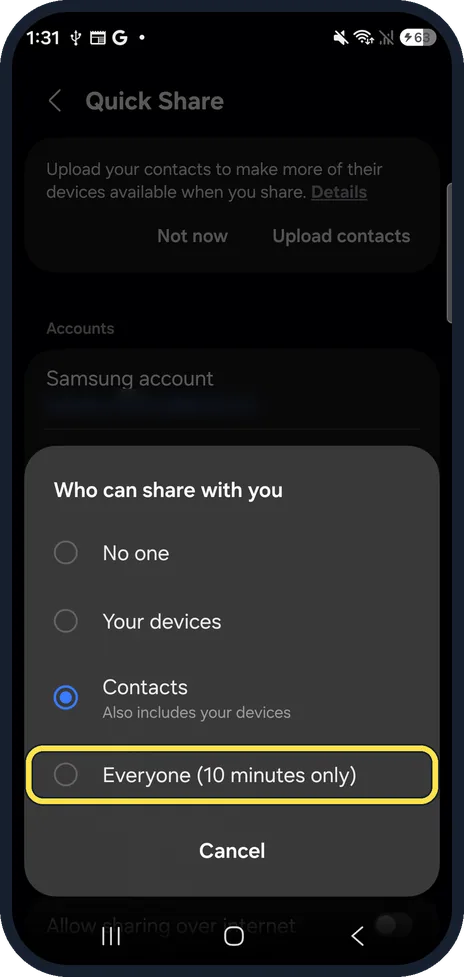
Let everyone send for a while if needed
In Quick Share settings, Who can share with you offers No one, Your devices, Contacts and Everyone (10 minutes only). Someone not in your contacts needs Everyone. Ours stayed on Contacts.
If you do not see this option
- No Share with Apple devices row? Samsung's announcement says that as of March 2026 it is supported only on the Galaxy S26 series and will come to select flagship models later, and that it needs Quick Share app version 13.8.51.27 and Google Play services 26.11 or later. We have not checked our Galaxy A57. Source: Samsung Brings AirDrop Support to Quick Share with Galaxy S26 Series
- On an S26 but still no row? Samsung says the feature started in Korea and is rolling out to more regions, so it may not have reached yours yet. Update Quick Share and Google Play services and check again. Source: Samsung Brings AirDrop Support to Quick Share with Galaxy S26 Series
If this does not work
- Wi-Fi drops for a moment? Samsung warns on the same page that your phone may temporarily disconnect from Wi-Fi while it searches for or shares with Apple devices. We did not run a transfer, so we can't say how long it lasts.
- iPhone not in the list? On the iPhone, set AirDrop to Everyone. It switches back after 10 minutes, so set it again just before you send. Source: Samsung Brings AirDrop Support to Quick Share with Galaxy S26 Series
- Galaxy to Galaxy not working either? See Quick Share not working on a Samsung Galaxy? 6 fixes.
About this guide
Since March 2026 Samsung's Quick Share can swap files with iPhones, iPads and Macs over AirDrop. Samsung says the switch is on by default, started in Korea and is spreading to more regions, and needs recent Quick Share and Google Play services versions.
The screenshots are from our Samsung Galaxy S26, the Korean model SM-S942N, with One UI 9 and Android 17, in Dark mode. Menus can differ on models sold in other regions. We found and opened every setting below, but we did not send a file to or from an iPhone for these screenshots.
Good to know
Receiving files on a Google Pixel: how to receive files with Quick Share on a Google Pixel.
In short: Settings, Connected devices, Quick Share: Share with Apple devices on. Send: iPhone AirDrop on Everyone. Receive: Quick Share in the quick panel.
Links checked in October 2026. Menus and features can change after software updates. These steps match the version named at the top.
Did this guide work for you?
Sorry about that. What happened?