
What changed: rewritten for iOS 27 with our own screenshots. Wi-Fi Assist is now Connectivity Assist, under Wi-Fi.
howtosimply.com/guides/how-to-turn-off-connectivity-assist-wi-fi-assist-on-an-iphone/ · Checked October 2026 · iPhone 14 Pro · iOS 26.7.1
In this guide
On iOS 27, open Settings, tap Wi-Fi, scroll to the bottom and switch off Connectivity Assist. It replaced Wi-Fi Assist, which used to be under Mobile Data. While it is on, the iPhone uses mobile data when the Wi-Fi is slow, which can cost data.
5 of 5 steps with real screenshots · 2 official sources below
- Device
- iPhone
- Shown on
- iOS 26.7.1 (iPhone 14 Pro), iOS 27.0.1 (iPhone 14 Pro)
- App
- Settings
- Path
- Settings › Wi-Fi
- Real screenshots
- 5 of 5 steps
- Checked
- October 2026
- Sources
- 2 official, linked below
Step by step
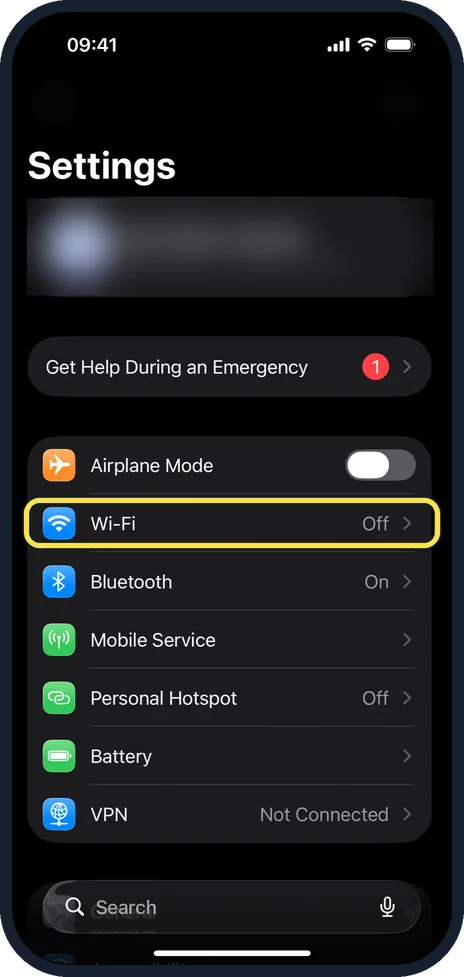
Open Settings and tap Wi-Fi
Wi-Fi is near the top of the main Settings list, under Airplane Mode. On our iPhone it read Off at this point.
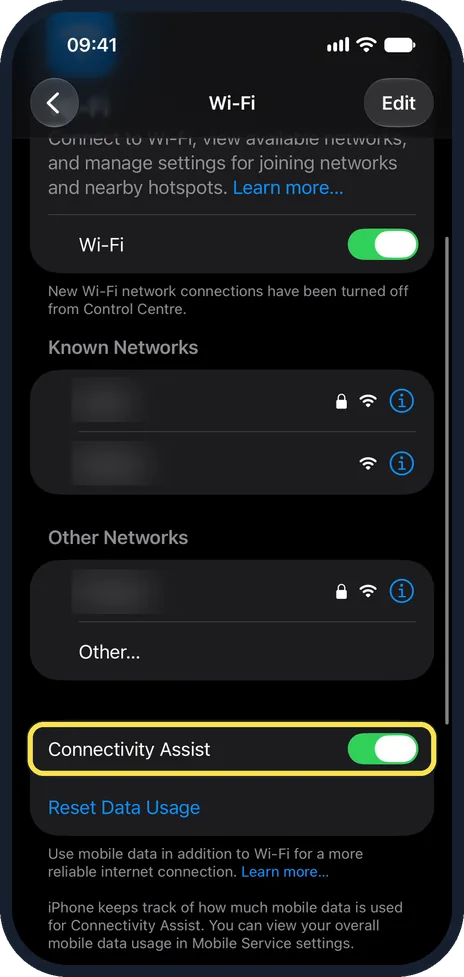
Scroll to the bottom
Make sure the Wi-Fi switch at the top is on. Below Known Networks and Other Networks is Connectivity Assist.
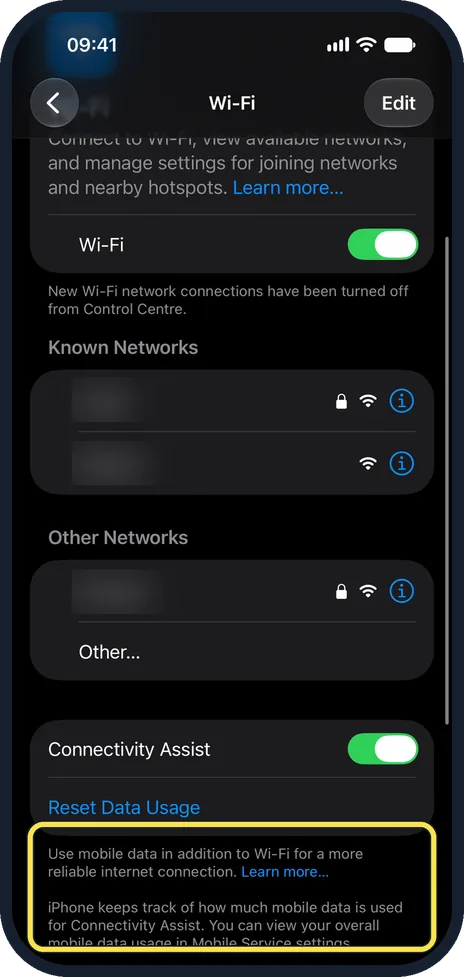
Read what it does
The note below says it uses mobile data in addition to Wi-Fi for a more reliable internet connection, and that the iPhone keeps track of how much mobile data it used.
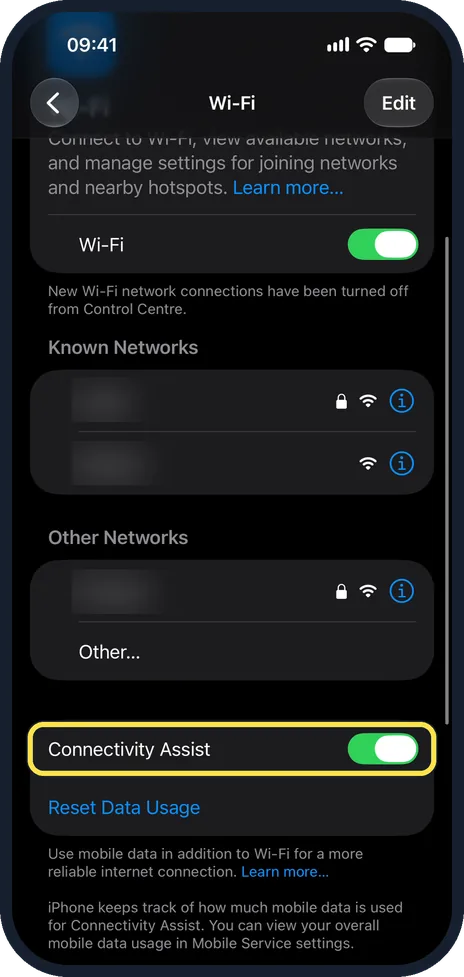
Switch it off
Tap the Connectivity Assist switch to turn it off. It is green while it is on, as in our picture, which was taken before the tap. The iPhone then stops using mobile data in addition to Wi-Fi.
Check the data it used
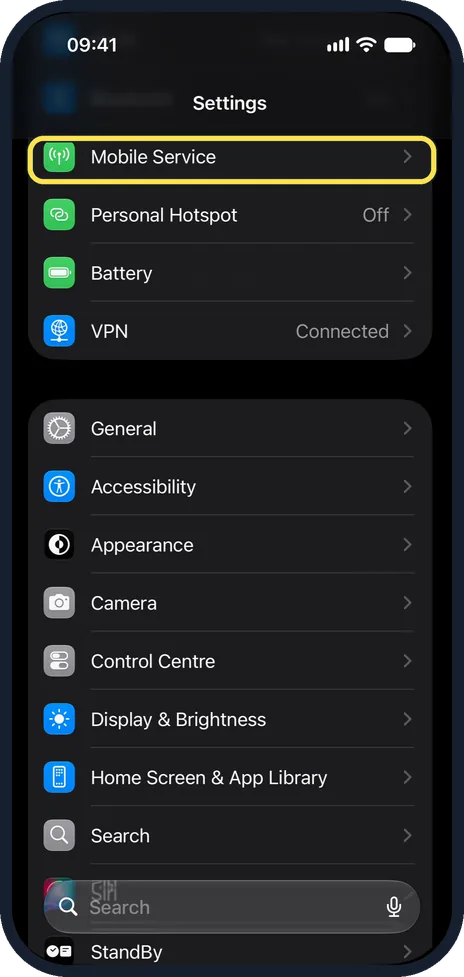
Your total mobile data is under Settings, Mobile Service, boxed in the picture. Reset Data Usage, under the Connectivity Assist switch on the Wi-Fi page (step 2 picture), sets its own counter back to zero.
What changed: rewritten for iOS 27 with our own screenshots. Wi-Fi Assist is now Connectivity Assist, under Wi-Fi.
If you do not see this option
- Your iPhone runs iOS 26 or earlier. The switch is still called Wi-Fi Assist. It is at the bottom of Settings, Mobile Data (Cellular in US English).
- There is no Connectivity Assist row. Apple says to make sure Wi-Fi is on in Settings, Wi-Fi, then scroll down to find it. Source: About Connectivity Assist
- The phone has iOS 26 or earlier. Apple says Connectivity Assist replaces Wi-Fi Assist, which was in the mobile data (Cellular) settings. Source: About Connectivity Assist
- It was already off after updating. Apple says Connectivity Assist is on after the update only if Wi-Fi Assist was on before. If Wi-Fi Assist was off, it stays off. Source: About Connectivity Assist
If this does not work
- Mobile data is still used on one network but not another. Apple says Connectivity Assist can be turned off for a specific network, for example one with an ad-blocking router. Check that network's settings in Wi-Fi. Source: About Connectivity Assist
- It seems to do nothing. Apple says it isn't used while roaming abroad, when mobile data Low Data Mode is on, or with some third-party apps that stream audio and video. Source: About Connectivity Assist
About this guide
If your mobile data runs out faster than expected while you are mostly on Wi-Fi, Connectivity Assist is a likely reason. iOS 27 renamed Wi-Fi Assist and moved it from the mobile data settings to the bottom of the Wi-Fi page, so many people cannot find it.
The screenshots are our own, taken on an iPhone 14 Pro running iOS 27.0.1. They were recorded over USB in QuickTime. It was switched on on our phone. The network names are blurred.
In short: iOS 27: Settings, Wi-Fi, scroll down, Connectivity Assist off. iOS 26: Mobile Data, Wi-Fi Assist.
- Apple Support: About Connectivity Assist
- The Mac Observer: Connectivity Assist replaced Wi-Fi Assist in iOS 27 and moved to Wi-Fi settings
Links checked in October 2026. Menus and features can change after software updates. These steps match the version named at the top.
📷 See real photos from the iPhone 14 Pro in our Camera Lab, next to 10 other phones.
Did this guide work for you?
Sorry about that. What happened?