
howtosimply.com/guides/how-to-receive-files-with-quick-share-on-a-google-pixel/ · Checked October 2026 · build CP3A.261005.005 · Google Pixel 10a, Android 17
In this guide
Search Settings for "Quick Share" and tap Who can share with you. Choose Your devices, Contacts or Everyone for 10 minutes. The Pixel has no permanent Everyone. When a file arrives, tap Open in the notification. From a phone on your own Google account, no accept prompt appeared.
- Device
- Android
- Shown on
- Google Pixel 10a, Android 17 (build CP3A.261005.005)
- App
- Settings
- Path
- Settings › Google › Quick Share › Who can share with you
- Real screenshots
- 5 of 5 steps
- Checked
- October 2026
- Sources
- 1 official, linked below
Step by step
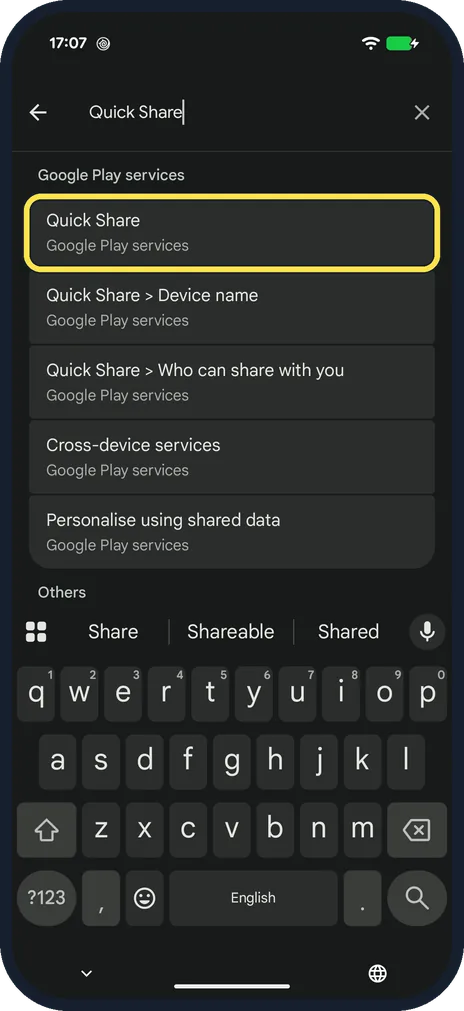
Open Quick Share settings
Search Settings for "Quick Share" and tap the Quick Share result (Google Play services). It is also in Settings, Google.
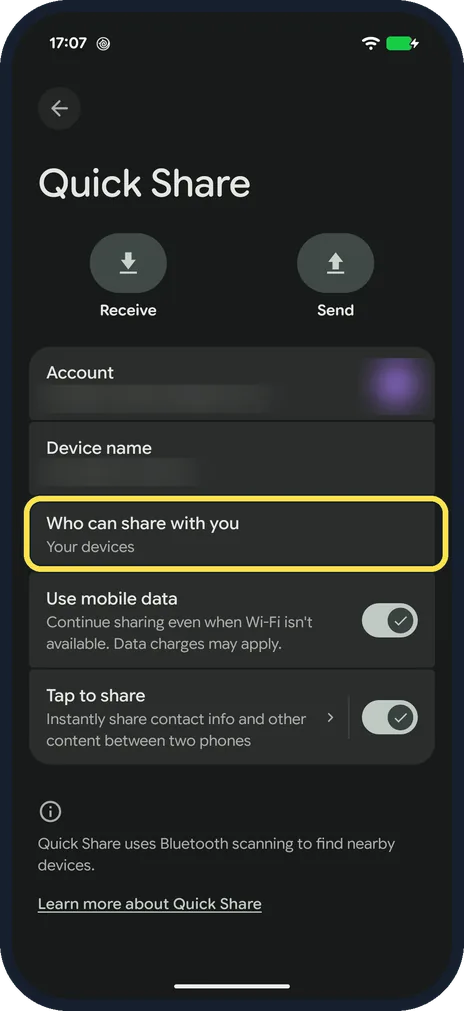
Tap Who can share with you
Ours said Your devices. The page also has Use mobile data and Tap to share, both On on ours.
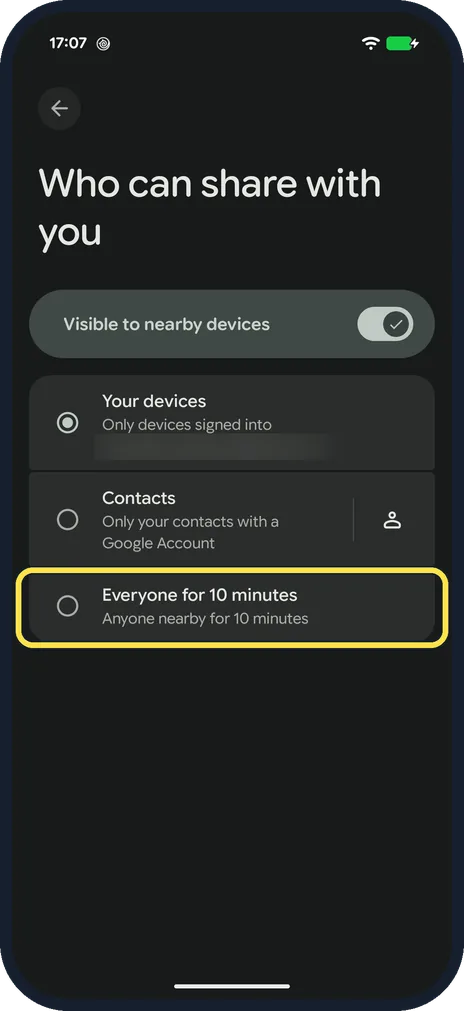
Pick who can share
Your devices: phones signed in to your Google account. Contacts: your contacts with a Google account. Everyone for 10 minutes switches back after 10 minutes; there is no permanent Everyone on the Pixel.
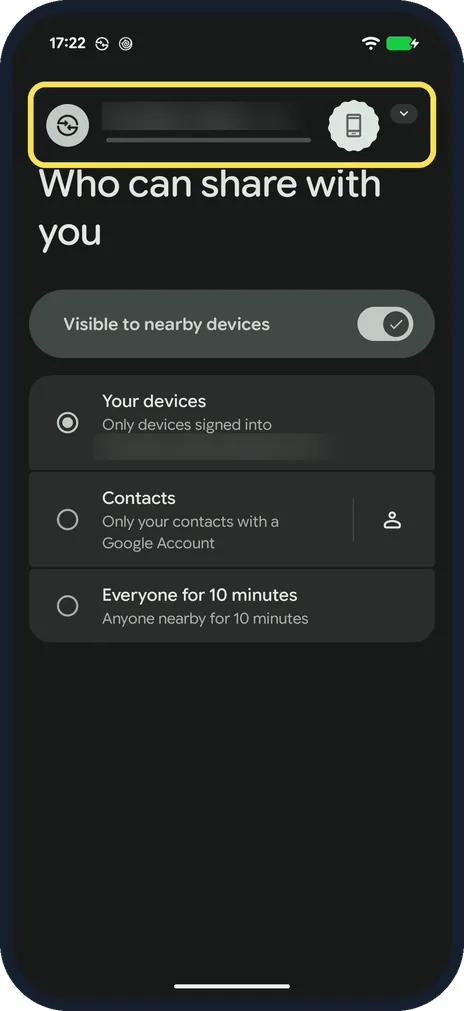
Keep the page open while it arrives
A notification shows the transfer at the top. From the Redmi on our account, no accept prompt appeared.
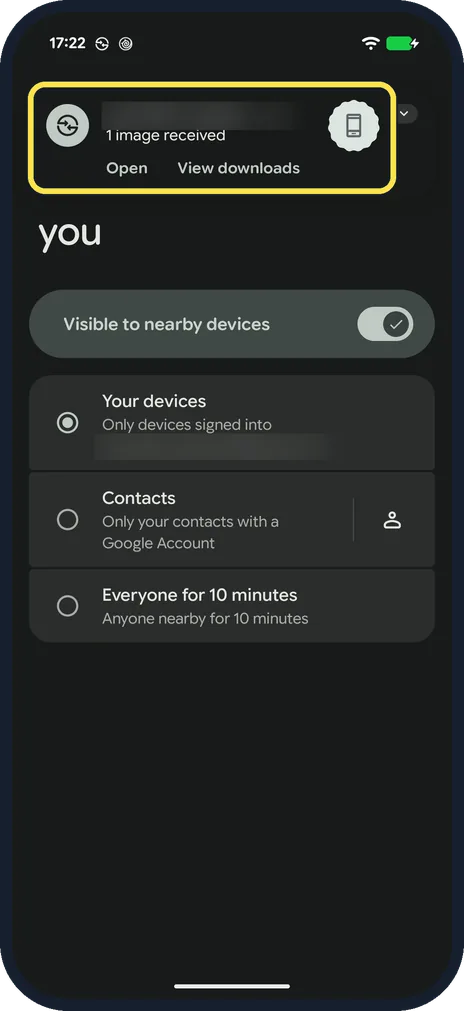
Tap Open
The notification says "1 image received" with Open and View downloads. Open showed the photo in Google Photos on ours.
If you do not see this option
- Sender does not see your Pixel? Visible to nearby devices must be On (top of step 3), and Bluetooth must be on. For a stranger's phone, pick Everyone for 10 minutes. Source: Use Quick Share on your Android device
- No Quick Share result in search? Look in Settings, Google, Quick Share (Devices and sharing on some versions). Source: Use Quick Share on your Android device
If this does not work
- Where did the file go? View downloads in the notification (step 5). Google says received files go to the Files app, Downloads, Quick Share folder; ours had a Quick Share folder in Downloads. Source: Use Quick Share on your Android device
- Slow or stops on mobile data? Use mobile data was On on ours; switch it off to wait for Wi-Fi instead. Source: Use Quick Share on your Android device
About this guide
Quick Share sends photos and files between Android phones nearby. On the Pixel, who may send to you is a Quick Share setting.
The screenshots are from our Google Pixel 10a with Android 17 (build CP3A.261005.005), in Dark mode, taken on 18 October 2026. We sent one photo from our Redmi Note 15 Pro (same Google account) and deleted it afterwards.
Good to know
Sending from a Xiaomi or Redmi: send files with Quick Share on a Xiaomi phone. On a OnePlus: change who can send you files with Quick Share.
In short: Settings search Quick Share, Who can share with you, pick Your devices, Contacts or Everyone for 10 minutes. Tap Open when it arrives.
Links checked in October 2026. Menus and features can change after software updates. These steps match the version named at the top.
Did this guide work for you?
Sorry about that. What happened?