
What changed: the screenshots are now our own iPhone 17e on iOS 27.0.1, dark mode, and the wording is checked against those screens and Apple's iOS 27 guide.
howtosimply.com/guides/how-to-turn-off-full-screen-screenshot-previews-on-an-iphone/ · Checked October 2026 · iPhone 17e · iOS 27.0.1
In this guide
Open Settings, tap General, then Screen Capture, and switch off Full-Screen Previews. A screenshot then shows as a small thumbnail in the lower-left corner again, as on earlier versions, and no longer opens across the whole screen.
3 of 3 steps with real screenshots · 3 official sources below
- Device
- iPhone
- Shown on
- iOS 27.0.1 (iPhone 17e)
- App
- Settings
- Path
- Settings › General › Screen Capture
- Real screenshots
- 3 of 3 steps
- Checked
- October 2026
- Sources
- 3 official, linked below
Step by step
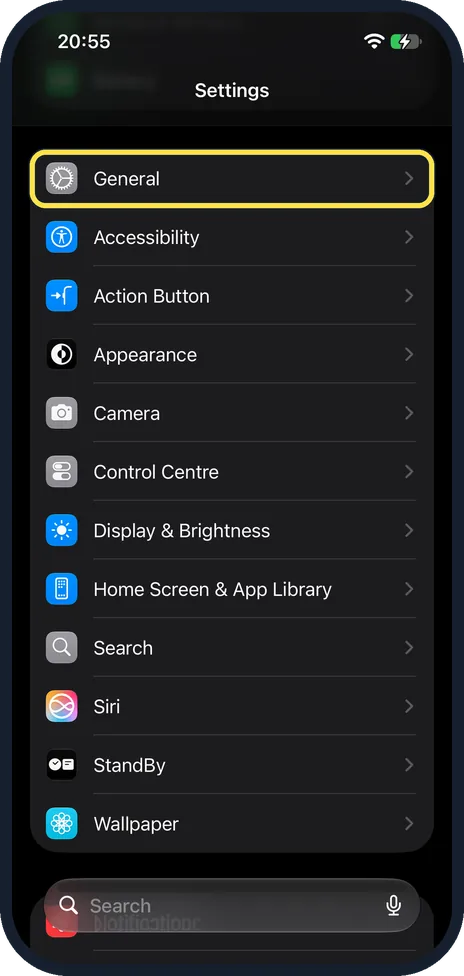
Open Settings and tap General
On our iPhone 17e, General is the first row in the main group of Settings, above Accessibility and Action Button.
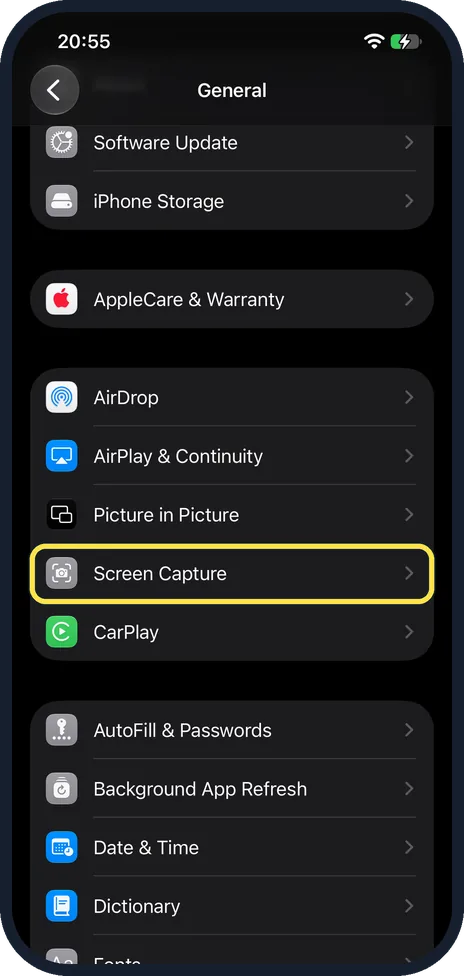
Tap Screen Capture
Scroll down the General page if you need to.
On our iPhone 17e, Screen Capture is in the group with AirDrop, AirPlay & Continuity and Picture in Picture, just above CarPlay.
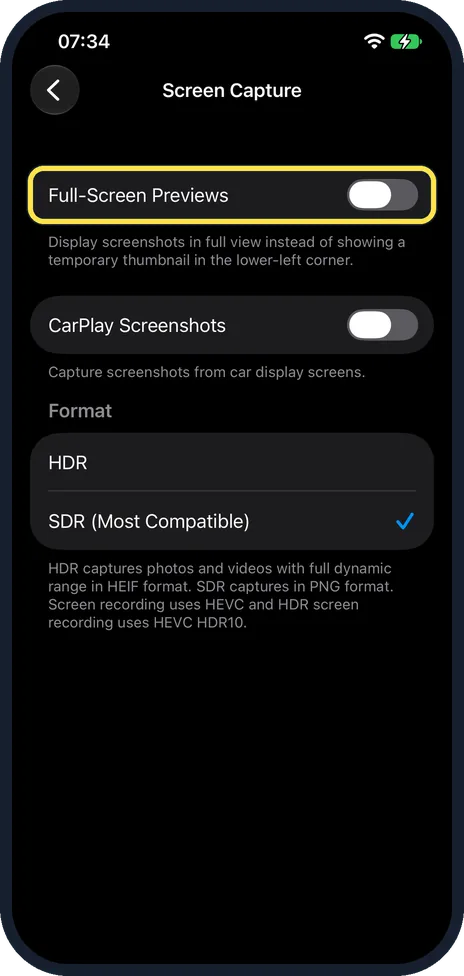
Switch off Full-Screen Previews
On our iPhone 17e the text under the switch reads: Display screenshots in full view instead of showing a temporary thumbnail in the lower-left corner.
Our screenshot shows Full-Screen Previews switched off.
Below it are a CarPlay Screenshots switch, which was off on ours, and a Format choice of HDR or SDR (Most Compatible), with SDR (Most Compatible) ticked.
What changed: the screenshots are now our own iPhone 17e on iOS 27.0.1, dark mode, and the wording is checked against those screens and Apple's iOS 27 guide.
If you do not see this option
- You do not see Automatic Visual Look Up. Apple says it is only on supported models and in some languages. Our iPhone 17e did not show it on the Screen Capture page. Source: Change the screen capture settings on iPhone · Source: Change the screen capture settings on iPhone (iOS 26) · Source: Take a screenshot on iPhone
- You looked under Camera or Photos. Screen Capture is on the General page, not under Camera or Photos.
- You do not see Screen Capture at the top of General. Scroll down. On our iPhone 17e it sits below AppleCare & Warranty, in the group with AirDrop and CarPlay. Source: Change the screen capture settings on iPhone · Source: Change the screen capture settings on iPhone (iOS 26) · Source: Take a screenshot on iPhone
If this does not work
- The thumbnail is gone before you tap it. Apple calls it a temporary thumbnail, and says screenshots with thumbnails save automatically. Open Photos, tap Collections, scroll down to Media Types and tap Screenshots. Source: Change the screen capture settings on iPhone · Source: Change the screen capture settings on iPhone (iOS 26) · Source: Take a screenshot on iPhone
- A screenshot looks less bright on another screen. Apple says HDR screenshots are saved as HEIF and need an HDR display to show in full; on a standard display they appear in SDR. To save PNG files instead, choose SDR (Most Compatible) on the Screen Capture page. On our iPhone 17e it was already ticked. Source: Change the screen capture settings on iPhone · Source: Change the screen capture settings on iPhone (iOS 26) · Source: Take a screenshot on iPhone
About this guide
On iOS 26 and iOS 27 a screenshot opens in full view by default, straight after you take it, with the editing tools ready. If you take several in a row, that gets in the way. Apple's iOS 26 and iOS 27 guides both put the switch under General, Screen Capture.
Screenshots: iPhone 17e, iOS 27.0.1, dark mode.
Good to know
How to take the screenshot in the first place: how to take a screenshot on an iPhone.
With Full-Screen Previews off, Apple says screenshots with thumbnails save automatically. Tap the thumbnail in the lower left if you want to crop it, mark it up or capture a full page.
With full-screen previews, Apple says you save a screenshot to your photo library by swiping up or choosing an option.
Instead of the side button and volume up button, Apple says you can take a screenshot with Siri, AssistiveTouch or Back Tap. We have not checked on our iPhone 17e how those screenshots preview.
In short: Settings, General, Screen Capture, Full-Screen Previews off.
- Apple Support: Change the screen capture settings on iPhone
- Apple iPhone User Guide: Change the screen capture settings on iPhone (iOS 26)
- Apple iPhone User Guide: Take a screenshot on iPhone
Links checked in October 2026. Menus and features can change after software updates. These steps match the version named at the top.
Did this guide work for you?
Sorry about that. What happened?