
howtosimply.com/guides/how-to-create-and-delete-safari-profiles-on-an-iphone/ · Checked October 2026 · iPhone 17e · iOS 27.0.1
In this guide
Go to Settings, Apps, Safari and tap New Profile under Profiles. Type a name, pick an icon and colour, then tap the tick. To delete one, tap it, tap Delete Profile, then Delete. On ours, deleting our only extra profile also removed the Personal profile iOS had made.
- Device
- iPhone
- Shown on
- iOS 27.0.1 (iPhone 17e)
- App
- Settings
- Path
- Settings › Apps › Safari › Profiles › New Profile
- Real screenshots
- 6 of 6 steps
- Checked
- October 2026
- Sources
- 1 official, linked below
Step by step
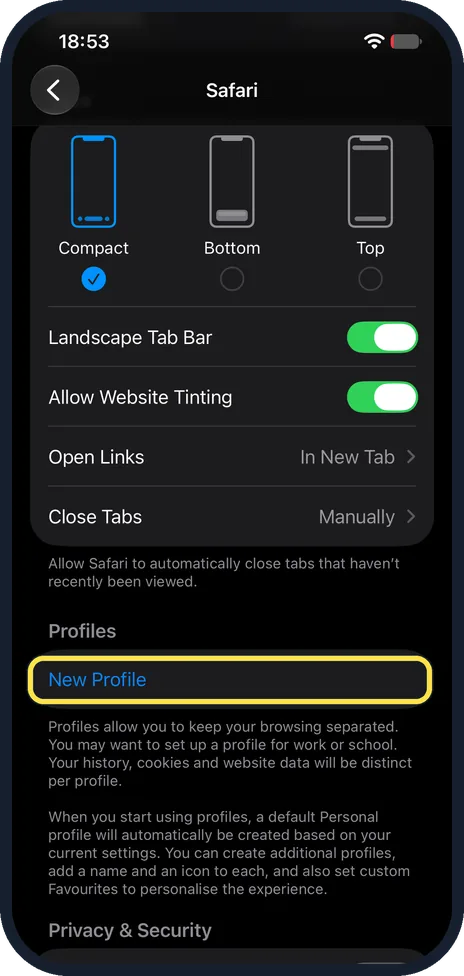
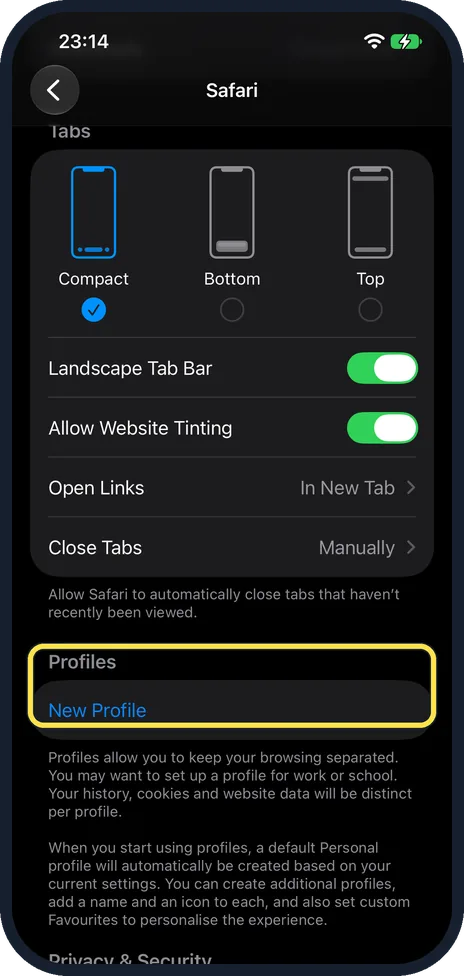
Tap New Profile
Open Settings, tap Apps, then Safari. Scroll down to Profiles and tap New Profile. The note below says a default Personal profile will be made automatically when you start using profiles.
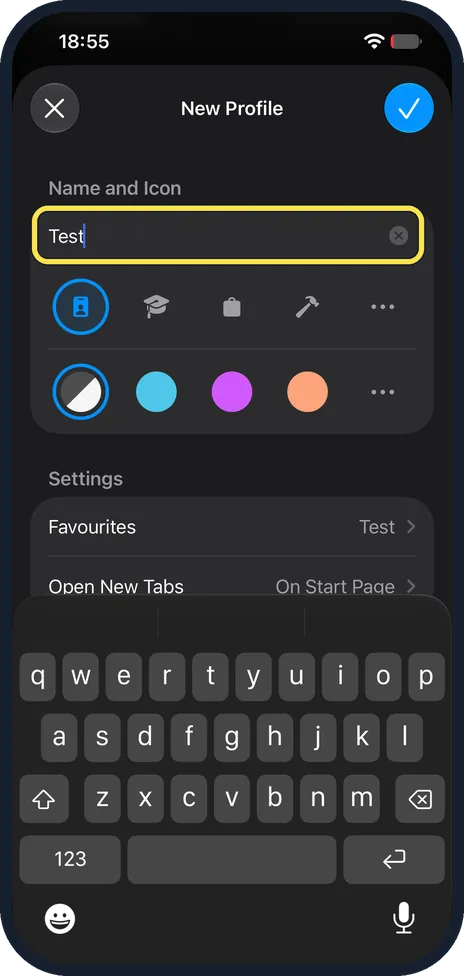
Name it and tap the tick
Type a name. Pick an icon and a colour below it. Under Settings, Favourites became a folder with the same name on ours. Tap the tick at the top right.
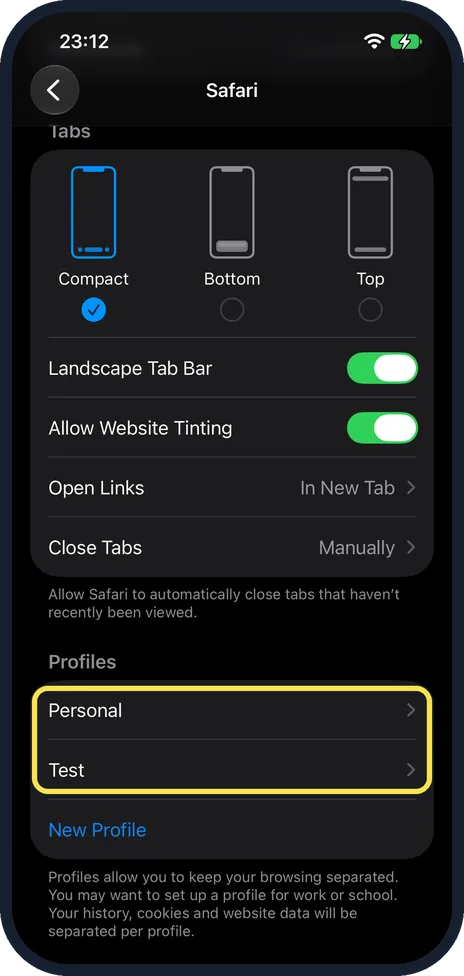
Check the list
Profiles now listed Personal and Test. We had not made Personal: iOS added it.
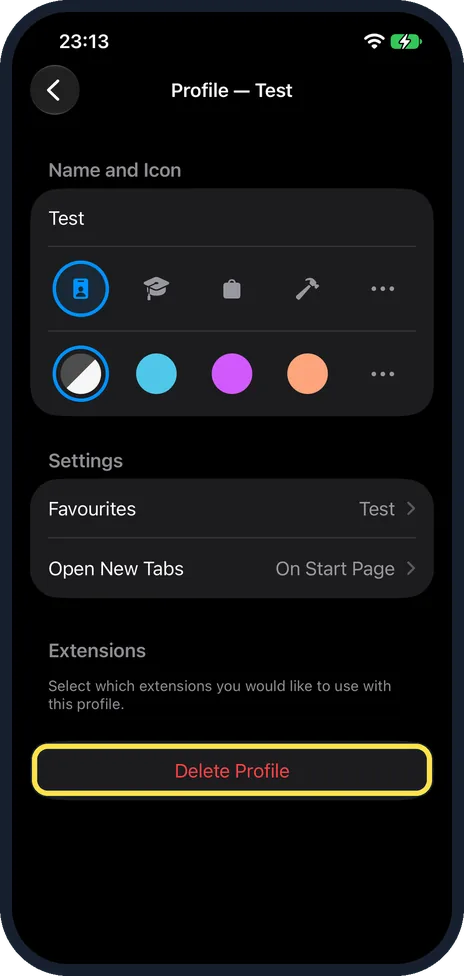
To delete one, tap Delete Profile
Tap the profile in the list. Delete Profile is at the bottom of its page.
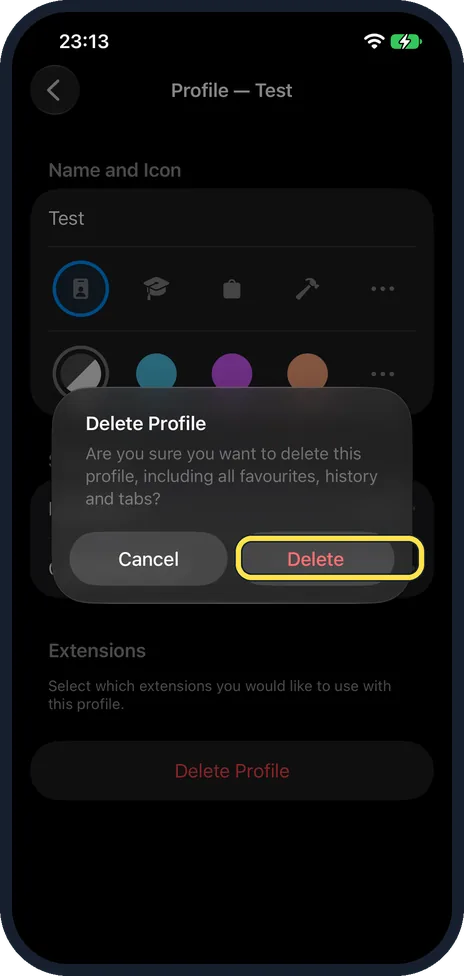
Tap Delete
The box says this deletes the profile, including all its favourites, history and tabs.
Check the list
Ours was back to just New Profile: Personal went too, and Safari had no profiles again.
If you do not see this option
- How do I switch profiles in Safari? Apple says you switch in the Safari app: tap Profile in its menu and pick one. Source: Create multiple Safari profiles on iPhone
- Do profiles share passwords? Apple says your saved bookmarks and passwords in iCloud Keychain work in every profile. Source: Create multiple Safari profiles on iPhone
If this does not work
- A Personal profile appeared? That is normal: iOS makes it when you add your first profile, as the note under Profiles says.
- Lost tabs after deleting? Deleting a profile deletes its tabs, history and favourites, as the Delete box says. Apple says this cannot be undone. Source: Create multiple Safari profiles on iPhone
About this guide
Profiles keep two sets of browsing apart in Safari, such as work and home, each with its own favourites, history and tabs.
The screenshots are from our iPhone 17e with iOS 27.0.1, in Dark mode. We made a profile called Test and deleted it again.
Good to know
To clear history in one go, see how to clear Safari history and website data on an iPhone.
In short: Settings, Apps, Safari, New Profile, name, tick. Tap a profile, Delete Profile, Delete to remove it.
Links checked in October 2026. Back up anything you want to keep before you reset or delete. Menus can change after software updates.
Did this guide work for you?
Sorry about that. What happened?