
howtosimply.com/guides/samsung-galaxy-alarm-not-going-off-6-things-to-check/ · Checked October 2026 · Samsung Galaxy A57 5G (SM-A576B), One UI 8.5, Android 16
In this guide
- Check the alarm is on
- Check the days
- Open the alarm and tap Sound
- Turn up the alarm's own volume
- Open Clock settings
- Turn off Silence alarms when system sound is off
- Let alarms through Do not disturb
- Keep Clock out of deep sleep
- If you do not see this option
- If this does not work
- Good to know
- Video demo
- Sources
In the Clock app, check the alarm is switched on and set for the right days. Open the alarm, tap Sound and turn up its slider. Then turn off Silence alarms when system sound is off, allow alarms in Do not disturb, and keep Clock out of sleeping apps.
8 of 8 steps with real screenshots · 3 official sources below
- Device
- Android
- Shown on
- Samsung Galaxy A57 5G (SM-A576B), One UI 8.5, Android 16
- App
- Settings
- Real screenshots
- 8 of 8 steps
- Checked
- October 2026
- Sources
- 3 official, linked below
Step by step
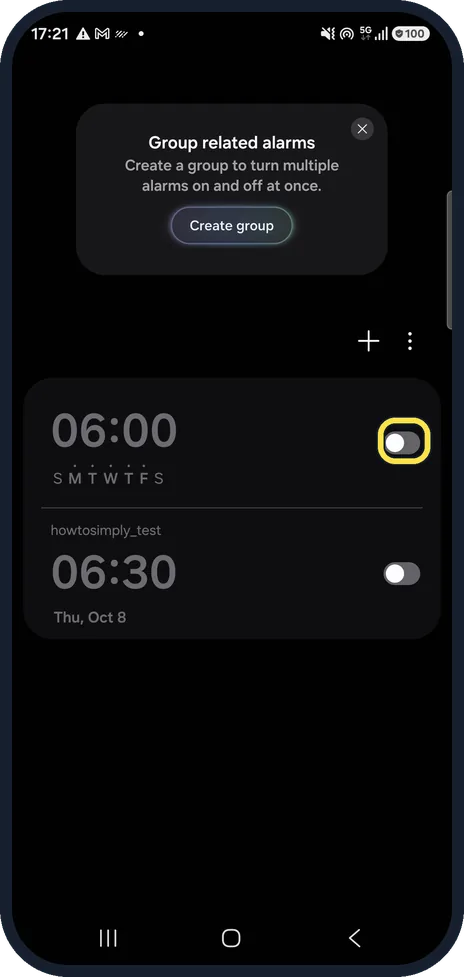
Check the alarm is on
Open the Clock app. Each alarm has its own switch. Both of ours were off, so neither would ring.
Watch these steps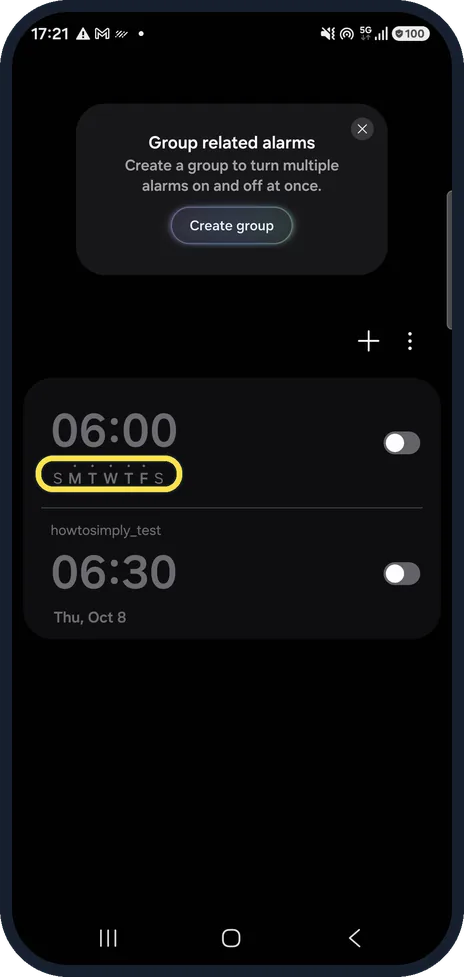
Check the days
The dots over the letters show the days it rings. Ours was set for weekdays only, so it would stay silent at the weekend.
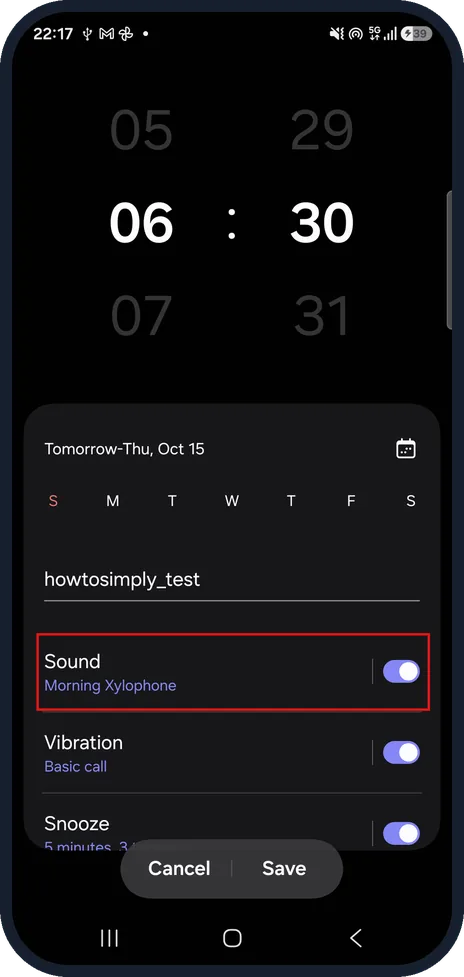
Open the alarm and tap Sound
Tap the alarm to open it. Make sure the Sound switch is on, then tap Sound.
On our Galaxy the howtosimply_test alarm showed Morning Xylophone under Sound, with the switch on.
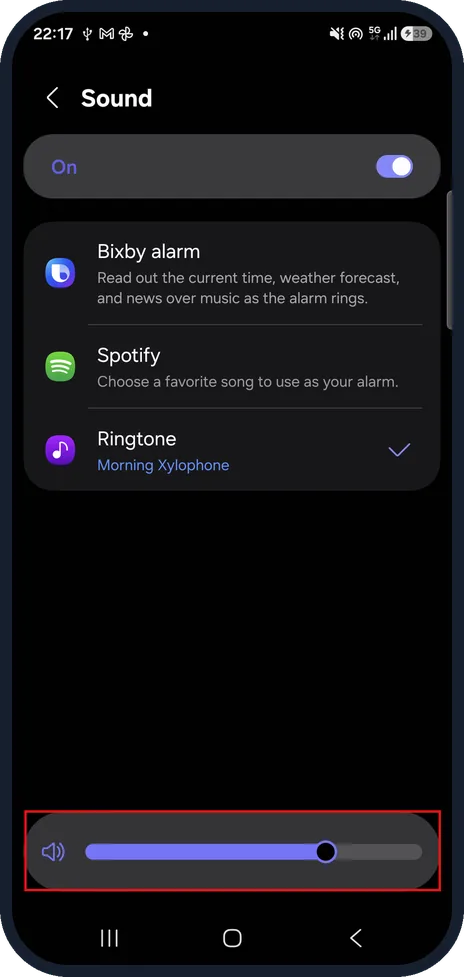
Turn up the alarm's own volume
Drag the slider at the bottom of the Sound page to the right, then go back and tap Save.
On our Galaxy the Alarm slider in Settings, Sounds and vibration, Volume was dimmed, because Set different volume for each alarm was selected in Clock settings, so this slider is the one that counts.
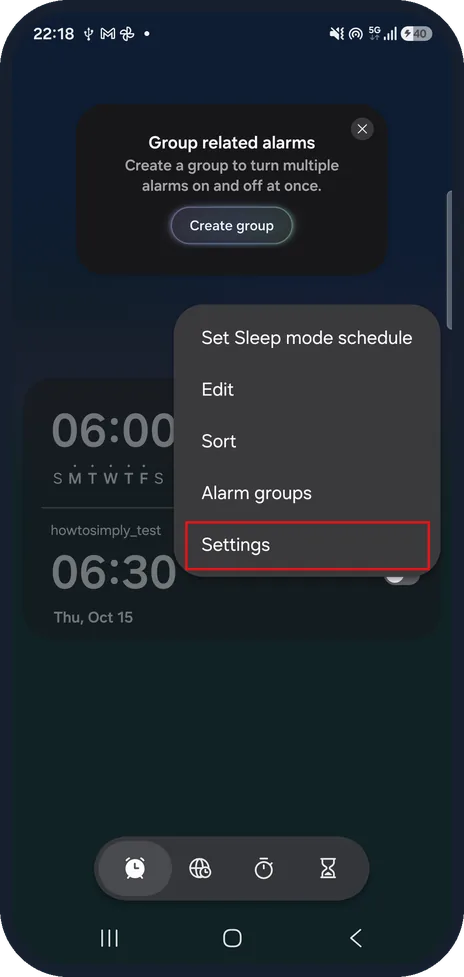
Open Clock settings
On the alarm tab of the Clock app, tap the three dots, then Settings.
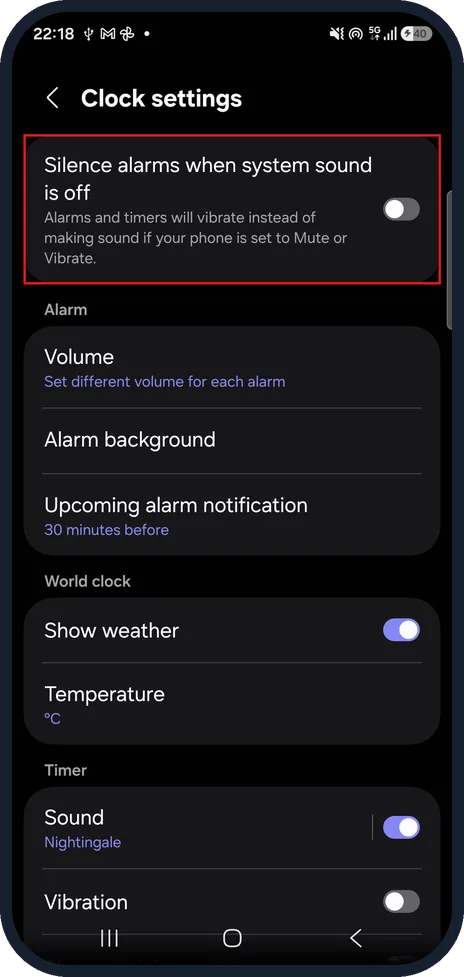
Turn off Silence alarms when system sound is off
Make sure Silence alarms when system sound is off is turned off. When it is on, alarms and timers vibrate instead of making sound if the phone is set to Mute or Vibrate.
On our Galaxy it was off.
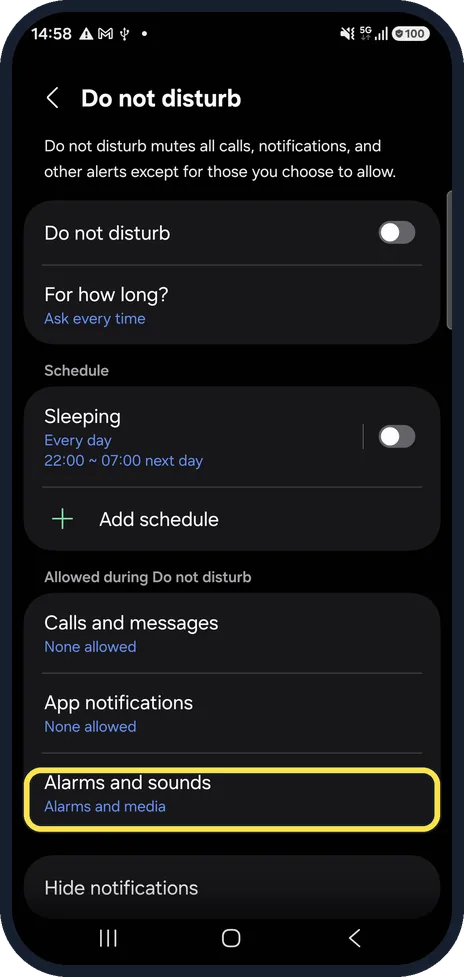
Let alarms through Do not disturb
Go to Settings, Notifications, Do not disturb, Alarms and sounds, and make sure Alarms is allowed.
On our Galaxy the Alarms and sounds row showed Alarms and media underneath.
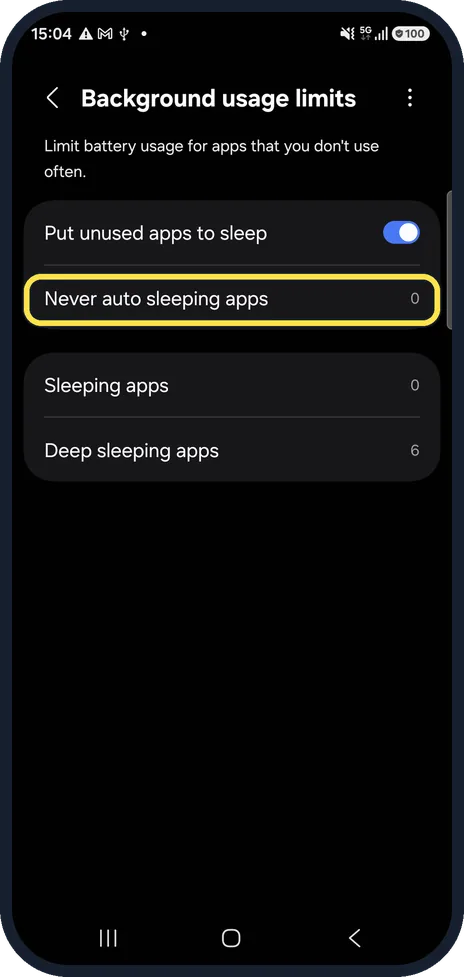
Keep Clock out of deep sleep
Go to Settings, Battery, Background usage limits. Make sure Clock is not in Deep sleeping apps, and add it to Never auto sleeping apps.
On our Galaxy Deep sleeping apps listed 6 apps and Never auto sleeping apps listed 0.
Watch these steps
If you do not see this option
- No volume slider on the alarm's screen The slider is not on the alarm's edit screen. Tap the Sound row to open the Sound page, where the slider sits at the bottom.
- Alarm slider in Volume is dimmed This happens when Volume in Clock settings is set to Set different volume for each alarm. Set the volume inside each alarm instead.
- A date instead of day letters An alarm that shows a date rings once only. On our Galaxy the howtosimply_test alarm showed Thu, Oct 15 rather than day letters; open it and tap the days you want.
If this does not work
- The alarm vibrates but makes no sound Check that Silence alarms when system sound is off is turned off in Clock settings, and that the alarm's Sound switch is on.
- It is still silent at night Check Alarms and sounds in Do not disturb, including any schedule. Ours had a Sleeping schedule for 22:00 ~ 07:00 next day, switched off.
- It stopped ringing after a while Open Deep sleeping apps in Background usage limits, remove Clock if it is listed, and add it to Never auto sleeping apps.
About this guide
A missed alarm usually comes from one of a few settings, most of them inside the Clock app itself.
On other Galaxy phones and One UI versions, a few names and positions may differ. Both of our alarms were switched off; we did not change them.
Good to know
A connected Bluetooth headset can play the alarm in your ears instead of through the speaker.
More on sleeping apps: how to put apps to sleep on a Samsung Galaxy phone.
In short: Alarm switch on, right days, Sound on with its slider up, Silence alarms when system sound is off turned off, alarms allowed in Do not disturb, Clock not sleeping.
- Samsung US: Set and edit alarms on your Galaxy phone or tablet
- Samsung US: Use Do not disturb mode on your Galaxy phone
- Samsung US: Sleeping apps on your Galaxy device
Links checked in October 2026. Menus and features can change after software updates. These steps match the version named at the top.
📷 See real photos from the Galaxy A57 in our Camera Lab, next to 10 other phones.
Did this guide work for you?
Sorry about that. What happened?