
What changed: steps that look different now show our own iPhone 14 Pro on iOS 27.0.1, with the wording checked against that screen.
howtosimply.com/guides/how-to-keep-new-apps-off-the-iphone-home-screen/ · Checked October 2026 · iPhone 14 Pro · iOS 27.0.1
In this guide
Open Settings, tap Home Screen & App Library and choose App Library Only. New apps are then installed without adding an icon to the Home Screen. You find them in the App Library, one swipe past your last Home Screen page.
3 of 4 steps with real screenshots · 1 official source below
- Device
- iPhone
- Shown on
- iOS 27.0.1 (iPhone 14 Pro)
- App
- Settings
- Path
- Settings › Home Screen & App Library › App Library Only
- Real screenshots
- 3 of 4 steps
- Checked
- October 2026
- Sources
- 1 official, linked below
Step by step
Open Settings and tap Home Screen & App Library
It is in the main Settings list.
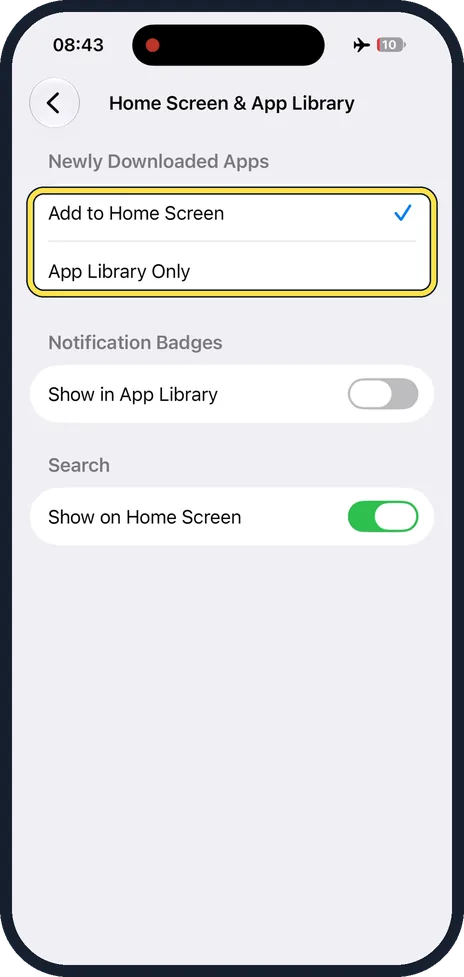
Choose App Library Only
Under Newly Downloaded Apps, the tick is on Add to Home Screen at first. Tap App Library Only to move it.
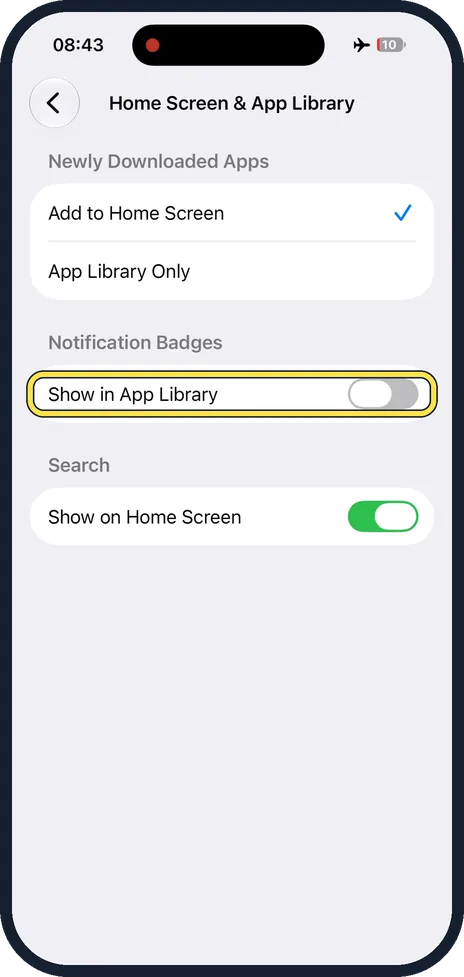
Decide about notification badges
Show in App Library puts the red number badges on the apps in the App Library as well. It is off at first. Switch it on if you would otherwise miss notifications from apps that are no longer on the Home Screen.
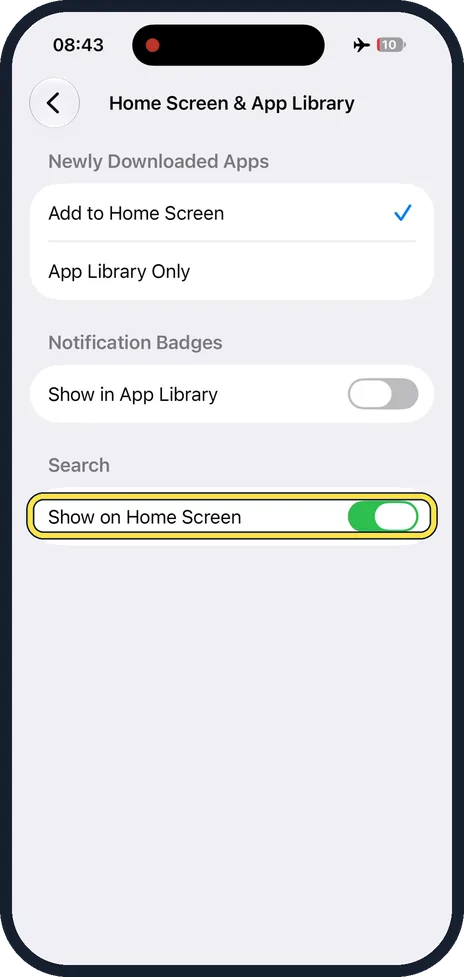
Keep or remove the Search button
Show on Home Screen controls the small Search button above the Dock. With it switched off, you still open Search by swiping down on the Home Screen.
What changed: steps that look different now show our own iPhone 14 Pro on iOS 27.0.1, with the wording checked against that screen.
About this guide
Every app you download normally puts an icon on the Home Screen, and the pages fill up. With one setting, new apps go straight to the App Library, the automatic overview of all apps, and your Home Screen stays as you arranged it.
Good to know
To open the App Library, swipe left on the Home Screen until you are past the last page. The apps are sorted into groups by themselves, and a search field is at the top.
To put an app back on the Home Screen, touch and hold it in the App Library, drag it to the left onto a Home Screen page and tap Done.
Apps you already have stay where they are. To tidy those up: how to delete apps on an iPhone.
In short: Settings, Home Screen & App Library, App Library Only.
Links checked in October 2026. Menus and features can change after software updates. These steps match the version named at the top.
Did this guide work for you?
Sorry about that. What happened?