
What changed: the screenshots are now our own iPhone 17e on iOS 27.0.1, dark mode, and the wording is checked against those screens and Apple's iOS 27 guide.
howtosimply.com/guides/how-to-show-the-location-arrow-in-the-iphone-status-bar/ · Checked October 2026 · iPhone 17e · iOS 27.0.1
In this guide
- Open Settings and tap Privacy & Security
- Tap Location Services
- Scroll down and tap System Services
- Scroll to the bottom and switch on Status Bar Icon
- Check the status bar
- If a switch will not move: check Screen Time
- Check the Location Services row
- If you do not see this option
- If this does not work
- Good to know
- Video demo
- Sources
Open Settings, tap Privacy & Security, then Location Services, then System Services, scroll to the bottom and switch on Status Bar Icon. The location arrow then appears in the status bar when system services request your location.
If you do not see this option
- Status Bar Icon is not with the other switches It is not in the main list of services. On our iPhone 17e it was the last row on the System Services page, below Product Improvement. Apple gives the path as Settings, Privacy & Security, Location Services, System Services. Source: Control the location information you share on iPhone · Source: Control the location information you share on iPhone (iOS 26) · Source: Block apps, app downloads, websites, and purchases on iPhone (iOS 26) · Source: Block features or content with Screen Time on iPhone (iOS 27)
- System Services is not near the top It comes after all the apps. On our iPhone 17e it was the last row, below Wallet.
- On iOS 26 Apple gives the same path: Settings, Privacy & Security, Location Services, System Services. Source: Control the location information you share on iPhone · Source: Control the location information you share on iPhone (iOS 26) · Source: Block apps, app downloads, websites, and purchases on iPhone (iOS 26) · Source: Block features or content with Screen Time on iPhone (iOS 27)
7 of 7 steps with real screenshots · 4 official sources below
- Device
- iPhone
- Shown on
- iOS 27.0.1 (iPhone 17e)
- App
- Settings
- Path
- Settings › Privacy & Security › Location Services › System Services
- Real screenshots
- 7 of 7 steps
- Checked
- October 2026
- Sources
- 4 official, linked below
Step by step
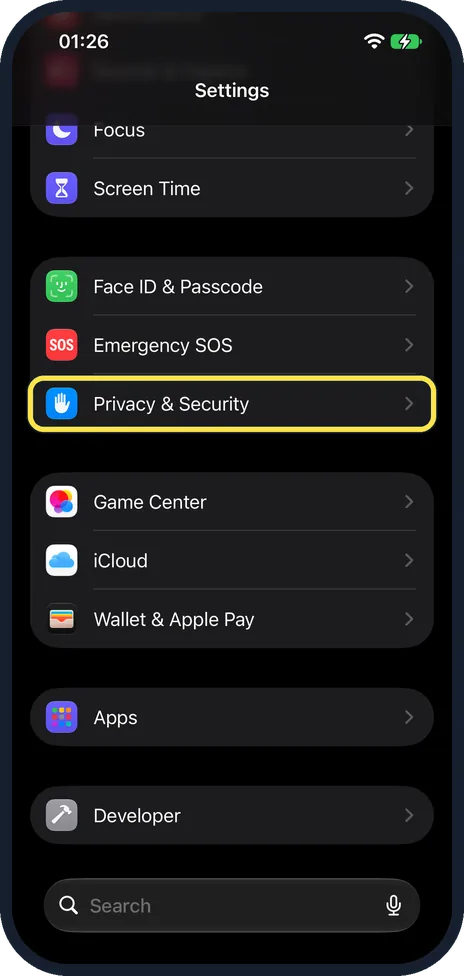
Open Settings and tap Privacy & Security
Scroll down in Settings. On our iPhone 17e it is below Face ID & Passcode and Emergency SOS, and above Game Center.
Watch these steps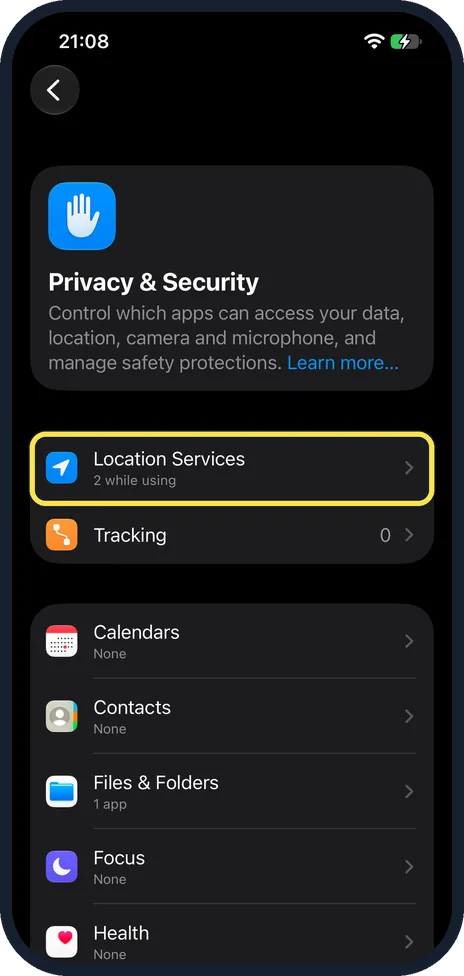
Tap Location Services
It is the first row under the Privacy & Security heading, above Tracking. On our iPhone 17e it read 2 while using below the name.
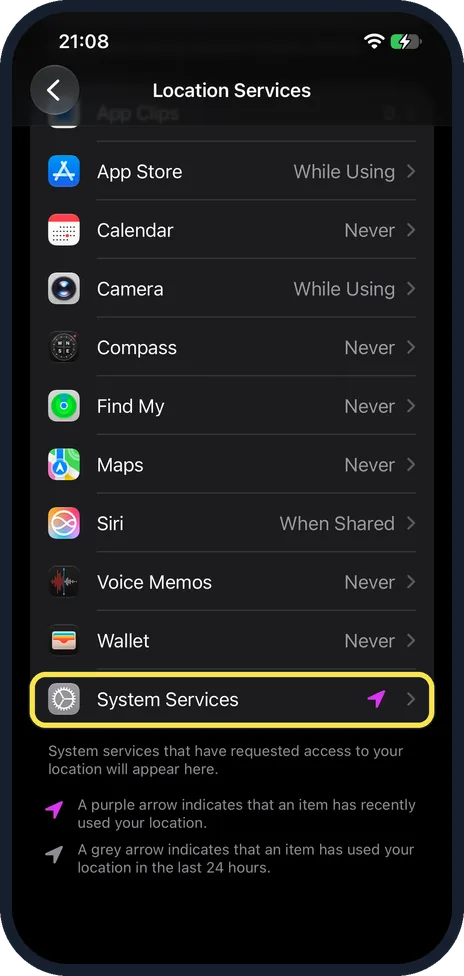
Scroll down and tap System Services
It is the last row of the list of apps. On our iPhone 17e it was below Wallet, and a purple arrow next to it showed that a system service had recently used the location.
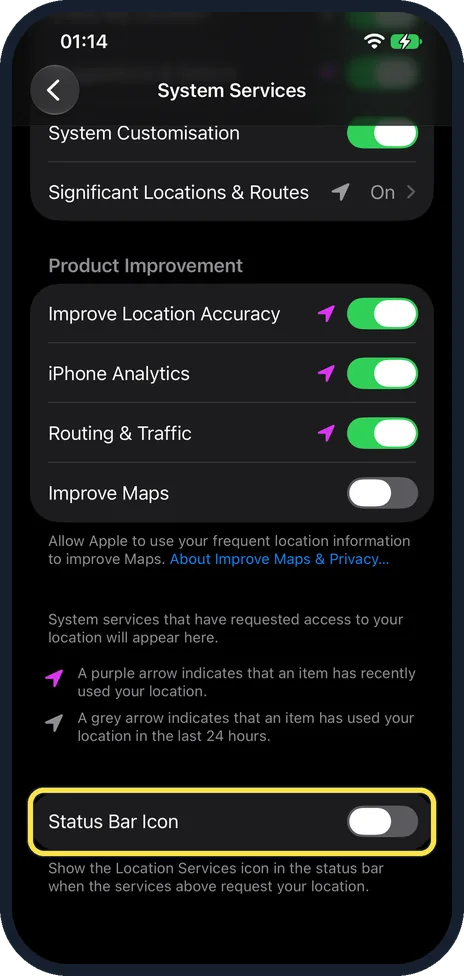
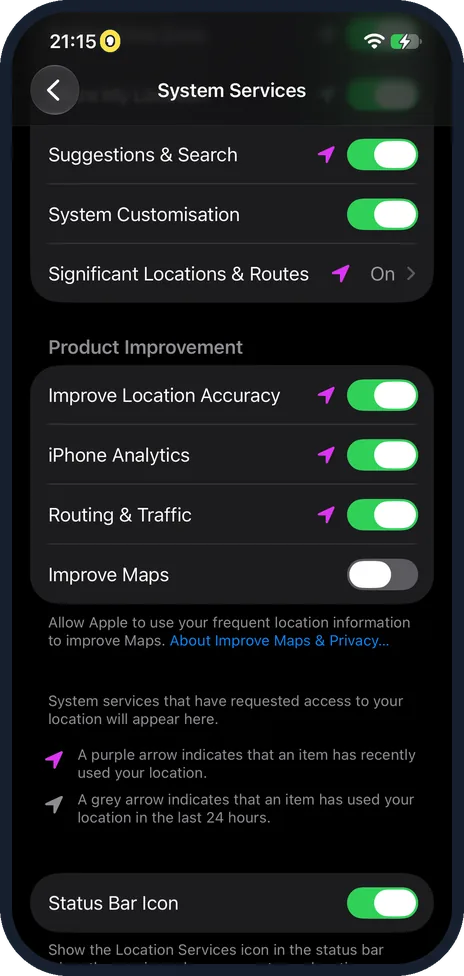
Scroll to the bottom and switch on Status Bar Icon
It sits on its own at the very bottom, below Product Improvement and the key to the purple and grey arrows. On our iPhone 17e it was off; Improve Location Accuracy, iPhone Analytics and Routing & Traffic were on and Improve Maps was off.
The note under it reads: Show the Location Services icon in the status bar when the services above request your location.
Check the status bar
When a system service requests your location, the arrow appears next to the time. In our screenshot, taken just after switching it on, no service was asking for the location, so no arrow showed yet: it appears only while one does.
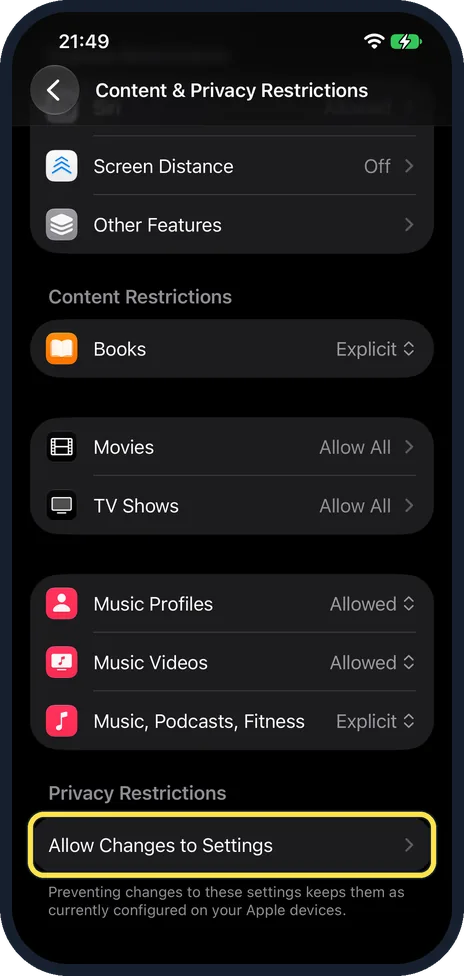
If a switch will not move: check Screen Time
Open Settings, Screen Time, Content & Privacy Restrictions and scroll to the bottom. On our iPhone 17e, Privacy Restrictions had a single row, Allow Changes to Settings. Tap it.
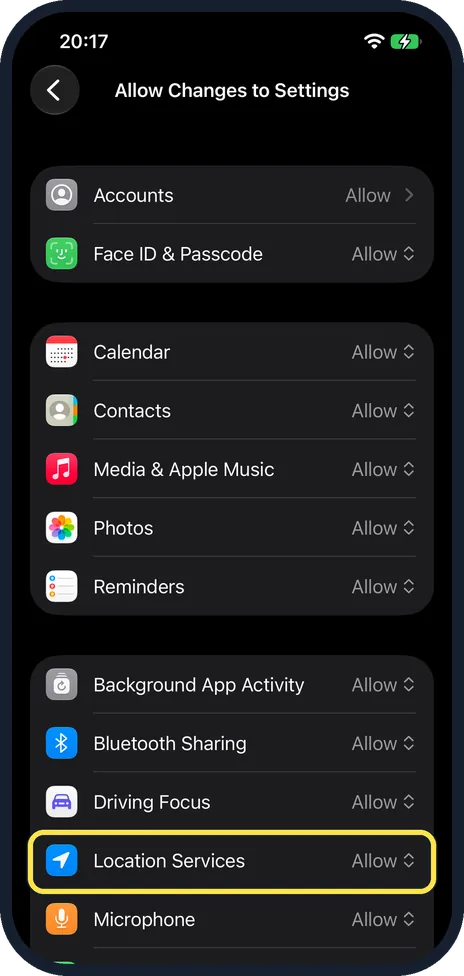
Check the Location Services row
On our iPhone 17e, Location Services was set to Allow, between Driving Focus and Microphone.
A Don't Allow here would explain switches that will not move.
What changed: the screenshots are now our own iPhone 17e on iOS 27.0.1, dark mode, and the wording is checked against those screens and Apple's iOS 27 guide.
Watch these steps
If this does not work
- The arrow does not appear The switch only shows the arrow when a system service actually requests your location, as the note under it says. Apps that use your location show the arrow anyway.
- The switches will not move Screen Time may be locking Location Services. Step 6 shows where to check.
About this guide
When an app uses Location Services, an arrow appears in the status bar. For the system's own services, that arrow is off unless you switch it on. The System Services page also marks each service that used your location: a purple arrow for recently, a grey arrow for the last 24 hours.
Screenshots: iPhone 17e, iOS 27.0.1, dark mode.
Good to know
Each system service has its own switch on the same page: how to turn off location for system services on an iPhone.
In short: Settings, Privacy & Security, Location Services, System Services, Status Bar Icon on.
- Apple iPhone User Guide: Control the location information you share on iPhone
- Apple iPhone User Guide: Control the location information you share on iPhone (iOS 26)
- Apple iPhone User Guide: Block apps, app downloads, websites, and purchases on iPhone (iOS 26)
- Apple iPhone User Guide: Block features or content with Screen Time on iPhone (iOS 27)
Links checked in October 2026. Menus and features can change after software updates. These steps match the version named at the top.
Did this guide work for you?
Sorry about that. What happened?