
What changed: the screenshots are now our own iPhone 17e on iOS 27.0.1, dark mode, and the wording is checked against those screens.
howtosimply.com/guides/how-to-switch-an-iphone-between-metric-and-imperial-units/ · Checked October 2026 · iPhone 17e · iOS 27.0.1
In this guide
Open Settings, tap General, then Language & Region, then Measurement System, and tap Metric, US or UK. The choice is separate from the region and from the temperature unit, which has its own row.
4 of 4 steps with real screenshots · 1 official source below
- Device
- iPhone
- Shown on
- iOS 27.0.1 (iPhone 17e)
- App
- Settings
- Path
- Settings › General › Language & Region › Measurement System
- Real screenshots
- 4 of 4 steps
- Checked
- October 2026
- Sources
- 1 official, linked below
Step by step
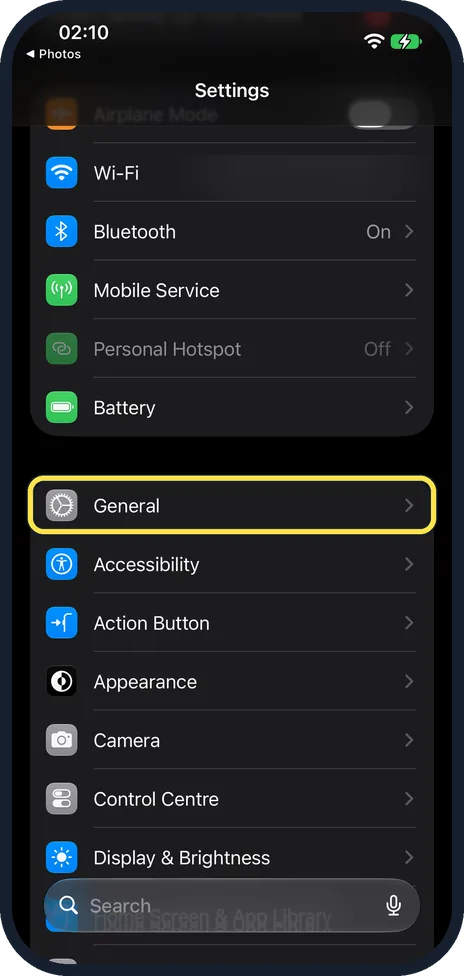
Open Settings and tap General
General is the first row of the group below Battery, after Airplane Mode, Wi-Fi and Bluetooth.
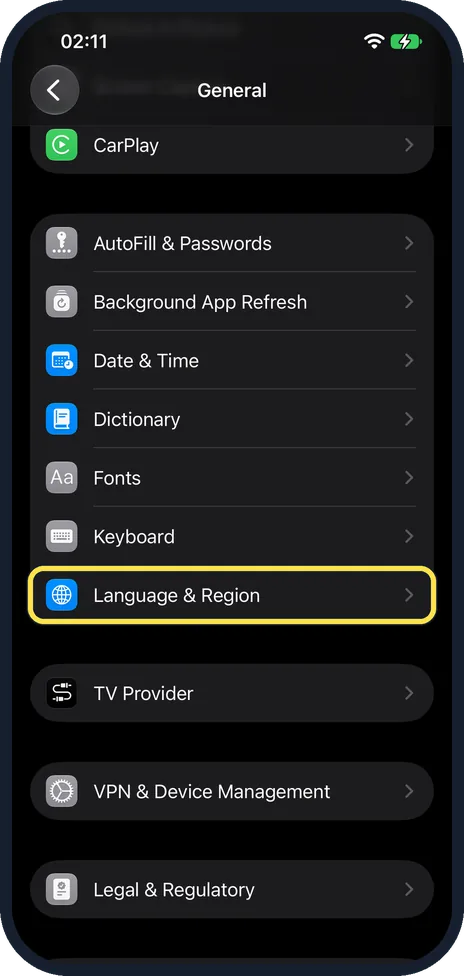
Tap Language & Region
It is just below Keyboard, in the group that starts with AutoFill & Passwords.
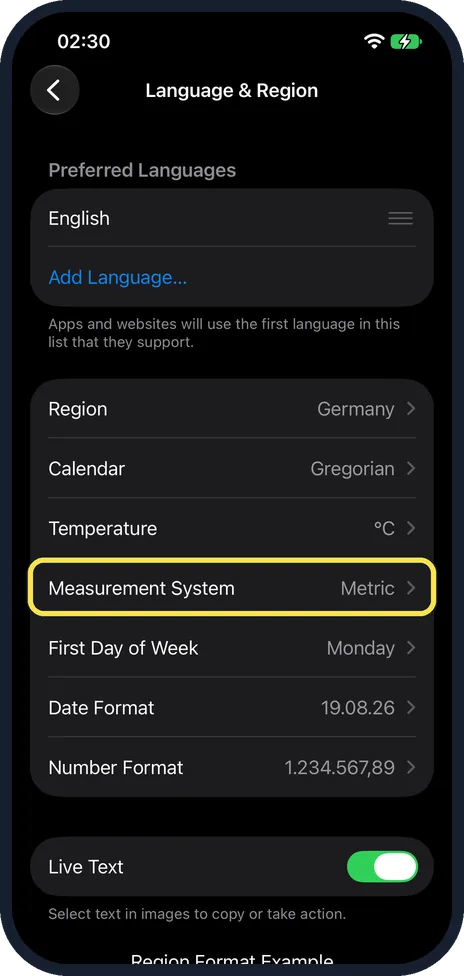
Tap Measurement System
The row shows the current system at the right. Ours, with Region set to Germany, showed Metric.
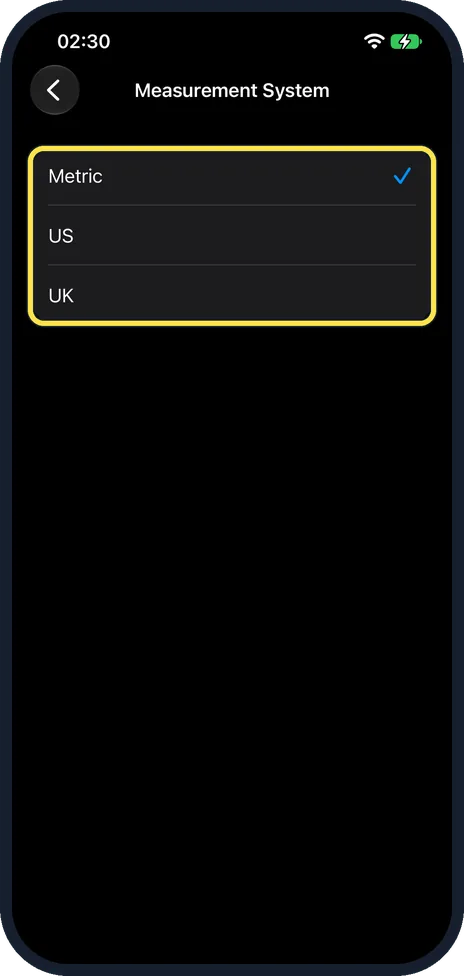
Tap Metric, US or UK
The tick moves to your choice. Ours was on Metric.
What changed: the screenshots are now our own iPhone 17e on iOS 27.0.1, dark mode, and the wording is checked against those screens.
If you do not see this option
- You only want Celsius or Fahrenheit. Temperature is its own row, just above Measurement System. Ours showed °C. Source: Change the language and region on iPhone
- Search for it. Open Settings, tap the search field at the bottom and type Measurement. Apple notes that the sections in Settings depend on the iPhone model. Source: Find settings on iPhone
If this does not work
- Maps shows the old unit. Apple says the scale in Maps follows this setting. Close Maps and open it again. Source: Choose a default travel mode and Maps units on iPhone
- Dates and numbers did not change. Measurement System only changes units. Date Format and Number Format are separate rows on the same page; ours showed 19.08.26 and 1.234.567,89.
About this guide
Kilometres or miles, kilograms or pounds: the iPhone takes the measurement system from its region at first. You can change it on its own, for example when you have moved and want to keep the units you know. Apple lists three systems: metric, US and UK.
The screenshots are our own, taken on an iPhone 17e running iOS 27.0.1, in dark mode.
Good to know
Celsius or Fahrenheit is the row above, Temperature: how to change the region, date format and temperature unit on iPhone.
In short: Settings, General, Language & Region, Measurement System.
Links checked in October 2026. Menus and features can change after software updates. These steps match the version named at the top.
Did this guide work for you?
Sorry about that. What happened?