
howtosimply.com/guides/how-to-scan-a-qr-code-on-a-oneplus/ · Checked October 2026 · OnePlus Nord 5 (CPH2709), OxygenOS 16.0.5.1201, Android 16
In this guide
Swipe down from the top right, swipe left to the second page of Quick Settings and tap QR code. Point the phone at the code; the middle (picture) button at the bottom picks a QR code from your photos instead.
3 of 3 steps with real screenshots · 1 official source below
- Device
- Android
- Shown on
- OnePlus Nord 5 (CPH2709), OxygenOS 16.0.5.1201, Android 16
- App
- Settings
- Real screenshots
- 3 of 3 steps
- Checked
- October 2026
- Sources
- 1 official, linked below
Step by step
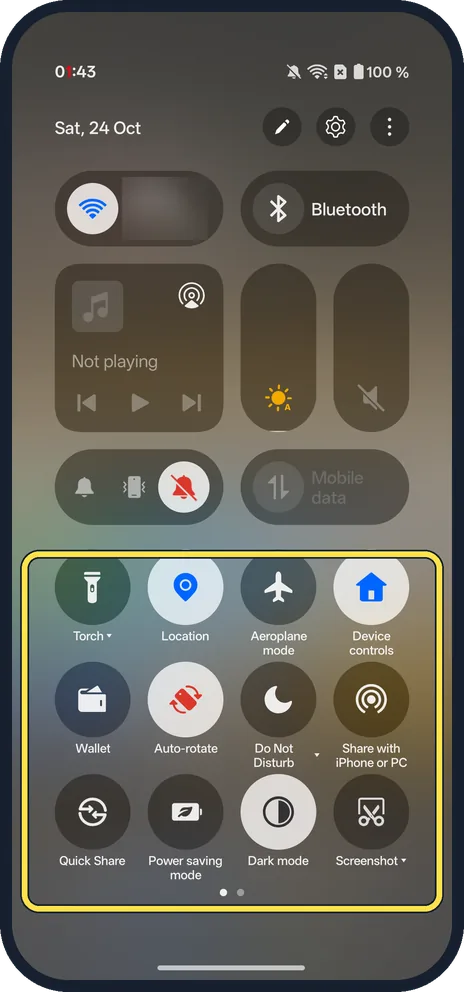
Open Quick Settings
Swipe down from the top right of the screen. The first page of tiles had Torch, Location, Wallet, Quick Share and more on ours. Swipe left on the tiles.
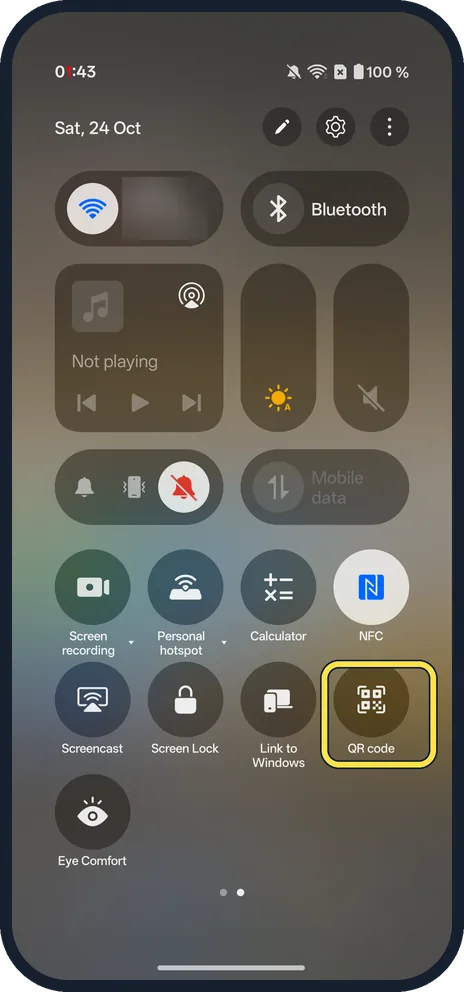
Tap QR code
On the second page, ours had QR code next to Link to Windows.
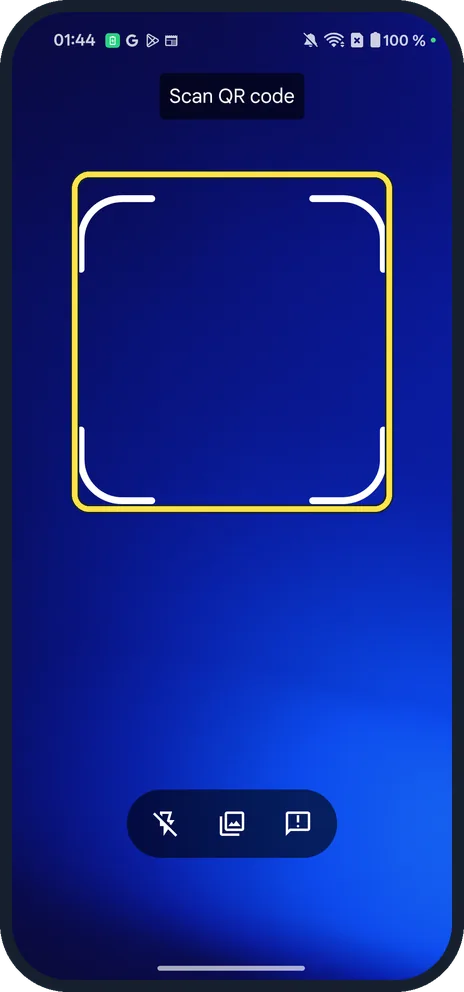
Point at the code
The Scan QR code screen opens. Hold the code inside the frame. Ours asked for no camera permission.
If you do not see this option
- Joining Wi-Fi from a QR code? OnePlus's OxygenOS 14 manual also gives a scanner in Wi-Fi settings: open Settings, Wi-Fi and tap the scan icon in the upper-right corner to scan a shared Wi-Fi code and connect. Source: OxygenOS 14.0 User Manual
- No QR code tile on the second page? Tiles can be moved or removed. Tap the pencil at the top of Quick Settings and drag QR code back: how to change the notification shade and Quick Settings on a OnePlus.
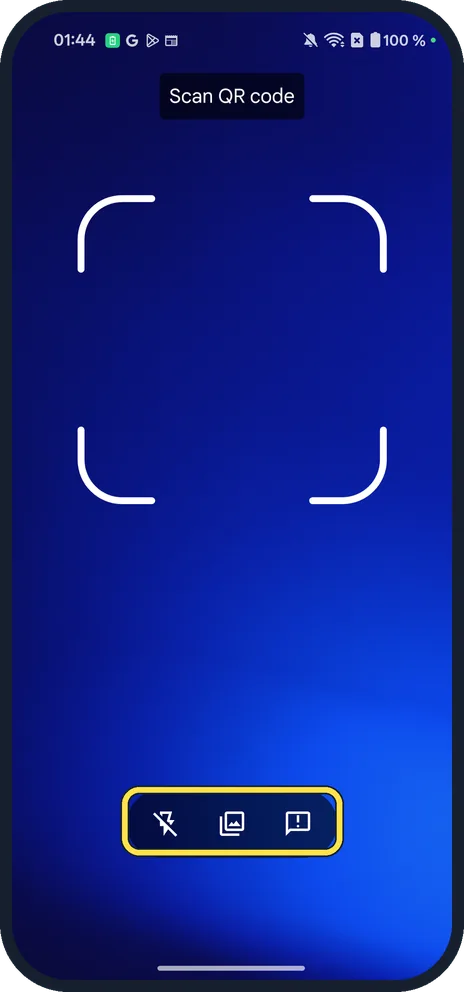
- QR code is in a photo or screenshot? Tap the middle (picture) icon at the bottom of the scanner to pick it from your photos. The other icons are the torch and feedback.
If this does not work
- Code on another phone's screen won't read? Screenshot it on that phone and send it, then scan it from your photos with the picture button.
- Code is too dark to read? Turn on the torch with the left button on the scanner.
About this guide
OxygenOS 16 has its own QR code scanner in Quick Settings, so you do not need to open the camera or install an app.
The screenshots are from our OnePlus Nord 5 with OxygenOS 16.0.5 and Android 16, in Dark mode, taken on 24 October 2026. We opened the scanner but did not scan a code. OnePlus's OxygenOS 14 manual doesn't describe this tile; we confirmed the route on our Nord 5 with OxygenOS 16.
Good to know
Share your Wi-Fi with a QR code: how to share a Wi-Fi password on a OnePlus.
In short: Swipe down from the top right, swipe left, QR code. Picture button scans from photos.
Links checked in October 2026. Menus and features can change after software updates. These steps match the version named at the top.
Did this guide work for you?
Sorry about that. What happened?