ONEPLUS
How to use the accessibility button and shortcuts on a OnePlus (OxygenOS 16)

In short
Go to Settings, Accessibility & convenience, Accessibility. On the General tab tap Accessibility button to set its Size, Fade when not in use and Transparency. Shortcut from Lock screen lets the shortcuts work while the phone is locked.
5 of 5 steps show a real screenshot from our Nord 5. Each step was checked against the maker's own instructions, linked at the end.
Steps
- 1
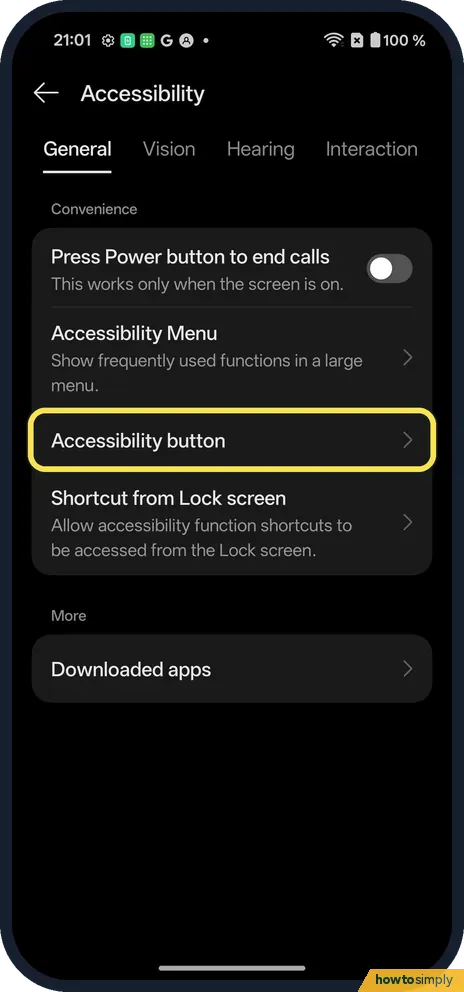
Open the General tab
In Accessibility, General is the first tab. Tap Accessibility button.
- 2
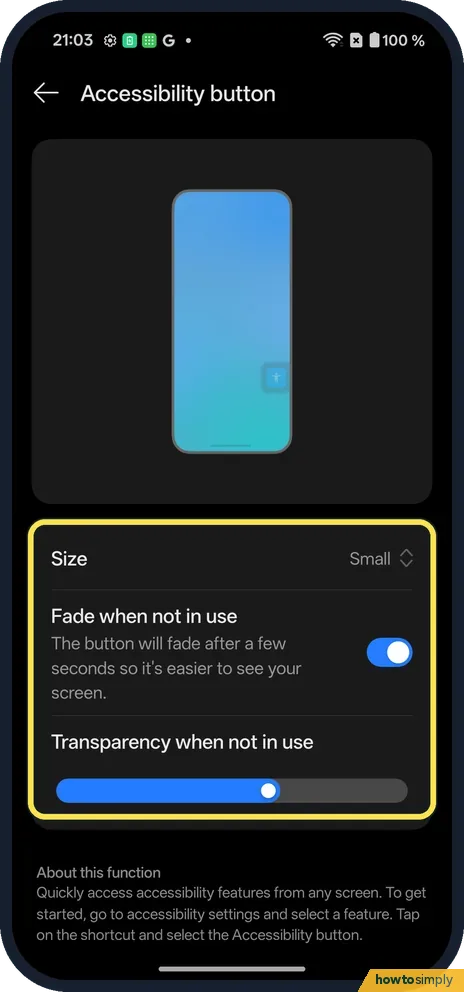
Set how it looks
Size (Small on ours), Fade when not in use (on) and Transparency when not in use.
- 3
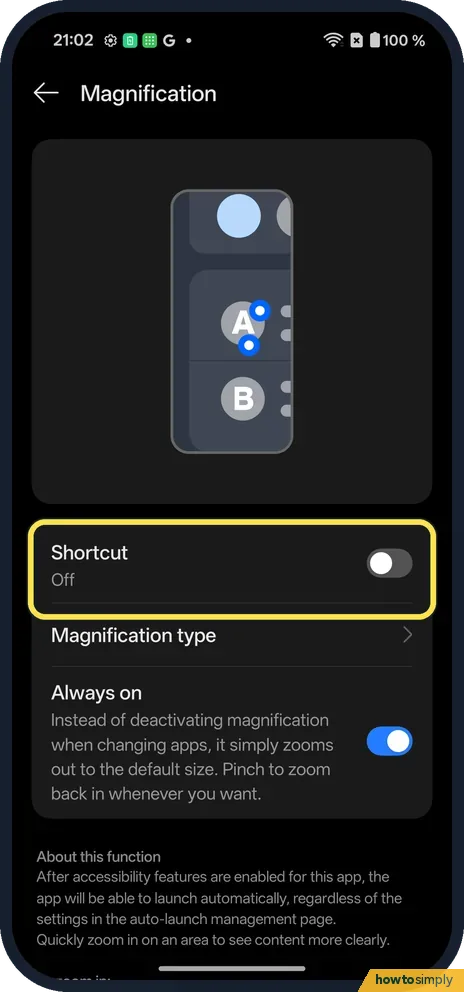
Give it a feature
The button does nothing on its own. On the Vision tab, open a feature such as Magnification and tap Shortcut.
- 4
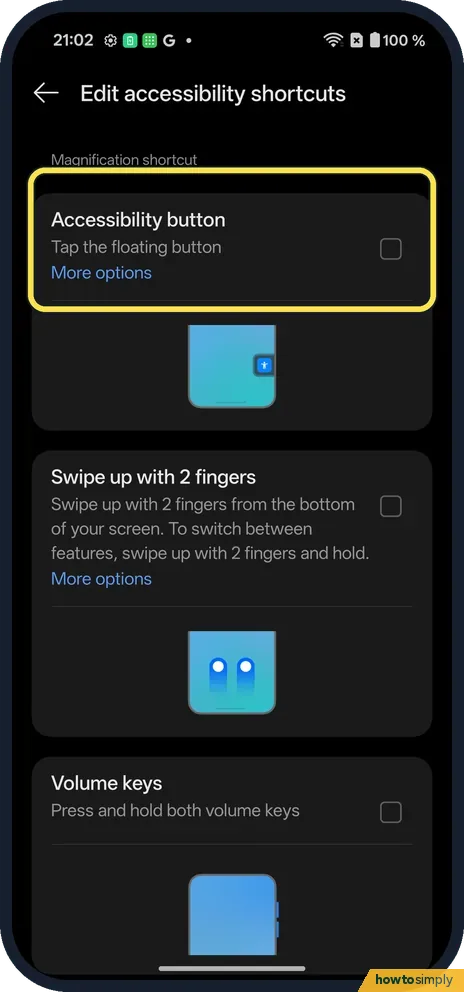
Tick Accessibility button
Edit accessibility shortcuts opens. Tick Accessibility button.
- 5
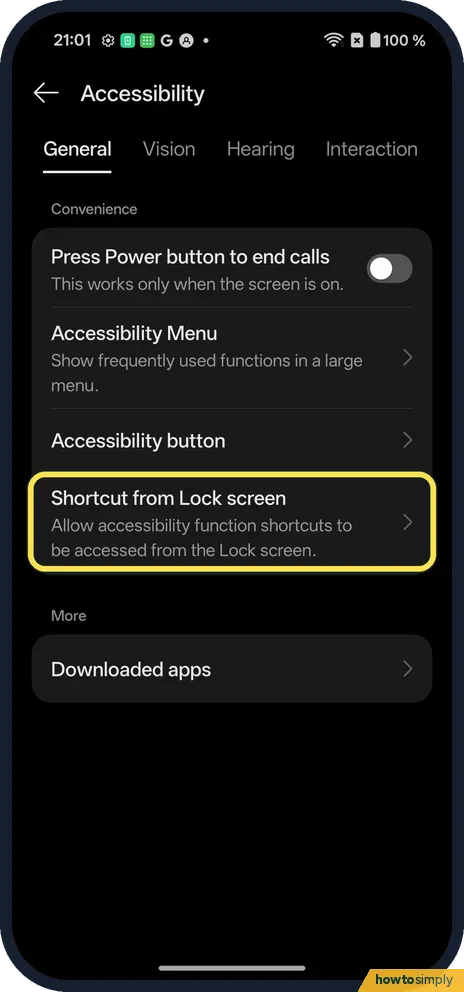
Use it on the Lock screen
Back on General, Shortcut from Lock screen lets shortcuts work while locked.
If you do not see this option
- Accessibility Menu? Also on the General tab: a large menu of common functions.
- Older OxygenOS? The OxygenOS 14 manual has the same shortcut choices under Additional settings, Accessibility. Source: OxygenOS 14.0 User Manual
If this does not work
- Button not showing? Pick Accessibility button as the shortcut in at least one feature.
- Button in the way? Turn on Fade when not in use, or raise the transparency.
- Button covers something you need? Google's help says you can drag the floating button to move it, or drag it towards the edge of the screen to shrink it out of the way.
- Tapping the button opens a menu? That happens when more than one feature uses the button as its shortcut. Pick the feature from the menu, or remove the button from the features you do not need.
- Want the button gone for good? Google's help says that on Android 14 and up you can drag the floating button to Remove, and tap Undo in the tooltip if you change your mind. You can also untick it in each feature's shortcut.
- Feature starts when you press both volume keys? Holding both volume keys is another shortcut type. If it starts a feature by accident, open that feature's Shortcut and untick the volume key option.
Good to know
Turn on magnification on a OnePlus.
Once a feature has the button ticked, the floating button stays on screen in every app until you remove it from all features. It does not use noticeable battery. With Fade when not in use on, it becomes faint after a moment and comes back when you touch it. To undo the setup, untick Accessibility button in each feature's Shortcut.
Google lists other shortcut types besides the button, such as holding both volume keys, a swipe up with two fingers, or a Quick Settings tile. Which ones appear depends on the feature and on whether you use gestures or buttons. If you mostly need one feature, such as zoom, see how to turn on magnification and choose the shortcut that suits you there.
About this guide
- Device
- Android
- Shown on
- OnePlus Nord 5 (CPH2709), OxygenOS 16.0.5.1201, Android 16
- App
- Settings
- Path
- Settings › Accessibility & convenience › Accessibility › General
- Real screenshots
- 5 of 5 steps
- Checked
- October 2026
- Sources
- 2 official, linked below
Sources
Links checked October 2026. Menus and features can change with updates.Spotted a mistake? Menus change with updates, and we want every step to match your screen. Email us about this page or use the contact form. We read every report, and fixes are listed on What changed.
Liked this guide?
Follow us for new guides and short how-to videos.
Did this guide work for you?
Sorry about that. What happened?