In this guide
Swipe down twice, tap the pencil and add System boost or Virus scan from Tap a tile to add. System boost opens Phone Manager's memory page with Boost now. Virus scan starts a scan at once and shows the result.
- Device
- Android
- Shown on
- OnePlus Nord 5 (CPH2709), OxygenOS 16.0.5.1201, Android 16
- App
- Quick Settings
- Path
- Quick Settings › Edit › System boost / Virus scan
- Real screenshots
- 7 of 7 steps
- Checked
- October 2026
- Sources
- 2 official, linked below
Step by step
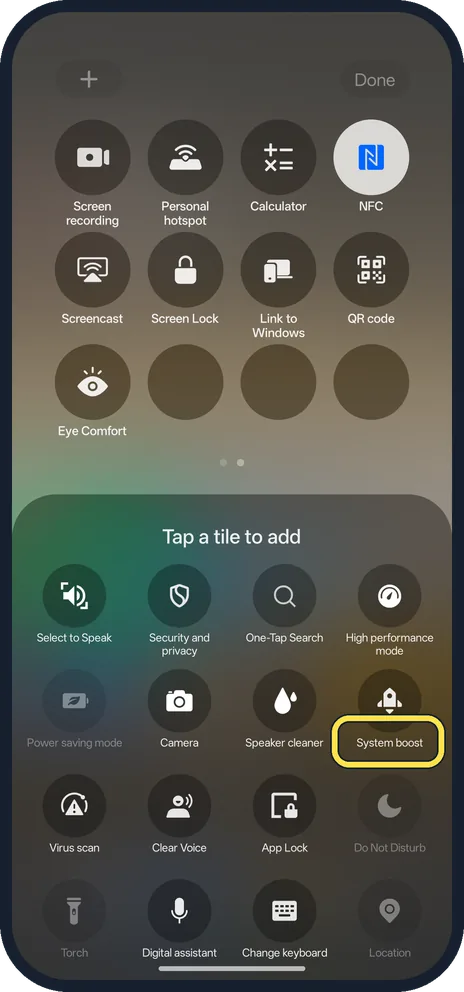
Find System boost
Swipe down twice, tap the pencil. System boost is in the Tap a tile to add list.
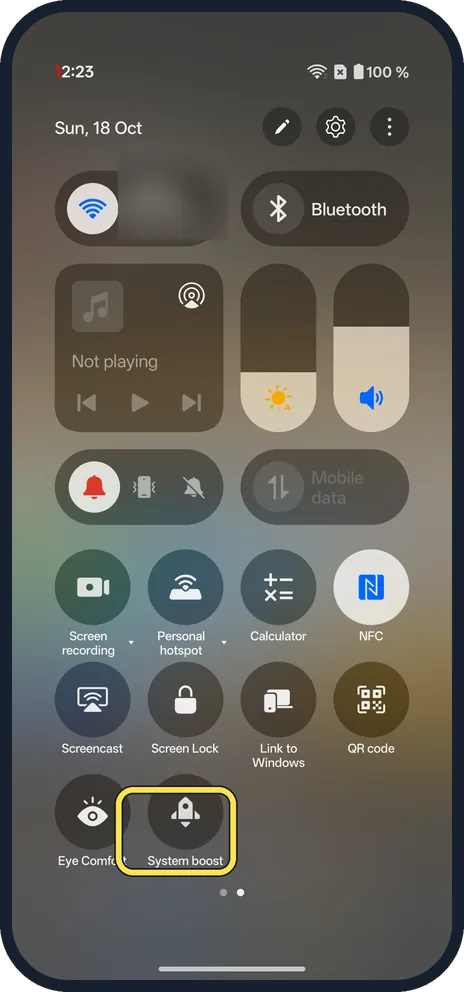
Add it
Tap it. It goes to the end of your tiles.
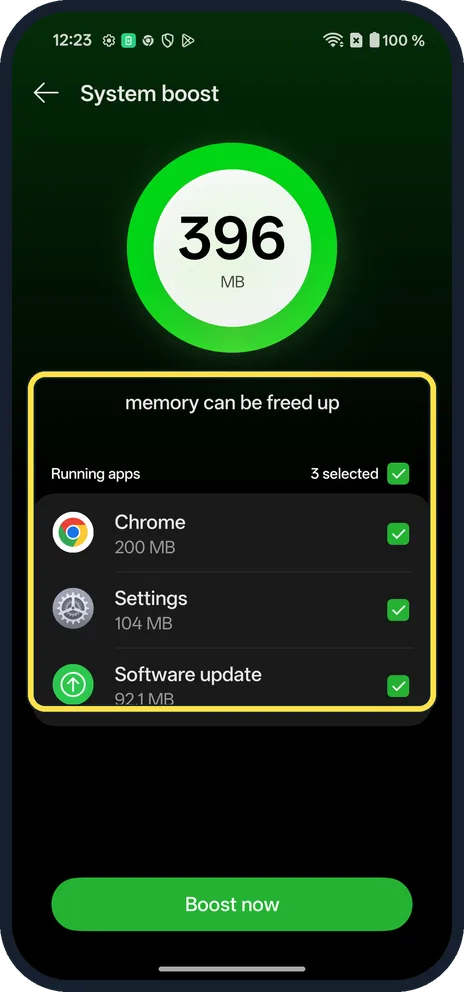
Tap the tile
It opens System boost: 396 MB memory can be freed up on ours, with the running apps ticked and Boost now at the bottom.
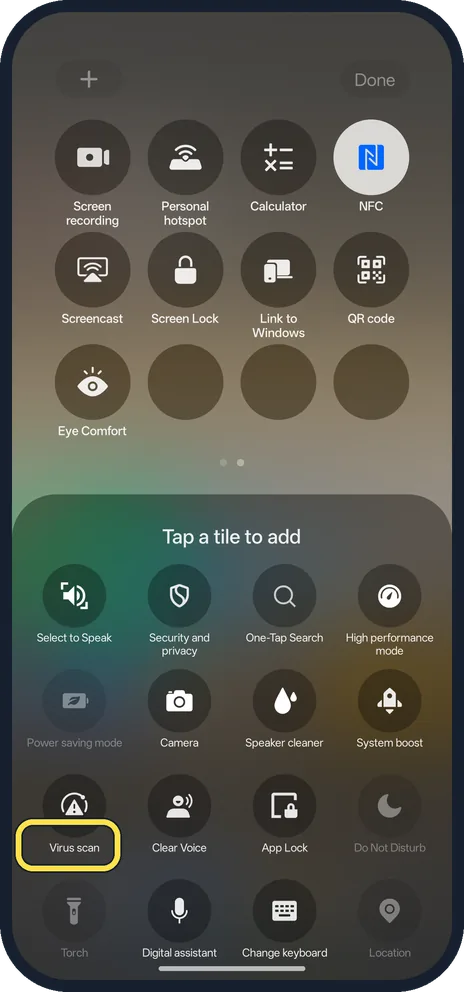
Find Virus scan
In the same list.
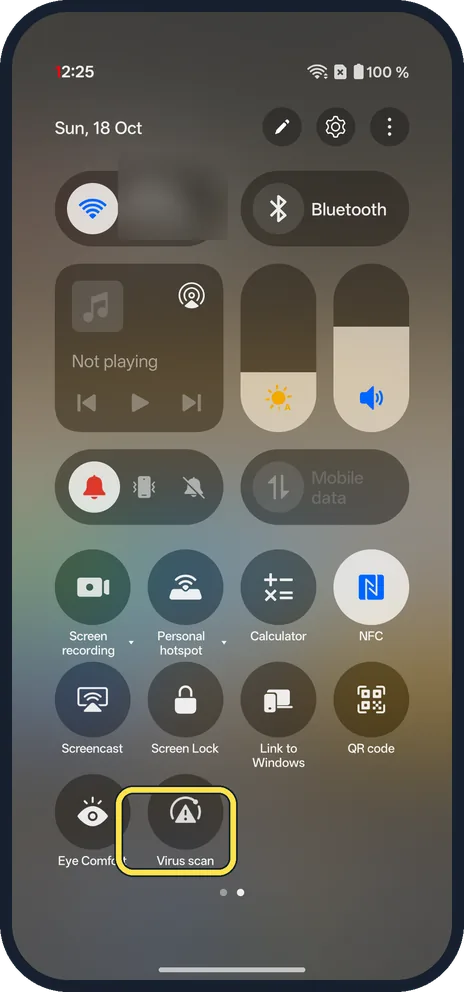
Add it
Tap it.
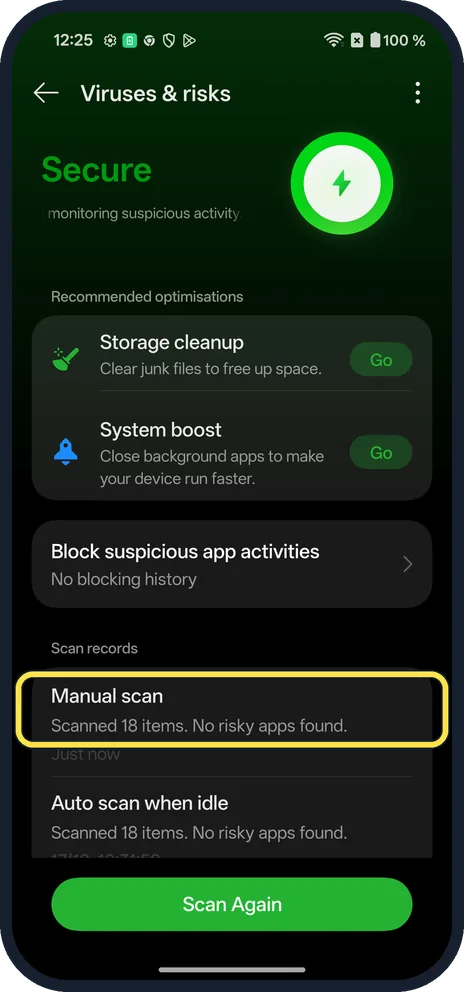
Tap the tile
It opens Viruses & risks and scans straight away. Ours said Scanned 18 items. No risky apps found.
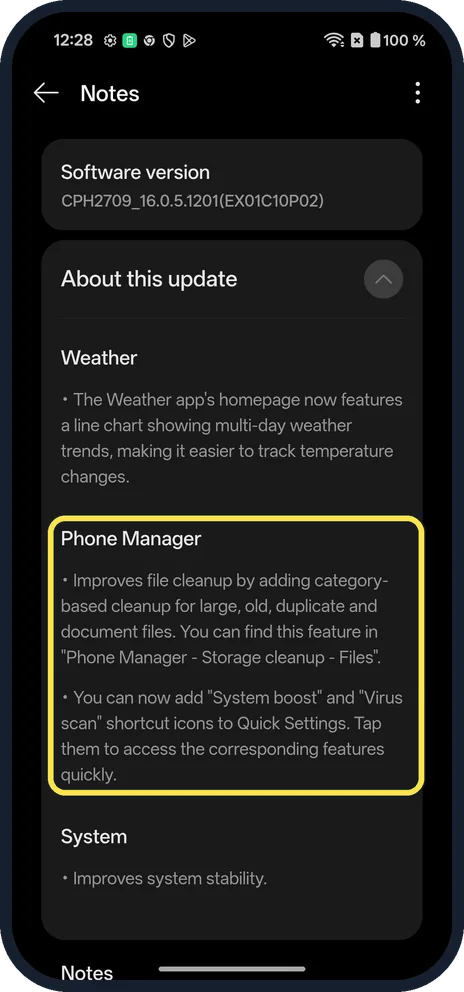
Check the update notes
Settings, System & update, Software update, update notes. Under Phone Manager they list category cleanup for large, old, duplicate and document files, and the System boost and Virus scan icons.
If you do not see this option
- Not in the list? They came with the EX01C10P02 patch; the update notes (last step) list them under Phone Manager. Check Software update.
- From Phone Manager instead? Viruses & risks also lists System boost and Storage cleanup under Recommended optimisations, each with Go.
If this does not work
- Remove a tile? Open the edit view again; we removed both tiles there. More: Quick Settings tiles. Source: Change settings quickly on your Android phone
- Apps closed after Boost now? Boost closes background apps. Keep apps open with background app settings.
- Want Google's scan too? Scan with Play Protect. Source: Use Google Play Protect to help keep your apps safe & your data private
About this guide
The 18 October 2026 patch added two Quick Settings tiles from Phone Manager.
The screenshots are from our OnePlus Nord 5 with OxygenOS 16.0.5.1201 and Android 16, in Dark mode. Some screenshots were retaken after the 18 October 2026 patch (version CPH2709_16.0.5.1201(EX01C10P02)). We added each tile, tapped it, then removed it. We did not tap Boost now.
Good to know
Find large and duplicate files on a OnePlus.
In short: Swipe down twice, pencil, tap System boost or Virus scan, tap the tile.
- Android Help: Change settings quickly on your Android phone
- Google Play Help: Use Google Play Protect to help keep your apps safe & your data private
Links checked in October 2026. Menus and features can change after software updates. These steps match the version named at the top.
Did this guide work for you?
Sorry about that. What happened?