ANDROID
How to change the notification shade and Quick Settings on a OnePlus (OxygenOS 16)

In short
OxygenOS 16 uses a Split shade: swipe down from the top left for notifications and from the top right for Quick Settings. To get both in one pull-down, go to Settings, Notifications & Quick Settings, Quick Settings and choose Classic. Tap the pencil in Quick Settings to edit the tiles.
8 of 8 steps show a real screenshot from our Nord 5. Each step was checked against the maker's own instructions, linked at the end.
Steps
- 1
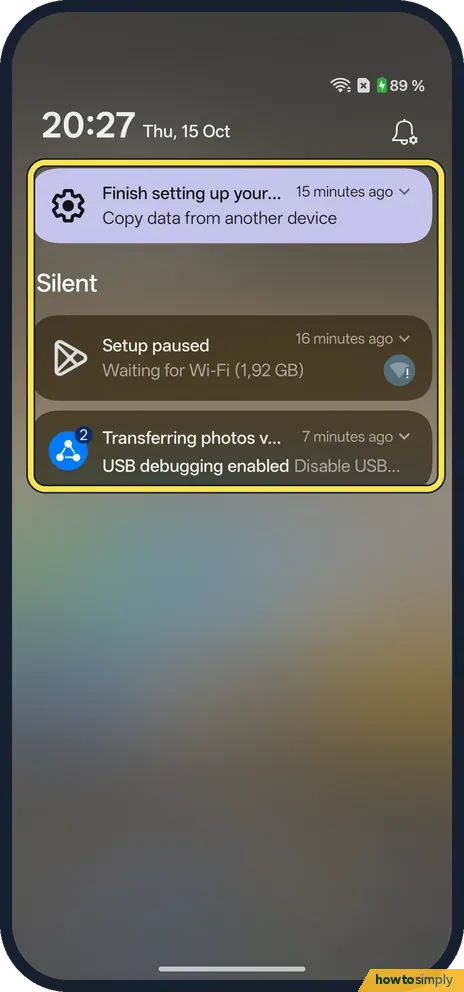
Swipe down from the top left
With the Split layout, a swipe down from the upper left opens only the notification drawer.
- 2
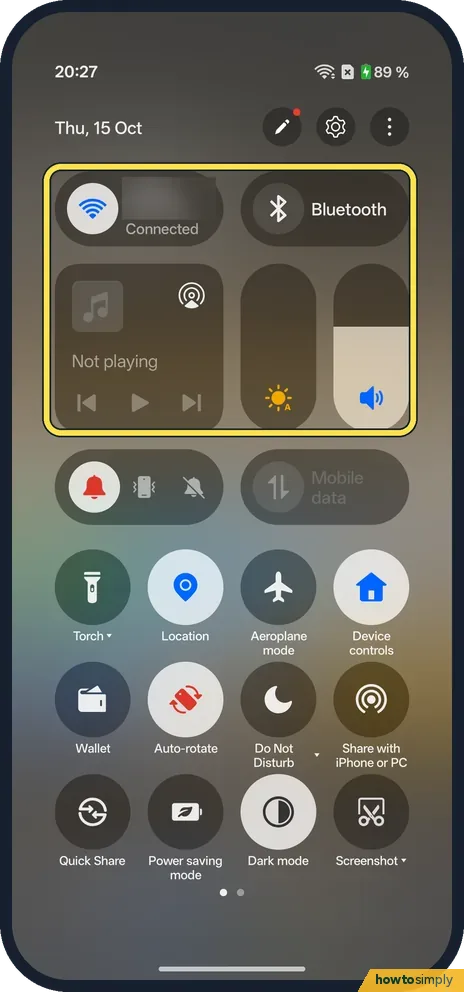
Swipe down from the top right
A swipe down from the upper right opens Quick Settings: Wi-Fi, Bluetooth, media, brightness, volume and the tiles.
- 3
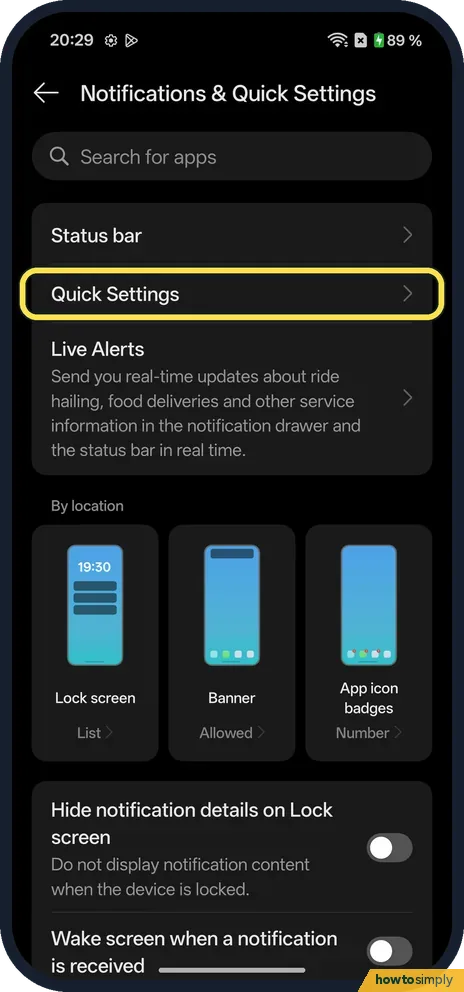
Open the Quick Settings options
Go to Settings, Notifications & Quick Settings, and tap Quick Settings.
- 4
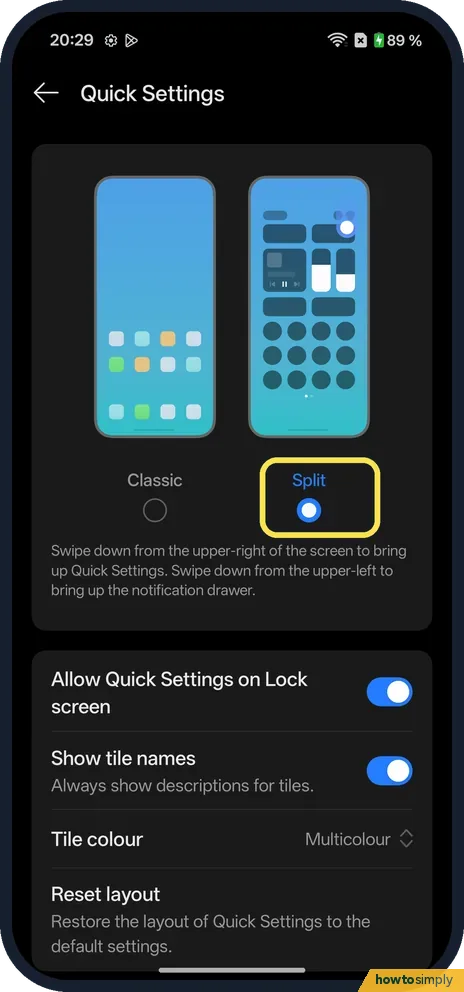
See what Split does
Split was selected on ours. The page says: swipe down from the upper-right of the screen to bring up Quick Settings, and from the upper-left to bring up the notification drawer.
- 5
Choose Classic for one pull-down
Tap Classic. The page now says: swipe down from any area at the top of the screen to bring up Quick Settings and the notification drawer together.
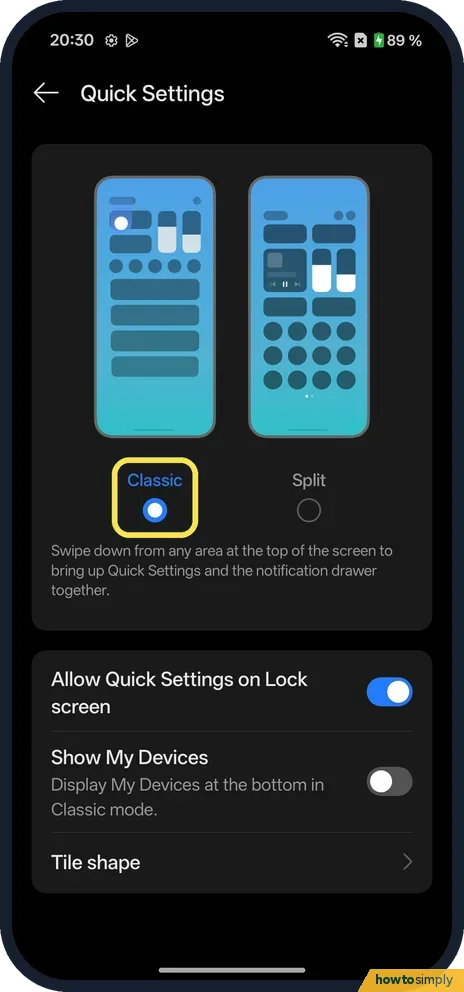
- 6
Check the Classic pull-down
With Classic, one swipe shows the tiles at the top and your notifications underneath.
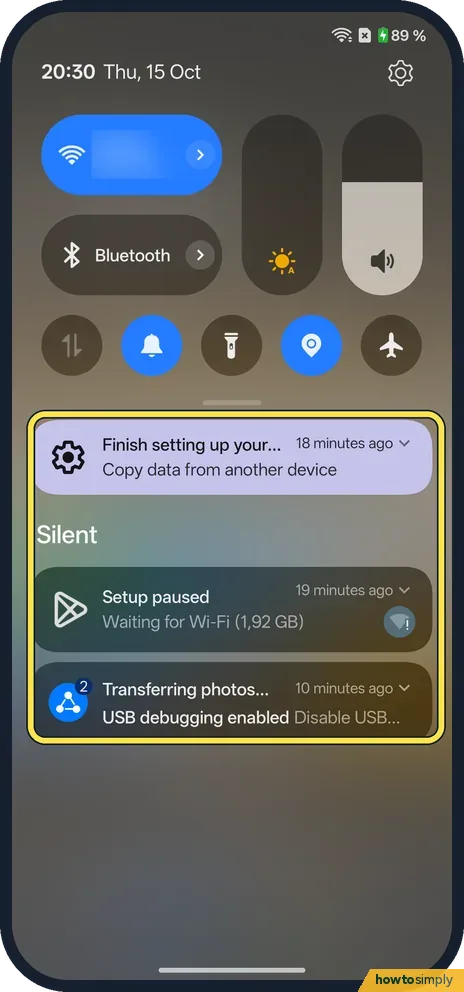
- 7
Edit the tiles
Open Quick Settings and tap the pencil at the top. The first time, a card says Enhanced editing capabilities: you can now reposition, replace or delete large tiles in Quick Settings. Tap GOT IT.
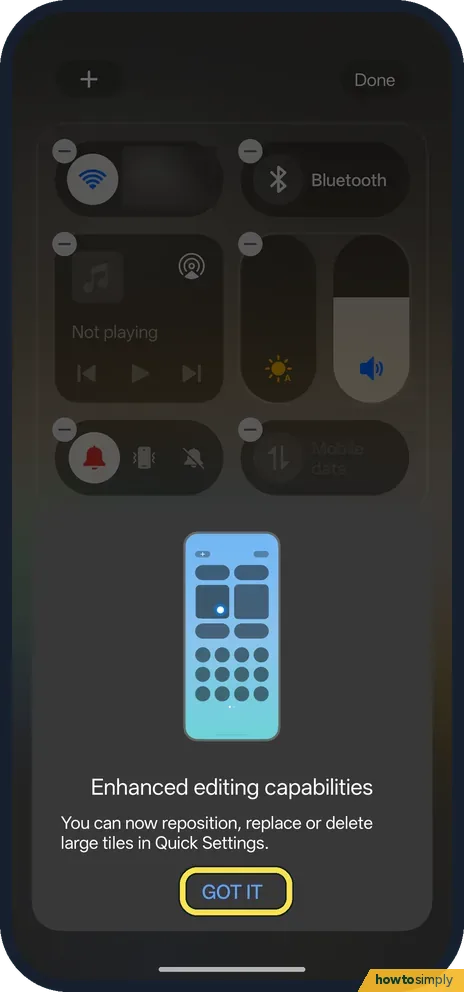
- 8
Remove, add or move tiles
Tap the minus on a tile to remove it, the plus at the top left to add one, or drag a tile to move it. Tap Done.
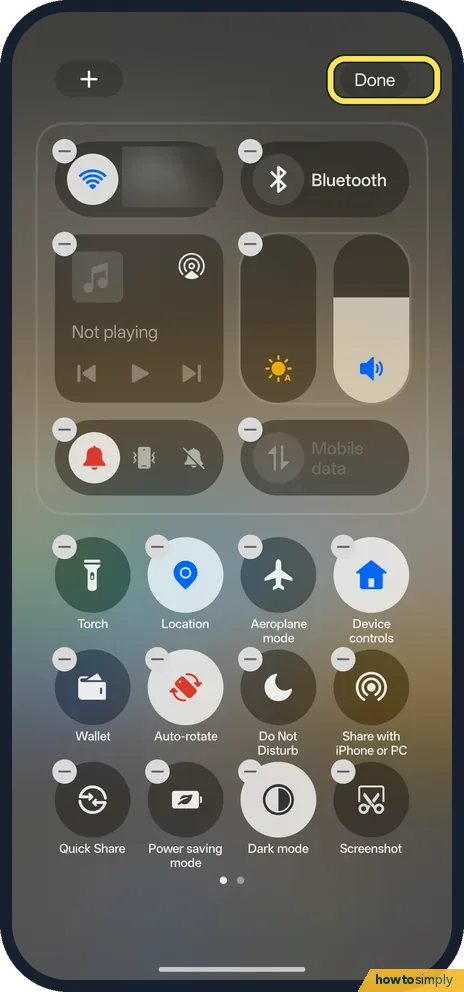
If you do not see this option
- Show My Devices? This switch on the Quick Settings page only appears with Classic. It was off on ours. The page says it shows My Devices at the bottom in Classic mode.
- Tiles on the Lock screen? Allow Quick Settings on Lock screen was on on ours. Turn it off so nobody can use the tiles while the phone is locked.
- More tiles on a second page? Our Quick Settings had two pages, shown by two dots under the tiles. Swipe left to see the second page.
If this does not work
- Pull-down opens the wrong panel? With Split, the side you start from matters. Choose Classic if you want one pull-down for both.
- Tiles look wrong after editing? Reset layout, at the bottom of the Quick Settings page, restores the layout of Quick Settings to the default settings.
- Swiping down on the home screen opens something else? See what swiping down on the home screen does.
Good to know
Choose which icons the status bar shows: network speed and battery percentage.
The OnePlus manual adds two time-savers. Touch and hold a tile to jump straight to that feature's settings, such as Wi-Fi or Bluetooth. In the notification drawer, swipe a notification right to delete it, or swipe left for options such as Set as silent or Turn off notifications. For one noisy app, see turn off notifications for one app.
About this guide
- Device
- Android
- Shown on
- OnePlus Nord 5 (CPH2709), OxygenOS 16.0.5.1201, Android 16
- App
- Settings
- Path
- Settings › Notifications & Quick Settings › Quick Settings
- Real screenshots
- 8 of 8 steps
- Checked
- October 2026
- Sources
- 1 official, linked below
Sources
Links checked October 2026. Menus and features can change with updates.Spotted a mistake? Menus change with updates, and we want every step to match your screen. Email us about this page or use the contact form. We read every report, and fixes are listed on What changed.
Liked this guide?
Follow us for new guides and short how-to videos.
Did this guide work for you?
Sorry about that. What happened?