
howtosimply.com/guides/how-to-scan-a-qr-code-on-a-samsung-galaxy/ · Checked October 2026 · Samsung Galaxy A57 5G (SM-A576B), One UI 8.5, Android 16
In this guide
Open Camera settings and turn on Scan QR codes, then point the camera at the code: Samsung says this gives access to the link, contact or location in it. Or swipe down twice and tap Scan QR code in the quick panel, which opens a scanner.
4 of 4 steps with real screenshots · 1 official source below
- Device
- Android
- Shown on
- Samsung Galaxy A57 5G (SM-A576B), One UI 8.5, Android 16
- App
- Camera
- Real screenshots
- 4 of 4 steps
- Checked
- October 2026
- Sources
- 1 official, linked below
Step by step
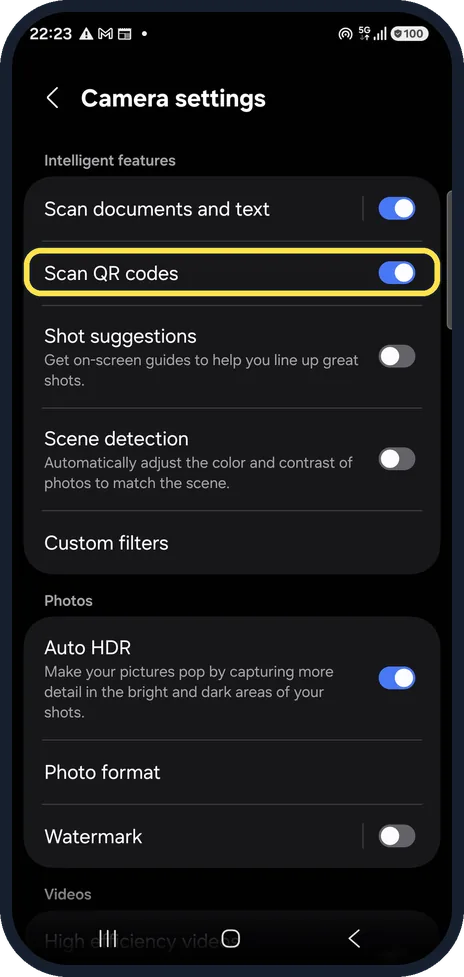
Turn on Scan QR codes
Open Camera, tap the settings gear and check that Scan QR codes is on under Intelligent features. On our Galaxy A57 it was on.
Then go back to the camera and point it at the code. Samsung says this gives access to the link, contact or location in the code.
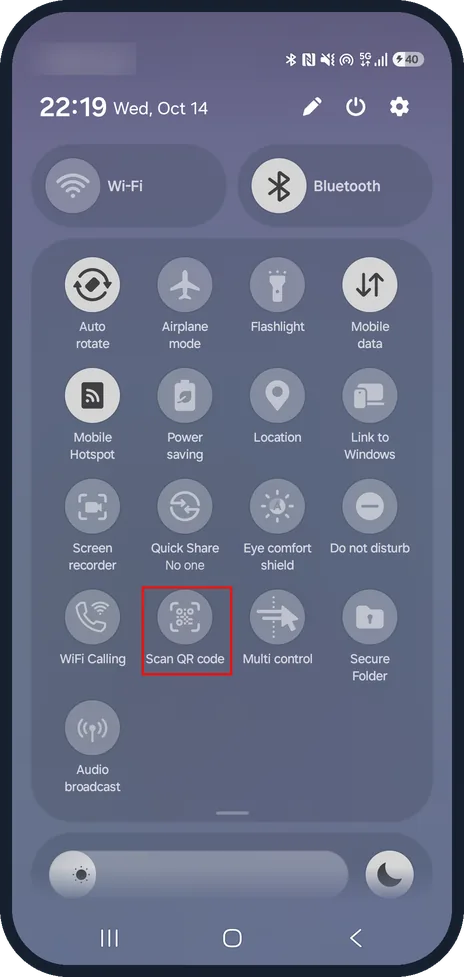
Or use the quick panel button
Swipe down twice from the top of the screen to open the full quick panel and tap Scan QR code.
On our Galaxy A57 it sits to the right of WiFi Calling, in the fourth row of buttons.
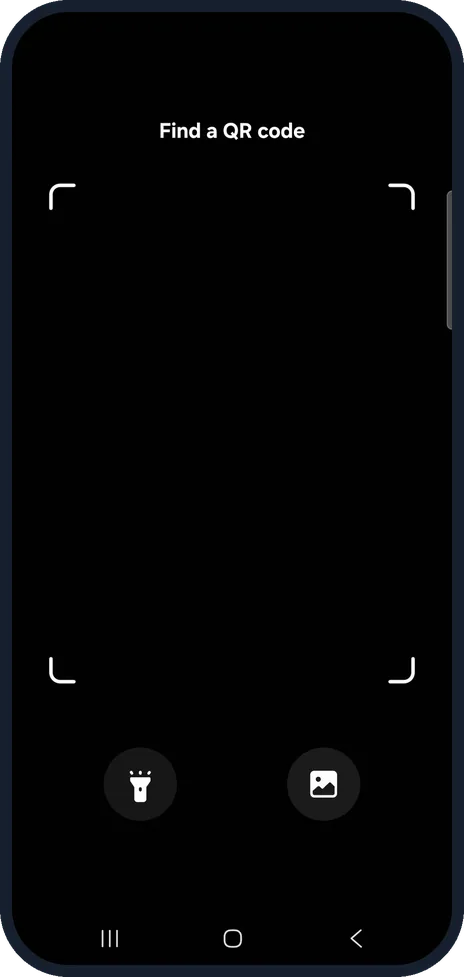
Hold the code inside the frame
The button opens a scanner that says Find a QR code, with a frame to hold the code in.
At the bottom are two icons: a flashlight on the left and a gallery picture on the right.
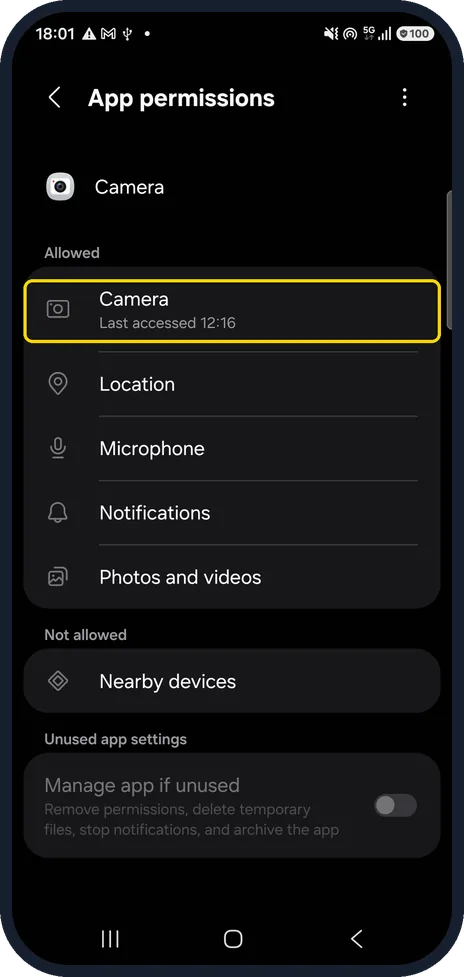
If nothing happens, check the camera permission
Open Settings, Apps, Camera, Permissions.
On our Galaxy A57 the App permissions page listed Camera under Allowed, with the time it was last accessed. Nearby devices was the only permission under Not allowed.
If you do not see this option
- No Scan QR code button in the quick panel Samsung says to edit the quick panel and add the icon from the available buttons. On our Galaxy A57 it was already there, next to WiFi Calling. Source: How to scan a QR code on Galaxy device
- No Scan QR codes switch in Camera settings Samsung notes that reading QR codes varies by model. On our Galaxy A57 with One UI 8.5 it is the second switch under Intelligent features, below Scan documents and text. Source: How to scan a QR code on Galaxy device
If this does not work
- No link appears Check that Scan QR codes is on in Camera settings (step 1) and that the Camera app may use the camera (step 4). On our Galaxy A57 both were in place.
- Scanning in the dark On our Galaxy A57 the scanner from the quick panel has a flashlight icon at the bottom left, next to a gallery icon (step 3).
- Another way to scan Samsung also lists Bixby Vision and the QR reader built into the Samsung Internet browser as ways to read QR codes. Source: How to scan a QR code on Galaxy device
About this guide
Galaxy phones read QR codes with the normal camera, so you do not need a separate scanner app.
The quick panel is see-through, so it looks lighter over the home screen even in Dark mode.
Good to know
More on the quick panel: how to edit the quick panel buttons.
Check where a link goes before you open it.
In short: Camera, point at the code, tap the link. Camera settings, Scan QR codes on. Or quick panel, Scan QR code.
Links checked in October 2026. Menus and features can change after software updates. These steps match the version named at the top.
📷 See real photos from the Galaxy A57 in our Camera Lab, next to 10 other phones.
Did this guide work for you?
Sorry about that. What happened?