ANDROID
How to use Shelf on a OnePlus, or swipe down for notifications (OxygenOS 16)

In short
Swipe down on the home screen to open Shelf, a page of cards such as steps, weather and storage. Tap + to add widgets. To make the swipe open notifications instead, go to Home screen settings, Swipe down on Home screen, and choose Notifications & Quick Settings.
5 of 5 steps show a real screenshot from our Nord 5. Each step was checked against the maker's own instructions, linked at the end.
Steps
- 1
Open Shelf the first time
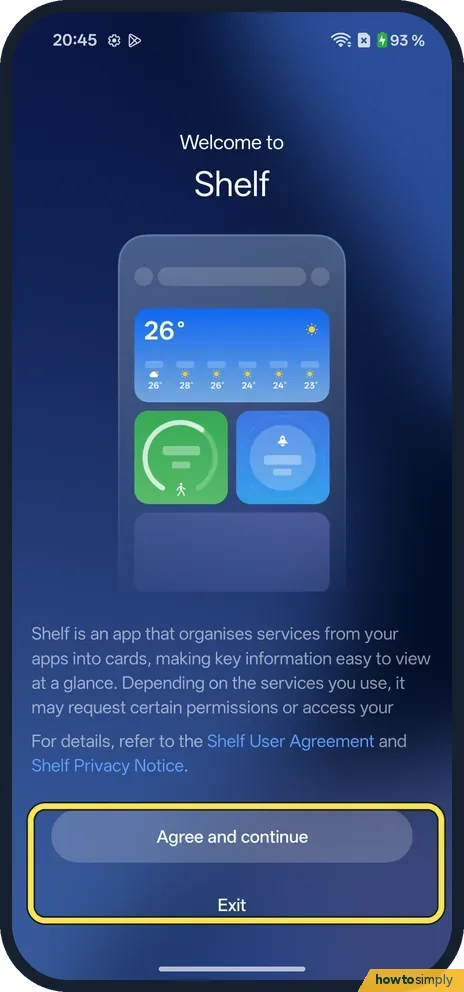
Swipe down on the home screen. Welcome to Shelf says Shelf organises services from your apps into cards and may request permissions. Tap Agree and continue, or Exit.
- 2
See the cards
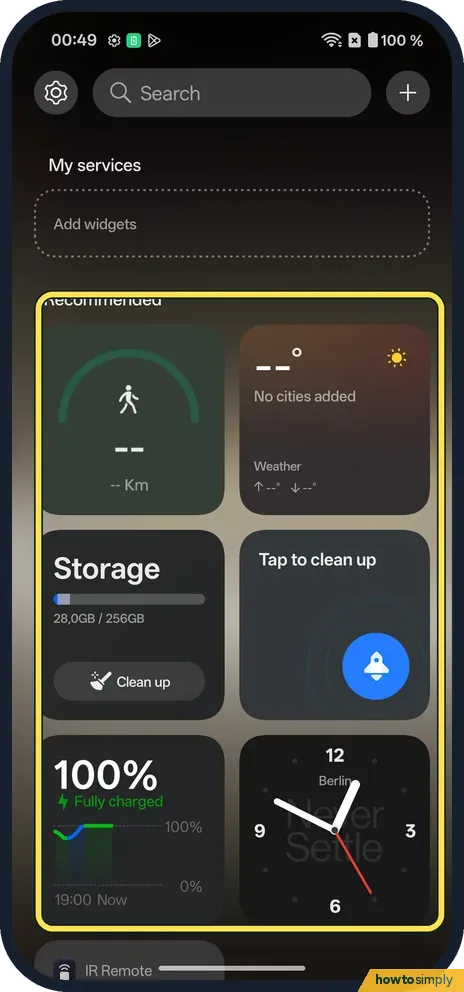
Shelf shows My services at the top and Recommended cards below: steps, weather, storage with Clean up, a battery card and a clock on ours.
- 3
Add a widget
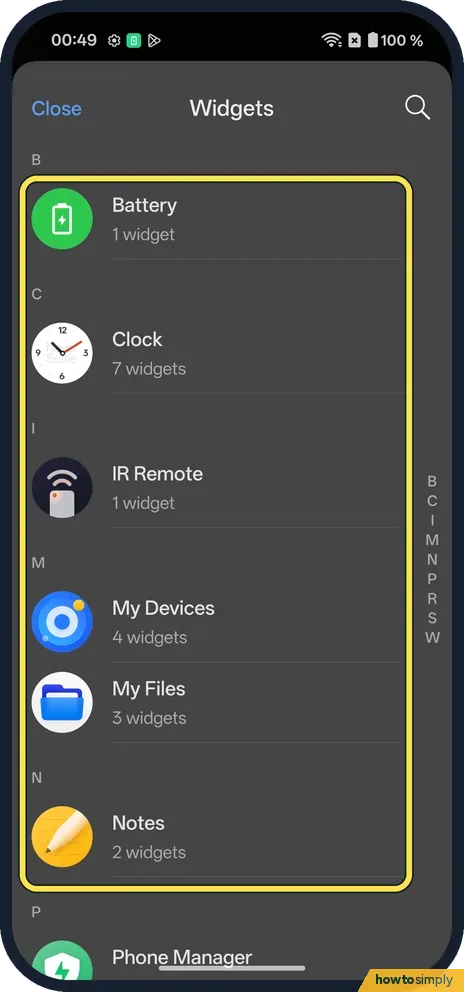
Tap + at the top right. The Widgets list showed Battery, Clock, IR Remote, My Devices, My Files, Notes and Phone Manager on ours. Tap Close when done.
- 4
Change what the swipe opens
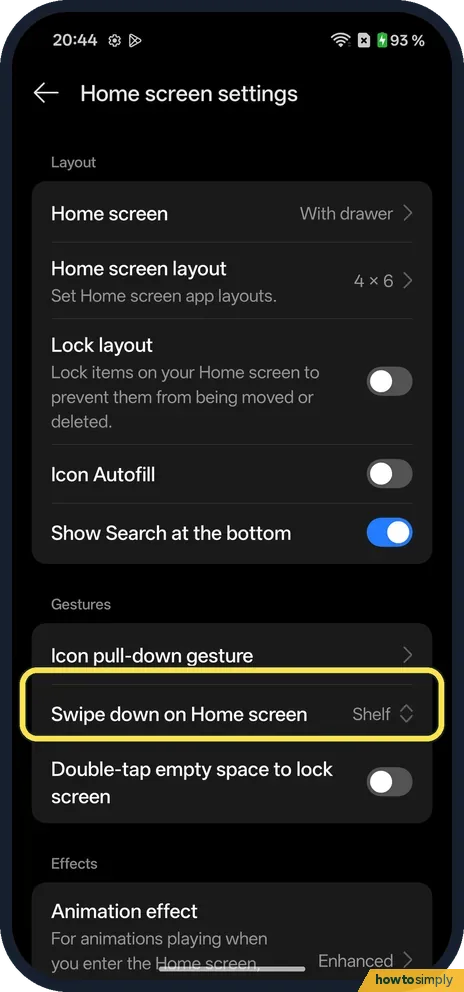
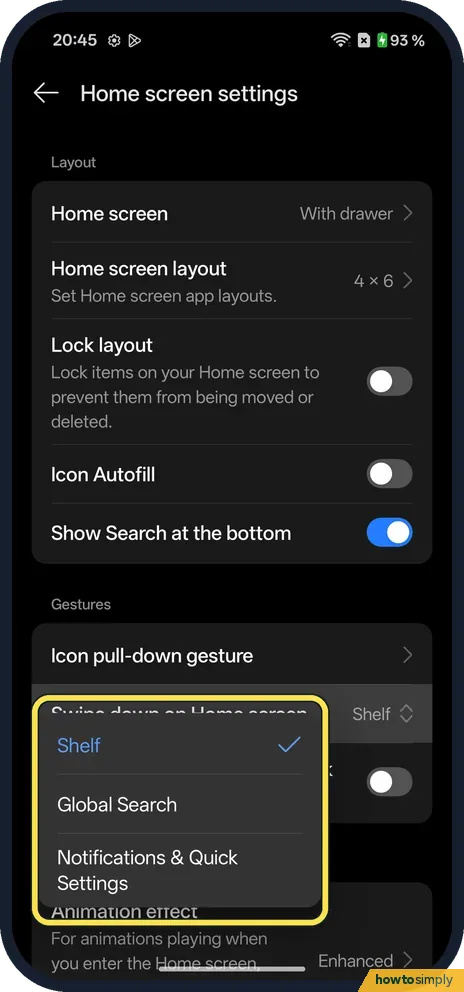
Search Settings for Home screen settings. Under Gestures, ours said Swipe down on Home screen: Shelf. Tap it.
- 5
Pick notifications or search
Choose Shelf, Global Search or Notifications & Quick Settings.
If you do not see this option
- Older OxygenOS? OnePlus's OxygenOS 14 manual also says to swipe down on the Home screen to enter Shelf, and to tap Add to put widgets on it. Source: OxygenOS 14.0 User Manual
- Shelf asks for permissions? The welcome page says it may request permissions or access depending on the services you use. Ours asked for none to show the cards.
If this does not work
- Swipe down opens search? Swipe down on Home screen is set to Global Search. Change it here.
- Cards show no data? Ours showed -- for steps and No cities added for weather. Those cards fill in once the app behind them has data.
- Want the notification pull-down? Choose Notifications & Quick Settings. See also the notification shade.
- Want to remove or move a card? The OnePlus manual says to touch and hold a widget in Shelf to delete or edit it, and to hold and drag it to move it.
Good to know
Change the pull-down layout: Split or Classic notification shade.
Changing Swipe down on Home screen only changes that one gesture. Shelf, its cards and any widgets you added stay as they are, and you can switch back at any time from the same setting. If you choose Global Search, the manual says it finds apps, settings, files, contacts, messages and more on the phone, as well as results from the web.
Some Shelf cards fill in from other services. The manual describes cards for storage, trips, workouts and deliveries, and says Shelf recommends more content based on your subscriptions. If you prefer a quieter home screen, set the swipe to notifications and keep widgets on the home screen itself: add and remove widgets.
About this guide
- Device
- Android
- Shown on
- OnePlus Nord 5 (CPH2709), OxygenOS 16.0.5.1201, Android 16
- Starts in
- Home screen
- Real screenshots
- 5 of 5 steps
- Checked
- October 2026
- Sources
- 1 official, linked below
Sources
Links checked October 2026. Menus and features can change with updates.Spotted a mistake? Menus change with updates, and we want every step to match your screen. Email us about this page or use the contact form. We read every report, and fixes are listed on What changed.
Liked this guide?
Follow us for new guides and short how-to videos.
Did this guide work for you?
Sorry about that. What happened?