
howtosimply.com/guides/how-to-open-magnifier-with-the-action-button-on-an-iphone/ · Checked October 2026 · iPhone 17e · iOS 27.0.1
In this guide
Open Settings, tap Action Button and swipe through the choices until you reach Magnifier. Then press and hold the Action button to open Magnifier and drag its slider to zoom. The setting changes as soon as you swipe, so swipe back to Silent Mode to undo it.
4 of 4 steps with real screenshots · 1 official source below
- Device
- iPhone
- Shown on
- iOS 27.0.1 (iPhone 17e)
- App
- Settings
- Path
- Settings › Action Button › Magnifier
- Real screenshots
- 4 of 4 steps
- Checked
- October 2026
- Sources
- 1 official, linked below
Step by step
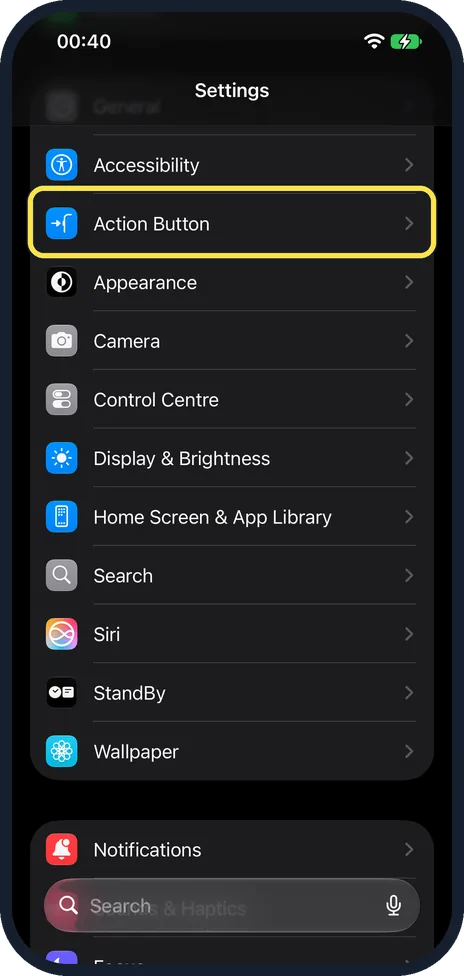
Tap Action Button in Settings
Action Button is near the top of Settings, under Accessibility.
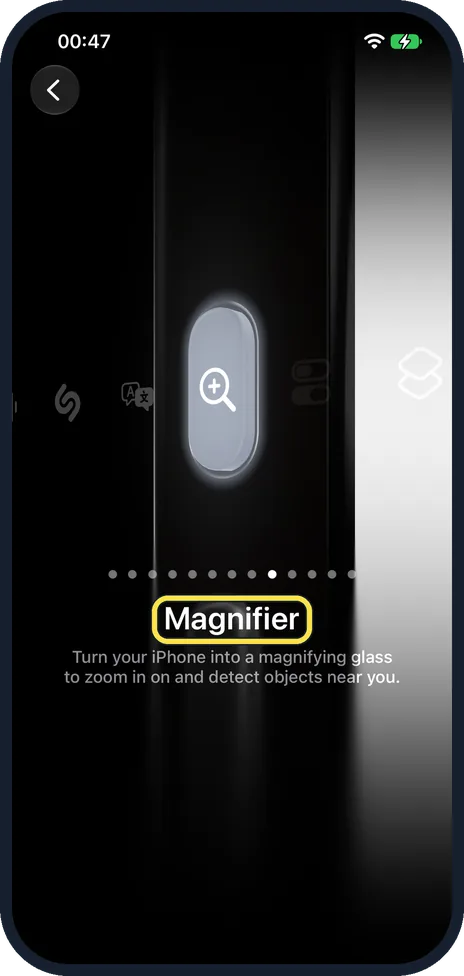
Swipe to Magnifier
Swipe left or right through the choices. Ours had 13: Silent Mode, Focus, Camera, Visual Intelligence, Torch, Voice Memo, Recognise Music, Translate, Magnifier, Controls, Shortcut, Accessibility and No Action. Stop on Magnifier, the ninth. The text under it reads: Turn your iPhone into a magnifying glass to zoom in on and detect objects near you.
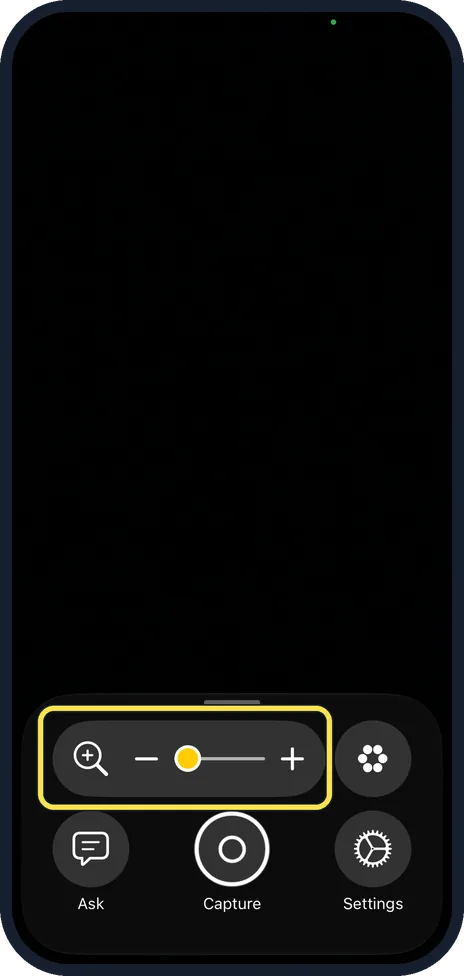
Press and hold the Action button
Magnifier opens with the camera view, a zoom slider and Ask, Capture and Settings buttons. Drag the slider to zoom.
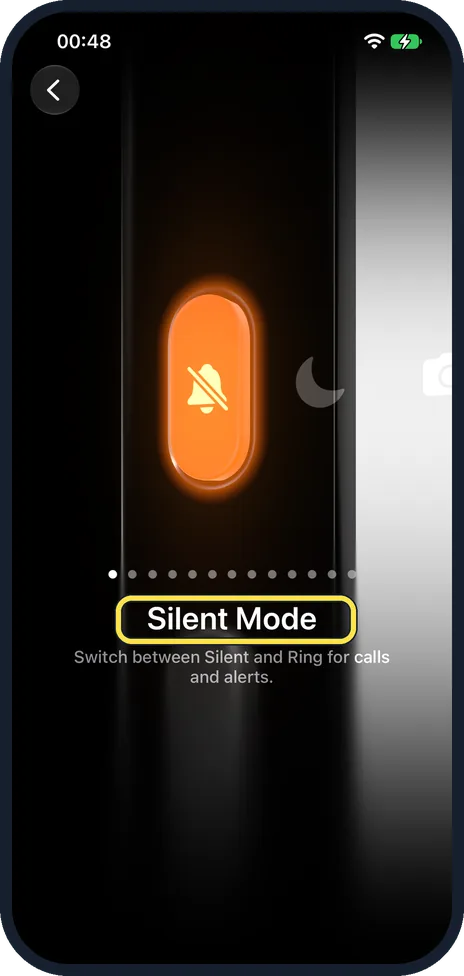
Swipe back to undo it
There is no Save button: whichever action is showing is the one in use. Ours is back on Silent Mode.
If you do not see this option
- No Action Button row in Settings? Your iPhone has no Action button. Apple says you can set up a shortcut to open Magnifier by pressing an iPhone button or tapping the back of the iPhone, or open it from Control Centre. On supported models, the Camera Control can open Magnifier too. Source: Magnify or get information about things around you with Magnifier on iPhone
- Magnifier is not the choice showing? Swiping changes the button straight away, and there is no Save button. Swipe back until the name under the picture reads Magnifier.
If this does not work
- Magnifier is dark? Point the camera at something with light on it. Ours was dark with nothing in front of the camera.
- The button still silences the phone? Open Settings, Action Button again and check Magnifier is the one showing.
About this guide
Magnifier turns the camera into a magnifying glass for small print. The Action button on the side opens it in one press.
The screenshots are from our iPhone 17e with iOS 27.0.1, in Dark mode. Ours was set to Silent Mode; we set it back afterwards.
Good to know
To hold the picture still, Apple says to tap the capture button to freeze the frame for a moment; it is not saved to Photos.
For other uses of the button, see how to change what the Action button does on an iPhone.
In short: Settings, Action Button, swipe to Magnifier. Press and hold the button.
- Apple iPhone User Guide: Magnify or get information about things around you with Magnifier on iPhone
Links checked in October 2026. Menus and features can change after software updates. These steps match the version named at the top.
Did this guide work for you?
Sorry about that. What happened?