
howtosimply.com/guides/how-to-convert-currency-and-units-in-the-iphone-calculator/ · Checked October 2026 · iPhone 17e · iOS 27.0.1
In this guide
Open Calculator, tap the calculator button at the top right, then Convert. Tap the unit next to a number to pick the category and units, then type the amount. Ours turned 40 EUR into 44,82 USD.
4 of 4 steps with real screenshots · 1 official source below
- Device
- iPhone
- Shown on
- iOS 27.0.1 (iPhone 17e)
- App
- Calculator
- Real screenshots
- 4 of 4 steps
- Checked
- October 2026
- Sources
- 1 official, linked below
Step by step
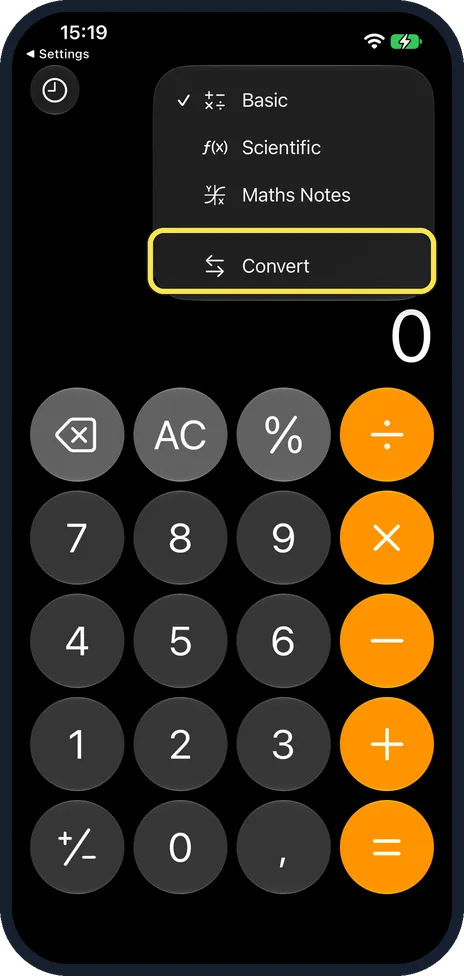
Tap the calculator button, then Convert
The menu lists Basic, Scientific, Maths Notes and, below a line, Convert.
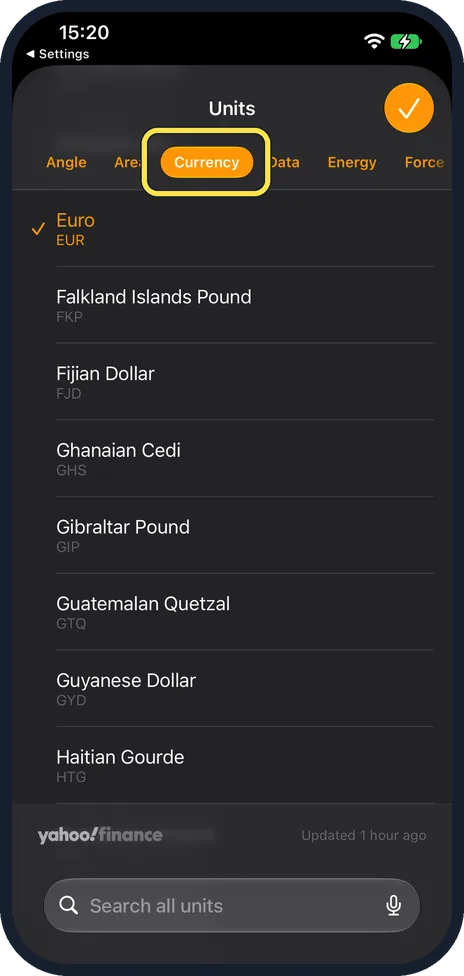
Tap a unit and pick what to convert
Swipe the categories at the top: Angle, Area, Currency, Data, Energy, Force and more. Search all units sits at the bottom.
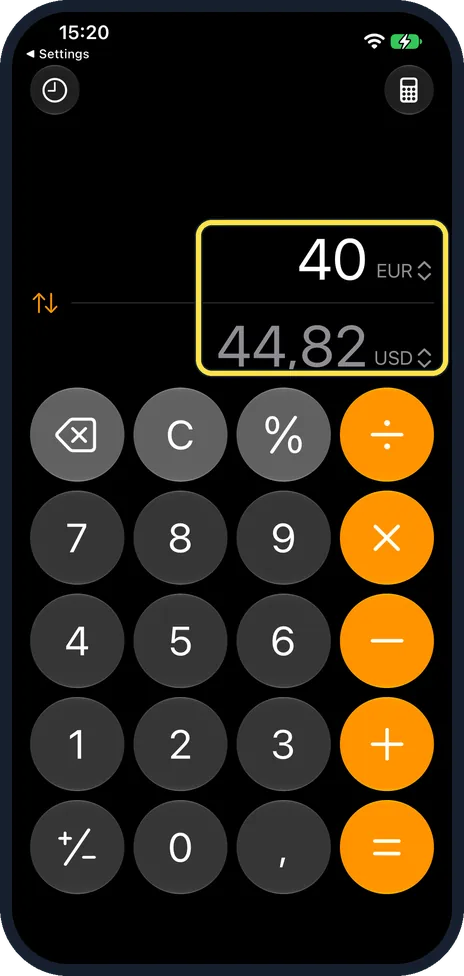
Type the amount
The other line converts as you type. Ours: 40 EUR, 44,82 USD.
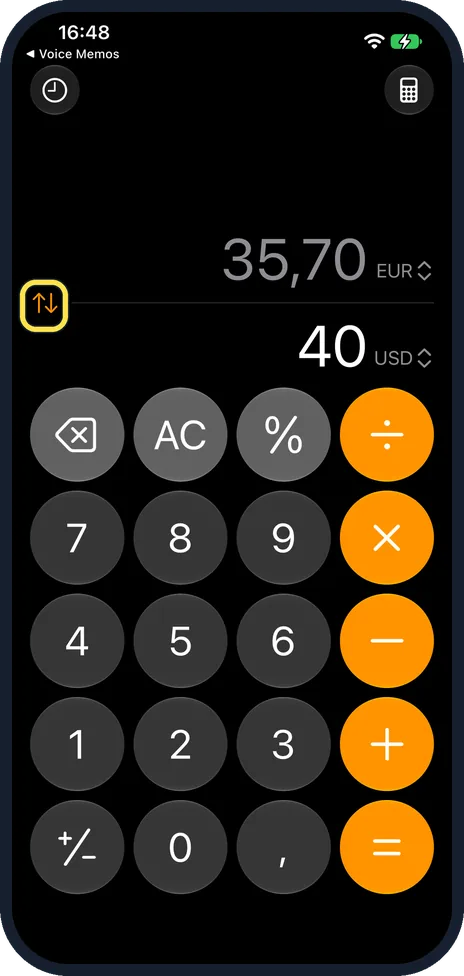
To convert the other way, tap the swap button
It is the two arrows at the left. Ours then read 40 USD at the bottom and 35,70 EUR on top.
If you do not see this option
- No Convert in the menu? Apple says Convert works while you use the basic or scientific calculator, so switch out of Maths Notes first. Source: Convert units or currency in Calculator on iPhone
- Category not in the list? On ours the categories ran off the right edge of the units picker (step 2): swipe the row, or use Search all units at the bottom.
If this does not work
- Swap did not change the number? Swap keeps the amount you typed and flips the units: ours went from 40 EUR to 40 USD (step 4). Apple says swap reverses how the units are converted. Source: Convert units or currency in Calculator on iPhone
- Currency rates look old? Check the line at the bottom of the units list: ours said yahoo!finance, Updated 1 hour ago (step 2).
About this guide
Convert works in the basic and scientific calculator and covers currency, length, weight, data and more.
The screenshots are from our iPhone 17e with iOS 27.0.1, in Dark mode, taken on 25 October 2026. We set Calculator back to Basic with Convert off afterwards.
Good to know
Apple says you can type a value in either line and the other converts as you type.
Apple says Maths Notes converts too: type something like 50 m in feet = in a note.
In short: Calculator button, Convert, tap a unit, type the amount, swap if needed.
Links checked in October 2026. Menus and features can change after software updates. These steps match the version named at the top.
📷 See real photos from the iPhone 17e in our Camera Lab, next to 10 other phones.
Did this guide work for you?
Sorry about that. What happened?