
What changed: the screenshots are now our own iPhone 17e on iOS 27.0.1, dark mode, and the wording is checked against those screens and Apple's iOS 27 guide.
howtosimply.com/guides/iphone-screen-zoomed-in-and-stuck-how-to-turn-zoom-off/ · Checked October 2026 · iPhone 17e · iOS 27.0.1
In this guide
Double-tap the screen with three fingers. The picture returns to normal size. Then open Settings, Accessibility, Zoom and switch Zoom off. The three-finger gestures then no longer zoom the screen.
4 of 4 steps with real screenshots · 3 official sources below
- Device
- iPhone
- Shown on
- iOS 27.0.1 (iPhone 17e)
- App
- Settings
- Path
- Settings › Accessibility › Zoom
- Real screenshots
- 4 of 4 steps
- Checked
- October 2026
- Sources
- 3 official, linked below
Step by step
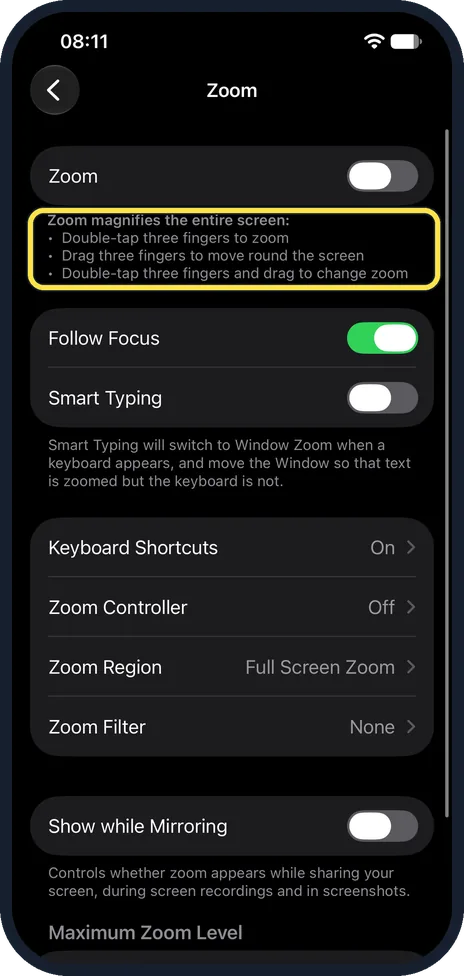
Double-tap with three fingers
Tap the screen twice, quickly, with three fingers at the same time. The screen zooms out to its normal size. Our picture is not a zoomed-in screen: it shows the note on the Zoom settings page of our iPhone 17e with iOS 27, which lists this gesture under the switch: Double-tap three fingers to zoom.
Watch these steps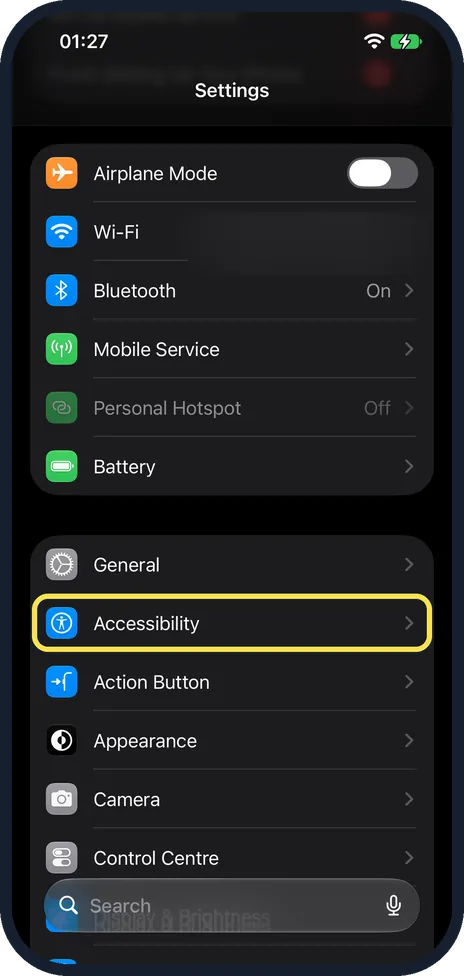
Open Settings and tap Accessibility
Now that you can see the whole screen, switch the feature off. On our iPhone 17e with iOS 27, Accessibility was just below General.
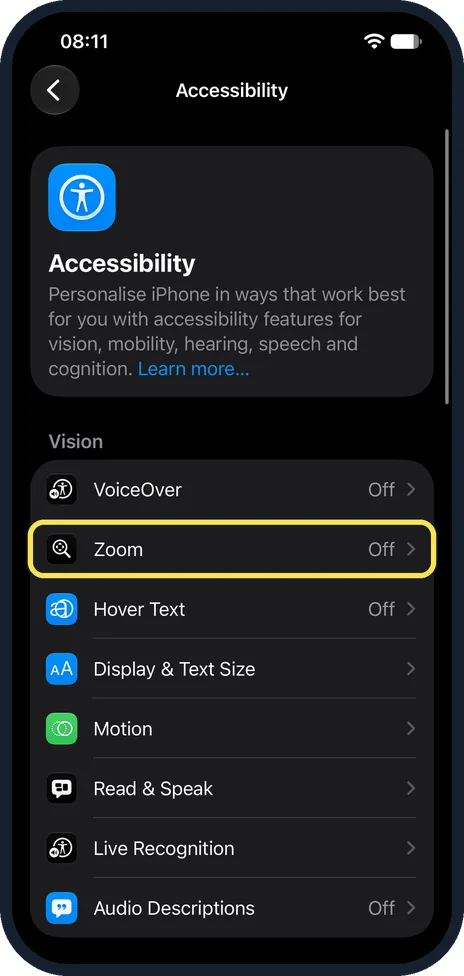
Tap Zoom
It is the second row in the Vision group, under VoiceOver. On our iPhone 17e with iOS 27 it showed Off.
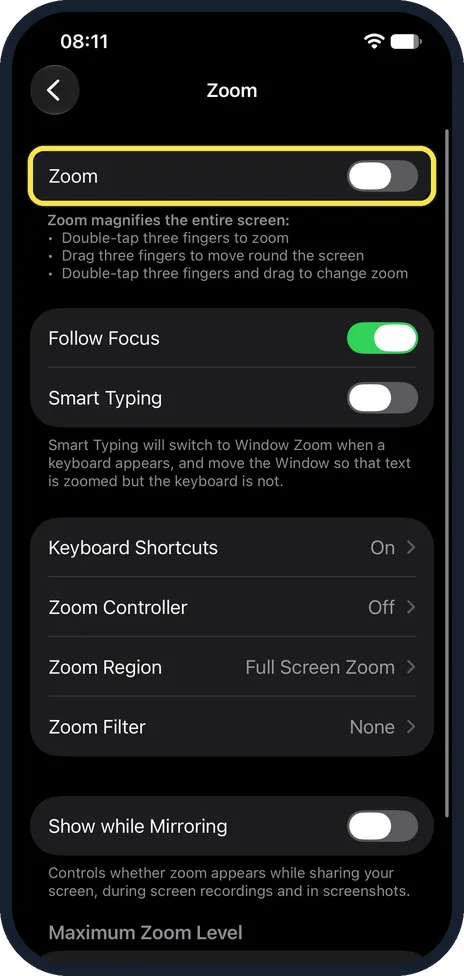
Switch Zoom off
Turn off the Zoom switch at the top. The three-finger gestures described under it then no longer do anything, so the screen cannot zoom in by accident. On our iPhone 17e with iOS 27 Zoom was off, and the page also listed Follow Focus, Smart Typing, Keyboard Shortcuts, Zoom Controller, Zoom Region and Zoom Filter.
What changed: the screenshots are now our own iPhone 17e on iOS 27.0.1, dark mode, and the wording is checked against those screens and Apple's iOS 27 guide.
Watch these steps
If you do not see this option
- Zoom is Off but everything is still large That is a different setting, Display Zoom. Apple's iOS 27 guide puts it under Settings, Appearance, Display Zoom. Choose Default there for the normal size; our Display Zoom guide shows that page on the iPhone 17e. Source: Adjust iPhone display and text settings (iOS 27)
- The magnified screen hides the Settings rows Double-tap with three fingers first, then open Settings. On our iPhone 17e the note on the Zoom page said: Double-tap three fingers to zoom, and Drag three fingers to move round the screen.
If this does not work
- Only part of the screen is magnified, in a window That is Window Zoom. On our iPhone 17e the Zoom page had Zoom Region set to Full Screen Zoom, and a Smart Typing switch with the note that it switches to Window Zoom when a keyboard appears. Switch Zoom off at the top of that page.
- Zoom keeps coming back Check the Accessibility Shortcut. Apple says triple-clicking the side button turns on or off the features chosen under Settings, Accessibility, Accessibility Shortcut. Remove Zoom from that list. Source: Quickly turn accessibility features on or off on iPhone
- The three-finger double-tap does not zoom out Apple says you can turn Zoom off from a computer: connect the iPhone to a Mac (Finder) or a PC (iTunes), select it, click Configure Accessibility and deselect Zoom. Source: If your Home Screen icons are magnified on your iPhone, iPad or iPod touch
About this guide
If the icons are suddenly huge and you can only see part of the screen, the phone is not broken. An accessibility feature called Zoom has been switched on. It magnifies the whole screen.
Screenshots: iPhone 17e, iOS 27.0.1, dark mode.
Good to know
The note on the Zoom page of our iPhone 17e also says: Double-tap three fingers and drag to change zoom.
While Zoom is on, you move around the enlarged screen by dragging with three fingers.
If only the text and icons are a little larger than you like, check Display Zoom instead. Apple's iOS 27 guide puts it under Settings, Appearance, Display Zoom. Our screenshots of it are in how to change Display Zoom on an iPhone.
If you want larger text without magnifying everything: how to make text bigger on an iPhone.
In short: Double-tap with three fingers, then Settings, Accessibility, Zoom, off.
- Apple Support: If your Home Screen icons are magnified on your iPhone, iPad or iPod touch
- Apple iPhone User Guide: Quickly turn accessibility features on or off on iPhone
- Apple iPhone User Guide: Adjust iPhone display and text settings (iOS 27)
Links checked in October 2026. Menus and features can change after software updates. These steps match the version named at the top.
Did this guide work for you?
Sorry about that. What happened?