
What changed: the screenshots are now our own iPhone 17e on iOS 27.0.1, dark mode, and the wording is checked against those screens and Apple's iOS 27 guide.
howtosimply.com/guides/how-to-change-what-the-action-button-does-on-an-iphone/ · Checked October 2026 · iPhone 17e · iOS 27.0.1
In this guide
Open Settings and tap Action Button. Swipe sideways through the choices, such as Silent Mode, Camera or Shortcut, and stop on the one you want. Press and hold the button to use it.
3 of 3 steps with real screenshots · 2 official sources below
- Device
- iPhone
- Shown on
- iOS 27.0.1 (iPhone 17e)
- App
- Settings
- Path
- Settings › Action Button
- Real screenshots
- 3 of 3 steps
- Checked
- October 2026
- Sources
- 2 official, linked below
Step by step
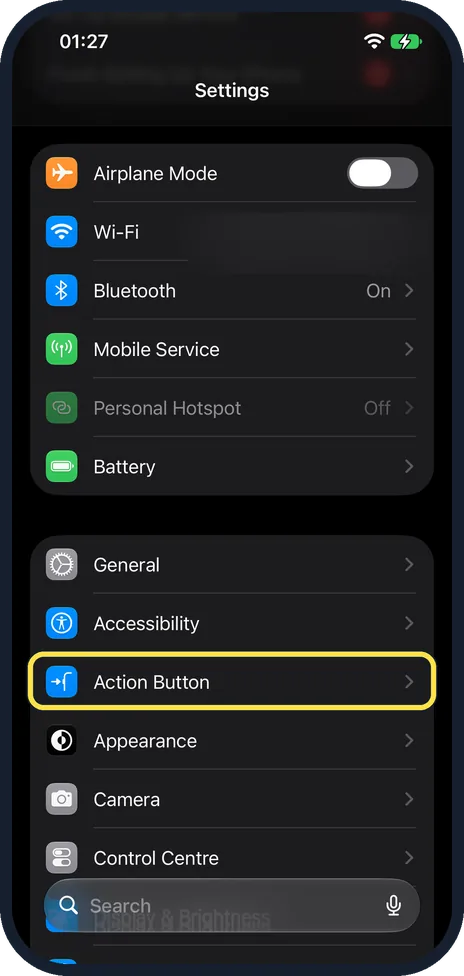
Check that your iPhone has one
If the main Settings list has an Action Button row, your iPhone has the button. On our iPhone 17e with iOS 27, Action Button was just below Accessibility.
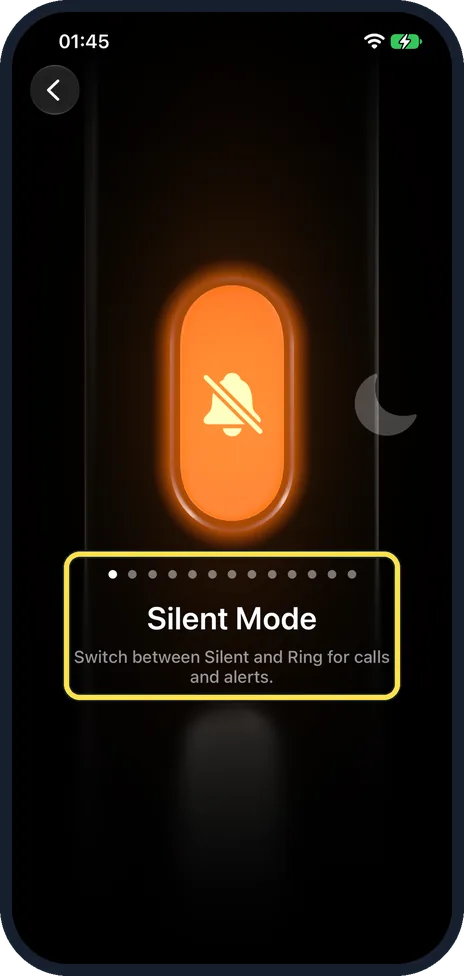
Open Settings and tap Action Button
It is in the group with General and Accessibility. On our iPhone 17e with iOS 27.0.1 the page opened on Silent Mode, the default, with a row of dots for the other actions.
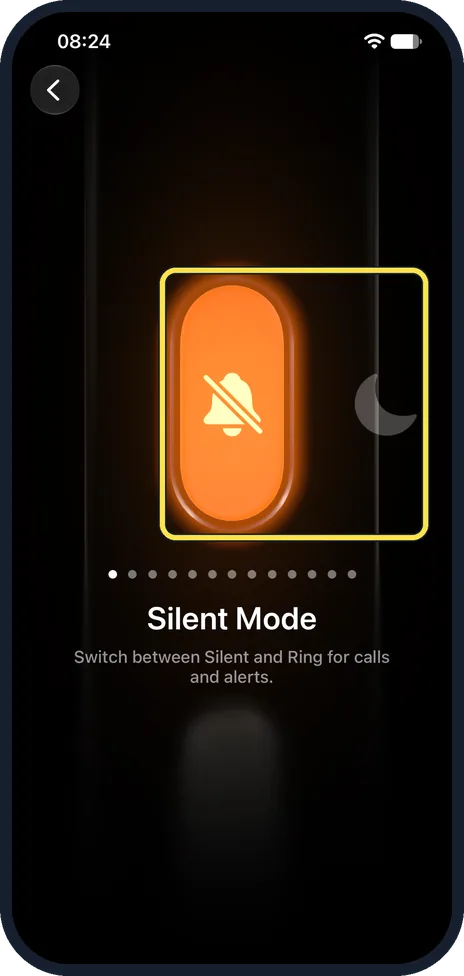
Swipe to choose an action
Swipe sideways across the picture of the current action, boxed. Apple lists Silent Mode, Focus, Camera, Visual Intelligence (requires Apple Intelligence), Flashlight, Voice Memo, Recognize Music, Translate, Magnifier, Controls, Shortcut, Accessibility and No Action. On our iPhone 17e with iOS 27, the first one was Silent Mode, with the note: Switch between Silent and Ring for calls and alerts, and a row of 13 dots below the picture. If an action has more options, Apple says a button appears below it: tap it and pick one. Controls, Shortcut and Accessibility need that choice, or the button does nothing. Then press and hold the Action button to use it.
What changed: the screenshots are now our own iPhone 17e on iOS 27.0.1, dark mode, and the wording is checked against those screens and Apple's iOS 27 guide.
What we saw on our device
- Check that your iPhone has one: On our iPhone 17e with iOS 27, Action Button was just below Accessibility.
- Open Settings and tap Action Button: On our iPhone 17e with iOS 27.0.1 the page opened on Silent Mode, the default, with a row of dots for the other actions.
- Swipe to choose an action: On our iPhone 17e with iOS 27, the first one was Silent Mode, with the note: Switch between Silent and Ring for calls and alerts, and a row of 13 dots below the picture.
If you do not see this option
- There is no Action Button row in Settings. Your iPhone has no Action button. Apple says only supported models have one, in place of the Ring/Silent switch; on other models you flip the Ring/Silent switch for Silent mode. On our iPhone 17e the row was just below Accessibility. Source: Use and customize the Action button on iPhone · Source: Silence iPhone
- There is no options button below the action. Apple says the button only appears when the action has more options. On our iPhone 17e, Silent Mode showed just its name and the note: Switch between Silent and Ring for calls and alerts. Source: Use and customize the Action button on iPhone
If this does not work
- Pressing the button does nothing. Press and hold it, as Apple says. For Controls, Shortcut and Accessibility, Apple says you must also tap the button below the action and pick a specific option, otherwise the Action button does nothing. Source: Use and customize the Action button on iPhone
- You changed the action and now need Silent mode. Apple says that if your Action button is not set to Silent mode, go to Settings, Sounds & Haptics and turn Silent mode on or off there. Source: Silence iPhone
About this guide
Apple says that on supported models the Action button takes the place of the Ring/Silent switch. Silent Mode is the default action, but the button can do something else instead. The screenshots are our own, taken on an iPhone 17e running iOS 27.0.1.
Good to know
If the button no longer controls Silent mode, use the bell in Control Centre, or Settings, Sounds & Haptics, to silence the phone.
With Shortcut you can open any app or start a chain of actions, which makes the button far more flexible.
Choose No Action if you keep pressing it by accident.
In short: Settings, Action Button, swipe to the action. Press and hold to use it.
- Apple Support: Use the Action button, side button, and other controls on your iPhone
- Apple Support: Use and customize the Action button on iPhone
Links checked in October 2026. Menus and features can change after software updates. These steps match the version named at the top.
Did this guide work for you?
Sorry about that. What happened?