
What changed: the screenshots are now our own iPhone 17e on iOS 27.0.1, dark mode, and the wording is checked against those screens and Apple's iOS 27 guide.
howtosimply.com/guides/how-to-invert-the-colours-on-an-iphone-with-smart-invert/ · Checked October 2026 · iPhone 17e · iOS 27.0.1
In this guide
Open Settings, tap Accessibility, then Display & Text Size, scroll down and switch on Smart Invert. Apple says this makes the background dark so text and content stand out. Apple says it reverses colours everywhere except images; our iPhone 17e's note also leaves out media and some apps with dark colour styles.
3 of 3 steps with real screenshots · 1 official source below
- Device
- iPhone
- Shown on
- iOS 27.0.1 (iPhone 17e)
- App
- Settings
- Path
- Settings › Accessibility › Display & Text Size
- Real screenshots
- 3 of 3 steps
- Checked
- October 2026
- Sources
- 1 official, linked below
Step by step
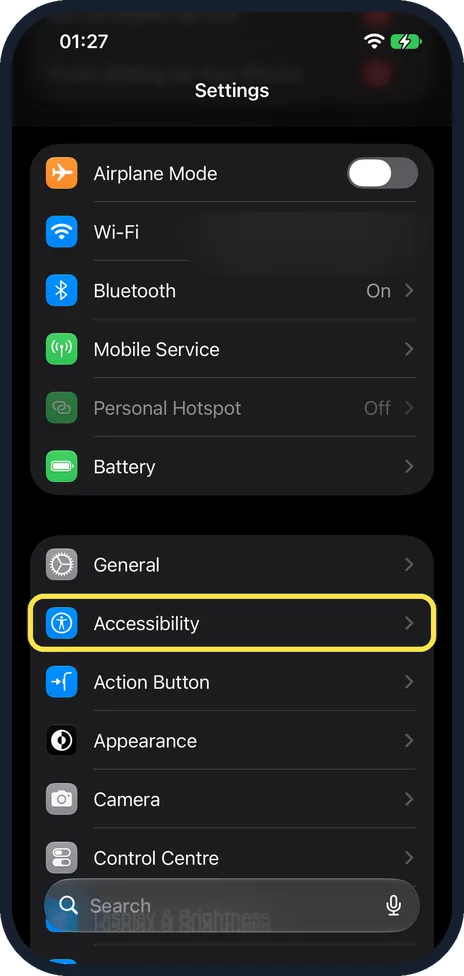
Open Settings and tap Accessibility
On our iPhone 17e with iOS 27, Accessibility is the row below General, in the group after Battery.
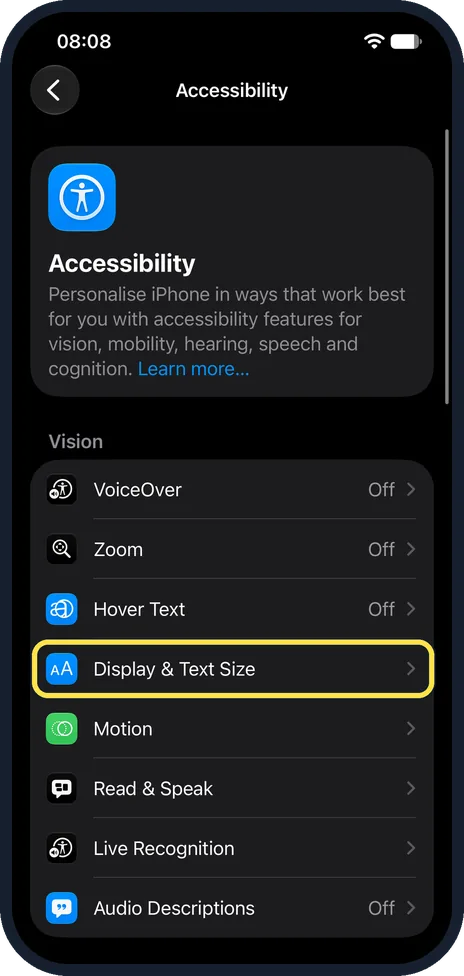
Tap Display & Text Size
It is in the Vision group, below Hover Text. On our iPhone 17e VoiceOver, Zoom and Hover Text above it all read Off.
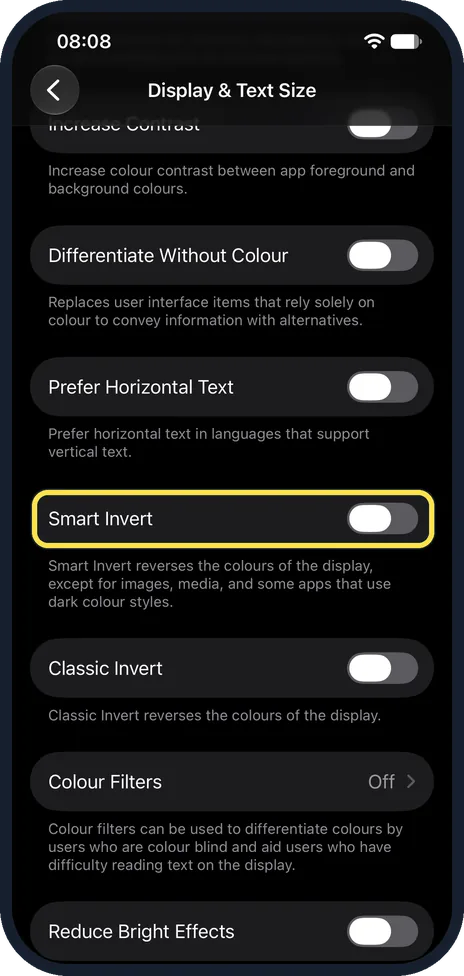
Scroll down and switch on Smart Invert
In the picture it is off. The note below reads: Smart Invert reverses the colours of the display, except for images, media, and some apps that use dark colour styles. On our iPhone 17e with iOS 27, Classic Invert is the next switch below, and both were off.
What changed: the screenshots are now our own iPhone 17e on iOS 27.0.1, dark mode, and the wording is checked against those screens and Apple's iOS 27 guide.
If you do not see this option
- Smart Invert is not near the top of Display & Text Size Scroll down. On our iPhone 17e with iOS 27 it came after Increase Contrast, Differentiate Without Colour and Prefer Horizontal Text. Source: Change display colors on iPhone to make it easier to see what’s onscreen
- No invert switch under Display & Brightness Apple puts both invert switches under Accessibility, Display & Text Size. On our iPhone 17e with iOS 27, Display & Brightness had no invert switch. Source: Change display colors on iPhone to make it easier to see what’s onscreen
If this does not work
- Inverted colours switch off in the evening Apple says Night Shift automatically removes inverted colours. Check Settings, Display & Brightness, Night Shift; on our iPhone 17e it was Off. Source: Change display colors on iPhone to make it easier to see what’s onscreen
- Photos look like negatives That is Classic Invert, which Apple says reverses all the colours on screen. Switch it off and use Smart Invert, which Apple says reverses colours everywhere except images. Source: Change display colors on iPhone to make it easier to see what’s onscreen
- Some apps do not change The note under Smart Invert on our iPhone 17e says it leaves out images, media, and some apps that use dark colour styles.
About this guide
Inverting the colours makes the background dark and the text light. Apple says this can be especially useful in apps and websites that do not support Dark Mode. Smart Invert leaves pictures as they are. Classic Invert, the other option Apple names, reverses all the colours on the screen.
The screenshots are our own, taken on an iPhone 17e running iOS 27.0.1.
Good to know
For a dark look without inverted colours: how to turn on Dark Mode on an iPhone.
Apple notes that Night Shift automatically removes inverted colours.
In short: Settings, Accessibility, Display & Text Size, Smart Invert on.
Links checked in October 2026. Menus and features can change after software updates. These steps match the version named at the top.
Did this guide work for you?
Sorry about that. What happened?