
howtosimply.com/guides/how-to-make-a-samsung-galaxy-read-out-who-is-calling/ · Checked October 2026 · SM-A576B), One UI 9, Android 17 (build A576BXXU6BZIE · Samsung Galaxy A57
In this guide
Turn on Read caller names aloud: search Settings for it, or open the Phone app, three dots, Settings, Answering and ending calls. Then choose Over Bluetooth and headphones only, or Always.
3 of 3 steps with real screenshots · 1 official source below
- Device
- Android
- Shown on
- Samsung Galaxy A57 (SM-A576B), One UI 9, Android 17 (build A576BXXU6BZIE)
- App
- Settings
- Real screenshots
- 3 of 3 steps
- Checked
- October 2026
- Sources
- 1 official, linked below
Step by step
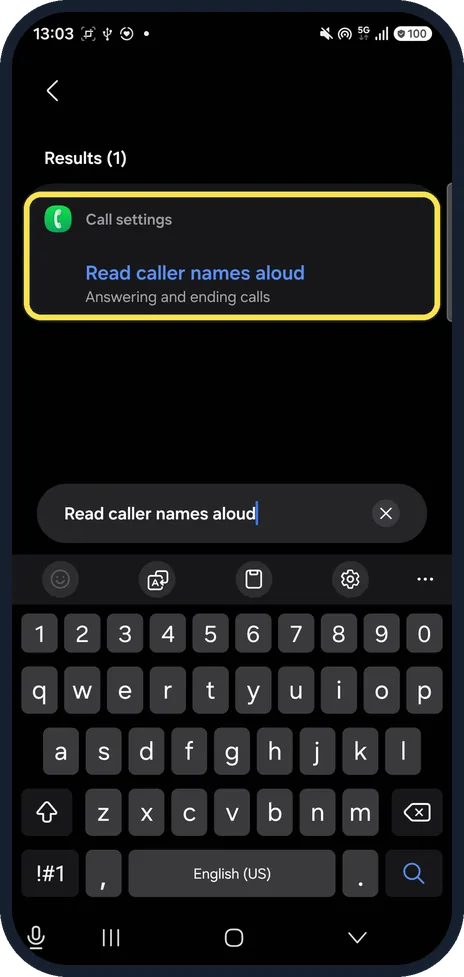
Search Settings for "Read caller names aloud"
The result is under Call settings, Answering and ending calls.
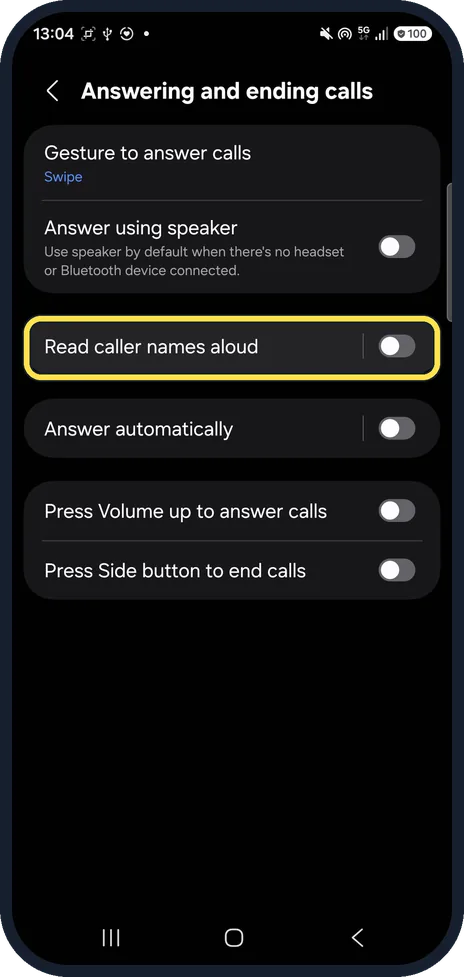
Tap Read caller names aloud
On Answering and ending calls, below Answer using speaker.
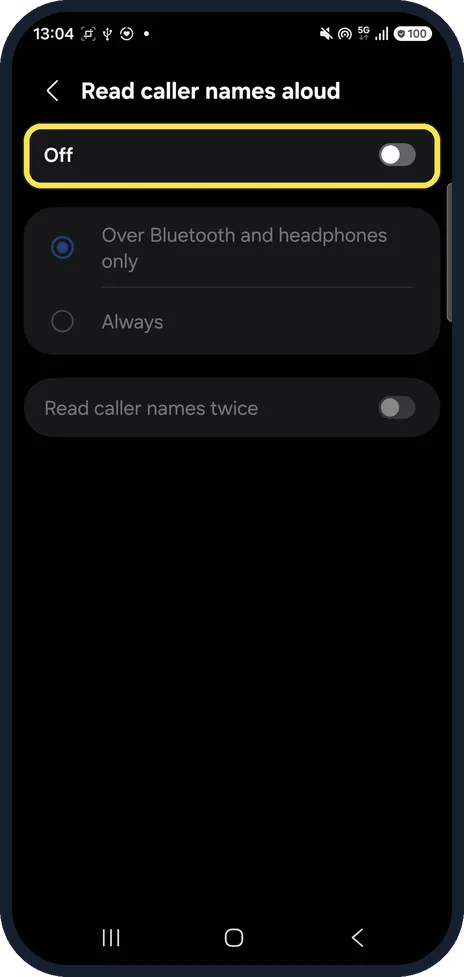
Turn it on and choose when
Switch Off to on, then pick Over Bluetooth and headphones only or Always. Read caller names twice is below.
If you do not see this option
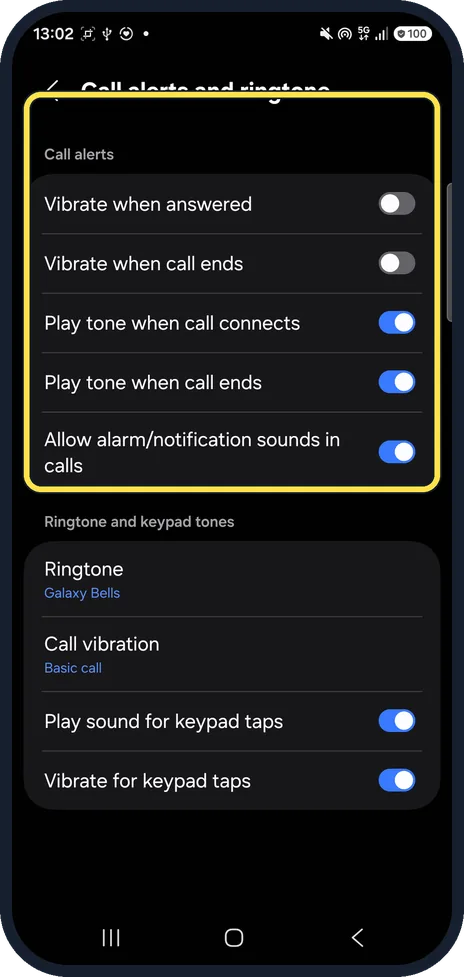
- Looked under ringtones? Call alerts and ringtone has only vibration, tones and the ringtone itself.
- From the Phone app? Samsung gives Phone, More options, Settings, Answering and ending calls, Read caller names aloud. Source: Calling features on your Galaxy phone
If this does not work
- Only works with earbuds? Over Bluetooth and headphones only was selected on ours; choose Always to hear it from the speaker. Source: Calling features on your Galaxy phone
- Want it read twice? Read caller names twice is a separate switch at the bottom of the same page.
About this guide
The switch is with the answering options, not with ringtones: Call alerts and ringtone has no caller-name option.
The screenshots are from our Samsung Galaxy A57 (SM-A576B) with One UI 9 and Android 17, in Dark mode, taken on 25 October 2026. It was off on ours and we left it off.
Good to know
To give one person their own call ringtone, see set a custom ringtone on a Galaxy.
In short: Settings search, Read caller names aloud, on, Always or headphones only.
Links checked in October 2026. Menus and features can change after software updates. These steps match the version named at the top.
📷 See real photos from the Galaxy A57 in our Camera Lab, next to 10 other phones.
Did this guide work for you?
Sorry about that. What happened?