
howtosimply.com/guides/how-to-make-galaxy-ai-process-data-only-on-your-samsung-galaxy/ · Checked October 2026 · SM-S942N, Korean model), One UI 9, Android 17 (build S942NKSS4BZIG · Samsung Galaxy S26
In this guide
Open Settings, tap Galaxy AI, scroll to the bottom and turn on Process data only on device. Samsung calls it the master switch for cloud processing. Features that need online processing may then work less well or not at all.
6 of 6 steps with real screenshots · 1 official source below
- Device
- Android
- Shown on
- Samsung Galaxy S26 (SM-S942N, Korean model), One UI 9, Android 17 (build S942NKSS4BZIG)
- App
- Settings
- Path
- Settings › Galaxy AI
- Real screenshots
- 6 of 6 steps
- Checked
- October 2026
- Sources
- 1 official, linked below
Step by step
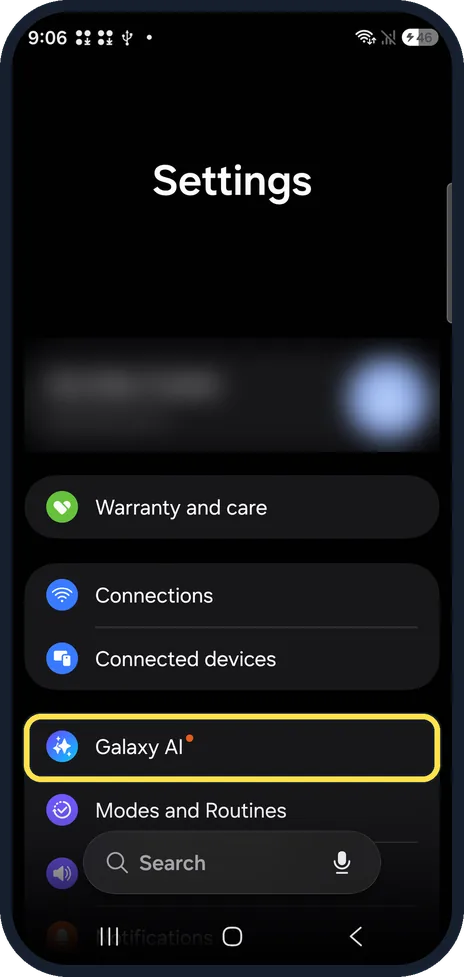
Open Galaxy AI
Open Settings and tap Galaxy AI, below Connected devices. On our S26 it had a small orange dot for something newly added.
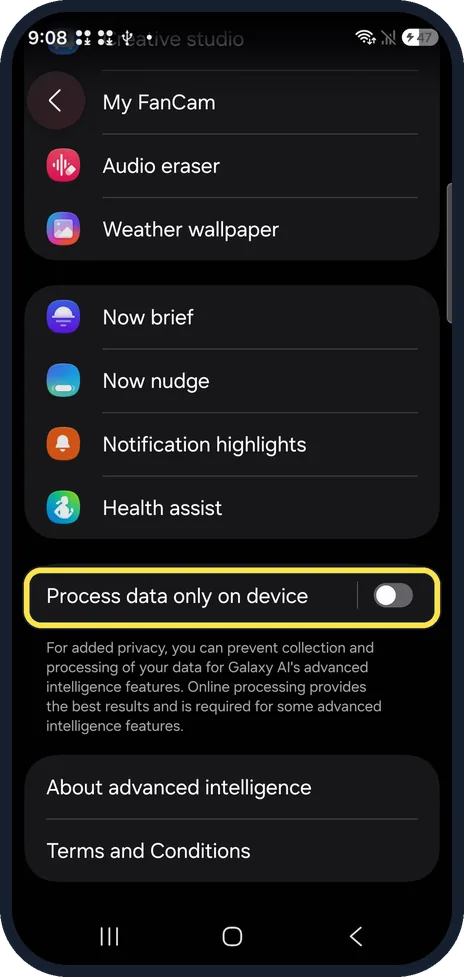
Scroll to Process data only on device
The Galaxy AI page lists the features, ending with Health assist. Process data only on device is at the bottom, with a note that online processing gives the best results and is required for some features.
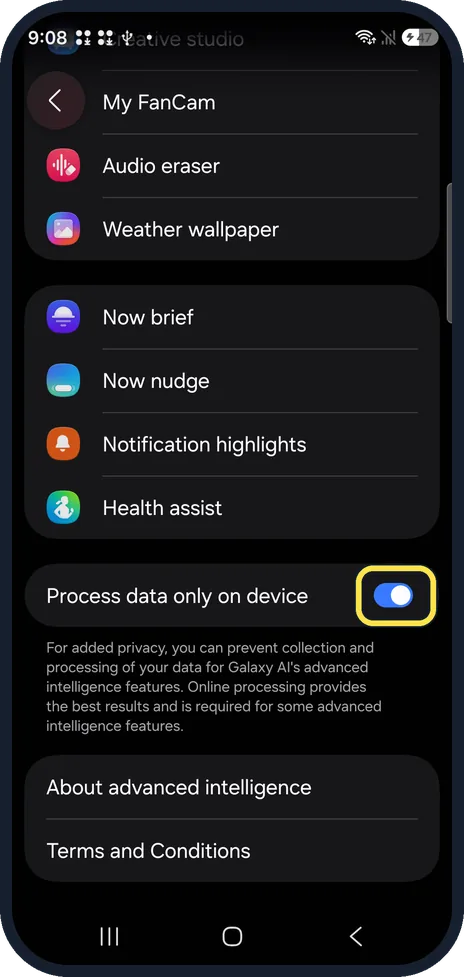
Turn it on
Tap the switch so it turns blue. To allow online processing again, turn it off.
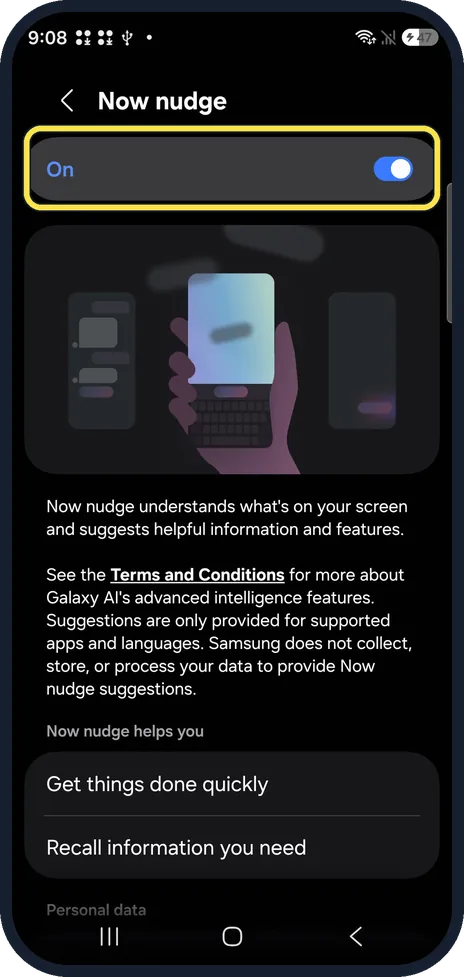
Or turn off a single feature
Tap a feature in the list to open its page. Now nudge, for example, starts with its own On switch at the top; turn it off to stop just that feature.
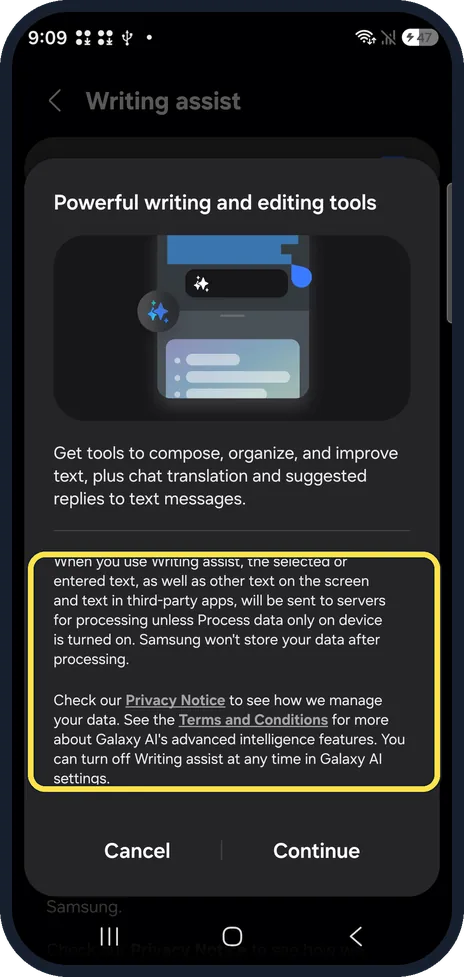
Read the sheet some features show first
Writing assist opened a sheet with Cancel and Continue before any setting. It says selected or entered text will be sent to servers for processing unless Process data only on device is on. We tapped Cancel.
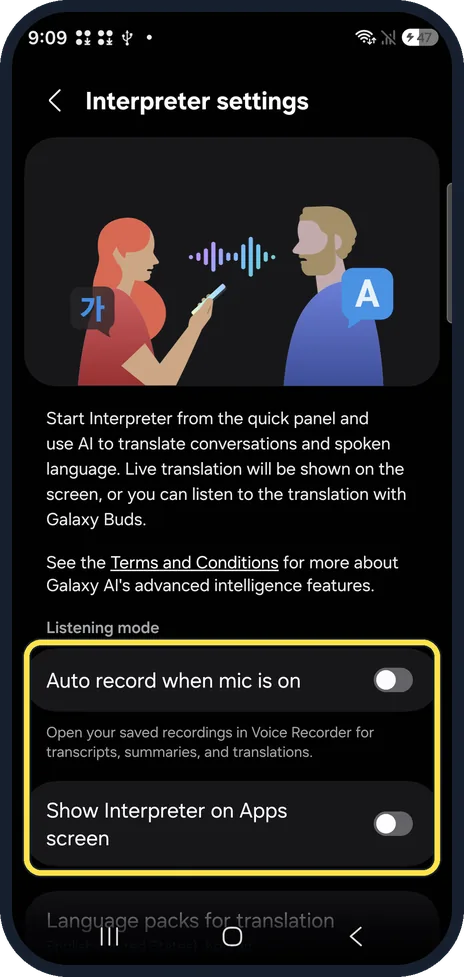
Know that some features have no main switch
Interpreter settings had only Auto record when mic is on and Show Interpreter on Apps screen, both off, and no switch for Interpreter itself. Process data only on device is the way to keep its processing on the phone.
If you do not see this option
- Process data only on device is not at the bottom? Tap Search at the bottom of Settings and type Process data.
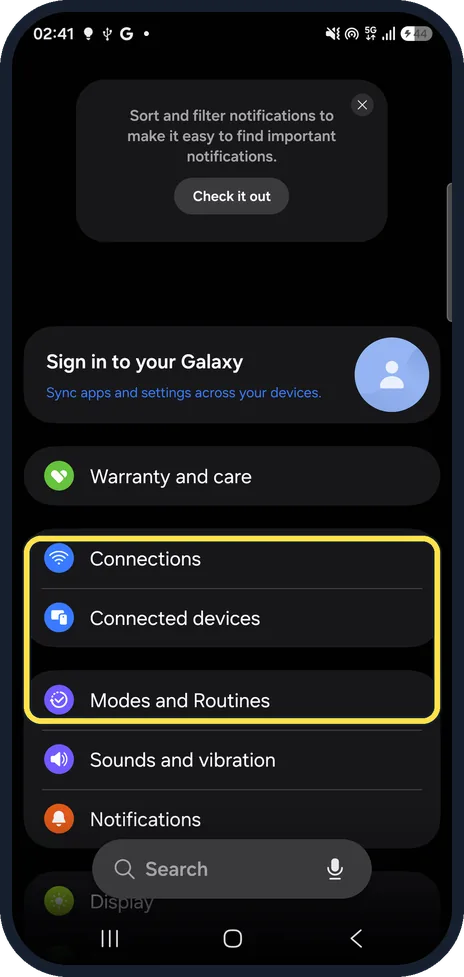
- No Galaxy AI in Settings? Samsung says available Galaxy AI features vary by device and software version. Our Galaxy A57 on One UI 9 had no Galaxy AI row: Connected devices was followed by Modes and Routines. Source: Use features with Galaxy AI on your Galaxy phone and tablet
If this does not work
- A feature stopped working after you turned it on? That is expected for some. The switch's own note says online processing is required for some advanced intelligence features, and Samsung lists auto formatting, summarizing, corrections and image editing as cloud-based. Turn it off again to use them. Source: Use features with Galaxy AI on your Galaxy phone and tablet
- Interpreter still shows on the Apps screen Its settings page has its own switch, Show Interpreter on Apps screen; it was off on ours.
About this guide
Many Galaxy AI features send text, voice or images to Samsung's servers. One switch keeps that processing on the phone instead, and most features also have their own page with their own settings.
The screenshots are from our Samsung Galaxy S26, the Korean model SM-S942N, with One UI 9 and Android 17 (build S942NKSS4BZIG), in Dark mode. Menus can differ on models sold in other regions. We switched Process data only on device on and back off.
Good to know
Turning off one Galaxy AI feature you see every day: how to turn off Now brief on a Samsung Galaxy.
What else differs between Galaxy models: Galaxy A57 vs Galaxy S26.
In short: Settings, Galaxy AI, bottom: Process data only on device on. Single features: tap the feature, use its switch.
Links checked in October 2026. Menus and features can change after software updates. These steps match the version named at the top.
Did this guide work for you?
Sorry about that. What happened?