SAMSUNG GALAXY
How to make an app folder on a Samsung Galaxy (One UI 9)

In short
Touch and hold an app on the home screen and drag it onto another app. A folder opens with a Folder name field and a + button. To change its colour, touch and hold the folder, tap Settings, pick a colour and opacity and tap Save.
8 of 8 steps show a real screenshot from our Galaxy A57. Each step was checked against the maker's own instructions, linked at the end.
Steps
- 1
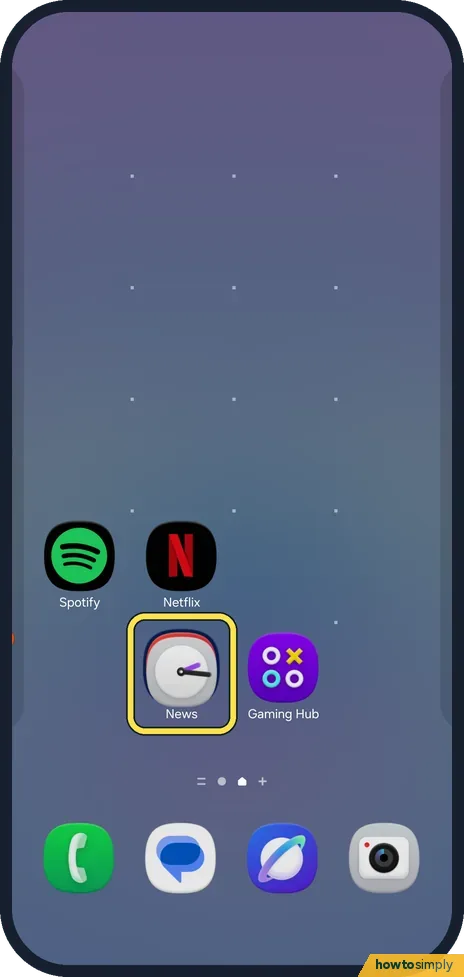
Drag one app onto another
Touch and hold an app and drag it onto another app. We dragged Clock onto News.
- 2
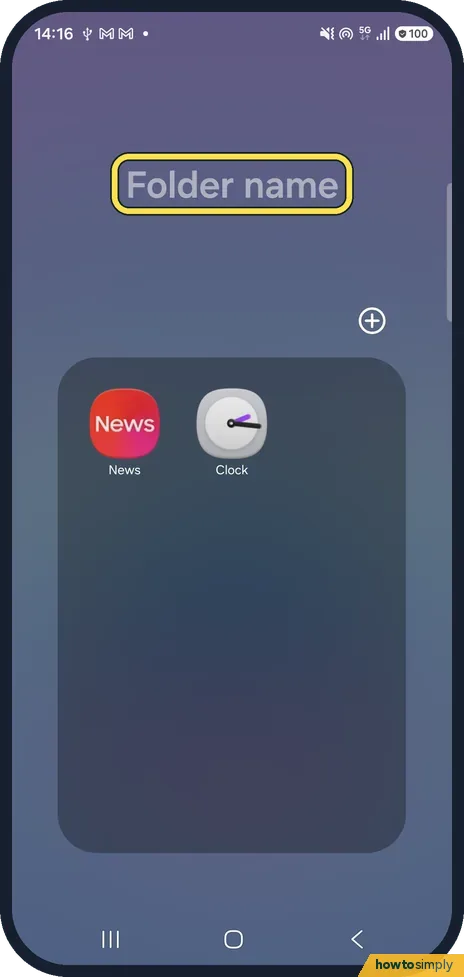
Name the folder
Let go. The folder opens at once with both apps inside. Tap Folder name at the top to type a name.
- 3
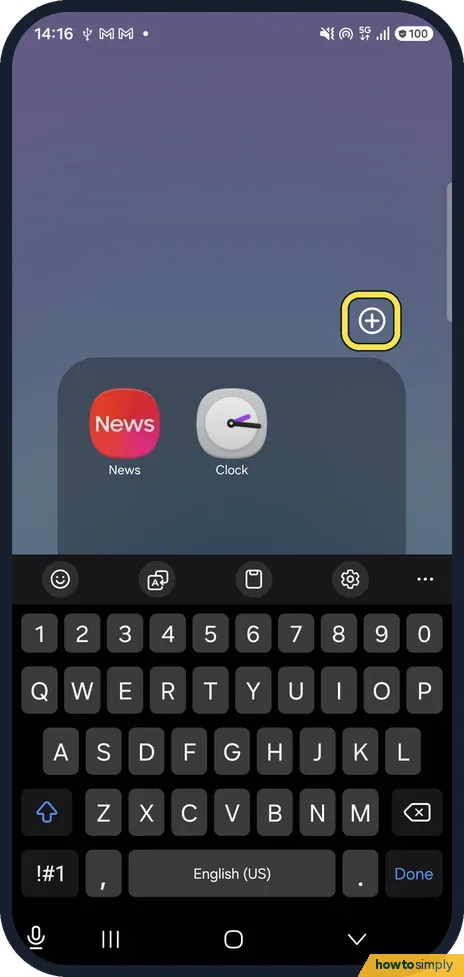
Add more apps
The keyboard opens for the name; we typed nothing. The + button at the top right adds more apps to the folder.
- 4
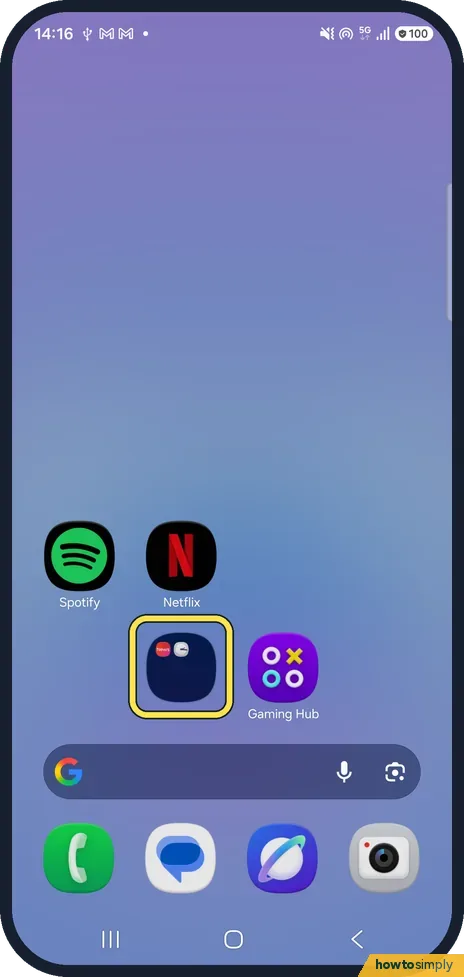
Find it on the home screen
Close the folder. It sits where the second app was, with small icons of the apps inside.
- 5
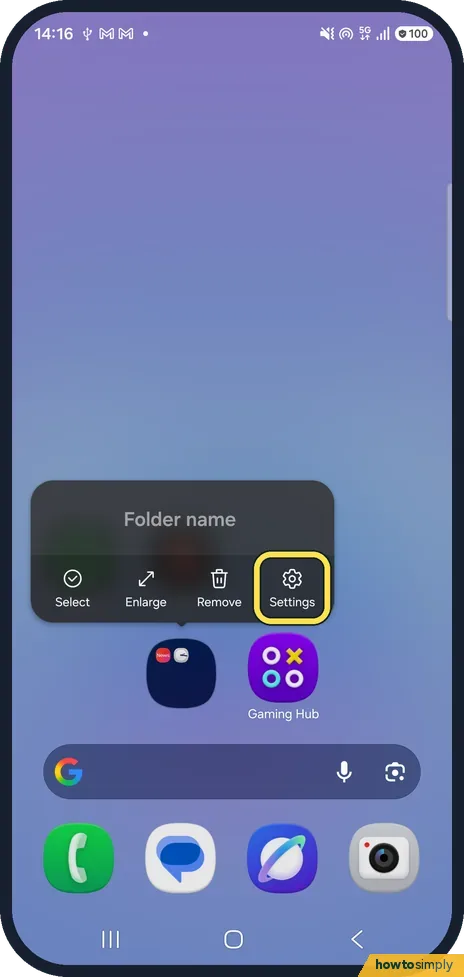
Open the folder's settings
To change its colour, touch and hold the folder. A menu shows Select, Enlarge, Remove and Settings. Tap Settings.
- 6
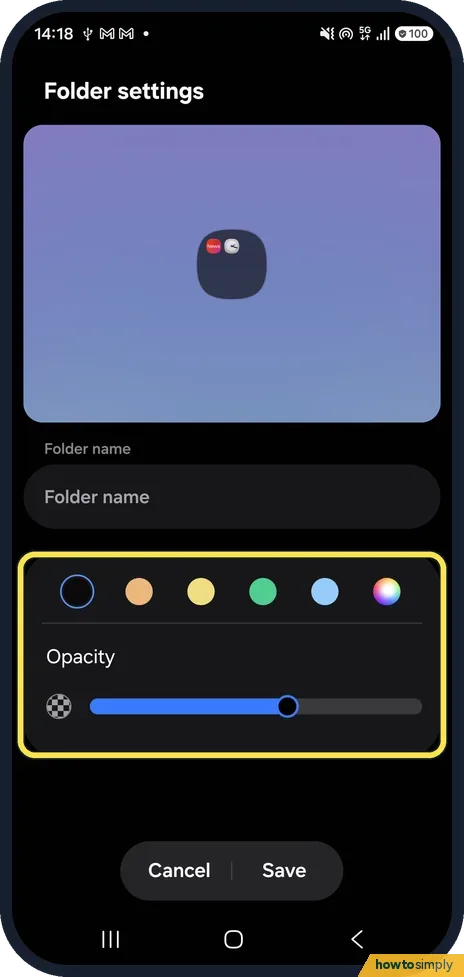
Pick a colour and opacity
Folder settings shows a preview, the Folder name field, a row of colour dots and an Opacity slider. Pick a colour, drag the slider and tap Save. We tapped Cancel.
- 7
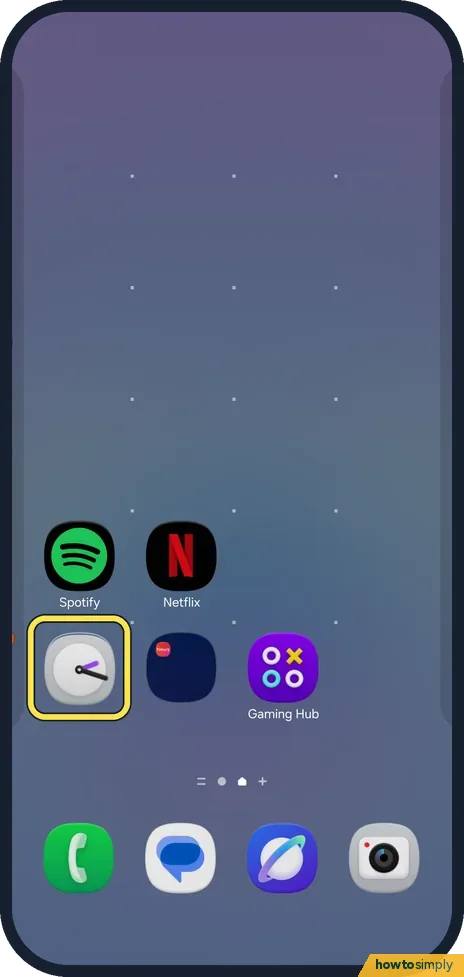
Take an app out
To undo it, open the folder and drag an app out onto the home screen. We dragged Clock out.
- 8
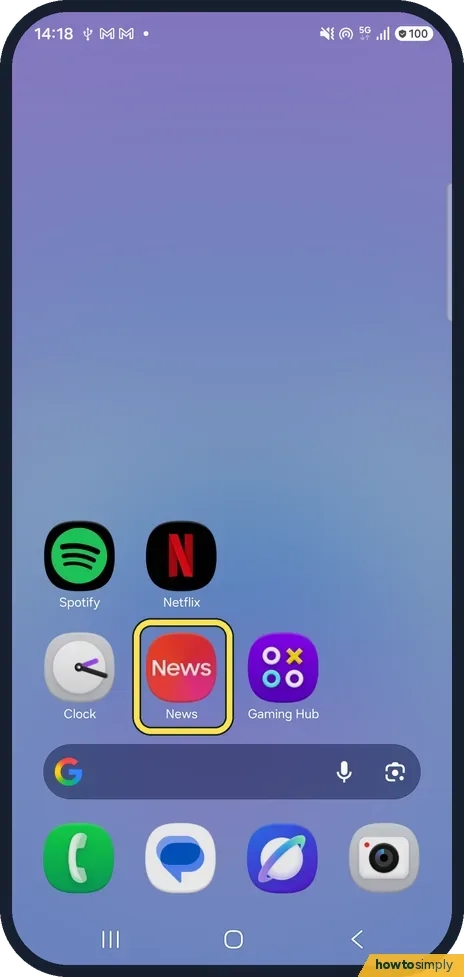
A one-app folder disappears
With only one app left, the folder turned back into the plain News icon by itself.
If you do not see this option
- Dragging does not make a folder? Samsung says to touch and hold an app, tap Select, choose the apps and tap Create folder at the top right. We used dragging. Source: How do I Create App Folders on the Galaxy S26?
- No Settings in the folder menu? Ours showed Select, Enlarge, Remove and Settings when we touched and held the folder itself, not an app inside it.
If this does not work
- Colour did not change? Tap Save in Folder settings. Samsung says the change applies when you tap Save; we tapped Cancel.
- Folder has no name? Ours showed no name under the folder because we typed none. Open the folder and tap Folder name.
- Icons will not move at all? Lock Home screen layout may be on: lock or unlock the home screen layout.
Good to know
Move an app or take it off the home screen without uninstalling it: move or remove an app from the home screen.
On a Pixel: make an app folder on a Google Pixel.
A folder changes only the home screen. The apps inside are still installed, keep their notifications and data, and still show on the Apps screen. Name folders by what you do, such as Travel or Bills, rather than by brand; that makes them easier to find at a glance. If you want the same order for good, lock the layout afterwards so a stray press does not pull an app out.
About this guide
- Device
- Android
- Shown on
- Samsung Galaxy A57 (SM-A576B), One UI 9, Android 17 (build A576BXXU6BZIE)
- App
- Home screen
- Path
- Home screen › Touch and hold an app › Drag onto another app
- Real screenshots
- 8 of 8 steps
- Checked
- October 2026
- Sources
- 2 official, linked below
Sources
Links checked October 2026. Menus and features can change with updates.Spotted a mistake? Menus change with updates, and we want every step to match your screen. Email us about this page or use the contact form. We read every report, and fixes are listed on What changed.
Liked this guide?
Follow us for new guides and short how-to videos.
Did this guide work for you?
Sorry about that. What happened?