
howtosimply.com/guides/how-to-make-a-pdf-smaller-on-an-iphone/ · Checked October 2026 · iPhone 17e · iOS 27.0.1
In this guide
Open the PDF from Files so it opens in Preview. Tap the file name, then Export. Choose PDF, then turn on Optimise Images for Screen and Save Images as JPEG. On ours the estimated size dropped from 4.7 MB to 924 KB. Tap the tick and save the new file.
- Device
- iPhone
- Shown on
- iOS 27.0.1 (iPhone 17e)
- App
- Preview
- Path
- Files › PDF › File name › Export › PDF
- Real screenshots
- 5 of 5 steps
- Checked
- October 2026
- Sources
- 1 official, linked below
Step by step
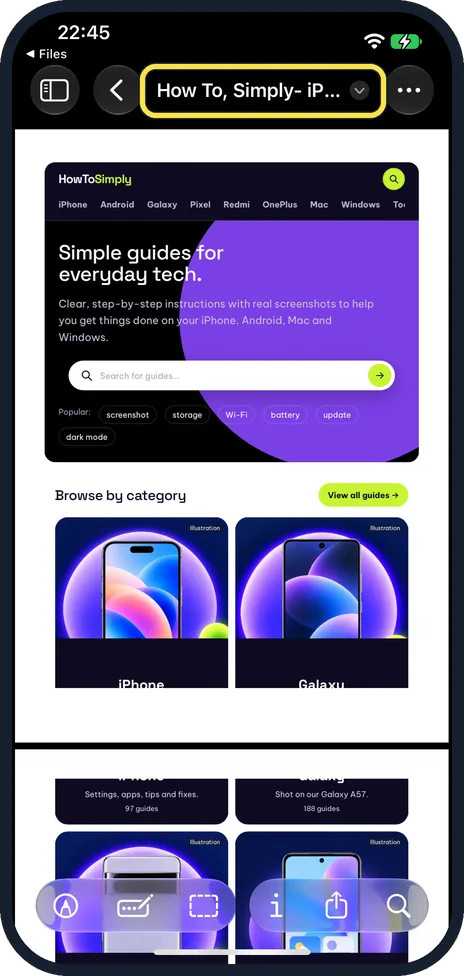
Tap the file name
Open the PDF from the Files app. Tap the name at the top of the screen.
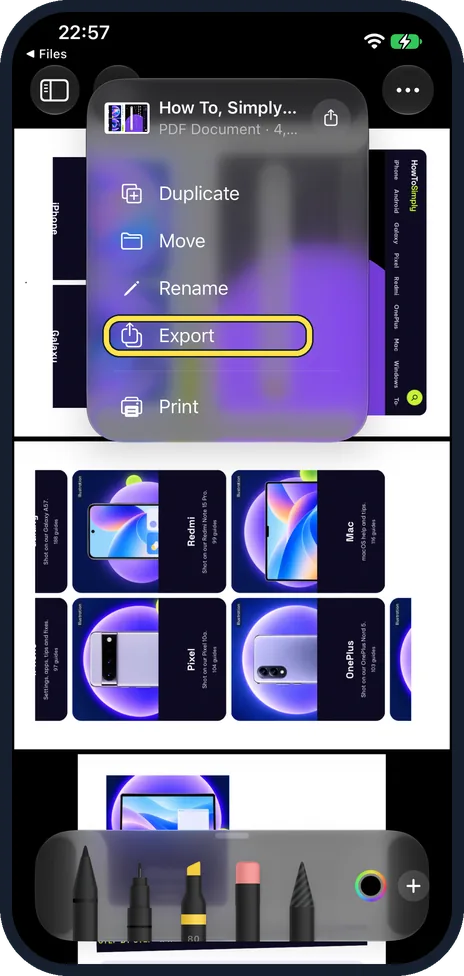
Tap Export
It is below Duplicate, Move and Rename.
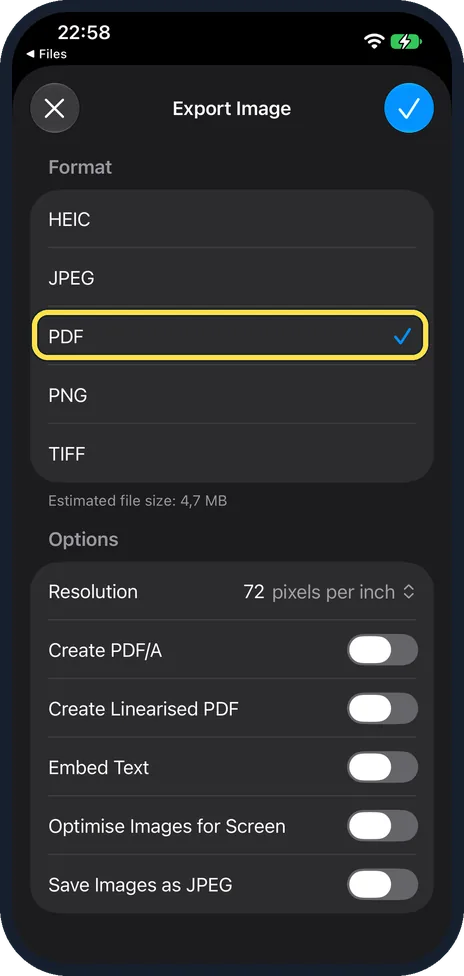
Choose PDF
The Export Image sheet opened with HEIC ticked on ours, which makes a picture, not a PDF. Tap PDF. The estimate under the list said 4.7 MB.
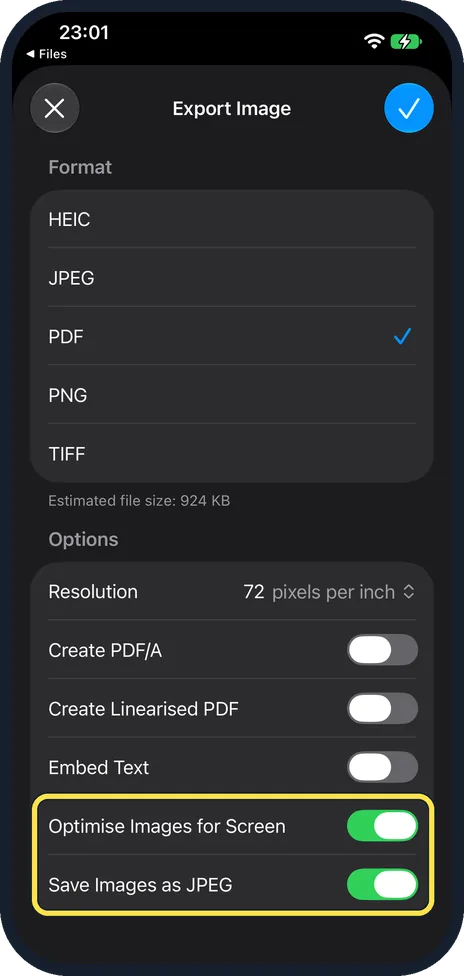
Turn on the two image options
Turn on Optimise Images for Screen and Save Images as JPEG at the bottom.
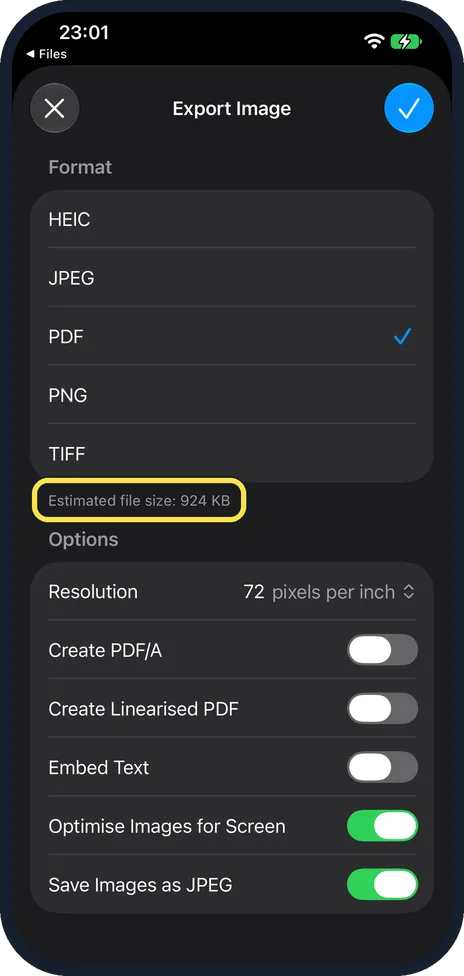
Check the new size, then tap the tick
Ours said Estimated file size: 924 KB. Tap the tick at the top right, pick a folder and tap Save. We cancelled here instead.
If you do not see this option
- Will it look worse? Apple says Optimise Images for Screen lowers the image resolution for screen viewing. Fine for reading on a screen; keep the original for printing. Source: Export or compress PDFs and images in Preview on iPhone
- What about Compress in Files? Compress in the Files menu makes a zip file, not a smaller PDF.
If this does not work
- The estimate hardly moved? These options shrink pictures. A PDF that is mostly text will not get much smaller. Source: Export or compress PDFs and images in Preview on iPhone
- Got a picture, not a PDF? Check that PDF has the tick under Format. HEIC was ticked first on ours.
About this guide
Big PDFs bounce off email limits and upload forms. Preview can save a smaller copy and leave the original as it is.
The screenshots are from our iPhone 17e with iOS 27.0.1, in Dark mode. Our test file was a PDF of the howtosimply.com home page, and we worked on a copy (Duplicate in the file menu). It was a 4.7 MB file with lots of pictures. We stopped at the size estimate and did not save the smaller copy.
Good to know
On a Mac, see how to make a PDF smaller on a Mac with Preview. To drop pages you do not need first, see how to rotate, add or delete PDF pages on an iPhone.
In short: Open the PDF from Files, file name, Export, PDF, turn on Optimise Images for Screen and Save Images as JPEG, tick, Save.
Links checked in October 2026. Menus and features can change after software updates. These steps match the version named at the top.
Did this guide work for you?
Sorry about that. What happened?