
What changed: the screenshots are now our own iPhone 17e on iOS 27.0.1, dark mode, and the wording is checked against those screens and Apple's iOS 27 guide.
howtosimply.com/guides/iphone-storage-full-7-ways-to-free-up-space-fast/ · Checked October 2026 · iPhone 17e · iOS 27.0.1
In this guide
Open Settings, General, iPhone Storage to see what is using the space. Delete large videos, clear Recently Deleted in Photos, offload apps you rarely use, and remove old message attachments.
7 of 7 steps with real screenshots · 7 official sources below
- Device
- iPhone
- Shown on
- iOS 27.0.1 (iPhone 17e)
- App
- Settings
- Path
- Settings › General
- Real screenshots
- 7 of 7 steps
- Checked
- October 2026
- Sources
- 7 official, linked below
Step by step
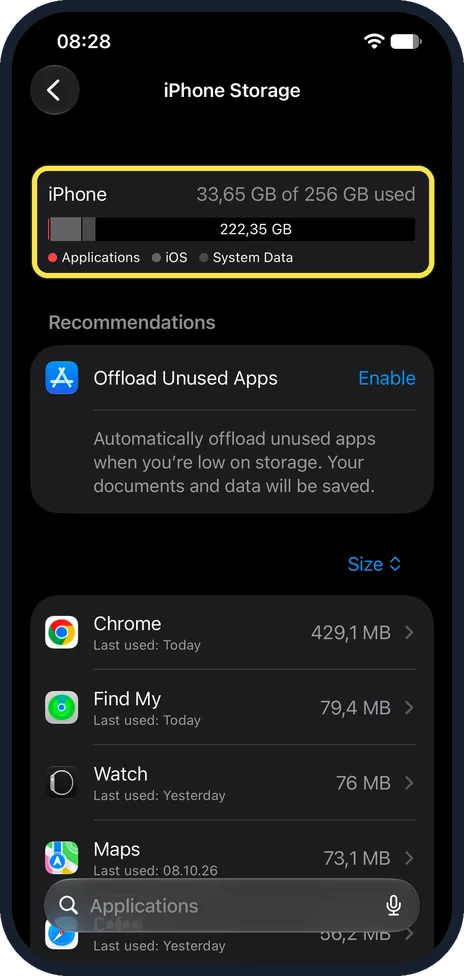
Look at the storage list
Open Settings, General, iPhone Storage and wait for the bar to load. The bar splits the used space into Applications, iOS and System Data. Below it, Recommendations suggests ways to save space, then your apps are listed by size. On our iPhone 17e the page showed 33,65 GB of 256 GB used.
Watch these steps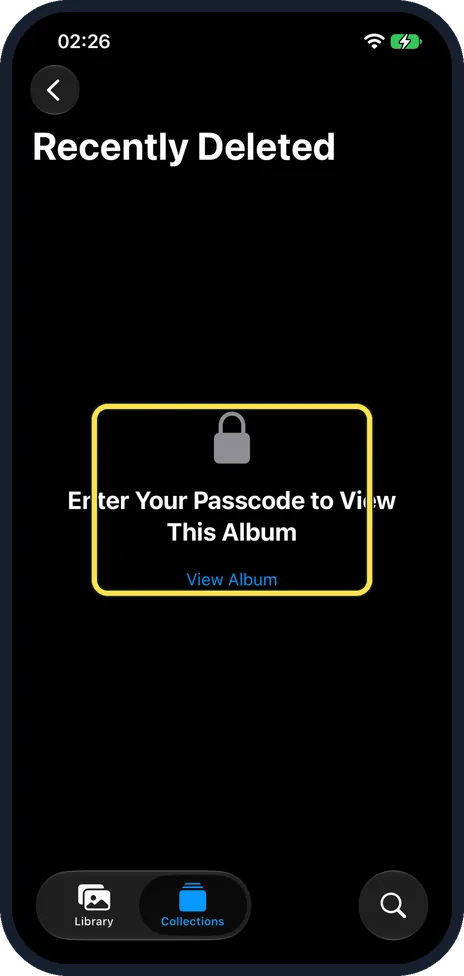
Empty Recently Deleted
Deleted photos and videos keep using space for 30 days. Open Photos, tap Collections and tap Recently Deleted under Utilities. The album is locked: tap View Album and unlock it with Face ID, Touch ID or your passcode. Then tap Select, choose the items and delete them. This cannot be undone. With iCloud Photos on, the items are removed from iCloud and from all your devices, so check your backup first.
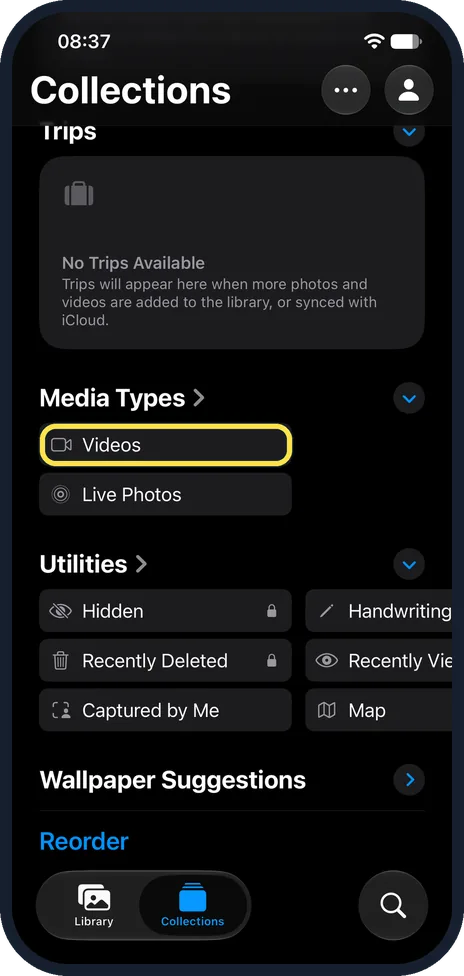
Delete large videos
In Photos, tap Collections, then Media Types, Videos. Move them to a computer or cloud storage first if you want to keep them. On our iPhone 17e, Collections listed Videos and Live Photos under Media Types, and Utilities below it held Hidden and Recently Deleted, both with a lock.
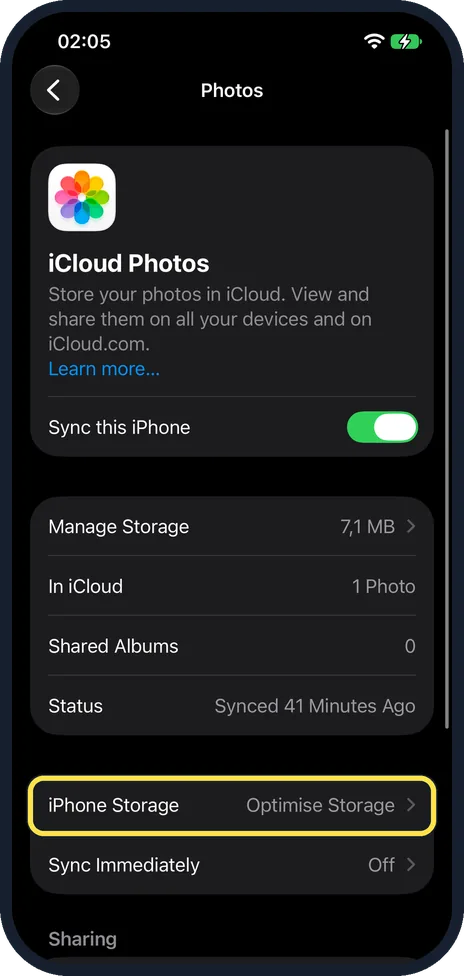
Turn on Optimise iPhone Storage
If you use iCloud Photos, open Settings, tap your name, then iCloud, then Photos. Tap iPhone Storage and choose Optimise iPhone Storage rather than Download and Keep Originals. Apple says Optimise iPhone Storage is turned on by default. On our iPhone 17e the row already read Optimise Storage. Full-size originals stay in iCloud and smaller versions stay on the phone.
Offload unused apps
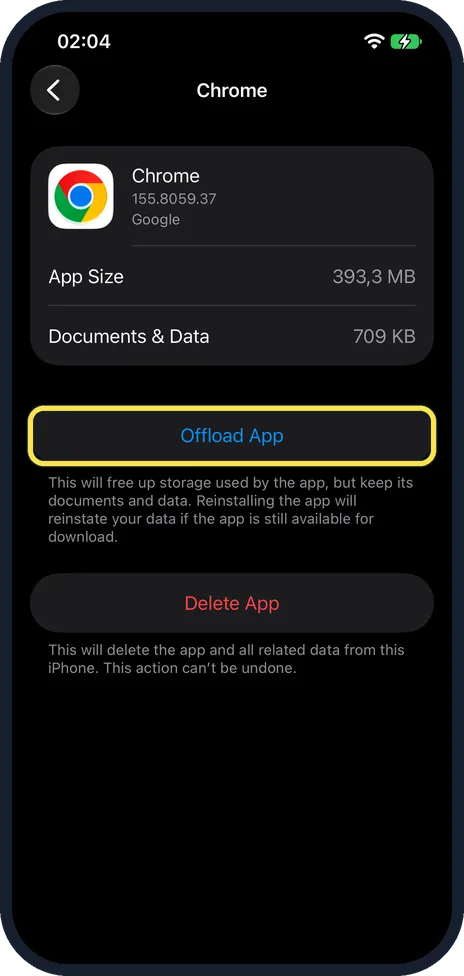
In iPhone Storage, tap an app and tap Offload App. This frees the space the app uses but keeps its documents and data, and the icon stays with a cloud symbol. Delete App, just below, removes both. To make offloading automatic, tap Enable next to Offload Unused Apps under Recommendations, or turn it on under Settings, Apps, App Store. On our iPhone 17e it was not enabled.
Clear message attachments
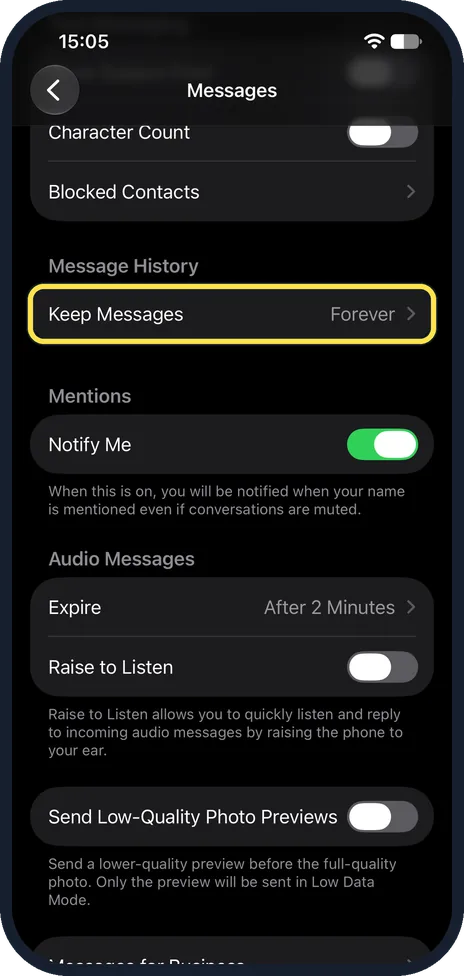
If Messages appears in the iPhone Storage list, tap it to review what it stores. You can also delete conversations and attachments you no longer need in Messages itself. To clear old messages automatically, open Settings, Apps, Messages and tap Keep Messages, below Message History. It can delete messages older than 30 days or a year. Apple warns that with any option other than Forever, whole conversations, including all attachments, are removed after that time. Our picture shows Settings, Apps, Messages on our iPhone 17e with iOS 27, where Keep Messages under Message History read Forever.
Remove downloads inside apps
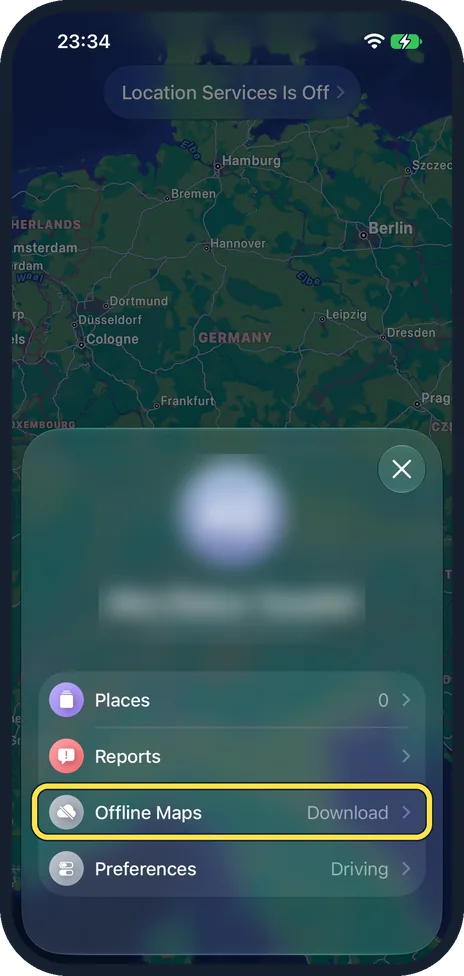
Films and episodes downloaded in the TV app and other streaming apps, downloaded music and offline maps are stored on the phone. Delete downloads you have finished with from within each app. Also find and delete files you no longer need in the Files app. Settings, Apps, Music, Optimise Storage removes music you have not played for a while, and Maps has its own Optimise Storage switch under Offline Maps: in Maps, tap your picture next to the search field, then Offline Maps. On our iPhone 17e the Offline Maps row read Download.
What changed: the screenshots are now our own iPhone 17e on iOS 27.0.1, dark mode, and the wording is checked against those screens and Apple's iOS 27 guide.
Watch these steps
What we saw on our device
- Look at the storage list: On our iPhone 17e the page showed 33,65 GB of 256 GB used.
- Delete large videos: On our iPhone 17e, Collections listed Videos and Live Photos under Media Types, and Utilities below it held Hidden and Recently Deleted, both with a lock.
- Turn on Optimise iPhone Storage: On our iPhone 17e the row already read Optimise Storage.
- Offload unused apps: On our iPhone 17e it was not enabled.
- Remove downloads inside apps: On our iPhone 17e the Offline Maps row read Download.
If you do not see this option
- No Offload Unused Apps under Recommendations Apple's iOS 27 guide also puts the switch under Settings, Apps, App Store, Offload Unused Apps. On our iPhone 17e it was not enabled. Source: Manage storage on iPhone
- No iPhone Storage choice under iCloud Photos Optimise iPhone Storage only applies when iCloud Photos is in use. On our iPhone 17e, Sync this iPhone was on and the iPhone Storage row sat below Status. Source: Back up and sync your photos and videos with iCloud
- Recently Deleted opens without unlocking Apple says the album is locked by default, and that turning off Use Face ID, Use Touch ID or Use Passcode under Settings, Apps, Photos changes it to unlocked. Check those switches. Source: Delete or hide photos and videos on iPhone
If this does not work
- Recently Deleted asks for a passcode This is normal: the album is locked. Tap View Album and use Face ID, Touch ID or the passcode. Our iPhone 17e showed "Enter Your Passcode to View This Album". Source: Delete or hide photos and videos on iPhone
- Deleting photos frees no space Apple says deleted photos and videos are kept in Recently Deleted for 30 days. Empty it as in step 2. With iCloud Photos on, deleting also removes the items from your other devices, so check your backup first. Source: Delete or hide photos and videos on iPhone
- An offloaded app will not come back Apple says you can reinstall an offloaded app at any time if it is still available in the App Store: tap its icon with the cloud symbol. Source: Manage storage on iPhone · Source: Change settings and restrictions in the App Store on iPhone
About this guide
Apple says an iPhone that is nearly full can show a Storage Almost Full alert. The storage page shows exactly where the space went, sorted by size.
Screenshots: iPhone 17e, iOS 27.0.1, dark mode.
Good to know
Should you turn on Offload Unused Apps? Apple says that, when storage is low, the iPhone then removes apps you don't use while keeping your data. It suits a phone that keeps running out of space and has apps you rarely open. Leave it off if you need an app to open with no internet: an offloaded app stays on the Home Screen with a cloud symbol and has to download from the App Store again before it opens. On our iPhone 17e it was not turned on.
System Data is shown in the storage bar. The iPhone removes cached files by itself when it needs space.
Before deleting photos, make sure they are backed up: how to back up an iPhone to iCloud.
In short: Settings, General, iPhone Storage. Clear Recently Deleted, large videos, unused apps, message attachments, downloads and old files.
- Apple Support: How to check the storage on your iPhone and iPad
- Apple iPhone User Guide: Manage storage on iPhone
- Apple iPhone User Guide: Delete or hide photos and videos on iPhone
- Apple iPhone User Guide: Back up and sync your photos and videos with iCloud
- Apple iPhone User Guide: Add music to iPhone and listen offline
- Apple iPhone User Guide: Download offline maps on iPhone
- Apple iPhone User Guide: Delete messages and attachments in Messages on iPhone
Links checked in October 2026. Menus and features can change after software updates. These steps match the version named at the top.
Did this guide work for you?
Sorry about that. What happened?