
howtosimply.com/guides/how-to-download-a-pdf-from-safari-on-an-iphone/ · Checked October 2026 · iPhone 17e · iOS 27.0.1
In this guide
With the PDF open in Safari, tap the page menu button left of the address, tap Share, then Save to Files and Save. On our iPhone 17e Save to Files was not in the first row of the share sheet: we had to tap View More first. The file went to Downloads in iCloud Drive.
- Device
- iPhone
- Shown on
- iOS 27.0.1 (iPhone 17e)
- App
- Safari
- Path
- Safari › Page menu › Share › Save to Files
- Real screenshots
- 7 of 7 steps
- Checked
- October 2026
- Sources
- 1 official, linked below
Step by step
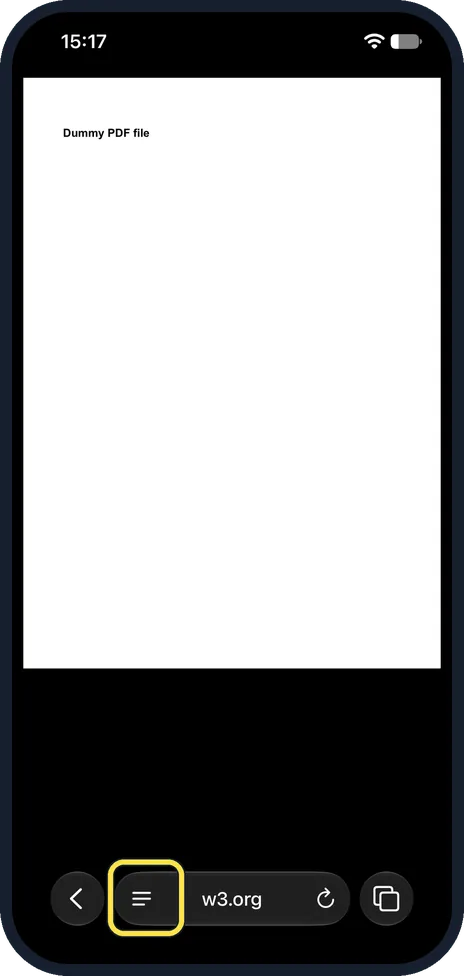
Tap the page menu button
Open the PDF in Safari. Tap the button with three lines at the left of the address bar.
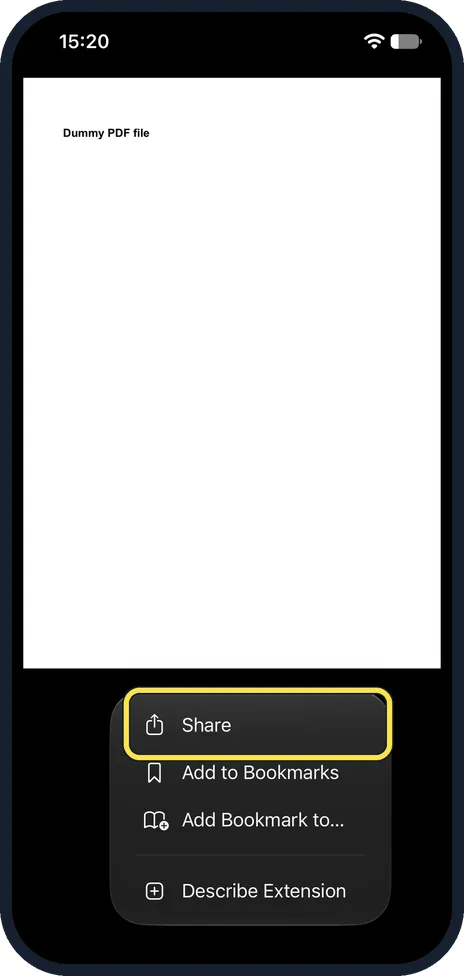
Tap Share
It is the first item in the menu.
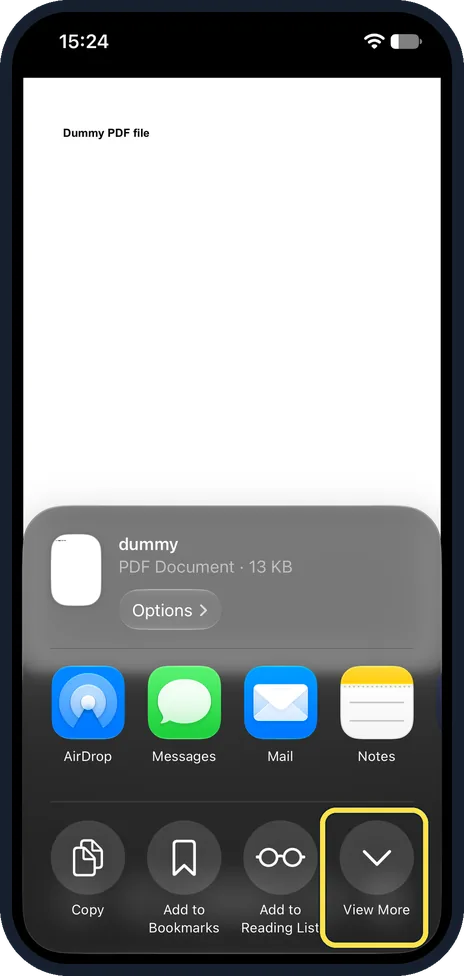
Tap View More
The share sheet shows the file name, PDF Document and its size. Save to Files was not in the row of buttons on ours, so tap View More at the end of that row.
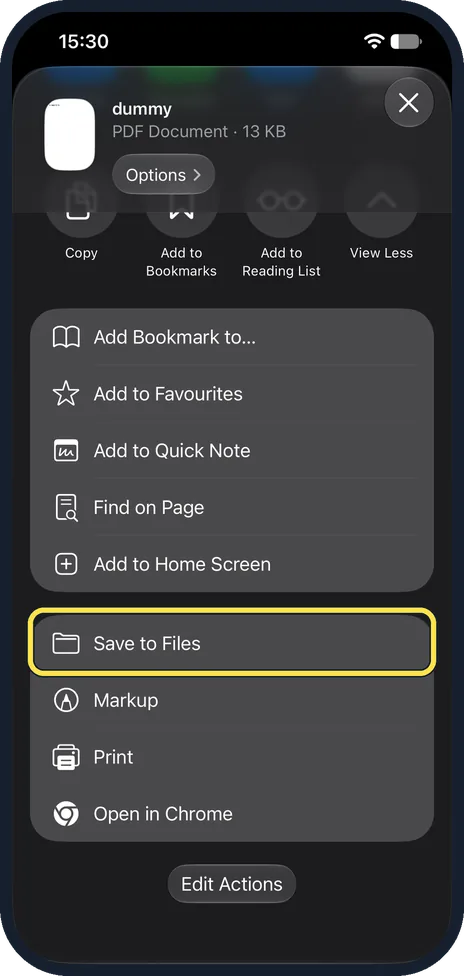
Tap Save to Files
It is in the second group of the list, above Markup and Print.
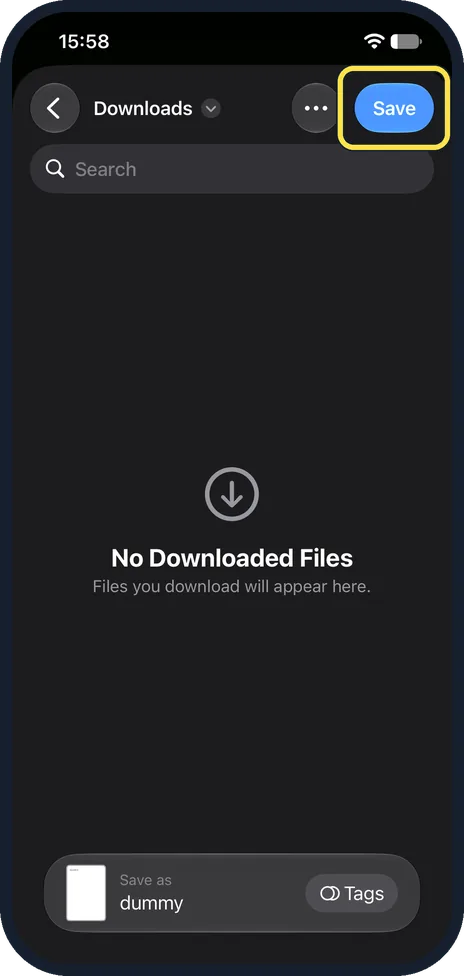
Pick a folder and tap Save
Ours opened in Downloads, which was empty (No Downloaded Files). To save somewhere else, tap the back arrow at the top left. You can rename the file in the Save as box at the bottom. Then tap Save.
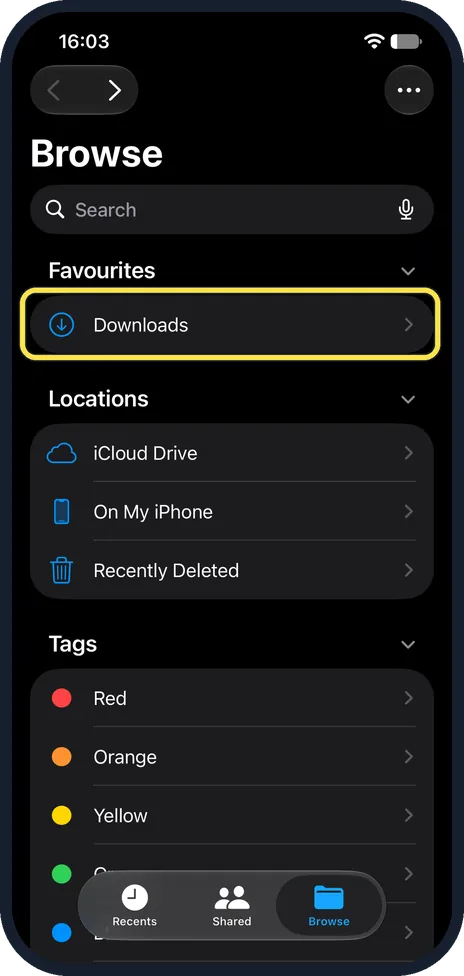
Open Downloads in Files
Open the Files app, tap Browse at the bottom, then Downloads under Favourites.
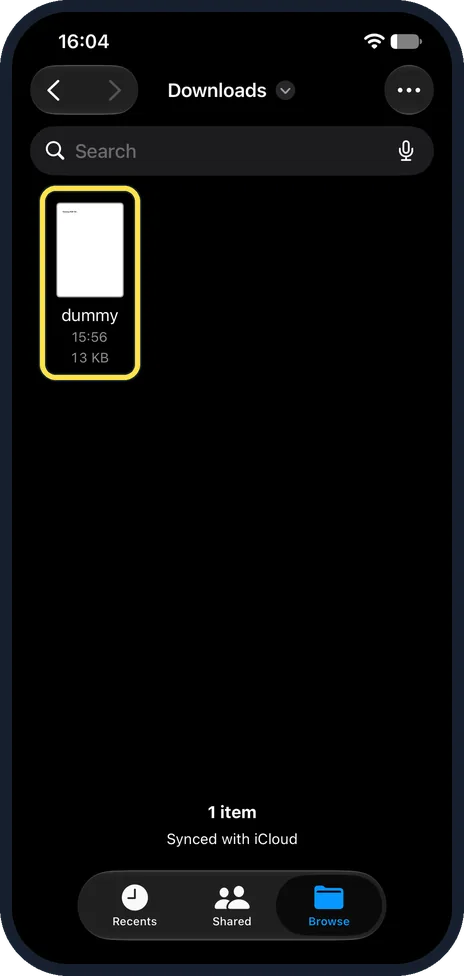
Find your PDF
Our file showed as dummy, 13 KB, and the folder said Synced with iCloud: it is in iCloud Drive, so it also shows on your other devices with the same Apple Account.
If you do not see this option
- Want it on the iPhone only? In the Save box, tap the back arrow and choose On My iPhone instead of a folder in iCloud Drive.
- A normal web page, not a PDF? Use Options in the share sheet to save it as a PDF: how to save a web page as a PDF on an iPhone.
If this does not work
- No Save to Files in the share sheet? Tap View More at the end of the row of buttons; on ours it was in the long list below.
- A download button saved it somewhere else? Files downloaded with a download link go to the folder set in Settings, Apps, Safari, Downloads: how to change where Safari saves downloads on an iPhone.
About this guide
Safari shows a PDF like a web page, so it is easy to lose. Saving it puts a copy in the Files app that you can open offline or send on.
The screenshots are from our iPhone 17e with iOS 27.0.1, in Dark mode. We used a public sample PDF from w3.org (13 KB) and deleted it afterwards.
Good to know
To make a web page into a PDF instead, see how to save a web page as a PDF on an iPhone.
In short: Page menu, Share, View More, Save to Files, Save. The PDF is in Files, Downloads.
Links checked in October 2026. Menus and features can change after software updates. These steps match the version named at the top.
Did this guide work for you?
Sorry about that. What happened?