
howtosimply.com/guides/how-to-make-an-app-folder-on-an-iphone/ · Checked October 2026 · iPhone 17e · iOS 27.0.1
In this guide
Touch and hold an empty part of the Home Screen until the apps jiggle, then drag one app onto another. iOS makes a folder and names it for you: ours was called Education. To rename it, touch and hold the folder and tap Rename. Drag every app out and the folder disappears.
8 of 8 steps with real screenshots · 2 official sources below
- Device
- iPhone
- Shown on
- iOS 27.0.1 (iPhone 17e)
- App
- Home Screen
- Path
- Home Screen › Touch and hold › Drag an app onto another
- Real screenshots
- 8 of 8 steps
- Checked
- October 2026
- Sources
- 2 official, linked below
Step by step
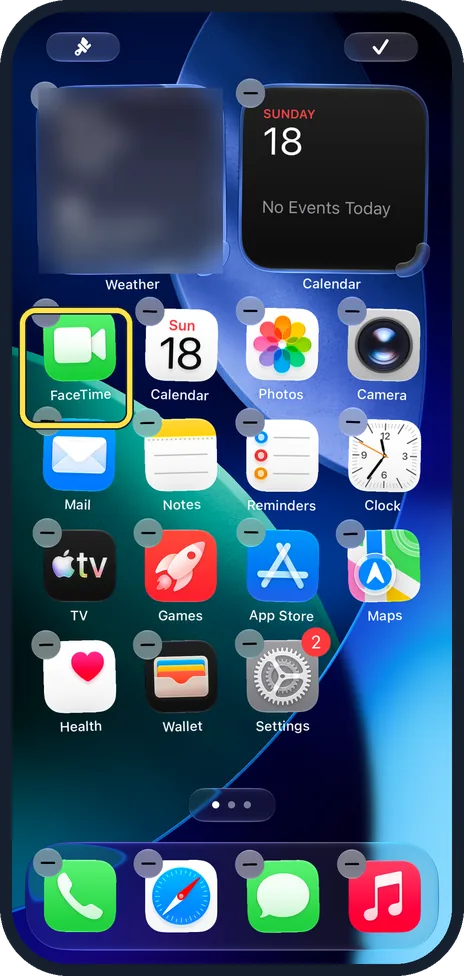
Make the apps jiggle
Touch and hold an empty part of the Home Screen. The apps jiggle and a minus sign appears on each one, as on FaceTime here.
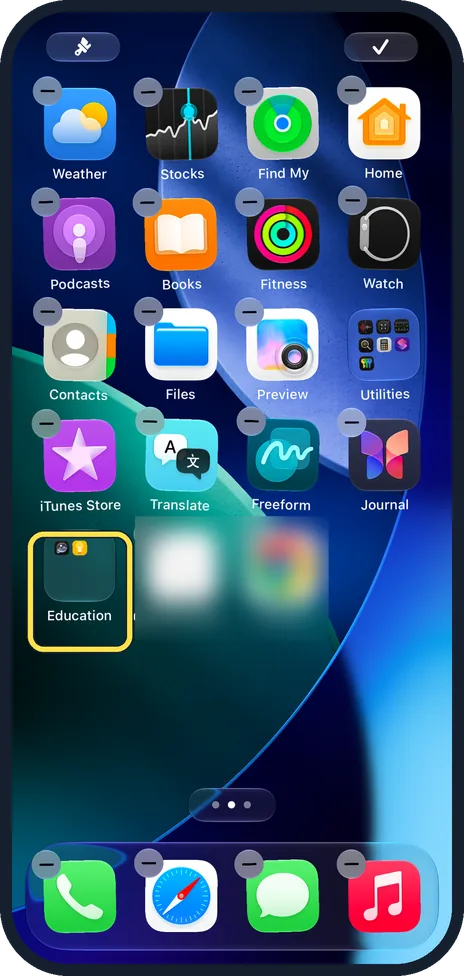
Drag one app onto another
Drag an app and hold it over a second app until a folder opens, then let go. Ours made a folder from Tips and Playground and named it Education.
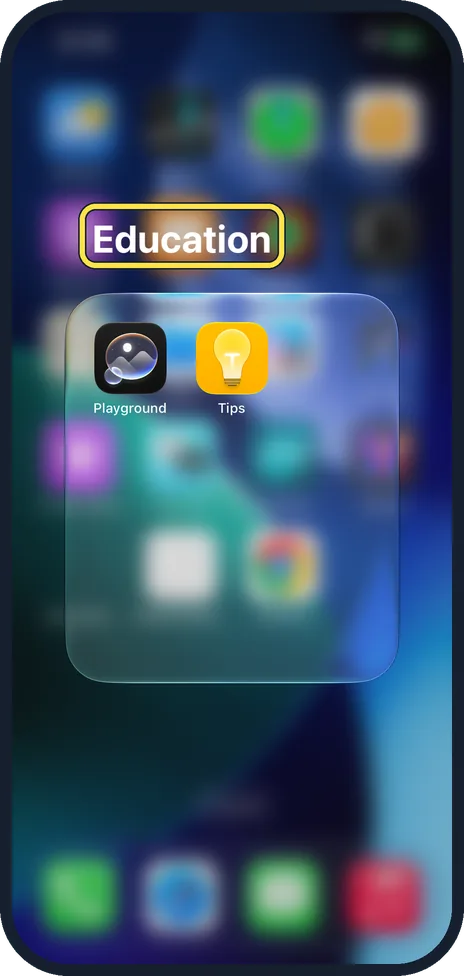
Open the folder
Tap the folder. Its name is at the top, above the apps inside it.
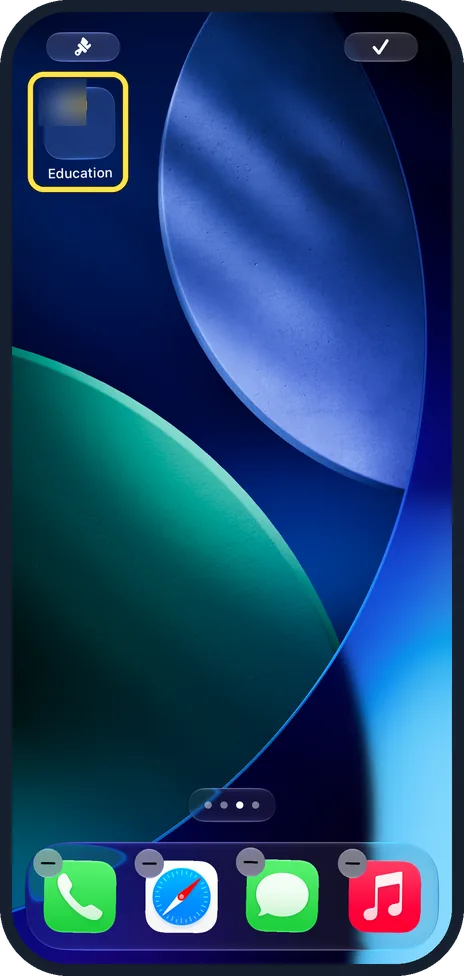
Move the folder to another page if you like
With the apps jiggling, drag the folder to the right edge of the screen and hold it there to go to the next page. Ours, still called Education at this point, landed on an empty page; we moved it back. Apple says to tap Done when you finish; on our iPhone 17e it was a tick at the top right.
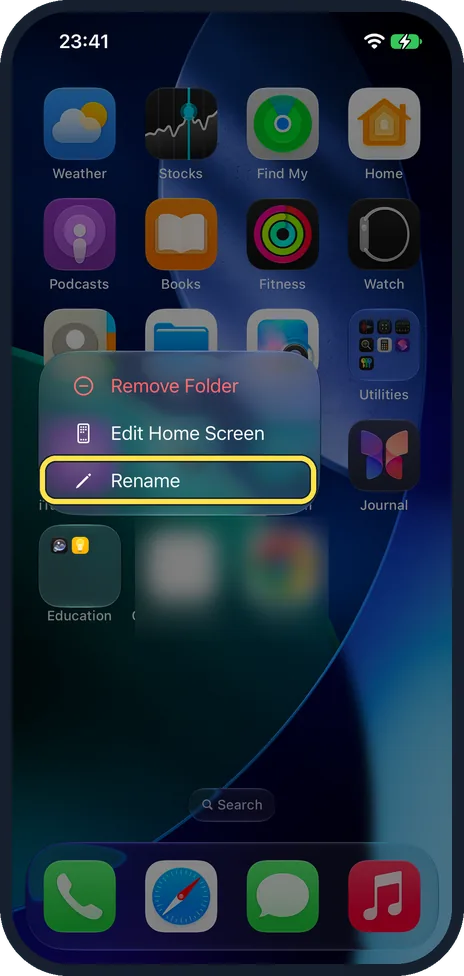
Tap Rename
Tap an empty part of the screen to stop the jiggle. Touch and hold the folder, then tap Rename. The same menu has Remove Folder and Edit Home Screen.
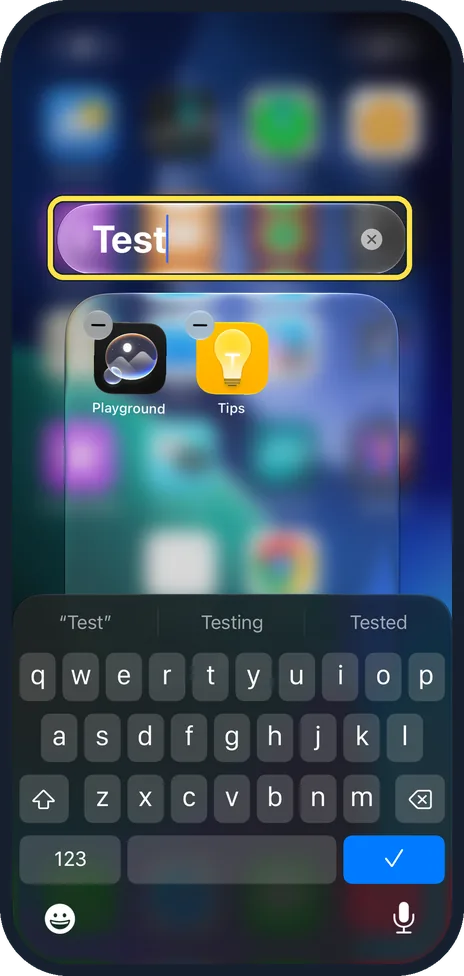
Type the new name
Clear the old name with the x, type the new one (ours was Test) and tap the tick on the keyboard.
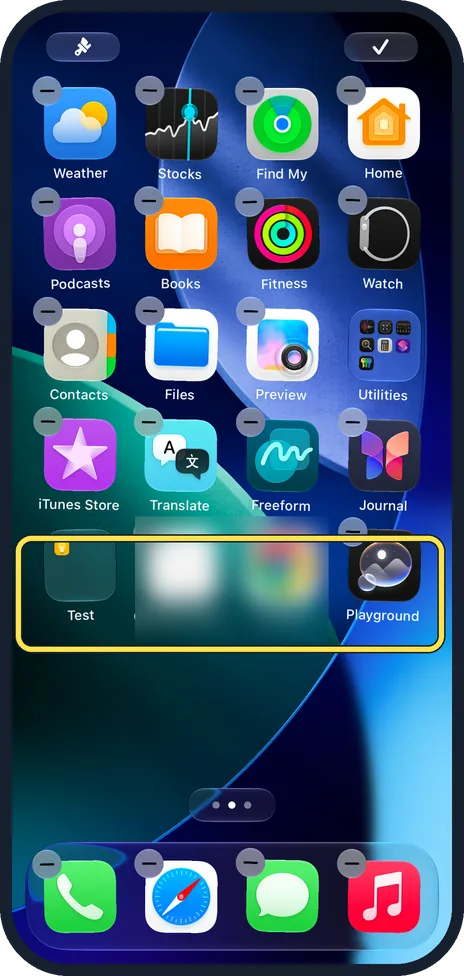
Drag the apps out to delete the folder
Make the apps jiggle, open the folder and drag each app out onto the Home Screen. Here Playground is out and the Test folder still holds Tips.
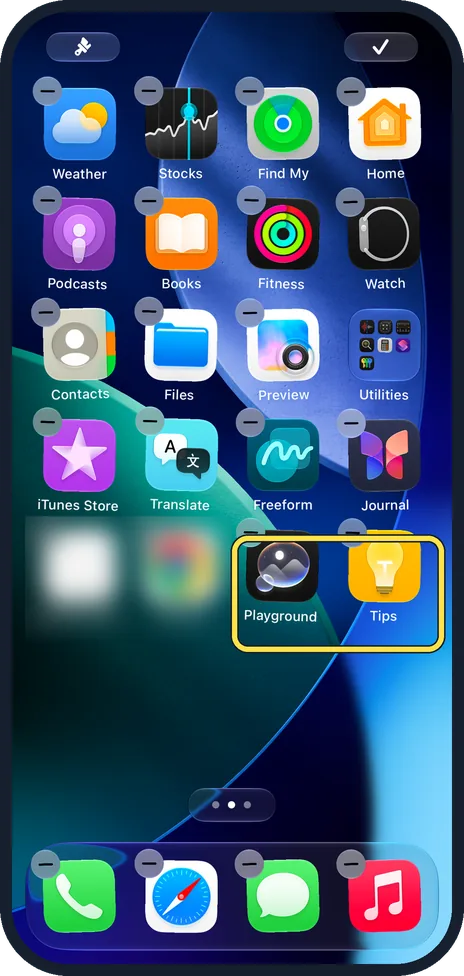
Drag out the last app
When the last app is out, the folder is gone: here Playground and Tips are back on their own. Apple says an empty folder is deleted automatically.
If you do not see this option
- A menu opens instead? On ours, touching and holding the Home Screen background also showed an Edit menu with Add Widget, Customise and Edit Pages, and touching and holding a folder opened its own menu with Rename. Hold an empty spot, not an app or folder, to make the apps jiggle.
- No Rename in the menu? Apple says that if the apps begin to jiggle, tap the Home Screen background and try again: touch and hold the folder while the apps are still. Source: Organize your apps in folders on iPhone
- Cannot find a page with your folder? Apple says you can hide Home Screen pages: touch and hold the background, tap the dots at the bottom and tick the pages to show them again. Source: Find and use your apps in App Library on iPhone
If this does not work
- The app moved instead of making a folder? Hold the dragged app over the other app for a moment, until the folder frame opens, before you let go.
- Too many apps for one folder? Apple says a folder can hold several pages of apps: keep dragging apps in. Source: Organize your apps in folders on iPhone
About this guide
Folders keep a busy Home Screen tidy. iOS picks a name from the kind of apps you drop together, and you can change it.
The screenshots are from our iPhone 17e with iOS 27.0.1, in Dark mode. We put Tips and Playground in a folder and moved them back afterwards.
Good to know
Apple says folders on the Home Screen do not change how apps are grouped in App Library.
To change the look of the icons themselves, see how to make app icons dark, clear or tinted on an iPhone. To find an app that is not on any page, see how to find apps in the App Library.
In short: Touch and hold the Home Screen, drag one app onto another. Hold the folder, Rename. Drag all apps out to delete it.
- Apple iPhone User Guide: Organize your apps in folders on iPhone
- Apple iPhone User Guide: Find and use your apps in App Library on iPhone
Links checked in October 2026. Menus and features can change after software updates. These steps match the version named at the top.
Did this guide work for you?
Sorry about that. What happened?