
macOS 27 compared with macOS 26: We rewrote this guide on macOS 27.0.1 (MacBook Neo): it now has 8 steps instead of 5. The macOS 26 page keeps the steps and screenshots as they were.
howtosimply.com/guides/how-to-make-a-pdf-smaller-on-a-mac-with-preview/ · Checked October 2026 · MacBook Neo · macOS 27.0.1
In this guide
Open the PDF in Preview, choose File > Export, set Quartz Filter to Reduce File Size and tick Optimize images for screen and Save images as JPEG. Type a new name and click Save, so the original stays untouched.
8 of 8 steps with real screenshots · 1 official source below
- Device
- Mac
- Shown on
- macOS 27.0.1 (MacBook Neo)
- App
- Preview
- Real screenshots
- 8 of 8 steps
- Checked
- October 2026
- Sources
- 1 official, linked below
Step by step
Zoomed in on the setting. Tap to see the whole screenTap the picture to see it full size Open the PDF in Preview
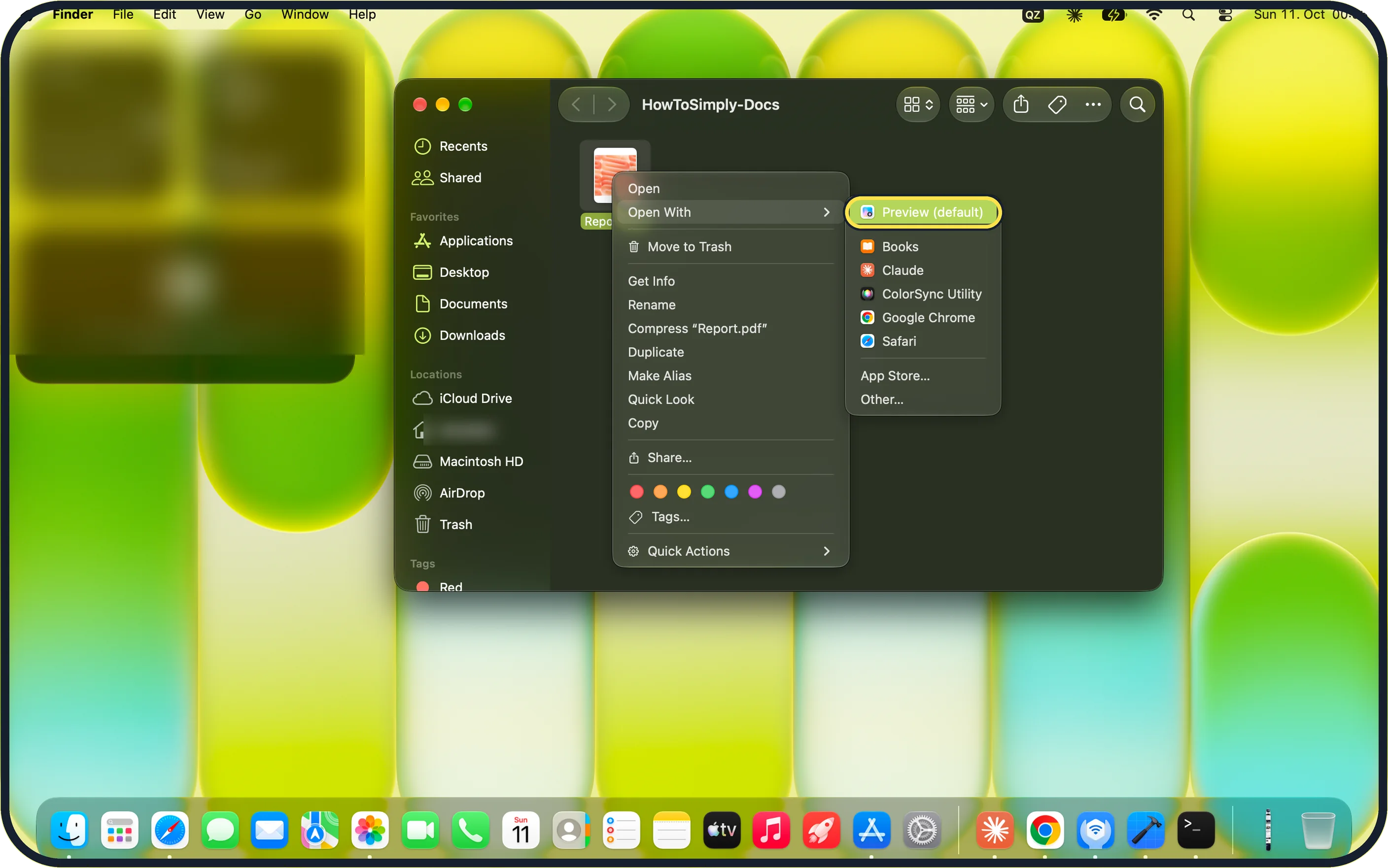
Double-click the file. If it opens in another app, Control-click it and choose Open With > Preview.
On our MacBook Neo, Preview was at the top of the list as Preview (default).
Zoomed in on the setting. Tap to see the whole screenTap the picture to see it full size Choose File > Export…
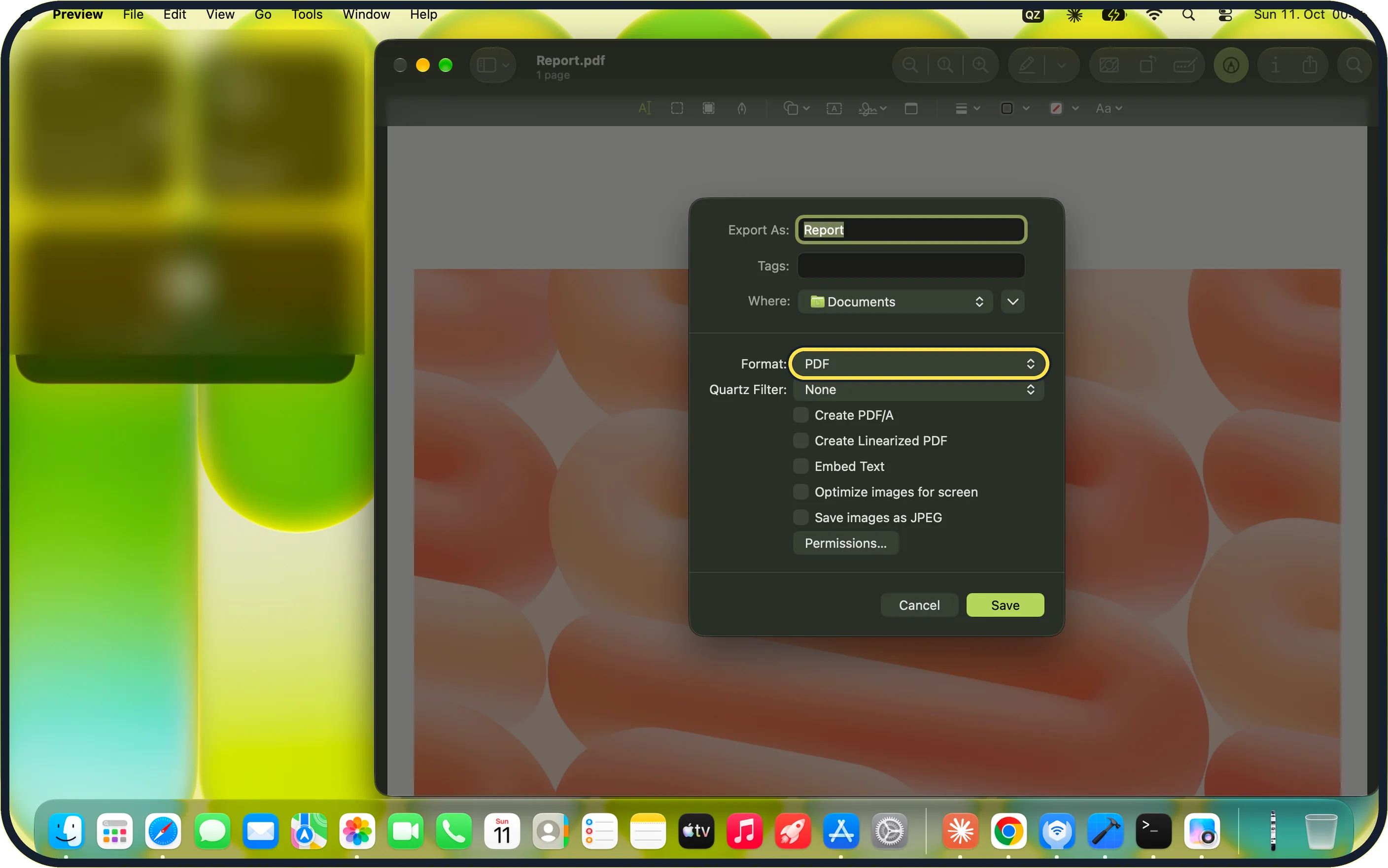
With the PDF open in Preview, click File in the menu bar and choose Export…. The export sheet opens. On our MacBook Neo, Format was already PDF and Quartz Filter was None.
Zoomed in on the setting. Tap to see the whole screenTap the picture to see it full size Set Quartz Filter to Reduce File Size
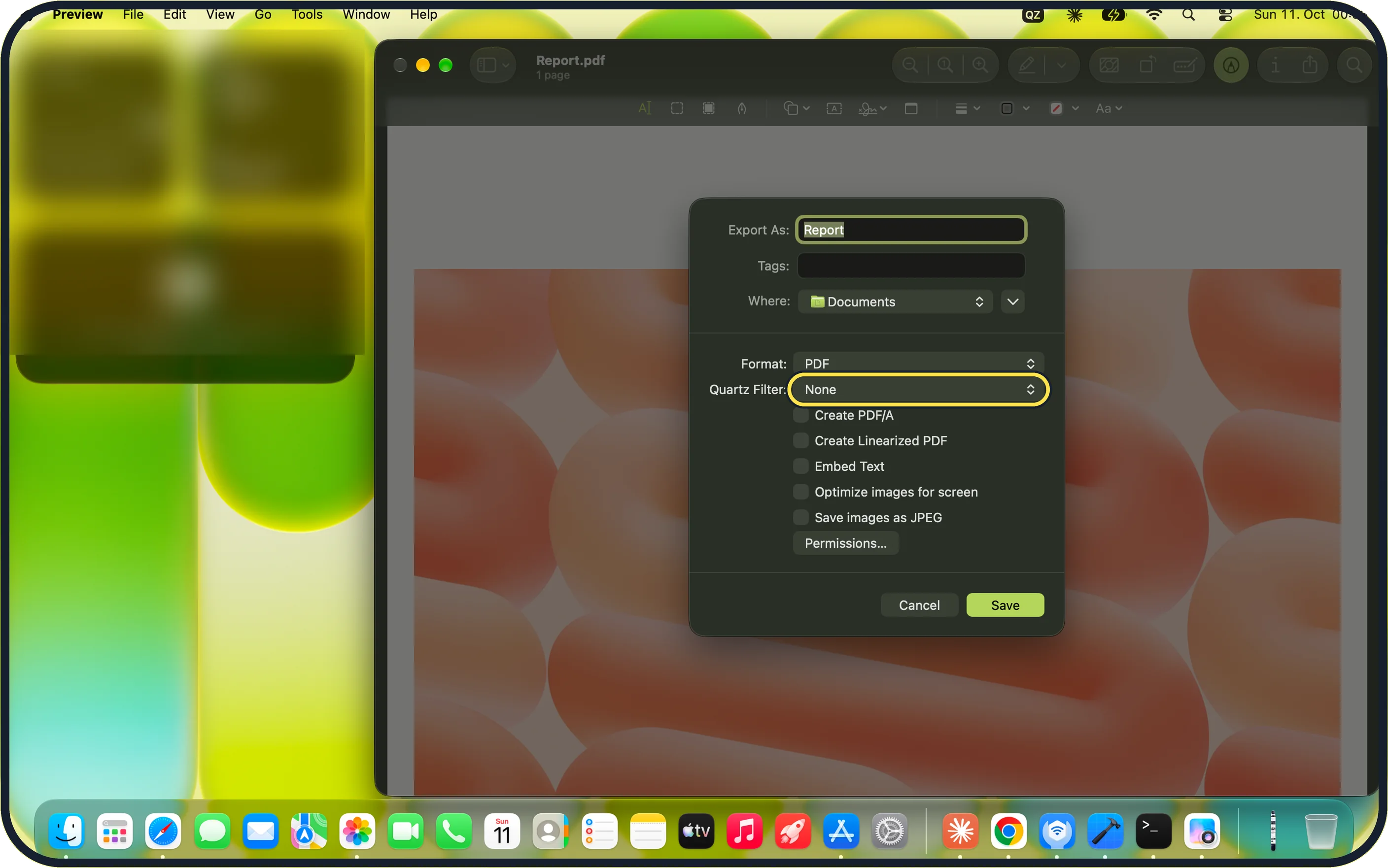
Click the Quartz Filter menu, which is set to None, and choose Reduce File Size.
On our MacBook Neo it sits directly under Format: PDF, above the list of tick boxes.
Zoomed in on the setting. Tap to see the whole screenTap the picture to see it full size Tick the two image options
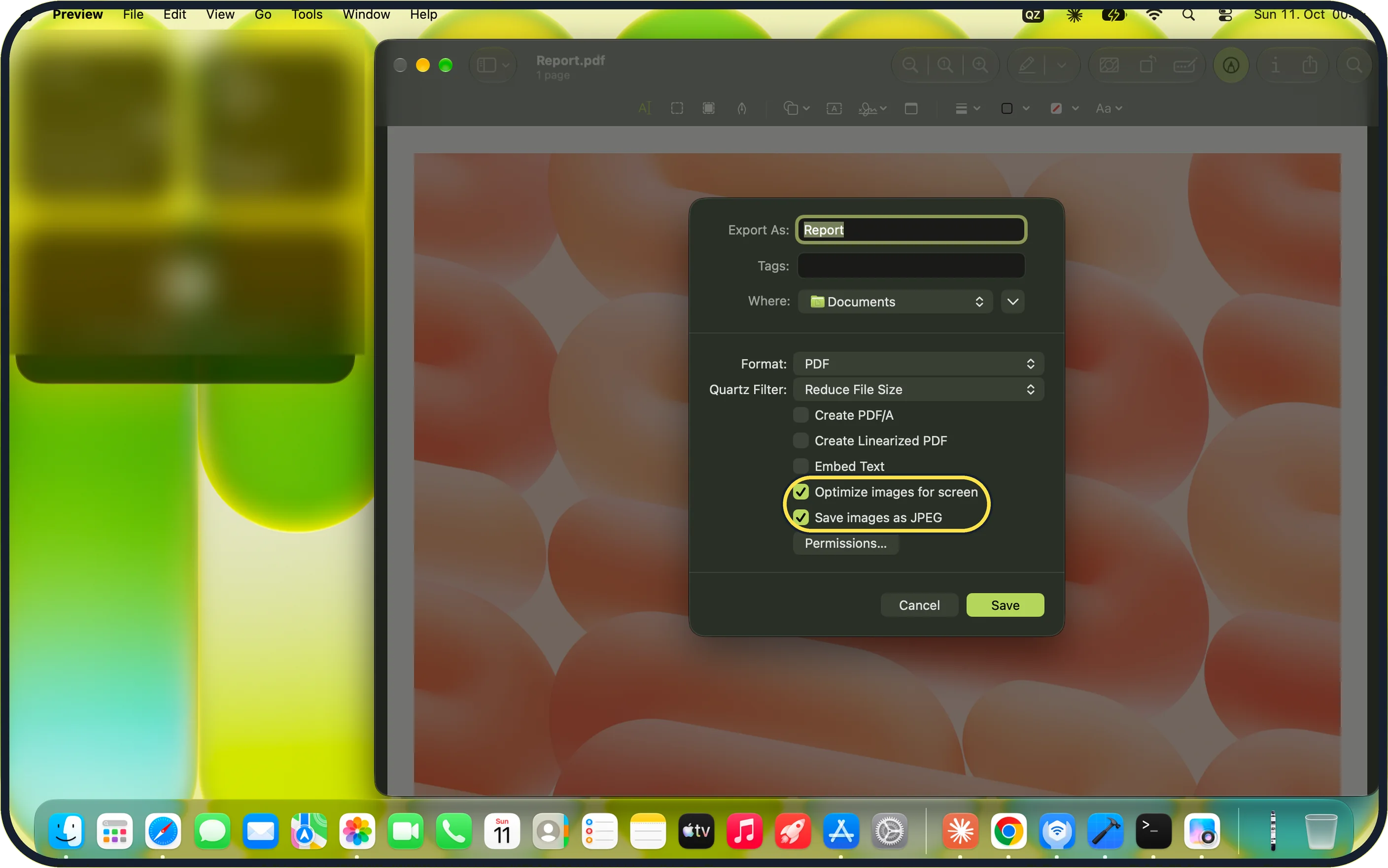
Tick Optimize images for screen and Save images as JPEG. They are three rows below Quartz Filter, after Create PDF/A, Create Linearized PDF and Embed Text.
On our MacBook Neo, these two ticks without the Reduce File Size filter left the file at 17 MB, so do not skip the previous step.
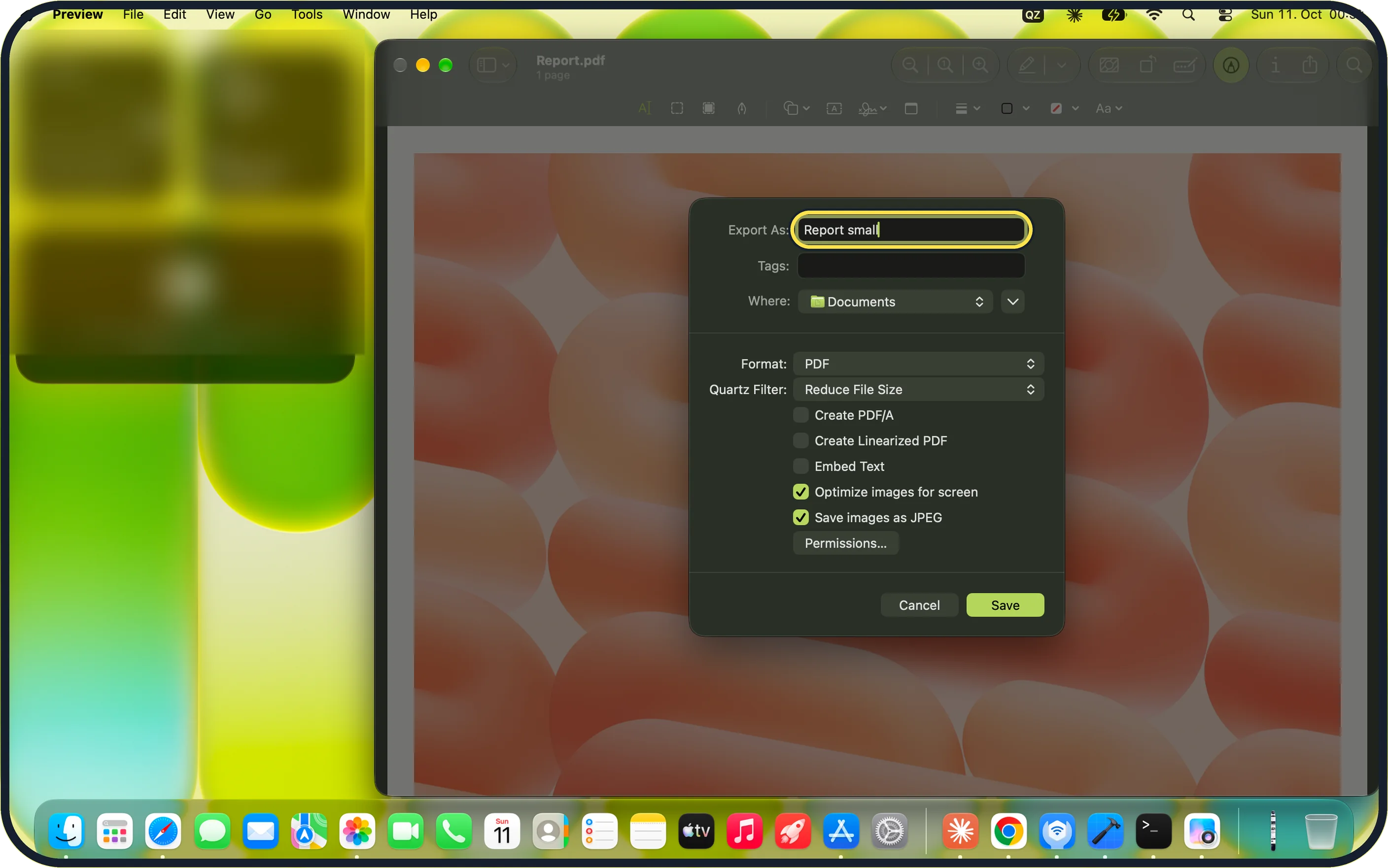
Zoomed in on the setting. Tap to see the whole screenTap the picture to see it full size Type a new name
The Export As field suggests the original name. Change it, for example to Report small, so the original stays untouched.
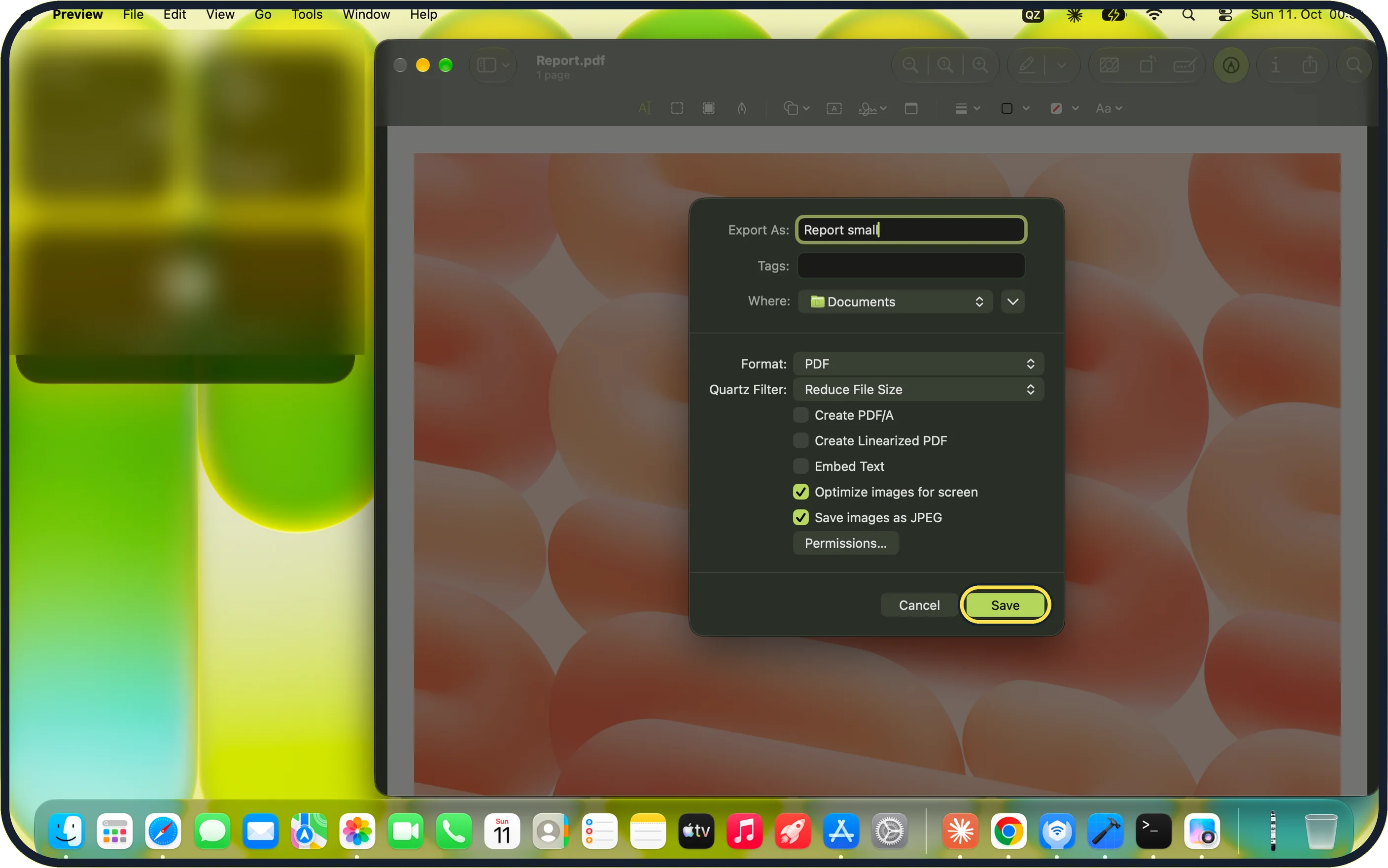
Zoomed in on the setting. Tap to see the whole screenTap the picture to see it full size Click Save
The smaller copy is saved in the folder you pick next to Where. Your original file is not changed.
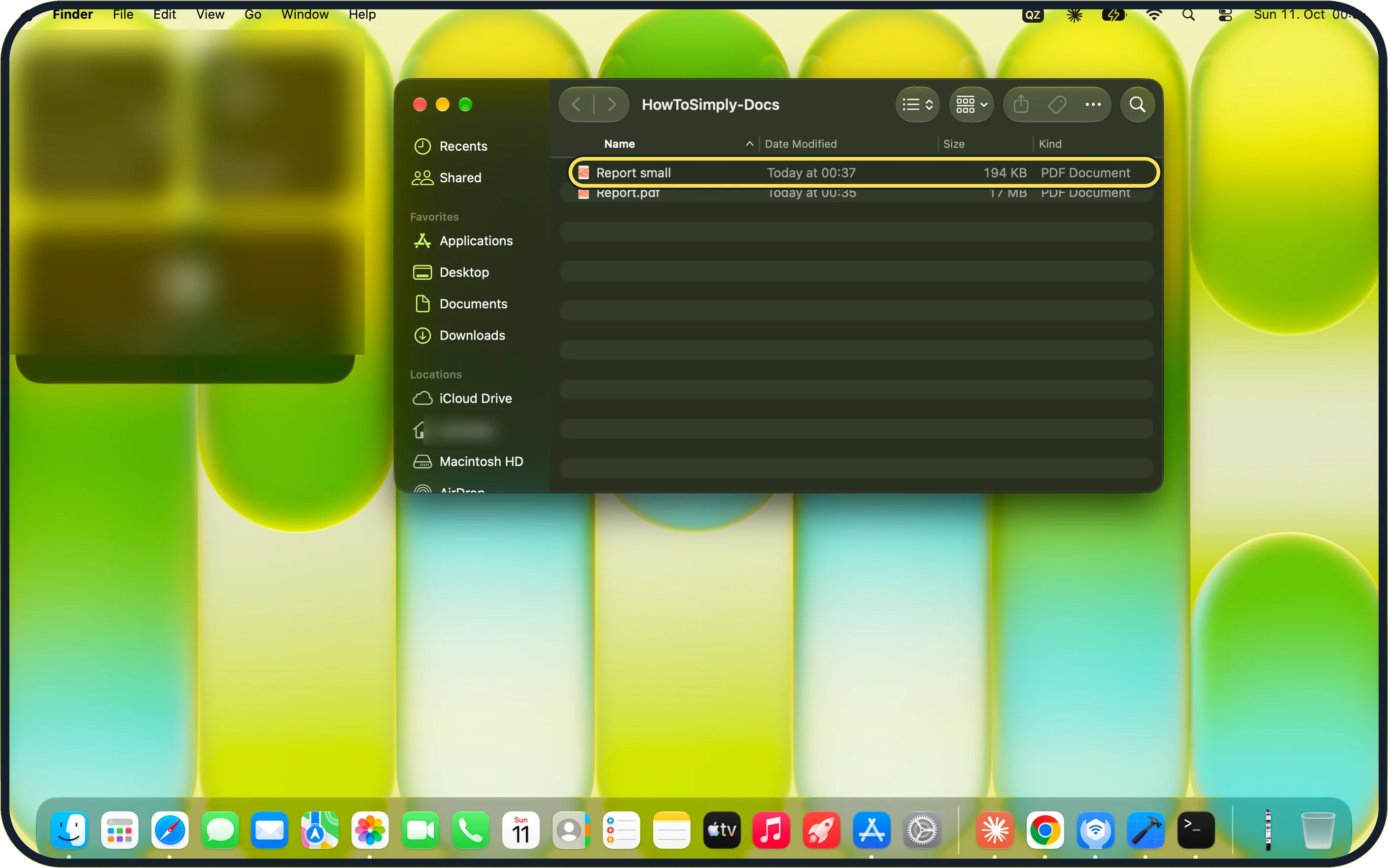
Zoomed in on the setting. Tap to see the whole screenTap the picture to see it full size Compare the sizes in Finder
Open the folder in list view and look at the Size column.
On our MacBook Neo, Report small was 194 KB against 17 MB for Report.pdf.
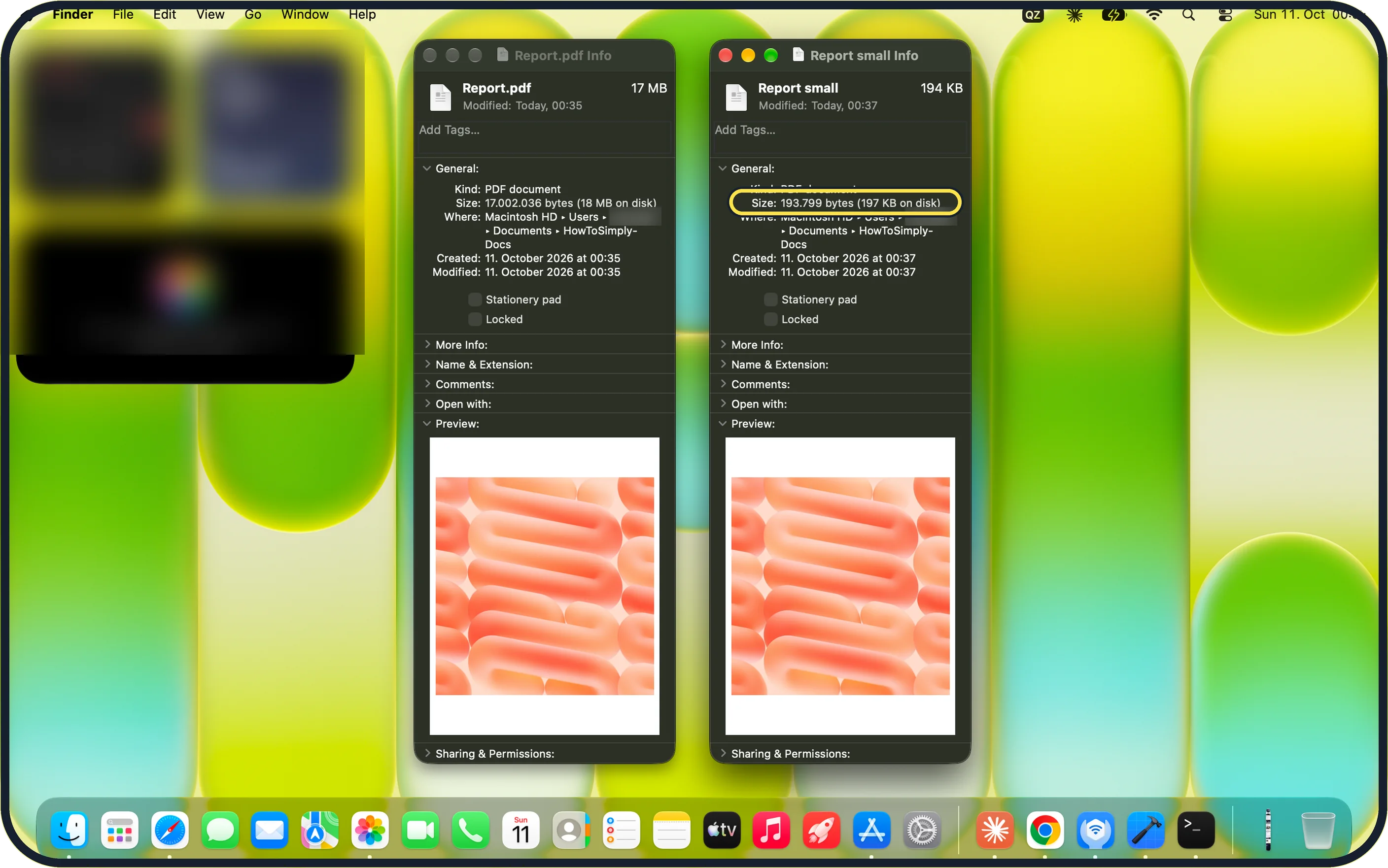
Zoomed in on the setting. Tap to see the whole screenTap the picture to see it full size Check the exact size and the quality
Select each file and press Command + I to see the exact size. On our MacBook Neo, Get Info showed 17.002.036 bytes for the original and 193.799 bytes for the copy.
Apple notes that a compressed PDF may be of lower quality than the original, so open the new file and zoom in on small print and photos.
If you do not see this option
- Preview is not in the Open With list Choose Other… at the bottom of the Open With list and pick Preview from Applications.
- No Quartz Filter menu Check that Format reads PDF. On our MacBook Neo, Quartz Filter appears directly below it in the Export dialog.
- Cannot find the image tick boxes They are below Create PDF/A, Create Linearized PDF and Embed Text, just above the Permissions… button.
If this does not work
- The new file is just as large Quartz Filter was probably left at None. On our MacBook Neo, ticking only Optimize images for screen and Save images as JPEG gave a file of the same 17 MB; Reduce File Size made it 194 KB.
- The original was replaced The Export As field suggests the same name as the open file. Always type a new name before clicking Save.
- The result looks too rough Apple notes that a compressed PDF may be of lower quality than the original. Keep the original and send that if the copy is not readable. Source: Compress a PDF in Preview on Mac
About this guide
Preview, the PDF viewer that comes with every Mac, can shrink a large PDF, such as a scan or a brochure with photos, so it is small enough to email or upload.
Screenshots: MacBook Neo, macOS 27.0.1, dark mode.
Good to know
Removing pages you do not need saves more than any compression: open the sidebar with View, Thumbnails, select pages and press Delete.
More with Preview: how to combine PDF files on a Mac and how to sign a PDF on a Mac.
In short: Control-click the PDF > Open With > Preview > File > Export > Quartz Filter: Reduce File Size > tick Optimize images for screen and Save images as JPEG > new name > Save > compare sizes.
Links checked in October 2026. Menus and features can change after software updates. These steps match the version named at the top.
Did this guide work for you?
Sorry about that. What happened?