ONEPLUS
How to change the home screen layout on a OnePlus (OxygenOS 16)

In short
Open Home screen settings (from Settings, Home screen, Lock screen & style). Home screen sets Standard or With drawer, Home screen layout picks the grid (4×6, 5×6 or 5×7, then Apply), and Swipe down on Home screen picks Shelf, Global Search or Notifications & Quick Settings.
6 of 6 steps show a real screenshot from our Nord 5. Each step was checked against the maker's own instructions, linked at the end.
Steps
- 1
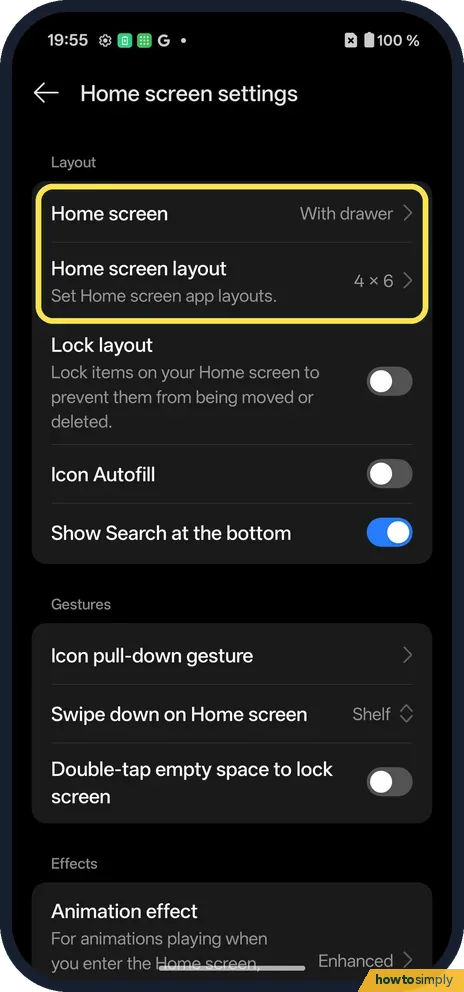
Open Home screen settings
Home screen and Home screen layout are at the top. Ours said With drawer and 4×6.
- 2
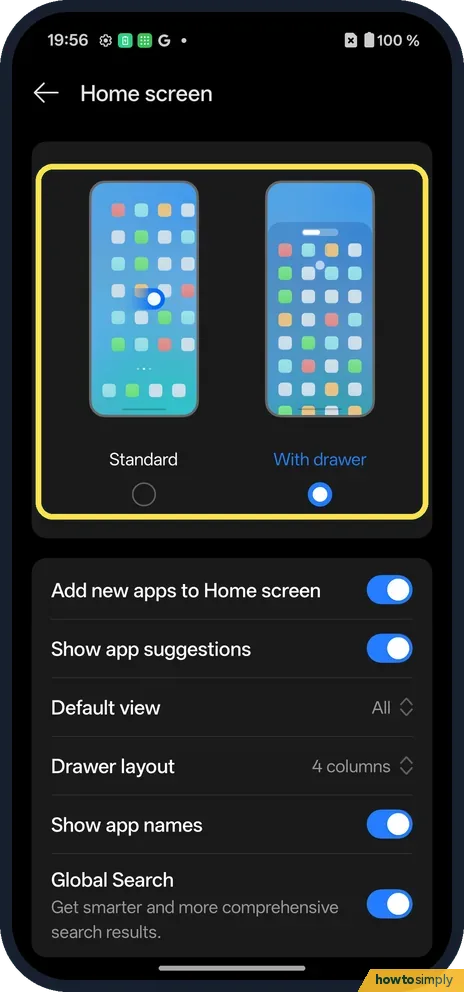
Standard or With drawer
Tap Home screen. Standard puts every app on the home screen; With drawer keeps them in a drawer you swipe up to.
- 3
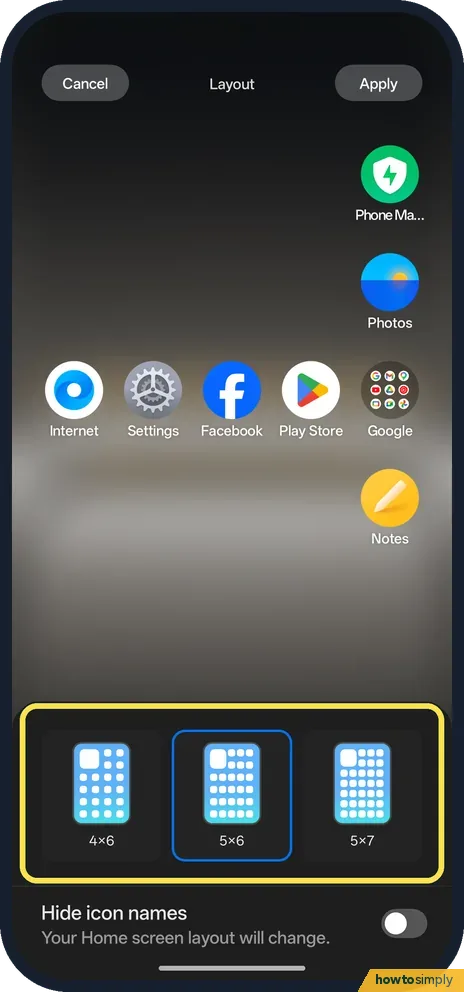
Pick a grid
Tap Home screen layout. Choose 4×6, 5×6 or 5×7.
- 4
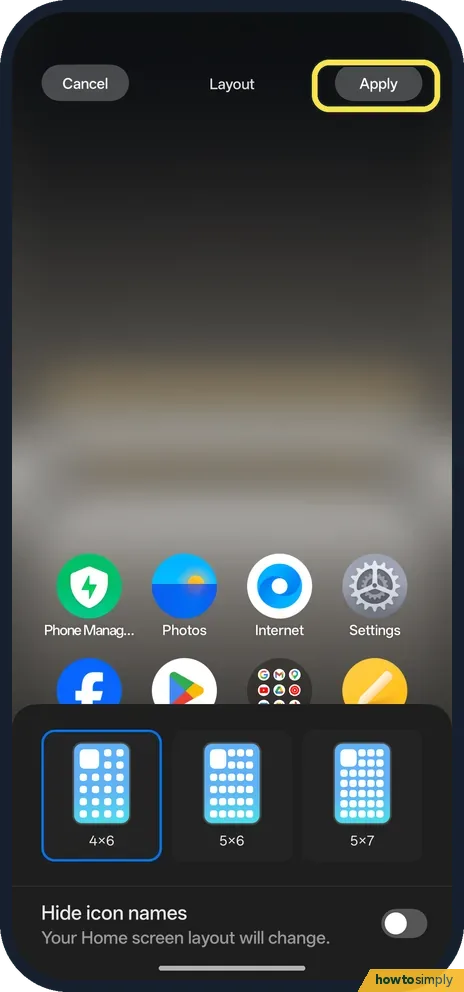
Tap Apply
The preview changes first; Apply, at the top right, keeps it.
- 5
Check the home screen
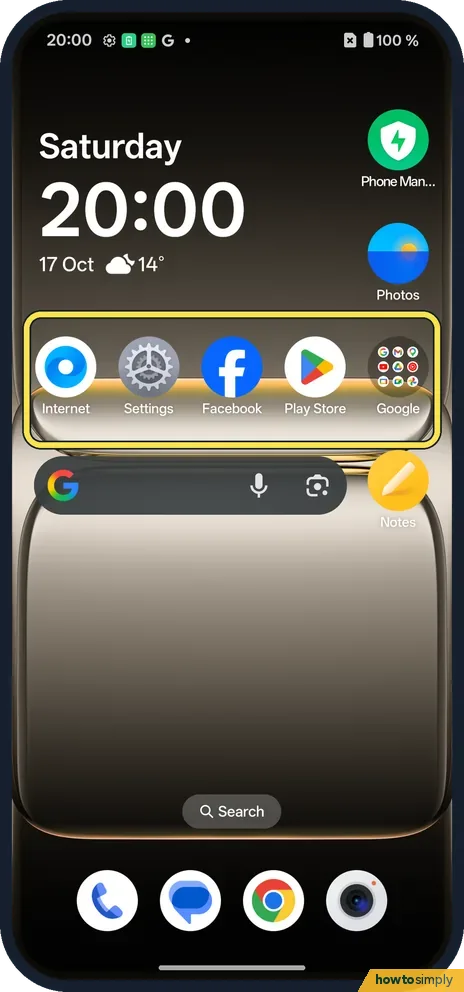
With 5×6, our icons got smaller and five fit in a row. Going back to 4×6 moved some icons, so we dragged them back.
- 6
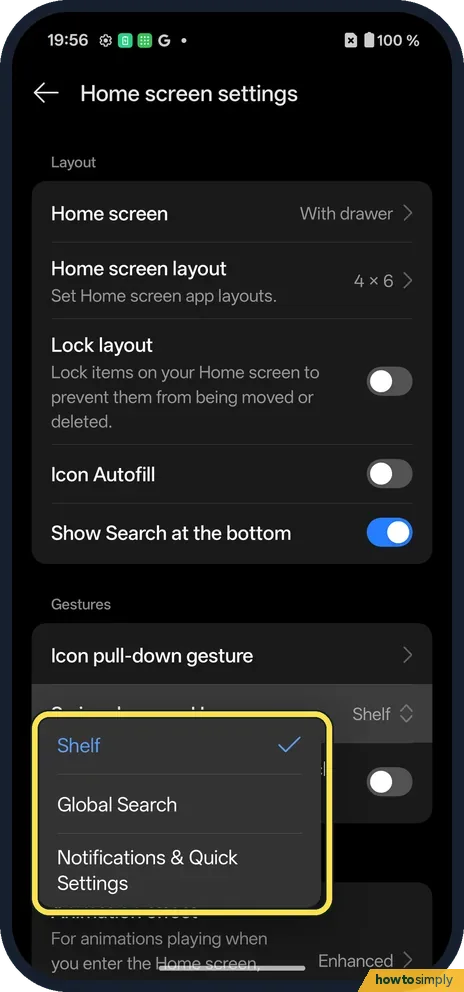
What swipe down opens
Swipe down on Home screen: Shelf (ours), Global Search, or Notifications & Quick Settings.
If you do not see this option
- Stop icons moving? Lock layout, on the same page, prevents items being moved or deleted.
- Older OxygenOS? OnePlus's OxygenOS 14 manual has the same items under Settings, Home screen & Lock screen. Source: OxygenOS 14.0 User Manual
If this does not work
- Icons moved after changing the grid? Touch and hold an icon and drag it back.
- Swipe down opens Shelf? Pick Notifications & Quick Settings. More: Shelf on a OnePlus.
- Apps vanished after switching to With drawer? They are not deleted. With drawer keeps every app in the drawer and only shows the ones you place on the home screen. Swipe up to find them, then touch and drag an app out to the home screen.
- Widget looks squashed on the new grid? A different grid changes how much room each widget has. Touch and hold the widget and let go; if it can be resized, dots appear on its edges that you can drag.
- Gaps fill up when you remove an icon? OnePlus's OxygenOS 14 manual describes Icon autofill, which moves another icon into the gap when one is removed. Turn it off in home screen settings if you prefer gaps to stay put.
Good to know
Icon shapes and colours: icon shape and system colours.
On a Pixel: home screen grid.
Switching between Standard and With drawer, or changing the grid, does not uninstall anything or delete app data; only where icons sit changes. You can switch back at any time, although icons may need dragging back into place, as ours did. A bigger grid such as 5×7 fits more apps but makes icons and labels smaller, so if you change it to see more, check the labels are still easy to read. To keep similar apps together on any layout, group them: make an app folder on a OnePlus.
The same Home screen settings page also has Icon Autofill under Layout, just below Lock layout. It was off on ours.
About this guide
- Device
- Android
- Shown on
- OnePlus Nord 5 (CPH2709), OxygenOS 16.0.5.1201, Android 16
- App
- Settings
- Path
- Settings › Home screen, Lock screen & style › Home screen settings
- Real screenshots
- 6 of 6 steps
- Checked
- October 2026
- Sources
- 2 official, linked below
Sources
Links checked October 2026. Menus and features can change with updates.Spotted a mistake? Menus change with updates, and we want every step to match your screen. Email us about this page or use the contact form. We read every report, and fixes are listed on What changed.
Liked this guide?
Follow us for new guides and short how-to videos.
Did this guide work for you?
Sorry about that. What happened?