XIAOMI REDMI
How to lock the home screen layout on a Xiaomi phone (HyperOS 3)

In short
Open Settings, tap Home screen and turn on Lock Home screen layout, under the Home screen layout heading. Apps then stay put: on ours, dragging an icon showed Home screen layout is locked. Its menu still opened. Turn the switch off to move apps again.
6 of 6 steps show a real screenshot from our Redmi Note 15 Pro 5G. Each step was checked against the maker's own instructions, linked at the end.
Steps
- 1
Open Home screen settings
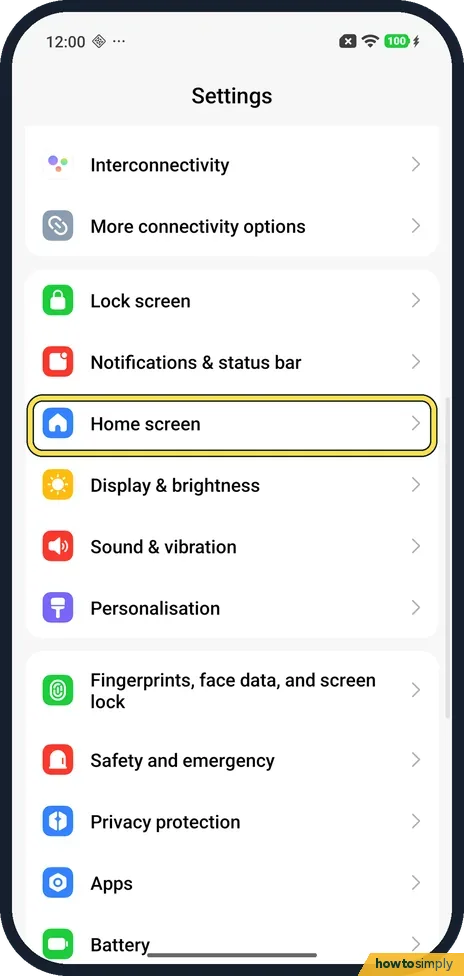
Open Settings and tap Home screen. It is in the group with Lock screen, Notifications & status bar and Display & brightness.
- 2
Turn on Lock Home screen layout
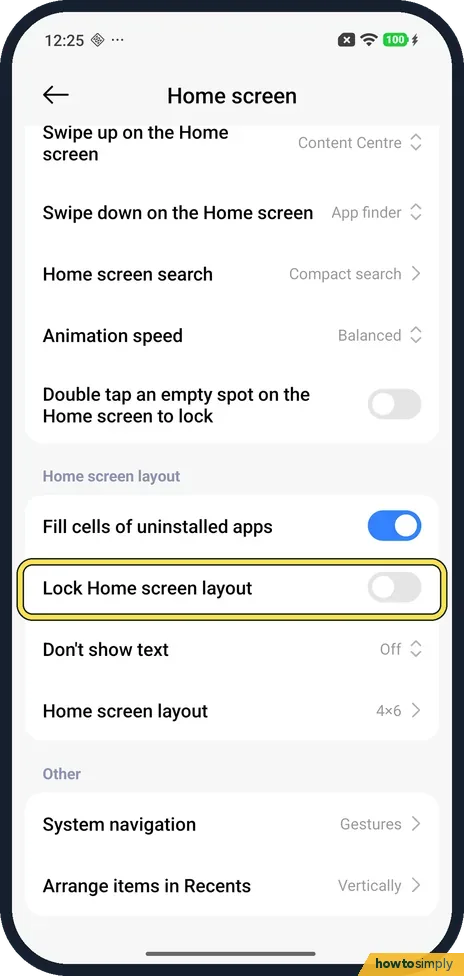
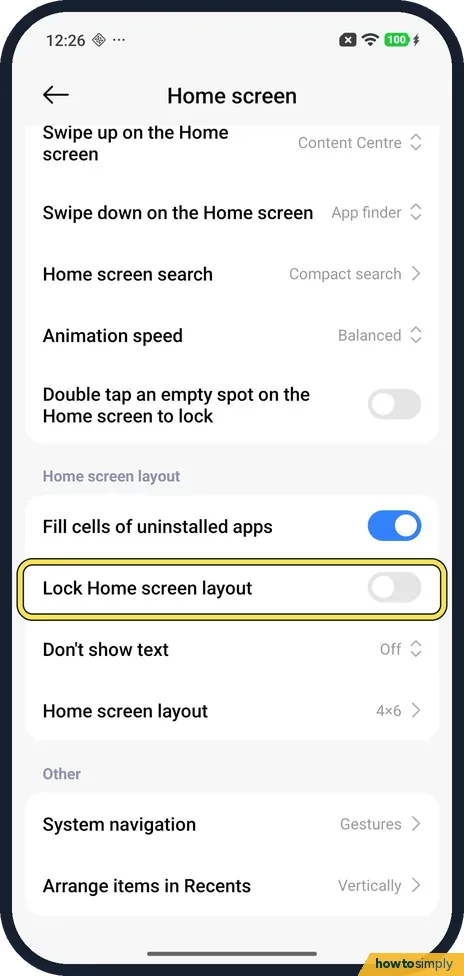
Scroll down to the Home screen layout heading. Lock Home screen layout is the second row, below Fill cells of uninstalled apps. Turn its switch on.
- 3
Check the switch
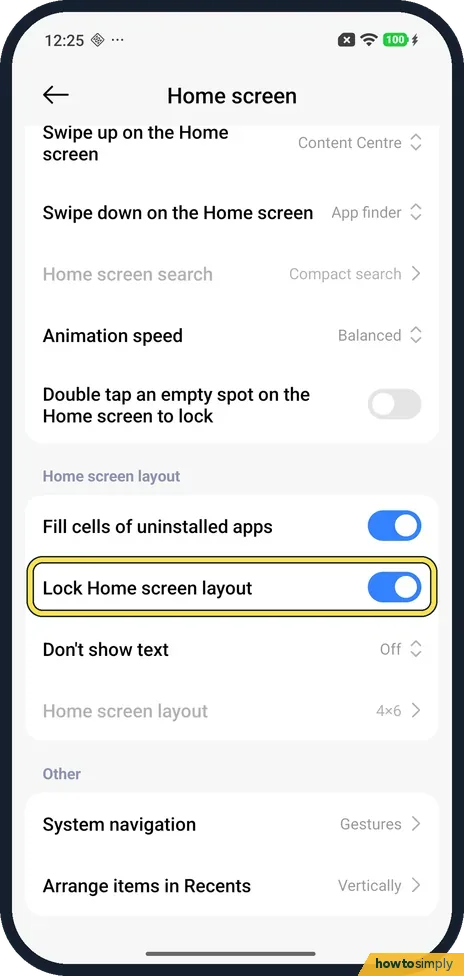
The switch turns blue. On ours the Home screen search and Home screen layout rows turned grey at the same time, so you can't change them while the lock is on.
- 4
Press and hold an app
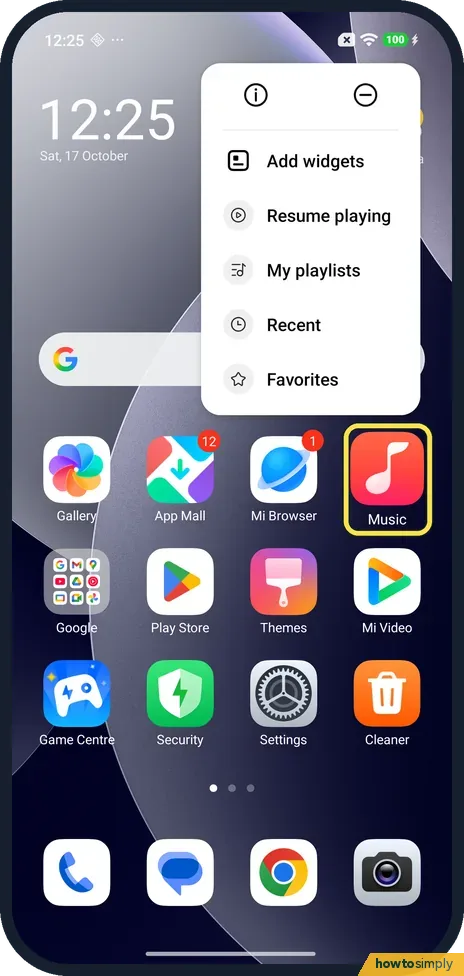
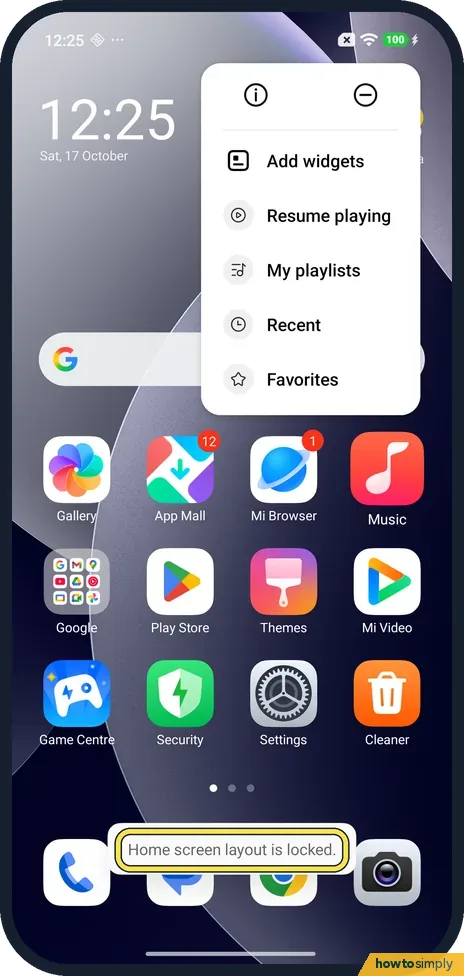
Go to the home screen and press and hold an app; we used Music. Its menu still opened as usual, with Add widgets and the Music shortcuts.
- 5
Try to drag it
Hold and drag the app. On ours nothing moved and a message said Home screen layout is locked.
- 6
Turn it off to move apps
To move apps again, go back to Settings, Home screen and turn Lock Home screen layout off. We did, and the greyed rows came back.
If you do not see this option
- Can't find the switch? On ours it is in Settings, Home screen, under the Home screen layout heading, between Fill cells of uninstalled apps and Don't show text.
- Not in Xiaomi's guide? Xiaomi's HyperOS 3 guide covers the Home screen settings page, such as Home screen layout and Don't show text, but not this switch. We found it on our Redmi. Source: Generic User Guide for HyperOS 3.0
- Menu still opens? On ours the lock stopped dragging only. Pressing and holding Music still opened its menu.
If this does not work
- Home screen layout is locked? That message means the lock is on. Turn off Lock Home screen layout in Settings, Home screen, then drag the app again.
- Home screen layout row greyed out? On ours the lock greyed out the Home screen layout row, which sets the grid. Turn the lock off first: change the home screen layout.
- Home screen search greyed out? The lock greyed that row too on ours. Turn Lock Home screen layout off, change it, then turn the lock back on.
Good to know
Move or remove apps before you lock them in place: move or remove an app on a Xiaomi phone. Group them first: make an app folder.
Add a clock or weather widget: add a widget on a Xiaomi phone.
Turning the lock off brings back dragging at once, and the greyed rows become usable again, as they did on ours. The lock does not change the grid, the wallpaper or which apps are installed, and it has no effect on battery or data.
About this guide
- Device
- Android
- Shown on
- Xiaomi Redmi Note 15 Pro 5G (25080RABDG), HyperOS 3.0.308.0, Android 16
- App
- Settings
- Path
- Settings › Home screen › Lock Home screen layout
- Real screenshots
- 6 of 6 steps
- Checked
- October 2026
- Sources
- 1 official, linked below
Sources
Links checked October 2026. Menus and features can change with updates.Spotted a mistake? Menus change with updates, and we want every step to match your screen. Email us about this page or use the contact form. We read every report, and fixes are listed on What changed.
Liked this guide?
Follow us for new guides and short how-to videos.
Did this guide work for you?
Sorry about that. What happened?