ONEPLUS
How to add and remove widgets on a OnePlus (OxygenOS 16)

In short
Touch and hold an empty spot on the home screen and tap Widgets at the bottom. Tap an app, pick a widget and tap Add. To remove it, touch and hold the widget and tap Remove widget.
5 of 5 steps show a real screenshot from our Nord 5. Each step was checked against the maker's own instructions, linked at the end.
Steps
- 1
Open the edit view
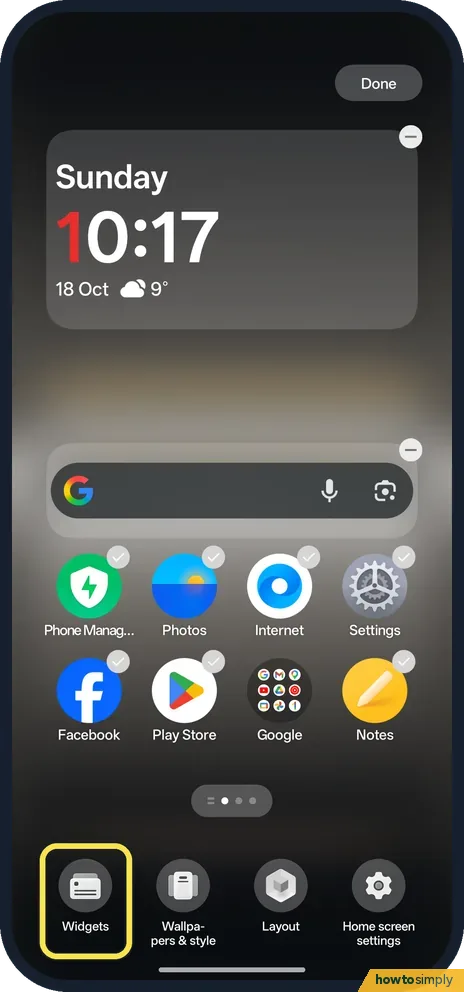
Touch and hold an empty spot on the home screen. Four buttons show at the bottom: Widgets, Wallpapers & style, Layout and Home screen settings. Tap Widgets.
- 2
Pick an app
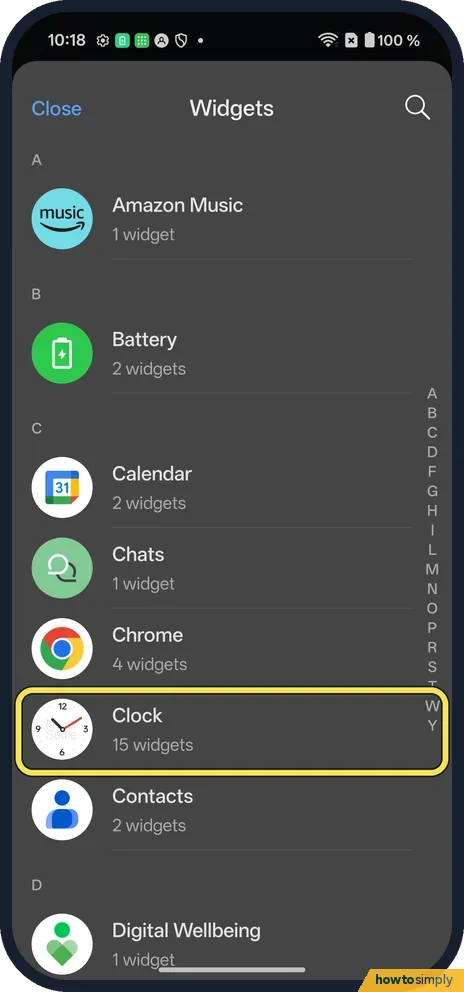
Apps are listed A to Z, each with its number of widgets. Tap Clock.
- 3
Tap Add
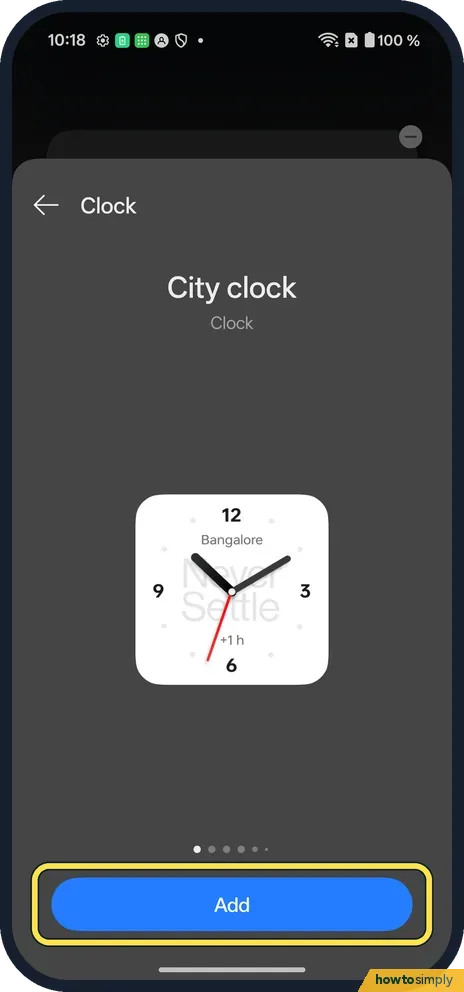
Swipe through the app's widgets. We picked City clock and tapped Add.
- 4
Find it on the home screen
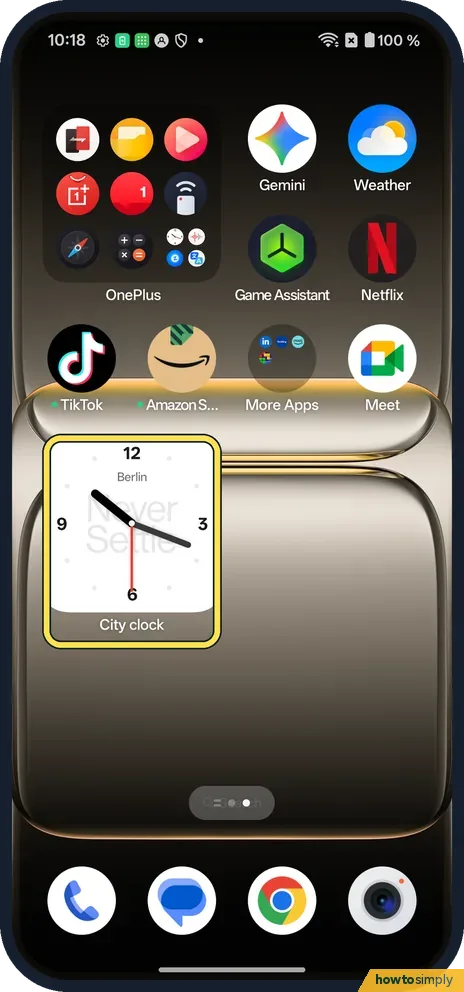
Ours went onto the second page, because the first was full. It showed Berlin.
- 5
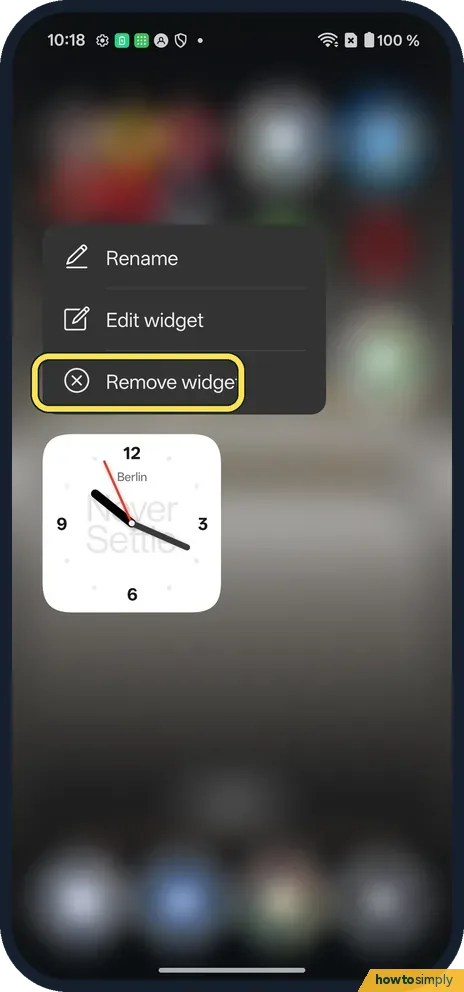
To remove it, touch and hold it
A menu opens with Rename, Edit widget and Remove widget. Tap Remove widget.
If you do not see this option
- Older OxygenOS? OnePlus's OxygenOS 14 manual says to pinch in with two fingers, then tap Widgets. Touch and hold did it on ours. Source: OxygenOS 14.0 User Manual
- Widget not on the first page? Swipe left. Ours was placed on page 2.
If this does not work
- No room? Move or remove an icon first: move or remove an app.
- Widget moves by accident? Lock the layout: lock the home screen layout on a OnePlus.
- Widget the wrong size? Google says to touch and hold the widget, then lift your finger. If it can be resized, an outline with dots appears on the sides; drag the dots, then tap outside the widget.
- Want it on the first page? Google says to touch and drag the widget. You then see images of your Home screens; slide it to where you want it.
- Widget shows old or blank information? Open the app once so it can update, and check it is allowed to use the internet and run in the background. A widget for an app that is force stopped or restricted may not refresh.
- App has no widgets in the list? Google notes that only some apps come with widgets. If an app is not listed, it has none to offer.
Good to know
Change the home screen layout on a OnePlus.
Removing a widget is safe: the app stays installed and nothing in it is deleted. You can add the same widget back at any time from the Widgets list. The touch and hold menu also has Edit widget, which is where a widget's own options live if it has any.
Widgets that update often, such as weather, news or step counters, use a little data and battery in the background. To change how many icons fit on each page, see change the home screen layout on a OnePlus.
About this guide
- Device
- Android
- Shown on
- OnePlus Nord 5 (CPH2709), OxygenOS 16.0.5.1201, Android 16
- App
- Home screen
- Path
- Home screen › Touch and hold › Widgets
- Real screenshots
- 5 of 5 steps
- Checked
- October 2026
- Sources
- 2 official, linked below
Sources
Links checked October 2026. Menus and features can change with updates.Spotted a mistake? Menus change with updates, and we want every step to match your screen. Email us about this page or use the contact form. We read every report, and fixes are listed on What changed.
Liked this guide?
Follow us for new guides and short how-to videos.
Did this guide work for you?
Sorry about that. What happened?