SAMSUNG GALAXY
How to lock the home screen layout on a Samsung Galaxy (One UI 9)

In short
Open Settings, Home screen and switch on Lock Home screen layout. Icons can then not be removed or moved: trying shows Home screen layout is locked. You can unlock it in Settings. Switch it off the same way.
5 of 5 steps show a real screenshot from our Galaxy A57. Each step was checked against the maker's own instructions, linked at the end.
Steps
- 1
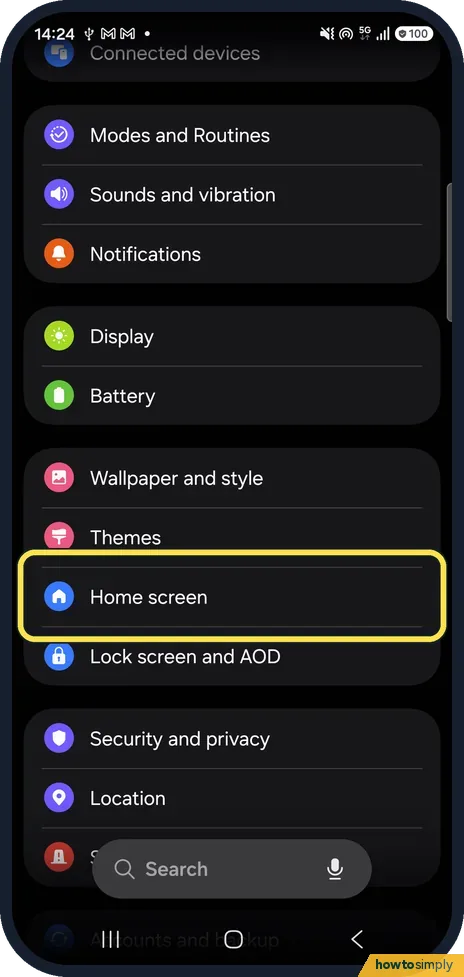
Open Home screen
Open Settings and tap Home screen, between Themes and Lock screen and AOD.
- 2
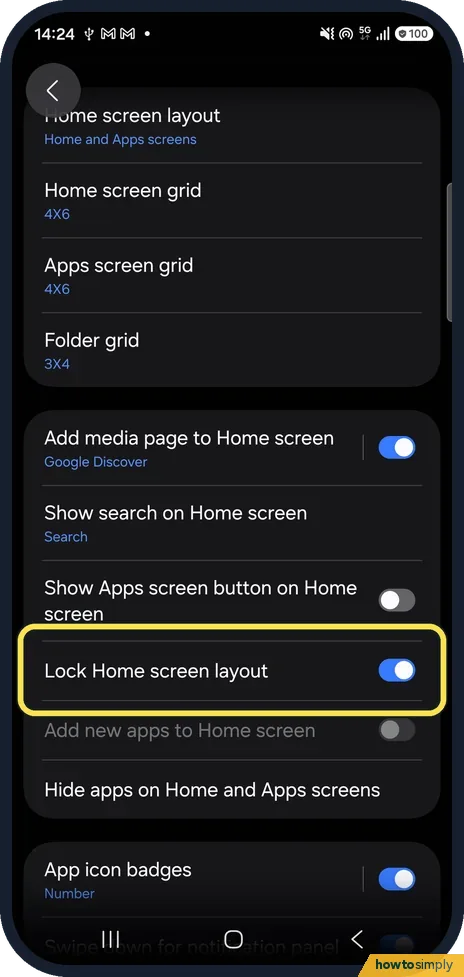
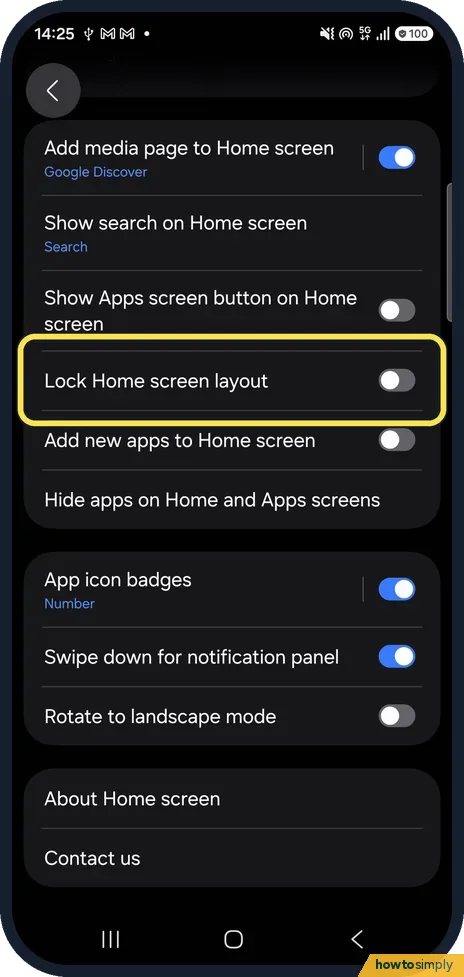
Switch on Lock Home screen layout
Scroll down and turn on Lock Home screen layout. Tapping the name flips it too. Add new apps to Home screen, below, goes grey while it is on.
- 3
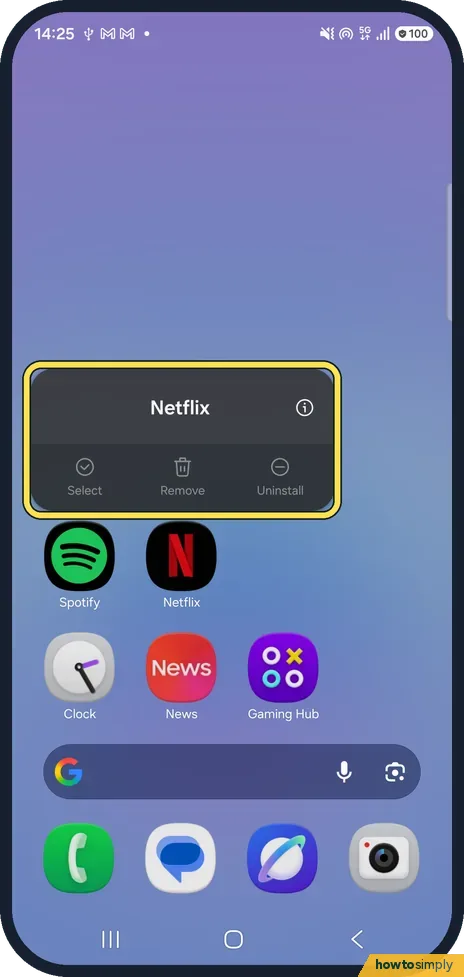
Touch and hold an icon
On the home screen, touch and hold an app. The Netflix menu still opens, but Select, Remove and Uninstall are greyed out.
- 4
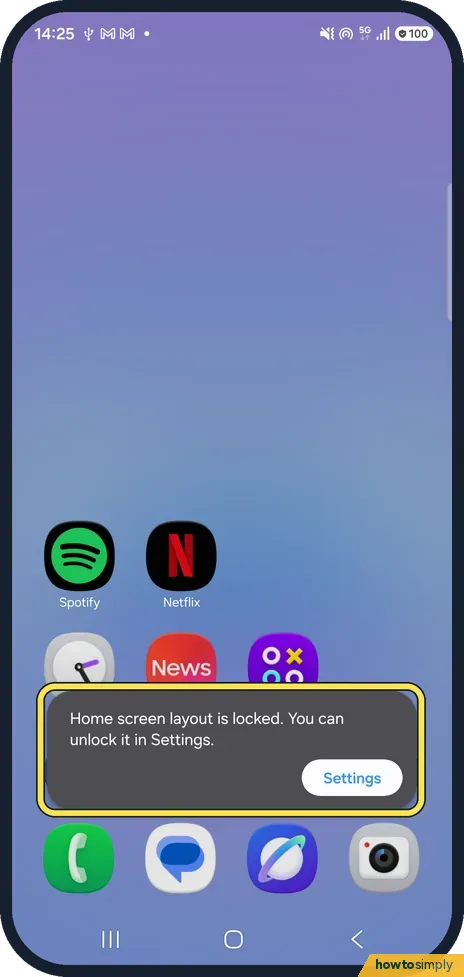
Try to move it
Dragging an icon shows: Home screen layout is locked. You can unlock it in Settings. The Settings button in the message takes you there.
- 5
Switch it off again
To unlock, turn off Lock Home screen layout in Settings, Home screen. Ours is off again here.
If you do not see this option
- No Lock Home screen layout switch? On ours it is on the Home screen settings page, below Show Apps screen button on Home screen. Samsung says to go to the home screen settings. Source: How to add apps and widgets on your Galaxy phone's Home screen
- Add new apps to Home screen greyed out? It went grey on ours while the layout was locked, and came back when we unlocked it.
- Home screen not in the main Settings list? Samsung also gives Settings, Display, Home screen as a path to the switch. Type Home screen into the search at the top of Settings if neither place shows it. Source: How to add apps and widgets on your Galaxy phone's Home screen
If this does not work
- Can't remove an icon? With the layout locked, Remove and Uninstall are greyed out in the menu. Unlock it first.
- Can't make a folder? Folders are made by dragging, which the lock stops: make an app folder.
- Widgets moving? Samsung says the lock covers widgets too.
- Need to uninstall an app while locked? The lock only stops changes on the home screen. You can still uninstall from Settings, Apps, or unlock the layout for a moment, remove the app and lock it again.
Good to know
Move or take apps off the home screen once it is unlocked: move or remove an app from the home screen. Add widgets: add and resize widgets.
On a Xiaomi phone: lock the home screen layout on a Xiaomi phone.
Nothing changes in how apps run, how much battery they use or what they can access. Only the home screen editing is frozen. Samsung explains that removing an icon from the home screen leaves the app on the Apps screen, so once you unlock it, tidying the home screen never deletes anything. If you hand the phone to a child often, the lock pairs well with a folder of the apps they use, set up before you switch it on.
About this guide
- Device
- Android
- Shown on
- Samsung Galaxy A57 (SM-A576B), One UI 9, Android 17 (build A576BXXU6BZIE)
- App
- Settings
- Path
- Settings › Home screen › Lock Home screen layout
- Real screenshots
- 5 of 5 steps
- Checked
- October 2026
- Sources
- 2 official, linked below
Sources
Links checked October 2026. Menus and features can change with updates.Spotted a mistake? Menus change with updates, and we want every step to match your screen. Email us about this page or use the contact form. We read every report, and fixes are listed on What changed.
Liked this guide?
Follow us for new guides and short how-to videos.
Did this guide work for you?
Sorry about that. What happened?