
howtosimply.com/guides/how-to-edit-the-control-centre-on-an-honor-phone/ · Checked October 2026 · BRP-NX1M, EEA), MagicOS 10.0, Android 16 (build 10.0.0.169(C430E7R2P1) · HONOR Magic7 Lite
In this guide
Swipe down from the top right to open Control Centre, tap the edit (pencil) icon at the top left, then touch and hold a border to rearrange tiles. Red minus badges remove tiles; Add tile adds them.
3 of 3 steps with real screenshots · 3 official sources below
- Device
- Android
- Shown on
- HONOR Magic7 Lite (BRP-NX1M, EEA), MagicOS 10.0, Android 16 (build 10.0.0.169(C430E7R2P1))
- Starts in
- Quick Settings
- Real screenshots
- 3 of 3 steps
- Checked
- October 2026
- Sources
- 3 official, linked below
Step by step
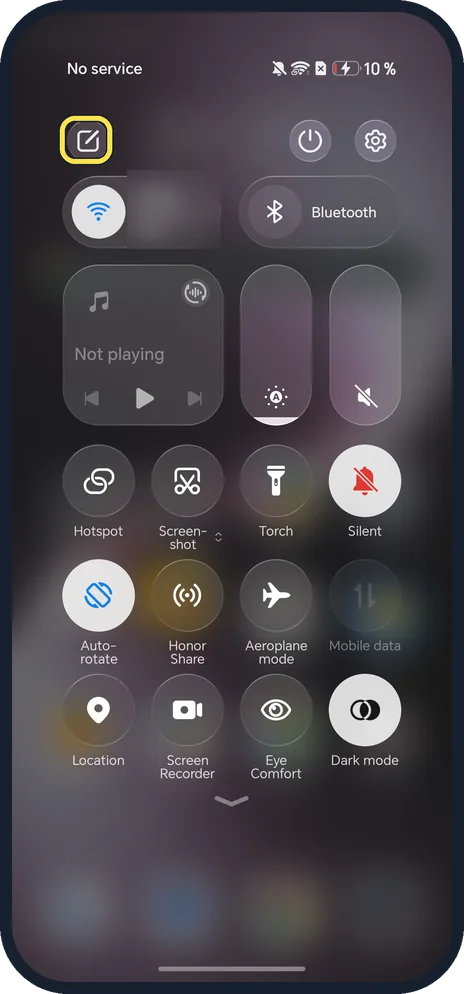
Open Control Centre and tap the edit icon
Swipe down from the top right corner. The pencil is at the top left.
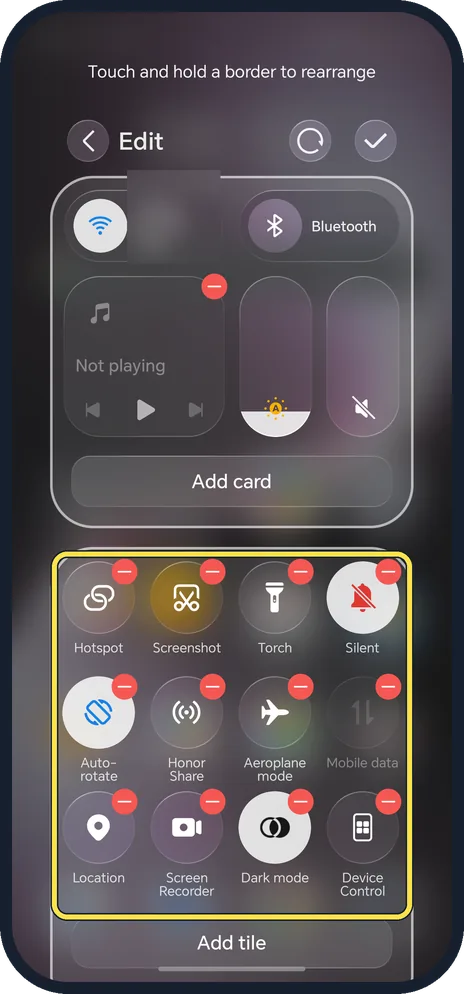
Rearrange or remove tiles
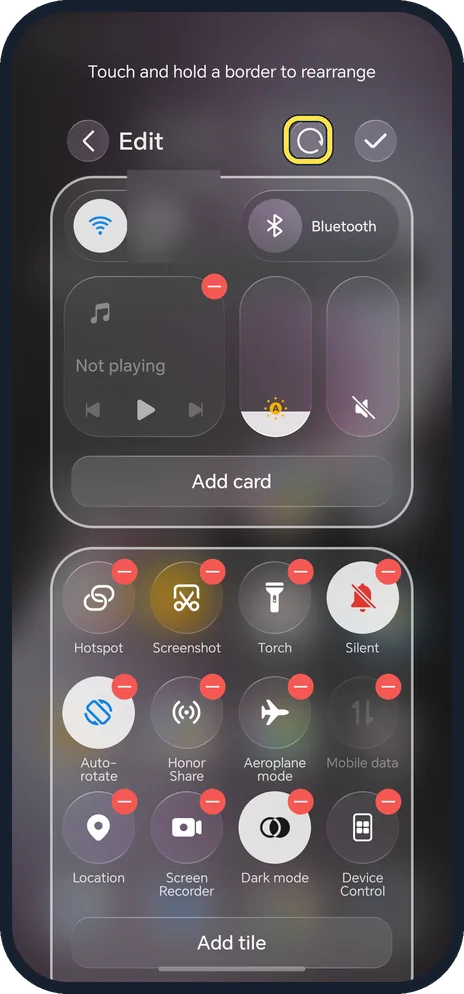
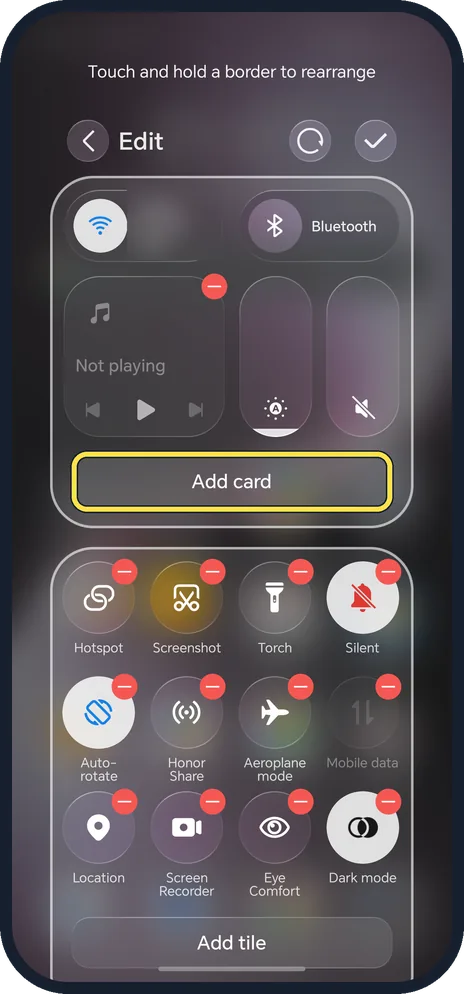
The editor says: touch and hold a border to rearrange. Tap a red minus to remove a tile. We removed Eye Comfort.
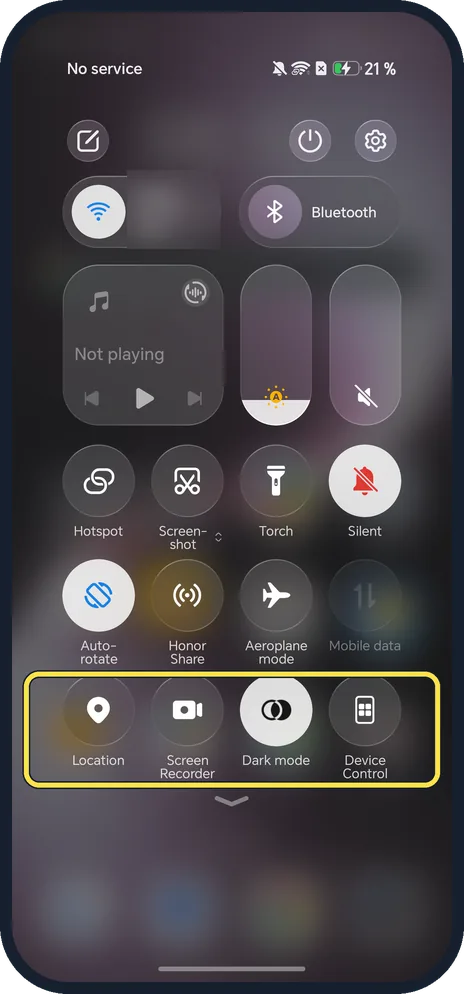
Tap the tick and check
Ours saved at once: Eye Comfort was gone and Device Control moved up into the last row.
If you do not see this option
- Want a tile that isn't there? Tap Add tile at the bottom of the editor. Ours listed Eye Comfort, 5G, eBook mode, Assistive ball, Ultra power saving and Recorder, among others.
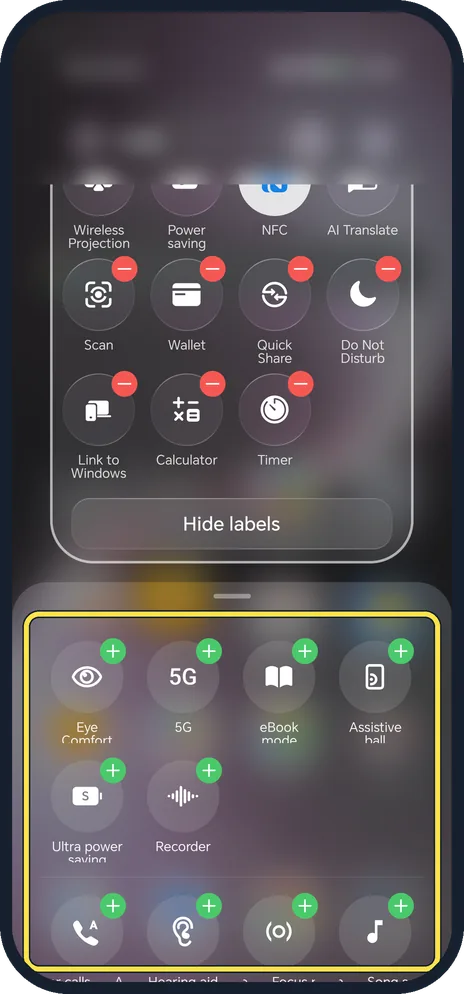
- Want the original layout back? Tap the reset arrow at the top of the editor. We used it to put Eye Comfort back.
- Want a card, like media controls? Tap Add card in the top section of the editor.
If this does not work
- Notifications opened instead? Swipe from the top right, not the top left. Source: Use Eye Comfort Mode
- Mobile data tile greyed out? Ours had no SIM and showed No service, so the Mobile data tile was grey.
About this guide
MagicOS splits the pull-down: notifications from the top left, Control Centre from the top right.
The screenshots are from our HONOR Magic7 Lite, the European model BRP-NX1M, with MagicOS 10.0 and Android 16 (build 10.0.0.169(C430E7R2P1)), in Dark mode. We removed the Eye Comfort tile for the screenshots, then put it back with the reset button.
Good to know
For a dark screen at night, turn on dark mode.
To turn on Eye Comfort from the tile, turn on Eye Comfort.
In short: Swipe down from the top right, edit icon, hold and drag tiles.
- Android Help: Change settings quickly on your Android phone
- HONOR Support (UK): Use Eye Comfort Mode
- HONOR Support: Apply E-book Mode
Links checked in October 2026. Menus and features can change after software updates. These steps match the version named at the top.
Did this guide work for you?
Sorry about that. What happened?