
howtosimply.com/guides/how-to-screen-record-on-an-honor-phone/ · Checked October 2026 · BRP-NX1M, EEA), MagicOS 10.0, Android 16 (build 10.0.0.169(C430E7R2P1) · HONOR Magic7 Lite
In this guide
Swipe down from the top of the screen to open Control Center and tap Screen Recorder, or press Power and Volume Up together. Allow audio, tap OK, and stop with the red button in the Magic Capsule at the top. The video goes to Gallery.
5 of 5 steps with real screenshots · 4 official sources below
- Device
- Android
- Shown on
- HONOR Magic7 Lite (BRP-NX1M, EEA), MagicOS 10.0, Android 16 (build 10.0.0.169(C430E7R2P1))
- Starts in
- Quick Settings
- Real screenshots
- 5 of 5 steps
- Checked
- October 2026
- Sources
- 4 official, linked below
Step by step
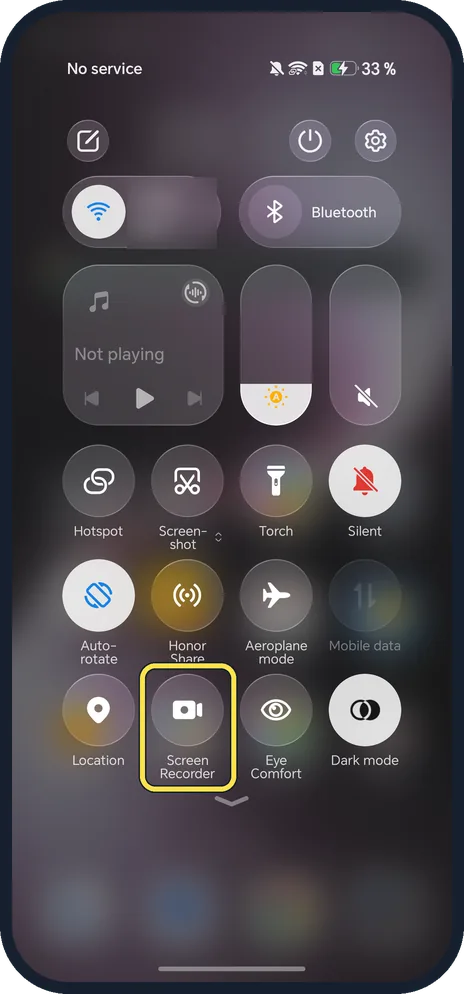
Tap Screen Recorder
Swipe down from the top of the screen to open Control Center. On ours, Screen Recorder was on the first page, next to Location.
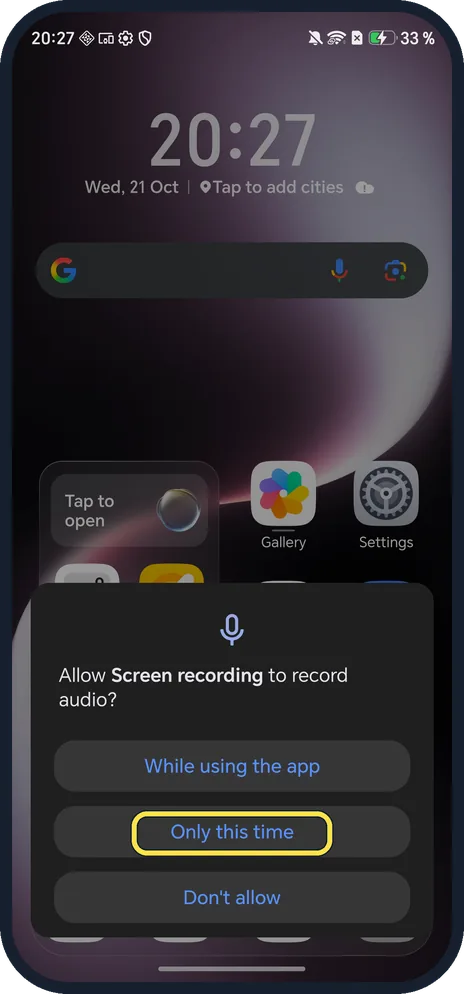
Allow audio
The first time, it asks to record audio: While using the app, Only this time or Don't allow. We tapped Only this time.
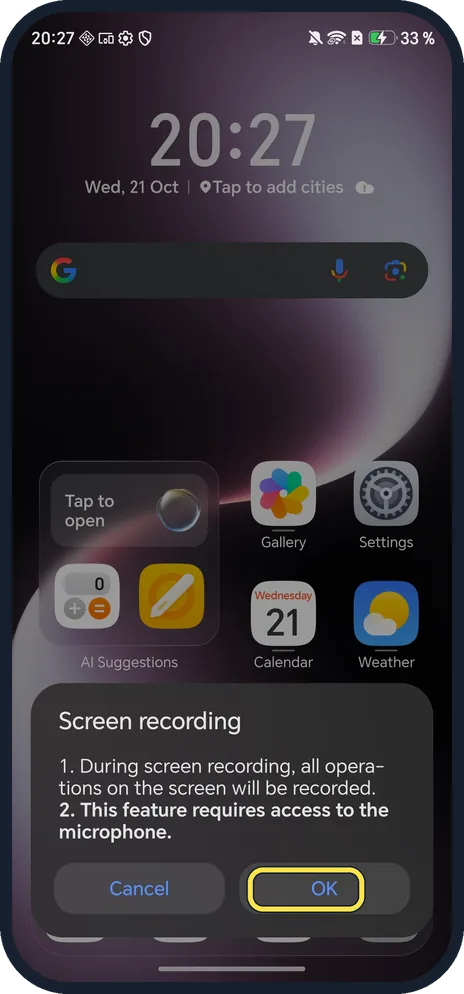
Tap OK
A notice says all operations on the screen will be recorded and that the feature needs the microphone. Tap OK; recording starts.
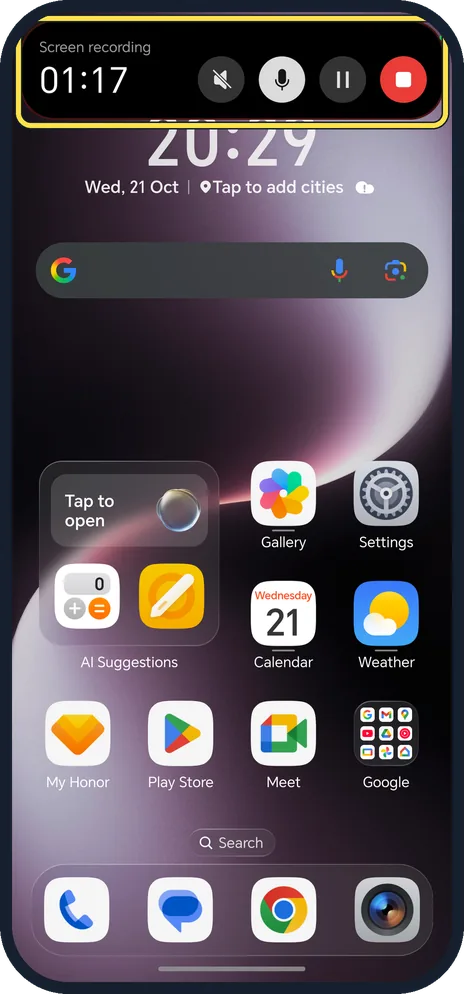
Stop from the Magic Capsule
A Magic Capsule with a timer sits at the top. Tap it: it says Screen recording and shows the time, system sound, microphone, pause and the red stop button. Tap stop.
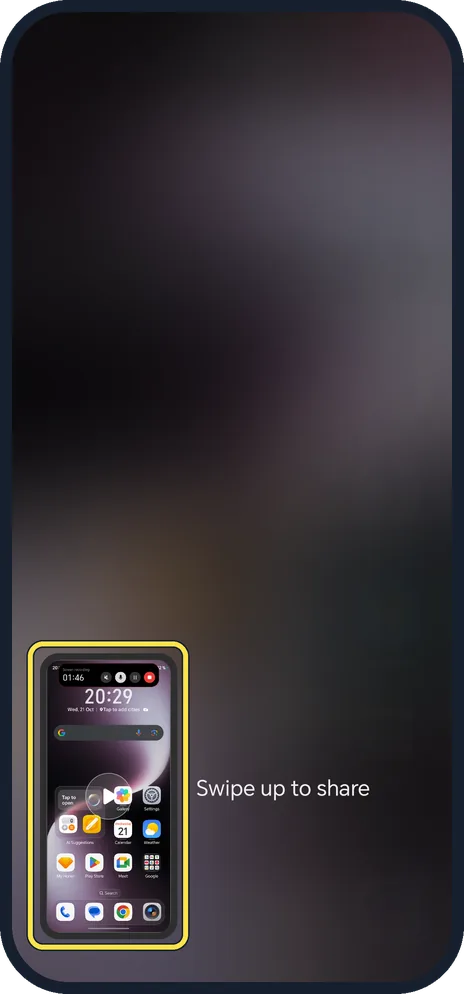
Swipe up to share, or find it in Gallery
A preview of the recording appears at the bottom left. Swipe up on it to share, or leave it; HONOR saves recordings to Gallery.
If you do not see this option
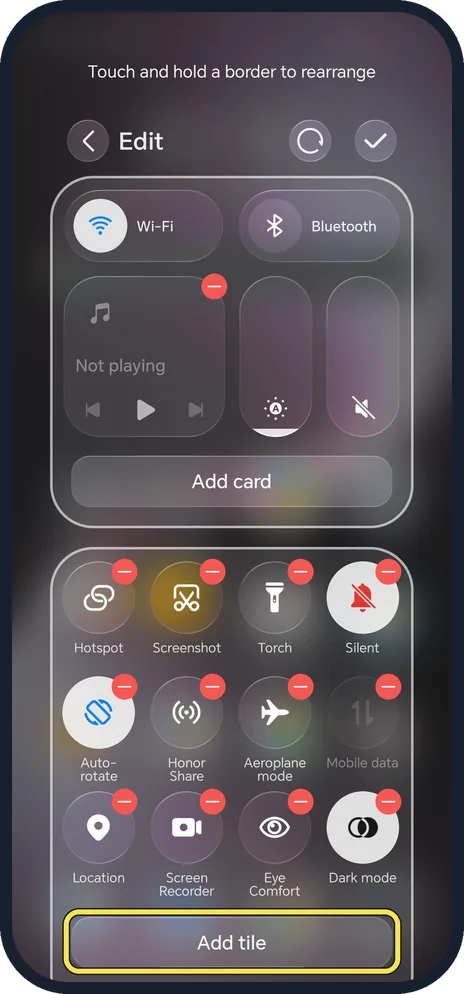
- No Screen Recorder in Control Center? HONOR's guide for some devices opens it from the notification panel: swipe down, then swipe down again to show all shortcuts. On ours it was on the first Control Center page; the edit screen has Add tile if it is missing. Source: Record screen
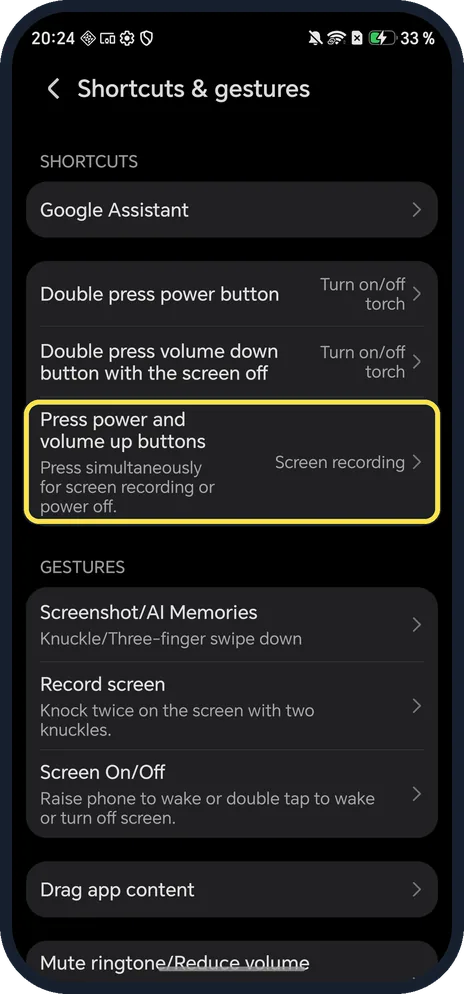
- Prefer buttons or knuckles? Shortcuts & gestures lists Press power and volume up buttons simultaneously for screen recording, and Record screen with a double knock of two knuckles. HONOR says to knock twice again, or hold both buttons again, to stop. Source: Record screen
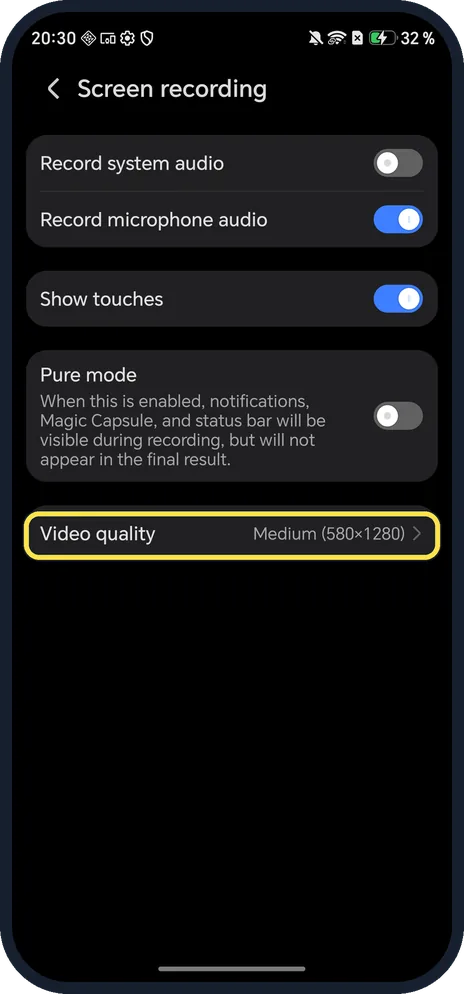
- No phone sound in your video? In Settings, Accessibility features, Screen recording, Record system audio was off on ours and Record microphone audio on. Swap them if you want game or video sound without your voice.
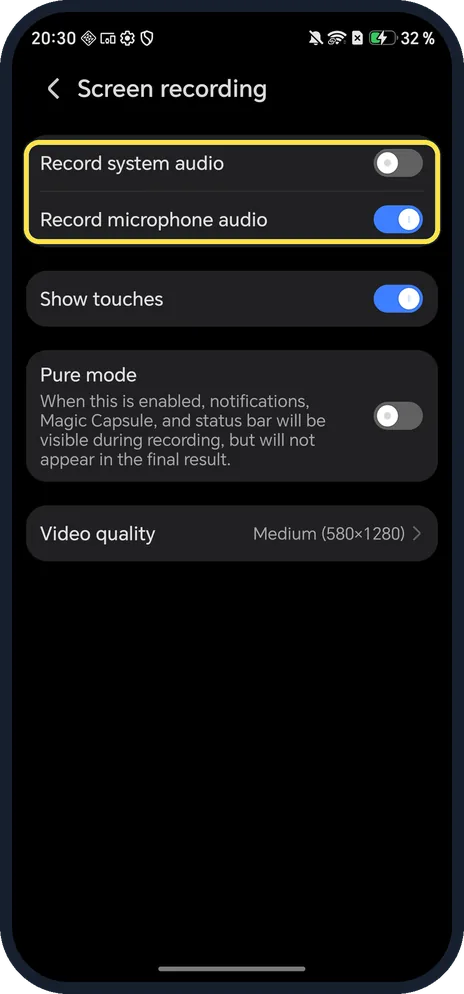
- Want a sharper video? Video quality was Medium (580x1280) on ours, at the bottom of the same Screen recording settings page. Tap it for a higher setting.
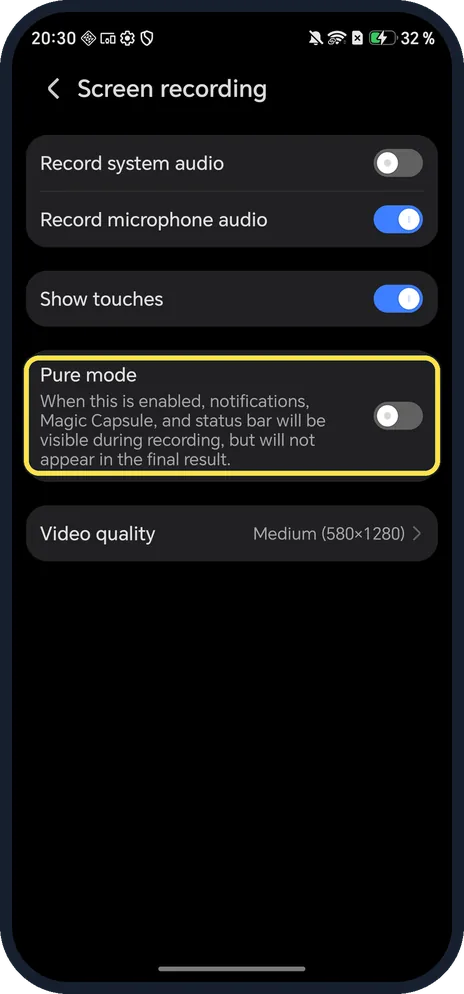
- Don't want notifications in the video? Pure mode on the same page keeps notifications, the Magic Capsule and the status bar out of the final video. It was off on ours.
If this does not work
- No sound when you play the recording? HONOR says to turn the volume up while recording, turn on the microphone, close any other app using the microphone, and unplug a headset, because system sound then goes to the headset. Source: There is no sound when playing a screen recording
- Recording stopped by itself? HONOR says a call, low storage, pressing Power, the screen turning off, switching user or Ultra power saving mode stops it. After a call, what was recorded so far is saved to Gallery. Source: Screen recording automatically stops
- Can't find the timer to stop it? HONOR says to tap the timer at the top of the screen. On ours the notification shade also showed Screen recording with the running time. Source: Record screen
About this guide
On MagicOS the recording timer sits in the Magic Capsule at the top of the screen, and the recorder takes your voice from the microphone by default, not the phone's own sound.
The screenshots are from our HONOR Magic7 Lite, the European model BRP-NX1M, with MagicOS 10.0 and Android 16 (build 10.0.0.169(C430E7R2P1)), in Dark mode. We made one recording and deleted it.
Good to know
To capture a still image, take a screenshot on an HONOR phone.
On an OPPO phone, screen record on an OPPO phone; on a Galaxy, record your screen on a Samsung Galaxy.
In short: Control Center, Screen Recorder (or Power + Volume Up), allow audio, OK; stop in the Magic Capsule.
- HONOR Support (MY): Record screen
- HONOR Support (MEA): Record screen
- HONOR Support (MY): There is no sound when playing a screen recording
- HONOR Support (MY): Screen recording automatically stops
Links checked in October 2026. Menus and features can change after software updates. These steps match the version named at the top.
Did this guide work for you?
Sorry about that. What happened?