ONEPLUS
How to change app permissions on a OnePlus (OxygenOS 16)

In short
Go to Settings, Security and privacy, Privacy controls, Permission manager. Tap a permission such as Camera to see which apps have it, then tap an app to change it. For one app, open its App info and tap Permissions.
7 of 7 steps show a real screenshot from our Nord 5. Each step was checked against the maker's own instructions, linked at the end.
Steps
- 1
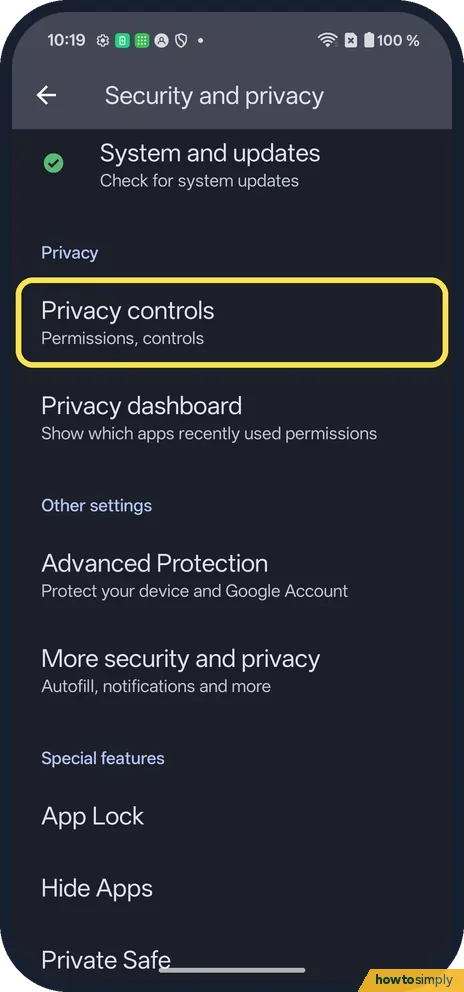
Open Privacy controls
Open Settings, Security and privacy, and tap Privacy controls.
- 2
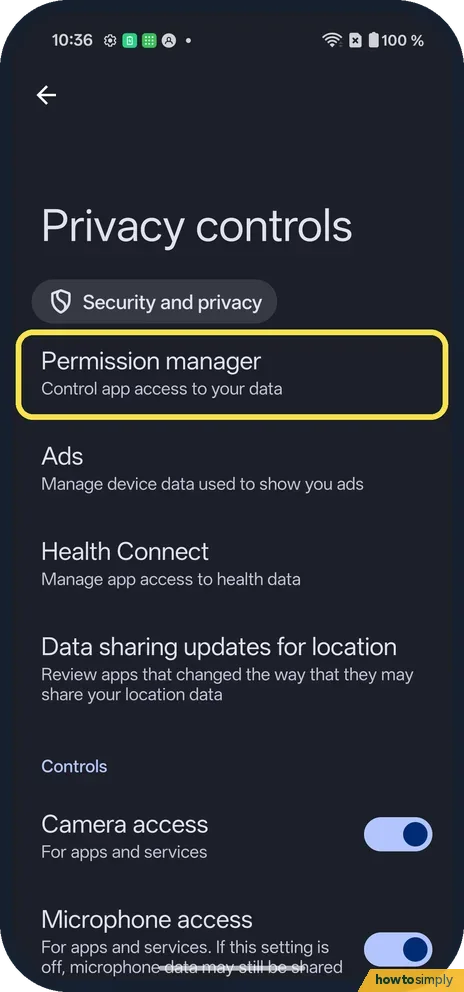
Tap Permission manager
It is at the top of Privacy controls.
- 3
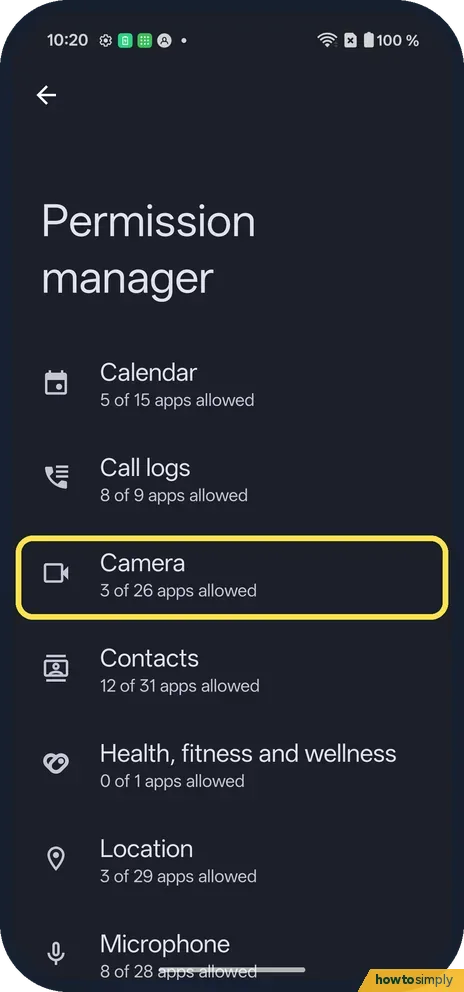
Pick a permission
Each row shows how many apps are allowed. Tap Camera.
- 4
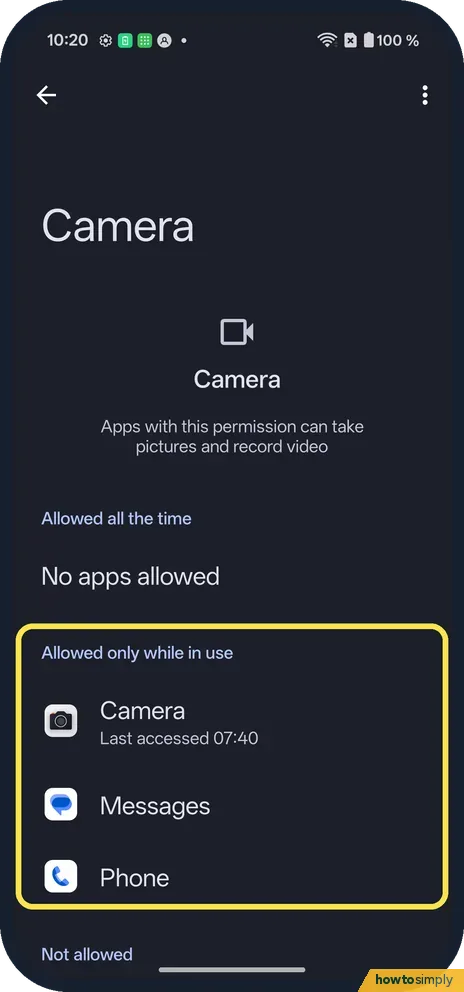
See which apps have it
Apps are grouped: Allowed all the time, Allowed only while in use and Not allowed. Tap an app to change its choice.
- 5
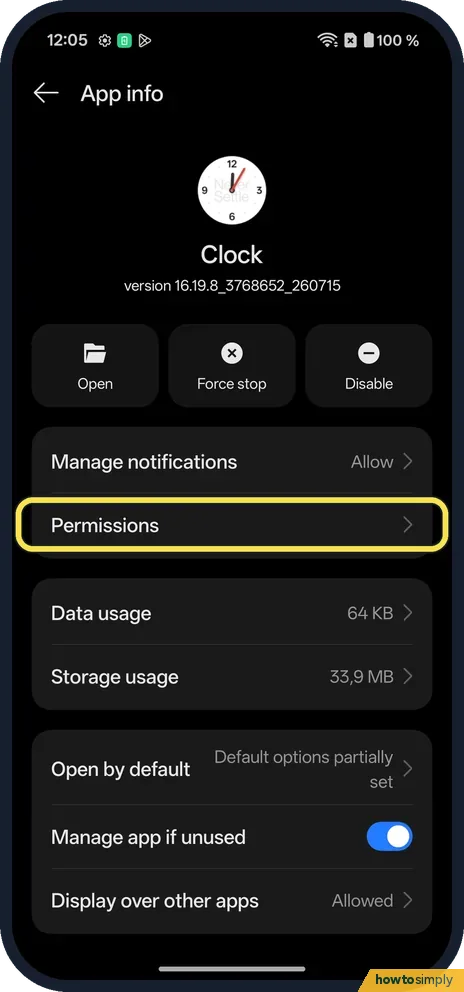
Or open one app
In Settings, Apps, open the app's App info and tap Permissions.
- 6
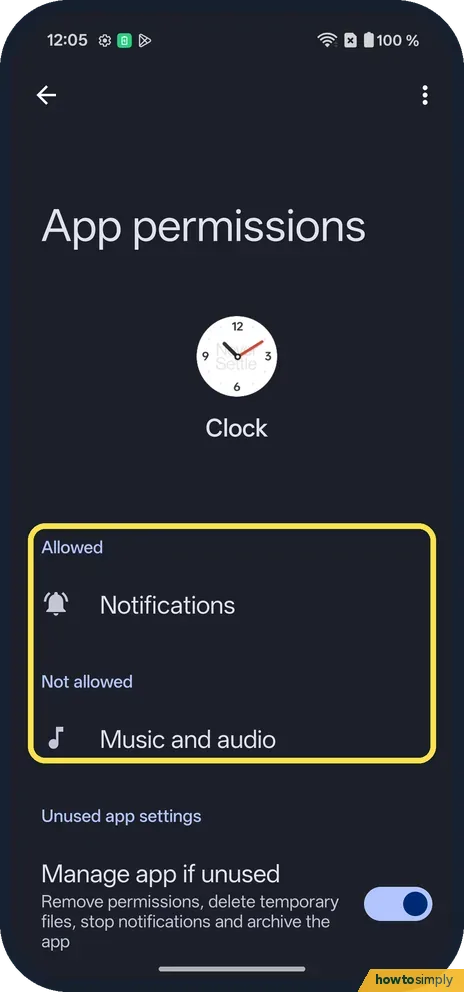
See what it has
Clock had Notifications allowed and Music and audio not allowed. Manage app if unused was on.
- 7
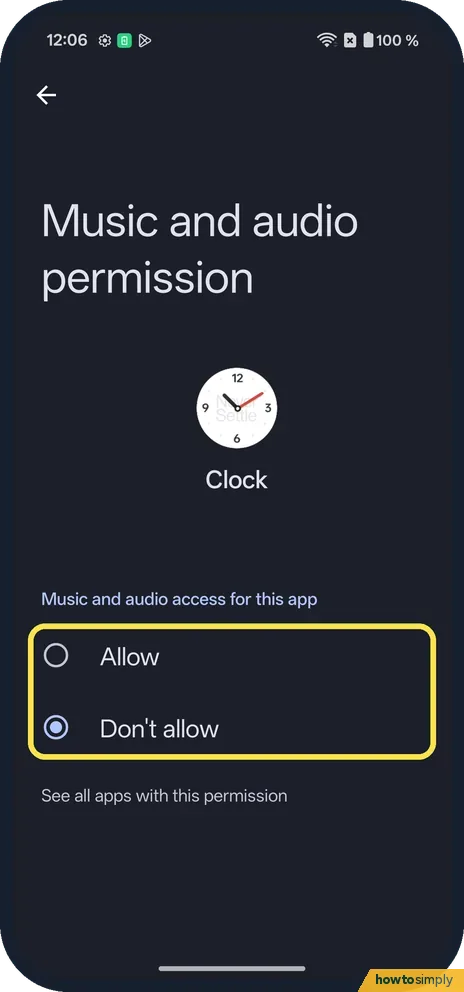
Change one
Tap it and pick Allow or Don't allow. Music and audio on ours had only those two.
If you do not see this option
- OxygenOS 14 (OnePlus manual)? The manual's path is Settings, Security & Privacy, Privacy, Permission manager. On our OxygenOS 16 phone, Privacy controls replaced Privacy. Source: OxygenOS 14.0 User Manual
- Notifications behave differently? On ours, tapping Notifications opened Clock's notification page (Allow notifications, Set as silent, Lock screen, Banner) instead of an Allow/Don't allow choice.
If this does not work
- Permission switched itself off? Manage app if unused removes permissions from apps you don't use. Switch it off on the app's page.
- Feature stopped working? The app may need the permission back. Set it to Allow only while using the app.
- Need an app to see only some photos? The OxygenOS 14 manual describes setting an app's Photos and videos access to Ask every time. When the app next asks, tap Select photos and videos to share only the ones you pick. The manual says this only works with apps made for Android 13 or later.
- Permission you want is not listed? Some powers, such as reading your notifications, managing files or displaying over other apps, are special app access rather than normal permissions. The OxygenOS 14 manual puts them in Settings, Apps, Special app access.
Good to know
Change location settings on a OnePlus.
Changes take effect straight away. If you remove a permission the app is using, the app may close or reload, and the feature that needed it stops until you allow it again. Nothing is deleted: photos, contacts and other data stay where they are, and the app keeps its own data.
Google explains that Ask every time makes the app ask you each time you open it, and Don't allow blocks a permission even while you are using the app. To see which apps actually used sensitive permissions recently, rather than which are merely allowed, use the privacy dashboard on a OnePlus. For the camera and microphone across the whole phone, see turn off camera and microphone access.
About this guide
- Device
- Android
- Shown on
- OnePlus Nord 5 (CPH2709), OxygenOS 16.0.5.1201, Android 16
- App
- Settings
- Path
- Settings › Security and privacy › Privacy controls › Permission manager
- Real screenshots
- 7 of 7 steps
- Checked
- October 2026
- Sources
- 3 official, linked below
Sources
Links checked October 2026. Menus and features can change with updates.Spotted a mistake? Menus change with updates, and we want every step to match your screen. Email us about this page or use the contact form. We read every report, and fixes are listed on What changed.
Liked this guide?
Follow us for new guides and short how-to videos.
Did this guide work for you?
Sorry about that. What happened?