
howtosimply.com/guides/how-to-change-the-refresh-rate-on-an-honor-phone/ · Checked October 2026 · BRP-NX1M, EEA), MagicOS 10.0, Android 16 (build 10.0.0.169(C430E7R2P1) · HONOR Magic7 Lite
In this guide
Open Settings, Display & brightness, scroll to Refresh rate and choose Dynamic (up to 120 Hz, balances smoothness and battery; ours was set to it), Standard (up to 60 Hz, saves power) or High (up to 120 Hz, smoothest, uses more power).
4 of 4 steps with real screenshots · 2 official sources below
- Device
- Android
- Shown on
- HONOR Magic7 Lite (BRP-NX1M, EEA), MagicOS 10.0, Android 16 (build 10.0.0.169(C430E7R2P1))
- App
- Settings
- Path
- Settings › Display & brightness › Refresh rate: Dynamic › Standard or High
- Real screenshots
- 4 of 4 steps
- Checked
- October 2026
- Sources
- 2 official, linked below
Step by step
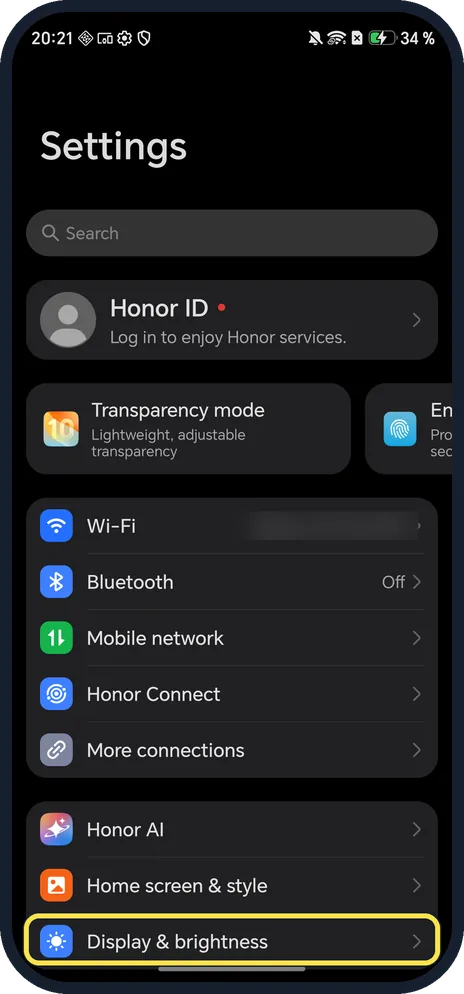
Open Display & brightness
Open Settings and tap Display & brightness.
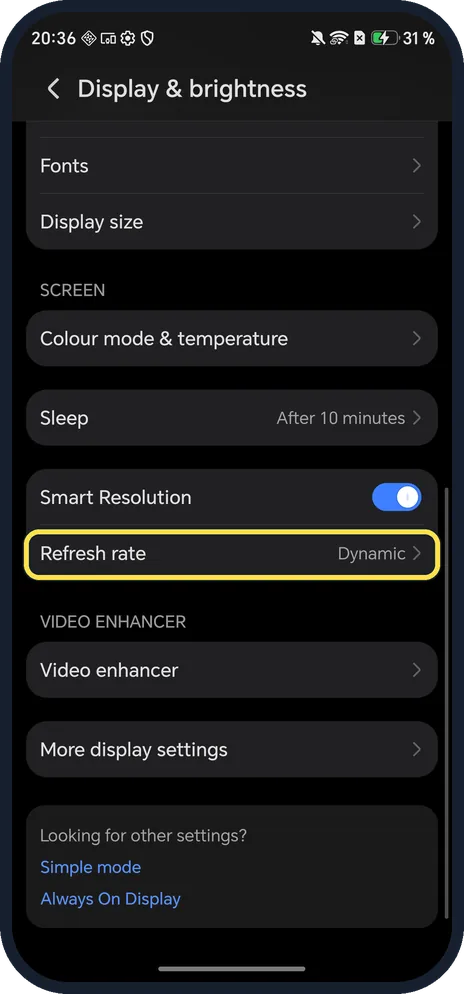
Tap Refresh rate
Scroll down; it shows the current choice. Ours said Dynamic.
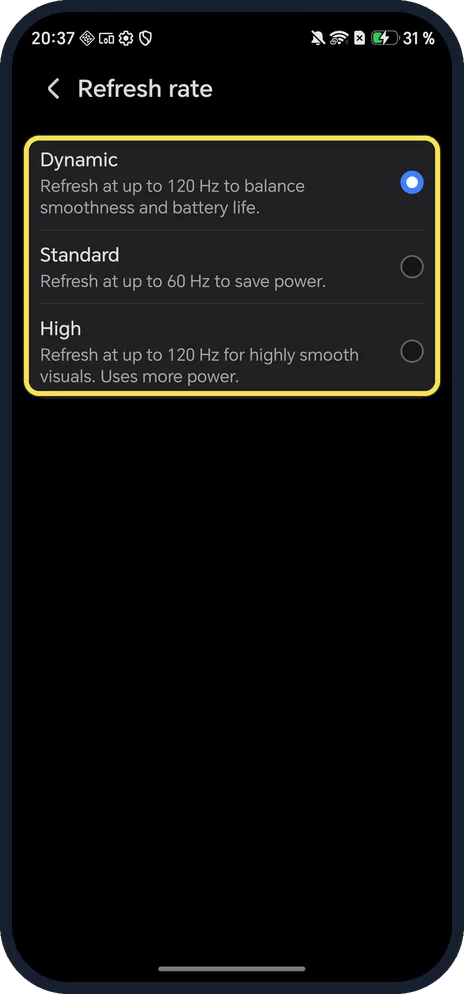
Pick a rate
Dynamic: up to 120 Hz to balance smoothness and battery. Standard: up to 60 Hz to save power. High: up to 120 Hz for smooth visuals, uses more power.
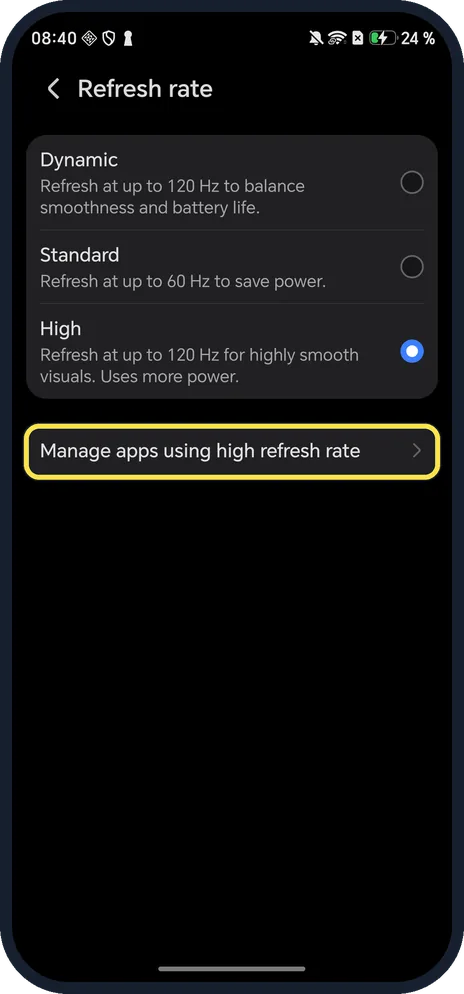
Check the result
With High picked, ours added a row below: Manage apps using high refresh rate. We set it back to Dynamic afterwards.
If you do not see this option
- No Refresh rate row? On ours it was lower on Display & brightness, under the text and display size rows. HONOR's support page for its older phones calls it Screen refresh rate, in the same place, and says that if there is no such option the phone doesn't support it. Source: Phone/tablet charges slowly when it overheats or when the screen is on
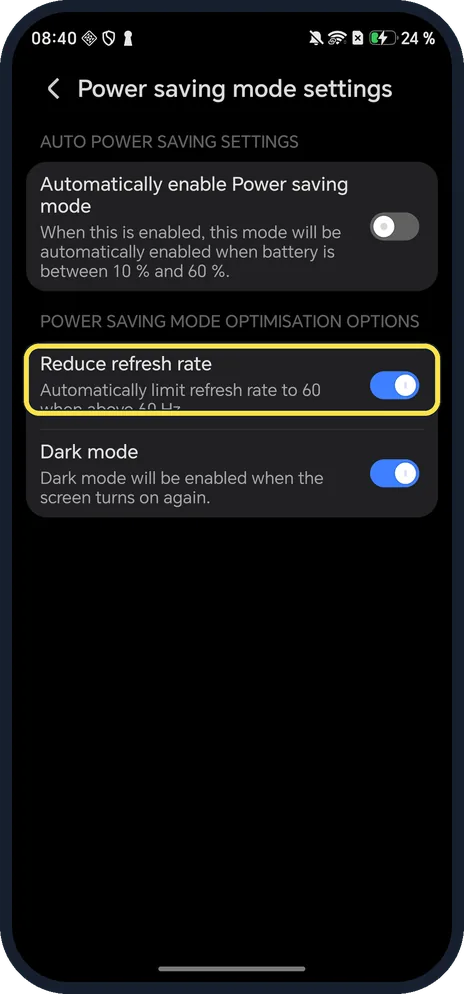
- Rate stays at 60 Hz in Power saving? Ours has Reduce refresh rate turned on under Settings, Battery, Power saving mode settings: it limits the rate to 60 Hz when above 60 Hz in Power saving.
If this does not work
- Charging slower with High? HONOR says a high refresh rate uses much more power and offsets part of the charging current. It suggests choosing Standard while charging. Source: Phone/tablet charges slowly when it overheats or when the screen is on
- Battery worse after choosing High? High says it uses more power. Go back to Dynamic, which balances smoothness and battery life.
- Want more speed for games? Refresh rate is only the screen. HONOR puts Performance mode under Settings, Battery: it gives the most CPU and GPU power but drains the battery faster and runs warmer. Source: Performance mode vs Battery saving mode
About this guide
The Magic7 Lite's screen goes up to 120 Hz, and MagicOS gives three choices.
The screenshots are from our HONOR Magic7 Lite, the European model BRP-NX1M, with MagicOS 10.0 and Android 16 (build 10.0.0.169(C430E7R2P1)), in Dark mode. We picked High for the result screenshot, then went back to Dynamic.
Good to know
To darken the screen at night, turn on Dark mode on an HONOR phone.
To make text easier to read, change the font size.
In short: Settings, Display & brightness, Refresh rate: Dynamic, Standard or High.
- HONOR Support: Phone/tablet charges slowly when it overheats or when the screen is on
- HONOR Support (ZA): Performance mode vs Battery saving mode
Links checked in October 2026. Menus and features can change after software updates. These steps match the version named at the top.
Did this guide work for you?
Sorry about that. What happened?