
howtosimply.com/guides/how-to-change-app-permissions-on-an-honor-phone/ · Checked October 2026 · BRP-NX1M, EEA), MagicOS 10.0, Android 16 (build 10.0.0.169(C430E7R2P1) · HONOR Magic7 Lite
In this guide
Open Settings, Apps, Permission manager, pick a permission such as Location, tap the app and choose Allow only while using the app, Ask every time or Don't allow.
7 of 7 steps with real screenshots · 3 official sources below
- Device
- Android
- Shown on
- HONOR Magic7 Lite (BRP-NX1M, EEA), MagicOS 10.0, Android 16 (build 10.0.0.169(C430E7R2P1))
- App
- Settings
- Path
- Settings › Apps › Permission manager
- Real screenshots
- 7 of 7 steps
- Checked
- October 2026
- Sources
- 3 official, linked below
Step by step
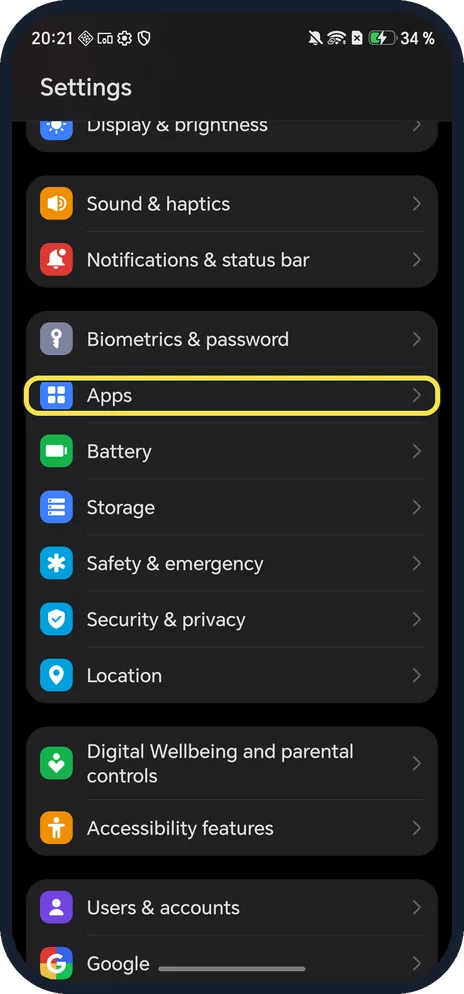
Open Apps
Open Settings and tap Apps; it is below Biometrics & password.
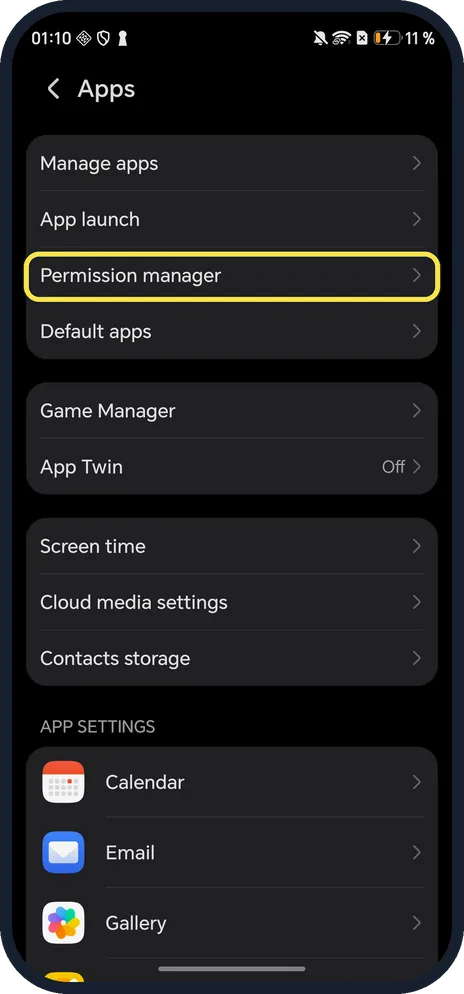
Tap Permission manager
Below App launch.
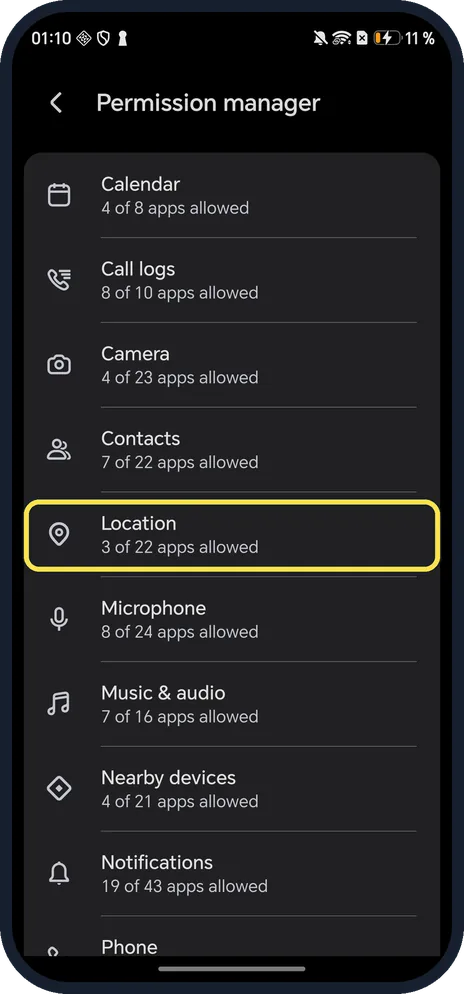
Tap a permission
Each shows how many apps are allowed. Ours: Location, 3 of 22 apps allowed.
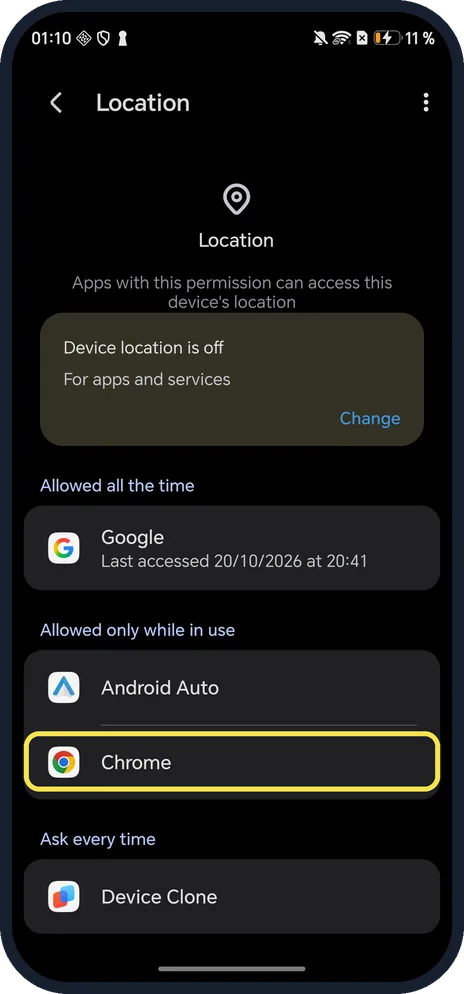
Tap the app
Apps are grouped: Allowed all the time, Allowed only while in use, Ask every time. We tapped Chrome.
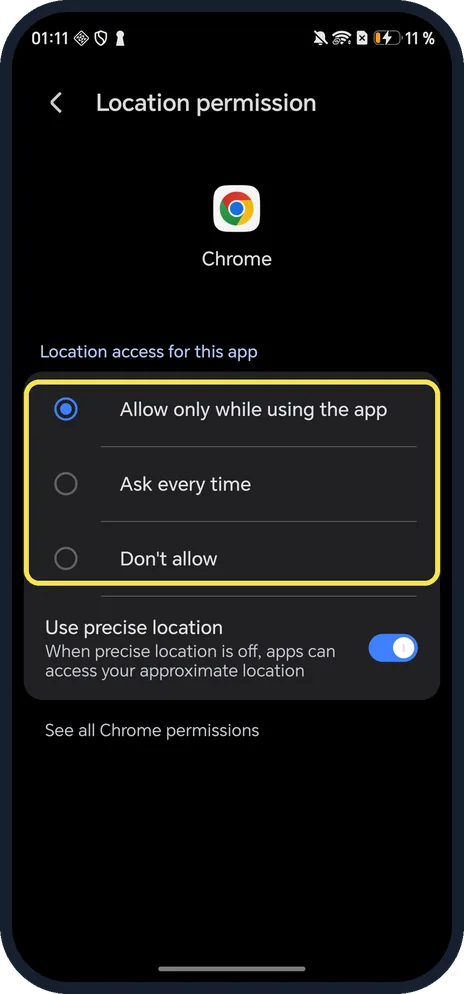
Choose the access
Allow only while using the app (ours), Ask every time, or Don't allow.
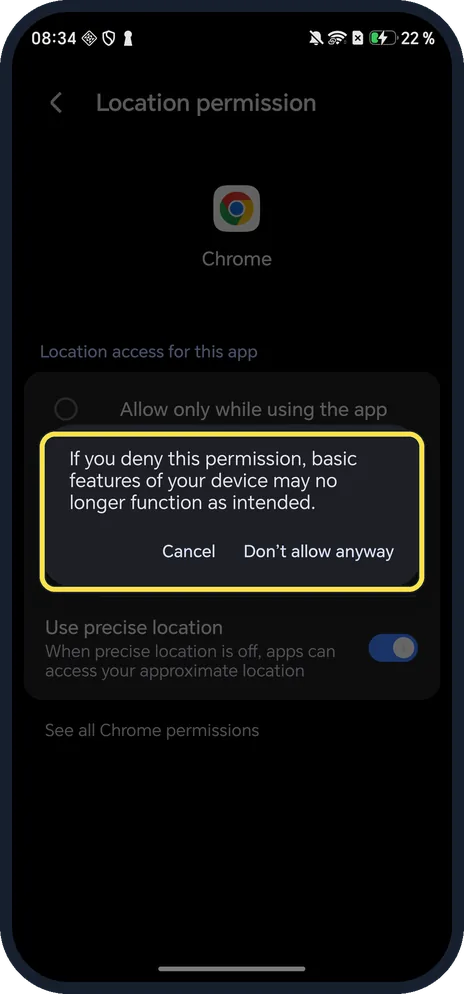
Confirm Don't allow
HONOR warns: if you deny this permission, basic features of your device may no longer function as intended. Tap Don't allow anyway.
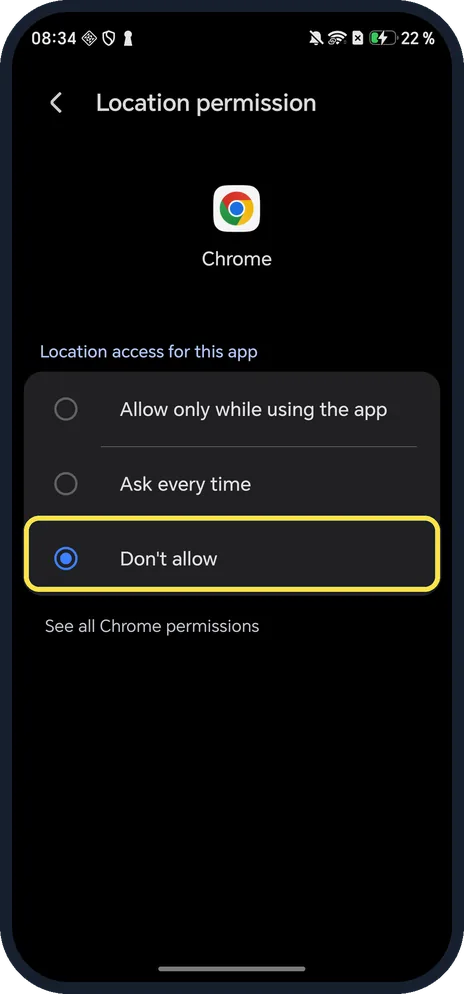
Check the result
Don't allow is selected and Use precise location disappears. We set Chrome back to Allow only while using the app.
If you do not see this option
- Can't find Permission manager under Apps? HONOR tells readers to open Settings and search for Permission manager; this works on older versions too. Source: My phone or tablet is unable to provide an accurate location or navigate
- Menu called Permissions? HONOR's page for older phones names it Permissions: search Settings for Permissions, find the app and turn the permission on or off. Source: How to search for a Bluetooth selfie stick, mouse, or keyboard
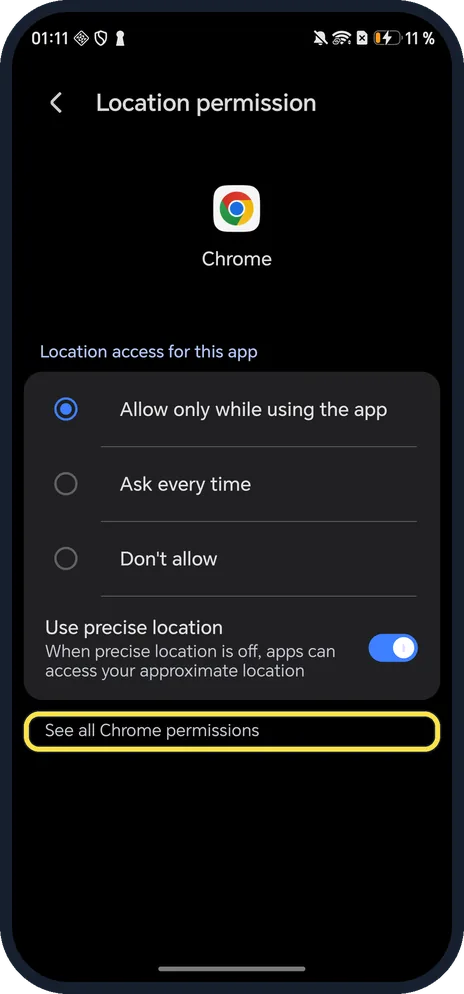
- All permissions for one app? Tap See all Chrome permissions at the bottom.
If this does not work
- App still can't find you? Device location itself may be off; ours said Device location is off on the Location page. HONOR says to turn on Location in the notification panel and turn on Wi-Fi scanning in its Advanced settings for better accuracy. Source: My phone or tablet is unable to provide an accurate location or navigate
- Location off by a lot? HONOR says tall buildings, tunnels and metal or magnetic cases weaken GPS; move to an open area or remove the case. Source: My phone or tablet is unable to provide an accurate location or navigate
- Permission comes back off? Google says Android can remove permissions from apps you have not used for a while; check the unused app setting in App info. Source: Change app permissions on your Android phone
About this guide
The screenshots are from our HONOR Magic7 Lite, the European model BRP-NX1M, with MagicOS 10.0 and Android 16 (build 10.0.0.169(C430E7R2P1)), in Dark mode. We set Chrome's location to Don't allow for the screenshots, then back to Allow only while using the app.
Good to know
To pick the default browser, change default apps.
To stop an app, force stop an app.
In short: Settings, Apps, Permission manager, permission, app, choice.
- HONOR Support (MEA): My phone or tablet is unable to provide an accurate location or navigate
- HONOR Support (UK): How to search for a Bluetooth selfie stick, mouse, or keyboard
- Google Android Help: Change app permissions on your Android phone
Links checked in October 2026. Menus and features can change after software updates. These steps match the version named at the top.
Did this guide work for you?
Sorry about that. What happened?