
howtosimply.com/guides/how-to-share-files-between-an-oppo-phone-and-an-iphone/ · Checked October 2026 · CPH2689, EEA), ColorOS 16.0.5, Android 16 (build CPH2689_16.0.5.1001(EX01) · OPPO Reno13 5G
In this guide
Open Settings, Device Connect, Share with iPhone or PC and turn on the switch. The iPhone needs the O+ Connect app. The switch turns itself off 10 minutes after you turn it on. Quick Share on our Reno13 had no iPhone option.
3 of 3 steps with real screenshots · 3 official sources below
- Device
- Android
- Shown on
- OPPO Reno13 5G (CPH2689, EEA), ColorOS 16.0.5, Android 16 (build CPH2689_16.0.5.1001(EX01))
- App
- Settings
- Path
- Settings › Device Connect
- Real screenshots
- 3 of 3 steps
- Checked
- October 2026
- Sources
- 3 official, linked below
Step by step
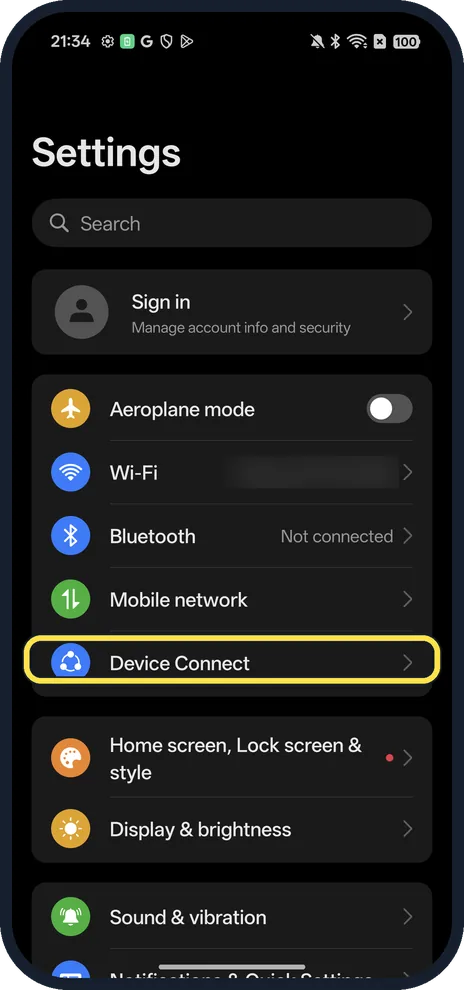
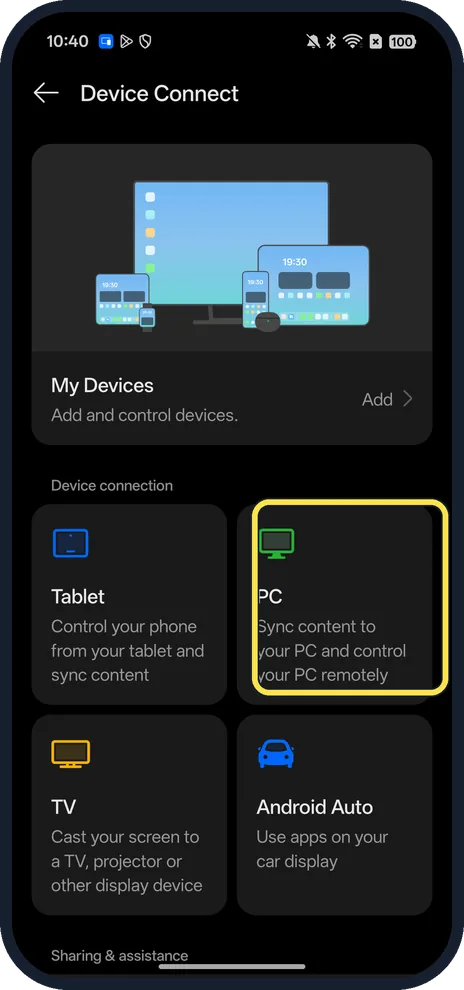
Open Device Connect
Open Settings and tap Device Connect, below Mobile network.
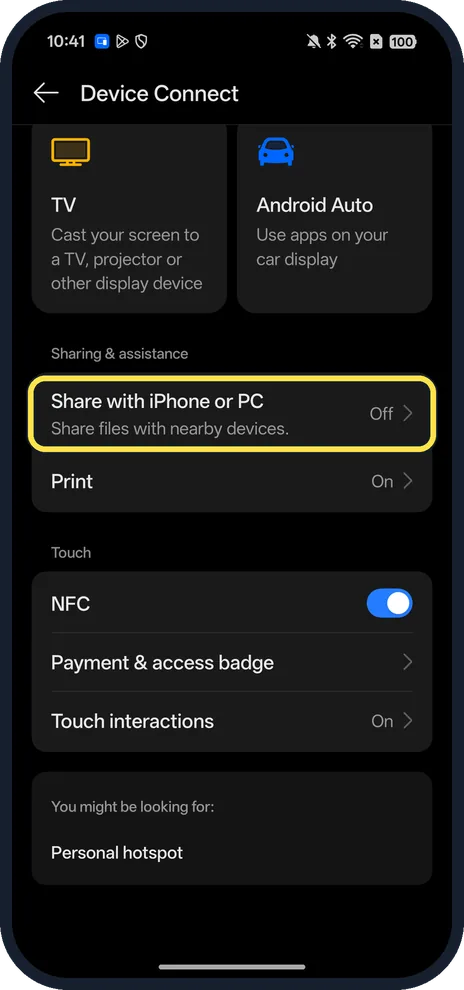
Tap Share with iPhone or PC
Scroll down to Sharing & assistance: Share files with nearby devices. Ours said Off.
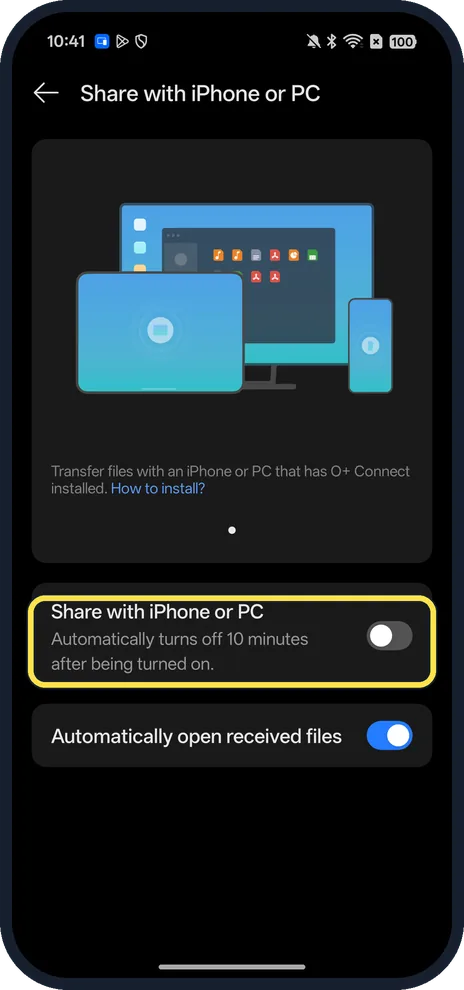
Turn on Share with iPhone or PC
The page says: Transfer files with an iPhone or PC that has O+ Connect installed. Automatically turns off 10 minutes after being turned on. How to install? on the same page explains the iPhone app; OPPO says the iPhone needs O+ Connect and iOS 15.0 or later.
If you do not see this option
- No Share with iPhone or PC row? OPPO says transfers between OPPO phones and iPhone need ColorOS 15.0 or later, so older ColorOS versions don't have it. Source: Reno16 Pro 5G
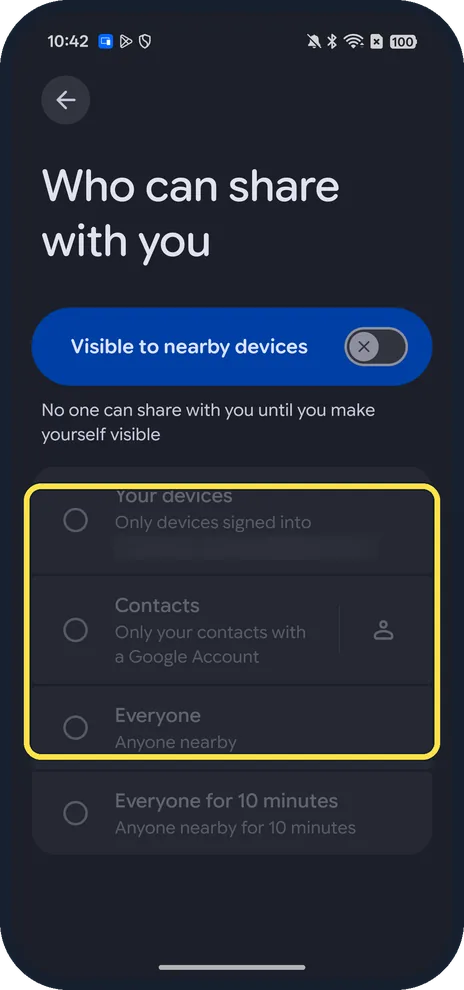
- Use Quick Share instead? Google says Quick Share can send to an iPhone through AirDrop on certain OPPO phones. On our Reno13 (ColorOS 16.0.5) the Who can share with you sheet offered Your devices, Contacts, Everyone and Everyone for 10 minutes, with no iPhone option. Source: Use Quick Share on your Android device
- To a PC? Tap the PC tile at the top of Device Connect. It opens Multi-Screen Connect, which first asks you to switch on Nearby devices and Notifications; Agree and continue was greyed out on ours with both off. Source: Your OPPO and Computer Have a Connection
- To a Mac by cable? See transfer photos to a Mac. Source: Image Capture User Guide for Mac
If this does not work
- Switch went off by itself? It turns off 10 minutes after being turned on; turn it on again before you send.
- iPhone can't find the OPPO? OPPO lists O+ Connect on the iPhone and iOS 15.0 or later. Source: Reno16 Pro 5G
About this guide
ColorOS 16 has its own way to send files to an iPhone. We checked where it lives on our Reno13.
The screenshots are from our OPPO Reno13 5G, the European model CPH2689, with ColorOS 16.0.5 and Android 16 (build CPH2689_16.0.5.1001(EX01)), in Dark mode. We opened the pages but did not turn sharing on or link a device.
Good to know
Moving everything from an iPhone? See copy data from an iPhone.
In short: Settings, Device Connect, Share with iPhone or PC on; O+ Connect on the iPhone.
- OPPO: Reno16 Pro 5G
- Google Android Help: Use Quick Share on your Android device
- OPPO: Your OPPO and Computer Have a Connection
Links checked in October 2026. Menus and features can change after software updates. These steps match the version named at the top.
Did this guide work for you?
Sorry about that. What happened?