
howtosimply.com/guides/how-to-pin-a-tab-in-safari-on-an-iphone/ · Checked October 2026 · iPhone 17e · iOS 27.0.1
In this guide
In Safari, tap the Tabs button, touch and hold the tab you want to keep, and tap Pin Tab. The tab moves to a small pill with a pin icon at the top of the tab overview. Touch and hold it again and tap Unpin Tab to undo.
4 of 4 steps with real screenshots · 1 official source below
- Device
- iPhone
- Shown on
- iOS 27.0.1 (iPhone 17e)
- App
- Safari
- Real screenshots
- 4 of 4 steps
- Checked
- October 2026
- Sources
- 1 official, linked below
Step by step

Tap the Tabs button
It is the two squares at the right of the bottom bar, next to the address. Ours was on apple.com.
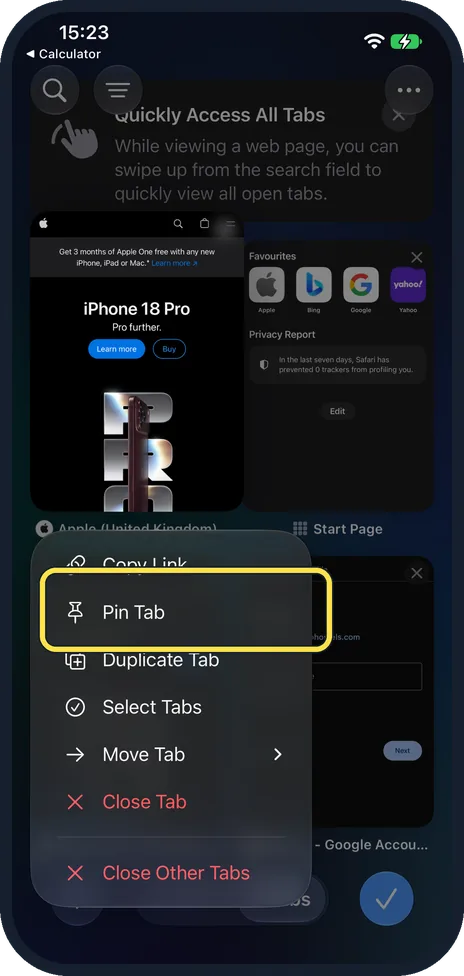
Touch and hold the tab, then tap Pin Tab
The menu also has Copy Link, Duplicate Tab, Select Tabs, Move Tab, Close Tab and Close Other Tabs.
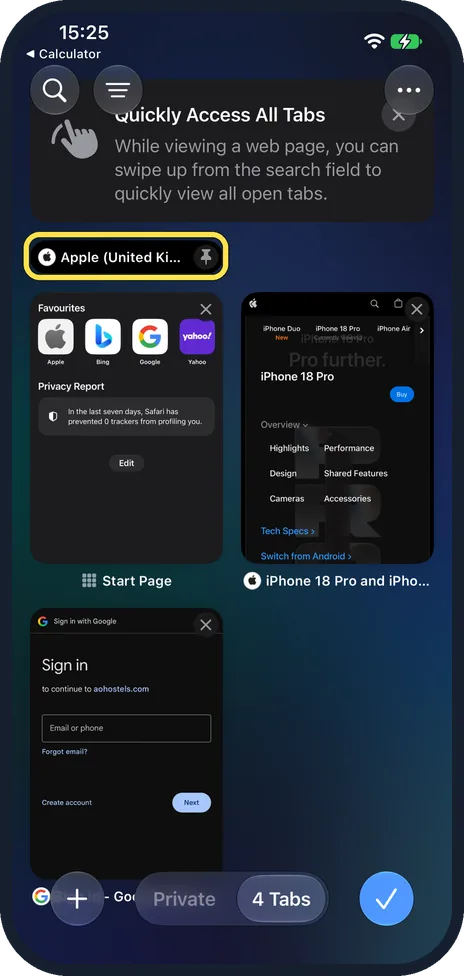
Find it at the top
Ours, the Apple (United Kingdom) page, turned into a small pill with a pin icon above the other tabs.
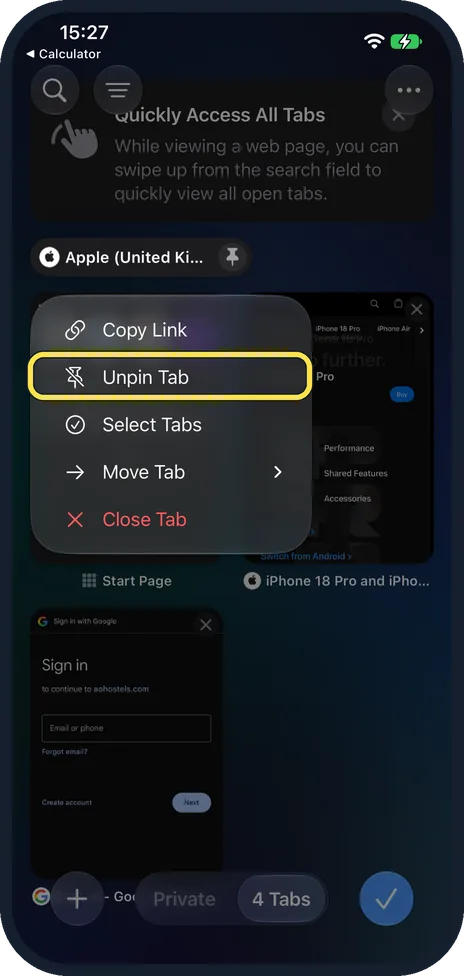
To undo it, tap Unpin Tab
Touch and hold the pinned tab: a shorter menu opens with Unpin Tab.
If you do not see this option
- No Pin Tab in the menu? Hold the tab in the tab overview (step 2), not the address bar. Apple gives Tabs button, touch and hold the tab, Pin Tab. Source: Organize your tabs in Safari on iPhone
- Using Tab Groups? Apple says each Tab Group has its own pinned tabs: open the group first, then pin. Source: Organize your tabs in Safari on iPhone
If this does not work
- Pinned tab gone? Check the Tab Group at the bottom centre: Apple says pins belong to the group they were made in. Source: Organize your tabs in Safari on iPhone
- Can't find the pin? On ours the pinned tab showed in the tab overview as a pill at the top (step 3); open the overview with the Tabs button.
About this guide
Apple says a pinned tab stays at the top of its Tab Group.
The screenshots are from our iPhone 17e with iOS 27.0.1, in Dark mode, taken on 25 October 2026. We unpinned the tab afterwards.
Good to know
To stop old tabs piling up, see make Safari close old tabs automatically.
For tabs that leave no history, see private browsing in Safari.
In short: Tabs button, touch and hold the tab, Pin Tab.
Links checked in October 2026. Menus and features can change after software updates. These steps match the version named at the top.
📷 See real photos from the iPhone 17e in our Camera Lab, next to 10 other phones.
Did this guide work for you?
Sorry about that. What happened?