
howtosimply.com/guides/how-to-delete-apps-on-an-iphone/ · Checked October 2026 · iPhone 14 Pro · iOS 27.0.1
In this guide
Touch and hold the app icon, tap Remove App, then Delete App. To clear out several, open Settings, General, iPhone Storage, where apps are listed by size.
2 of 4 steps with real screenshots · 1 official source below
- Device
- iPhone
- Shown on
- iOS 27.0.1 (iPhone 14 Pro)
- App
- Settings
- Real screenshots
- 2 of 4 steps
- Checked
- October 2026
- Sources
- 1 official, linked below
Step by step
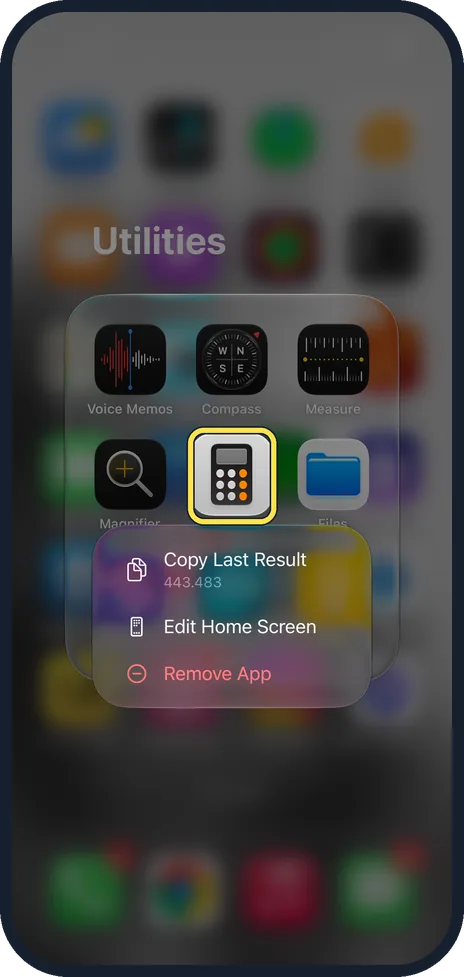
Touch and hold the app icon
A menu appears after a moment.
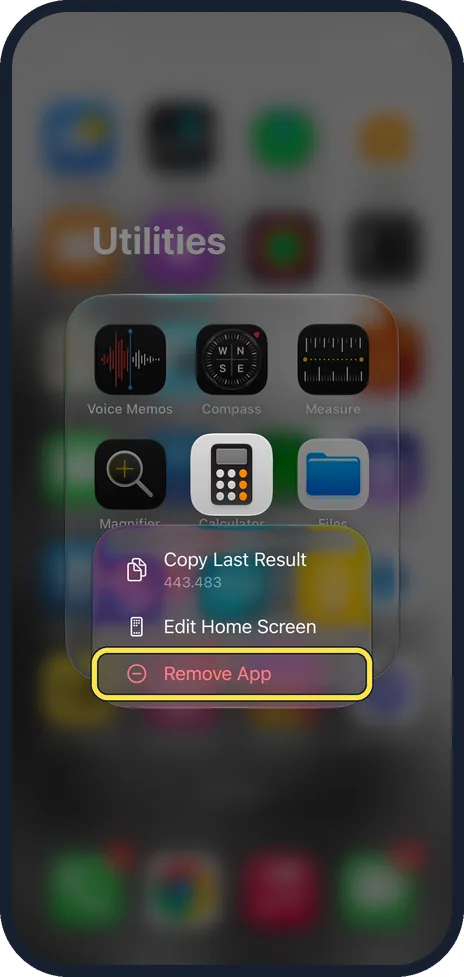
Tap Remove App
It is at the bottom of the menu, in red.
Choose Delete App
Delete App removes the app and its data from the phone. Remove from Home Screen only hides the icon and keeps the app in the App Library.
Delete several from the storage list
Open Settings, General, iPhone Storage. Tap an app, then Delete App. The list shows the largest apps first and when you last used each one.
About this guide
Deleting apps you do not use frees storage and tidies the Home Screen. You can download any of them again later from the App Store without paying twice.
The screenshots are our own, taken on an iPhone 14 Pro running iOS 27.0.1. They were recorded over USB in QuickTime.
Good to know
Deleting an app does not cancel its subscription. Open Settings, tap your name, then Subscriptions.
Offload App, in the same storage list, removes the app but keeps its documents and data, and leaves the icon so you can reinstall with one tap.
Built-in apps such as Stocks or Tips can be deleted too. Settings and a few other core apps cannot.
If there is no Delete option, check Settings, Screen Time, Content & Privacy Restrictions, iTunes & App Store Purchases, Deleting Apps.
In short: Hold the icon, Remove App, Delete App.
Links checked in October 2026. Back up anything you want to keep before you reset or delete. Menus can change after software updates.
Did this guide work for you?
Sorry about that. What happened?