
What changed: the screenshots are now our own iPhone 17e on iOS 27.0.1, dark mode, and the wording is checked against those screens and Apple's iOS 27 guide.
howtosimply.com/guides/how-to-block-pop-ups-in-safari-on-an-iphone/ · Checked October 2026 · iPhone 17e · iOS 27.0.1
In this guide
Open Settings, tap Apps, tap Safari and switch on Block Pop-ups. Switch on Fraudulent Website Warning in the same list. If a pop-up will not close, do not tap its buttons. Tap the address bar and go to another page.
4 of 4 steps with real screenshots · 7 official sources below
- Device
- iPhone
- Shown on
- iOS 27.0.1 (iPhone 17e)
- App
- Settings
- Path
- Settings › Apps › Safari
- Real screenshots
- 4 of 4 steps
- Checked
- October 2026
- Sources
- 7 official, linked below
Step by step
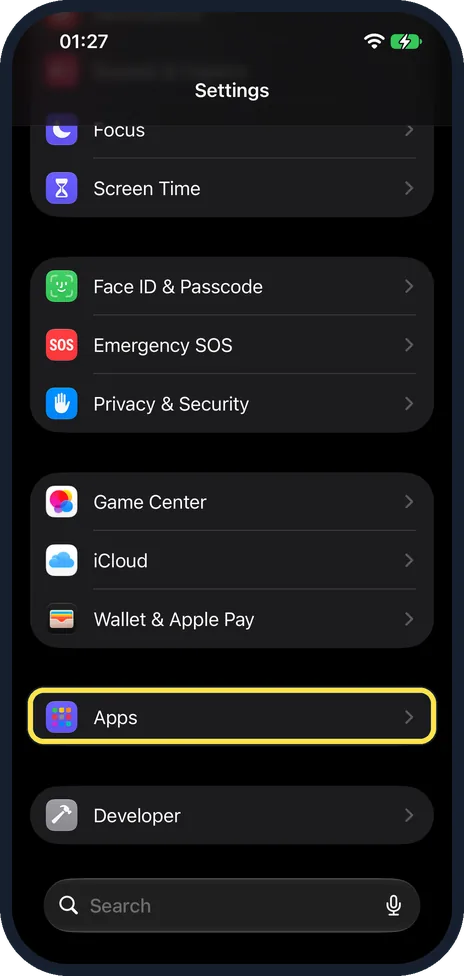
Open Settings and tap Apps
Scroll down the main Settings list and tap Apps. On our iPhone 17e it sits on its own, between Wallet & Apple Pay and Developer.
Watch these steps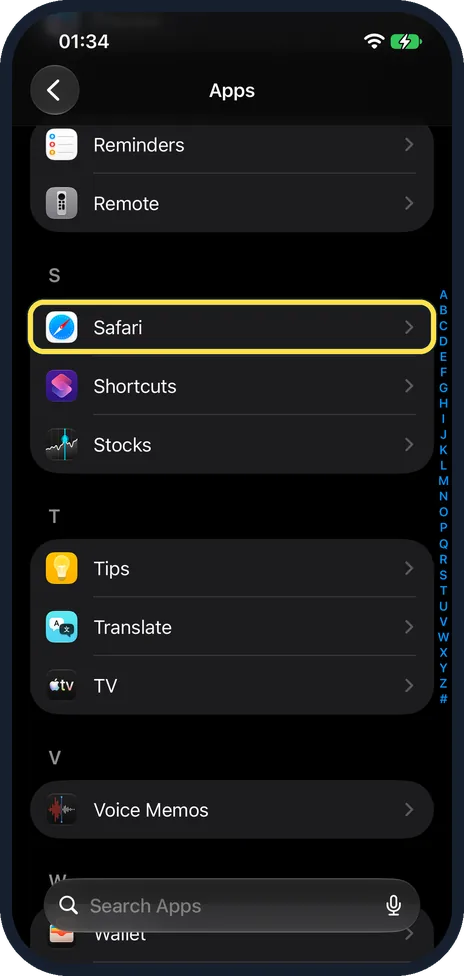
Tap Safari
The apps are in alphabetical order, below Default Apps. Scroll down to S, tap S in the letter index at the right edge, or type Safari in the Search Apps field at the bottom. On ours the S group was Safari, Shortcuts and Stocks.
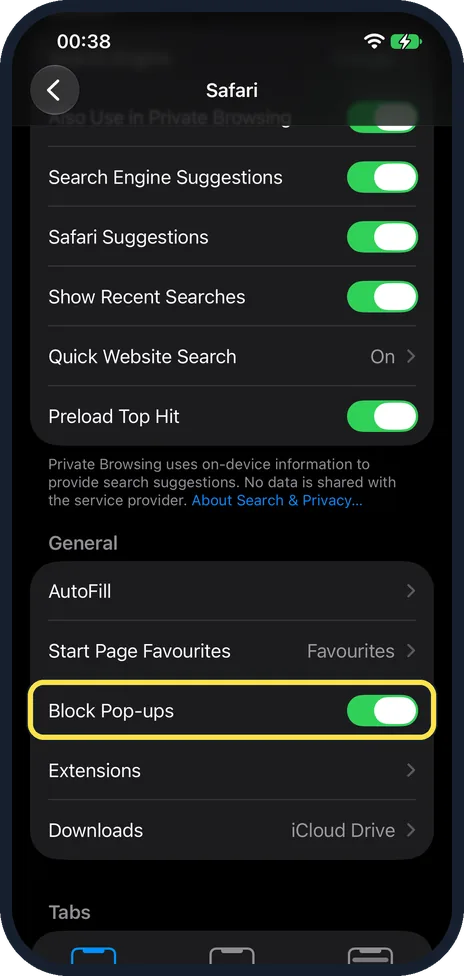
Switch on Block Pop-ups
Scroll down to the General group of the Safari settings. Block Pop-ups is below AutoFill and Start Page Favourites. On our iPhone 17e it was on. Below it come Extensions and Downloads, which showed iCloud Drive.
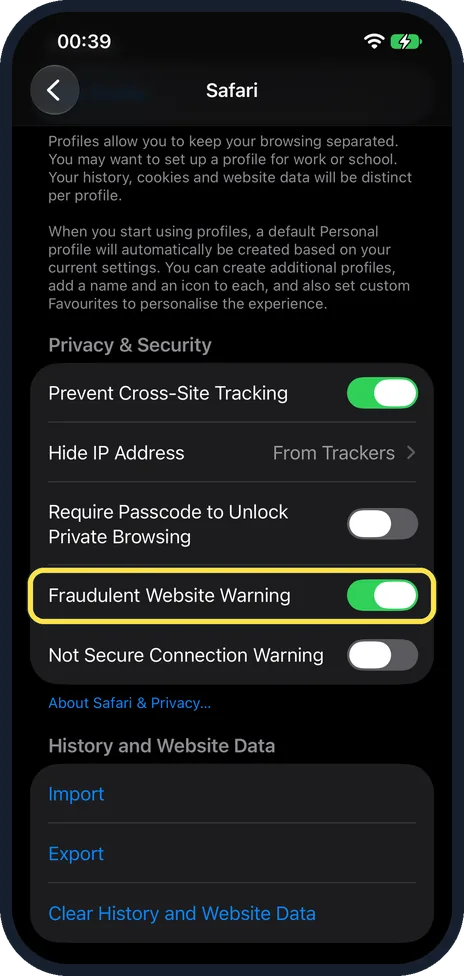
Switch on Fraudulent Website Warning
Scroll further down to Privacy & Security. On our iPhone 17e the group starts with Prevent Cross-Site Tracking (on), Hide IP Address (From Trackers) and Require Passcode to Unlock Private Browsing (off). Apple says Safari then "displays a warning if you're visiting a suspected phishing website". On our iPhone 17e it was on. The row below, Not Secure Connection Warning, warns you on websites that use HTTP. It was off on ours.
What changed: the screenshots are now our own iPhone 17e on iOS 27.0.1, dark mode, and the wording is checked against those screens and Apple's iOS 27 guide.
Watch these steps
If you do not see this option
- Fraudulent Website Warning is missing Apple's iOS 27 user guide adds that this option is not available in all countries or regions. The iOS 26 guide has no such note. Source: Browse the web privately in Safari on iPhone · Source: Browse the web privately in Safari on iPhone (iOS 26)
- Not Secure Connection Warning is missing Apple lists it below Privacy & Security in the Safari settings on iOS 26 and iOS 27. Update the iPhone if you do not see it. Source: Get a warning when you visit websites that use HTTP on iPhone · Source: Get a warning when you visit websites that use HTTP on iPhone (iOS 26)
If this does not work
- Pop-ups still appear in another browser Block Pop-ups is a switch in Safari's own settings, so it covers Safari only. Our advice, not Apple's: look in the other browser's own settings. Apple says the default Browser App is the app that opens web links, under Settings, Apps, Default Apps. Source: Change the default apps on iPhone
About this guide
Pop-ups are extra windows or messages that a website opens by itself. Some are harmless. Others imitate a virus warning or a prize to make you tap. Safari can block most of them. Screenshots: iPhone 17e, iOS 27.0.1, dark mode.
Good to know
If a pop-up fills the screen and will not go away, do not tap OK, Close or any button inside it. Tap the address bar, type another address or a search word, and leave the page. Then close the tab.
Some pop-ups show a fake warning to trick you into tapping. Do not tap them.
Our own tip, not Apple's: some honest websites need pop-ups, for example a bank that opens a statement in a new window. If something does not open, switch Block Pop-ups off for a moment and on again afterwards.
Keep iOS up to date. Apple says its updates include security improvements that help control pop-ups.
To clean up after a bad site: how to clear Safari history and website data on iPhone.
In short: Settings, Apps, Safari, Block Pop-ups on, Fraudulent Website Warning on.
- Apple Support: Block pop-up ads and windows in Safari
- Apple iPhone User Guide: Block pop-ups in Safari on iPhone
- Apple iPhone User Guide: Browse the web privately in Safari on iPhone
- Apple iPhone User Guide: Browse the web privately in Safari on iPhone (iOS 26)
- Apple iPhone User Guide: Get a warning when you visit websites that use HTTP on iPhone
- Apple iPhone User Guide: Change the default apps on iPhone
- Apple iPhone User Guide: Get a warning when you visit websites that use HTTP on iPhone (iOS 26)
Links checked in October 2026. Menus and features can change after software updates. These steps match the version named at the top.
Did this guide work for you?
Sorry about that. What happened?