ONEPLUS
How to clear an app's cache on a OnePlus (OxygenOS 16)

In short
Go to Settings, Apps, App management and tap the app. On App info, tap Storage usage, then Clear cache. On ours Cache dropped to 0 B at once and the app's Data stayed the same. Clear data, higher up, is a separate button.
4 of 4 steps show a real screenshot from our Nord 5. Each step was checked against the maker's own instructions, linked at the end.
Steps
- 1
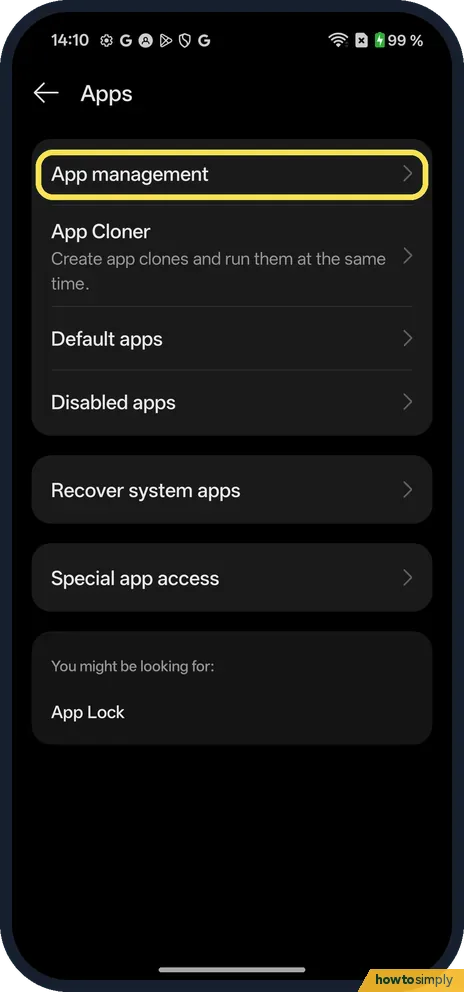
Open App management
Open Settings, tap Apps, then App management, the first row.
- 2
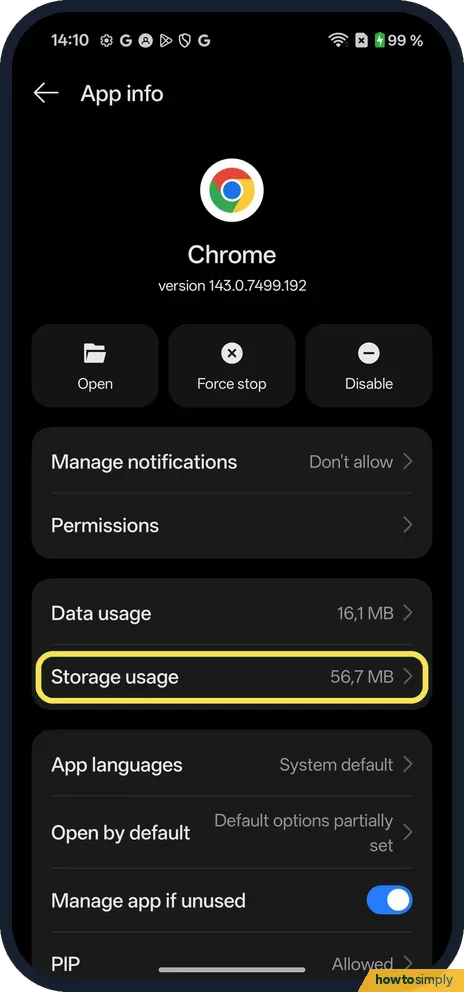
Tap Storage usage
Tap the app in the list to open App info. We used Chrome. Tap Storage usage; ours said 56.7 MB.
- 3
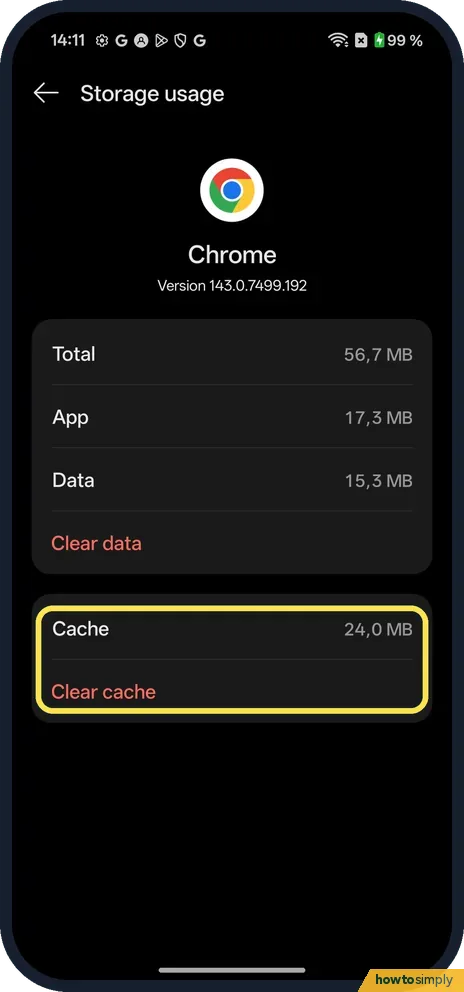
Tap Clear cache
Storage usage shows Total, App and Data, with Clear data under them, and Cache in its own box below. Chrome's cache was 24.0 MB. Tap Clear cache.
- 4
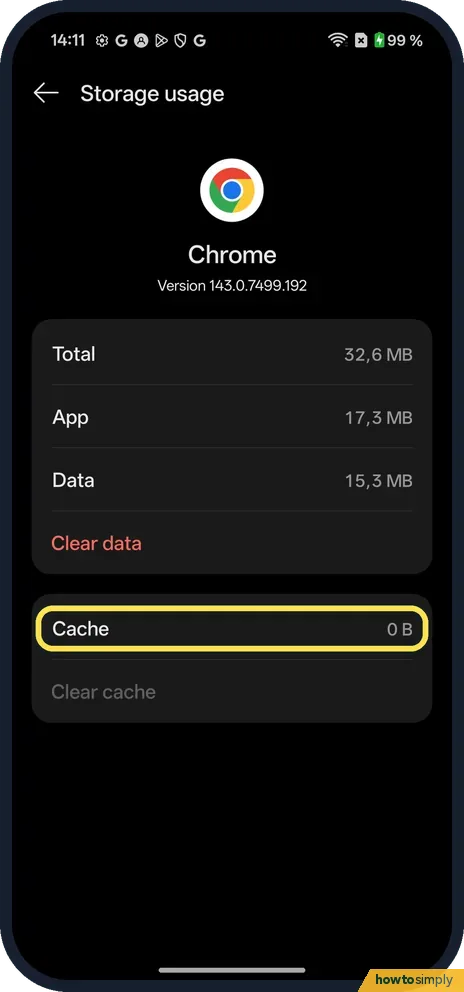
Check it says 0 B
Cache dropped to 0 B and Clear cache turned grey. Total fell to 32.6 MB, while App (17.3 MB) and Data (15.3 MB) stayed the same.
If you do not see this option
- Clear data? It is under Data, above the cache box. We did not tap it, so we can't say what it asks.
- Another way in? OnePlus's OxygenOS 14 manual says to touch and hold the app on the Home screen and tap App info, then Storage usage to view app storage usage and free up space. Source: OxygenOS 14.0 User Manual
If this does not work
- Cache grows back? Google says cached data builds up again over time. A minute after clearing it, our App info showed Storage usage 56.4 MB for Chrome again.
- App still not working? Google suggests force stopping the app and clearing its cache and data, restarting the phone after each step: force stop an app.
- Clear cache greyed out? On ours it turned grey once the cache was 0 B, with nothing left to clear.
- App slower the first time after clearing? That is expected. Google says clearing the cache deletes temporary data and some apps may be slow the next time you open them, while they rebuild it.
- Problem started after an app update? Google suggests updating the app from the Play Store and checking for system updates before anything else. A newer version may already fix it.
Good to know
Close an app completely: force stop an app on a OnePlus.
On other phones: clear an app's cache on a Google Pixel or on a Xiaomi phone.
Clearing the cache keeps your sign-ins, settings and saved files, because those live in Data. The app may take a moment longer to open and may download images again, which uses a little data the first time. There is no undo, but nothing personal is lost.
If space is the real issue, see free up storage on a OnePlus. Google also suggests deleting data inside the app first, where it offers that, before using Clear data in Settings.
About this guide
- Device
- Android
- Shown on
- OnePlus Nord 5 (CPH2709), OxygenOS 16.0.5.1201, Android 16
- App
- Settings
- Path
- Settings › Apps › App management
- Real screenshots
- 4 of 4 steps
- Checked
- October 2026
- Sources
- 3 official, linked below
Sources
Links checked October 2026. Menus and features can change with updates.Spotted a mistake? Menus change with updates, and we want every step to match your screen. Email us about this page or use the contact form. We read every report, and fixes are listed on What changed.
Liked this guide?
Follow us for new guides and short how-to videos.
Did this guide work for you?
Sorry about that. What happened?