ONEPLUS
How to show battery percentage on a OnePlus (OxygenOS 16)

In short
Go to Settings, Notifications & Quick Settings, Status bar and turn on Battery percentage. The number shows next to the battery icon at the top right. Battery style, on the same page, changes the icon: Vertical, Horizontal, Loop or Do not show.
8 of 8 steps show a real screenshot from our Nord 5. Each step was checked against the maker's own instructions, linked at the end.
Steps
- 1
Open Status bar
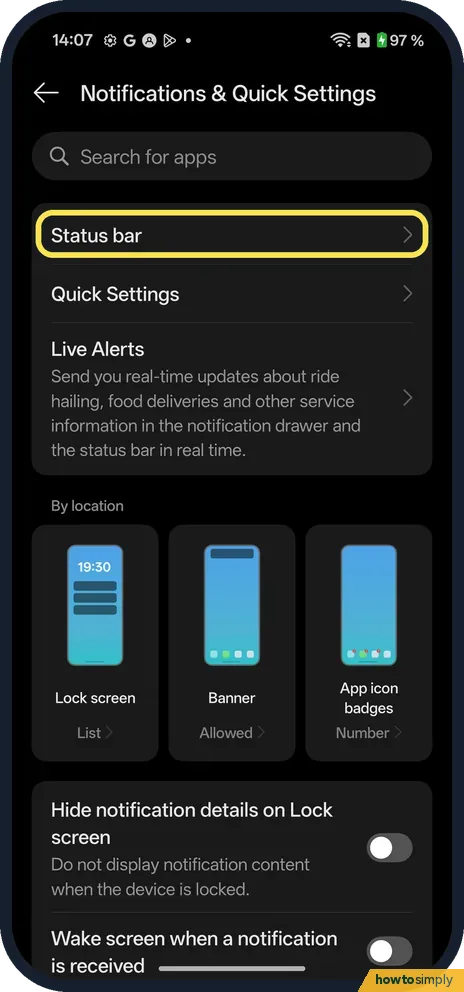
Open Settings and tap Notifications & Quick Settings. Status bar is the first row under the search box. Tap it.
- 2
Turn on Battery percentage
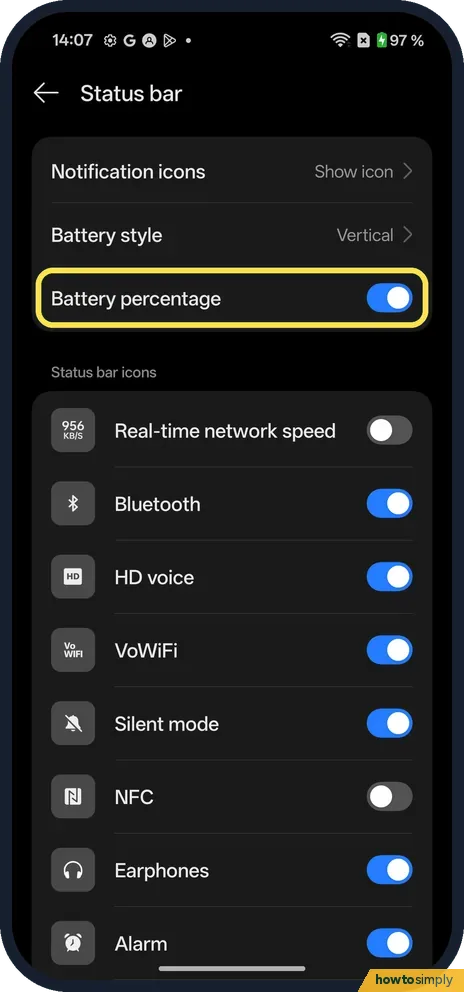
Battery percentage is the third row. Tap the switch: blue means on. It was on on ours.
- 3
Off: no number
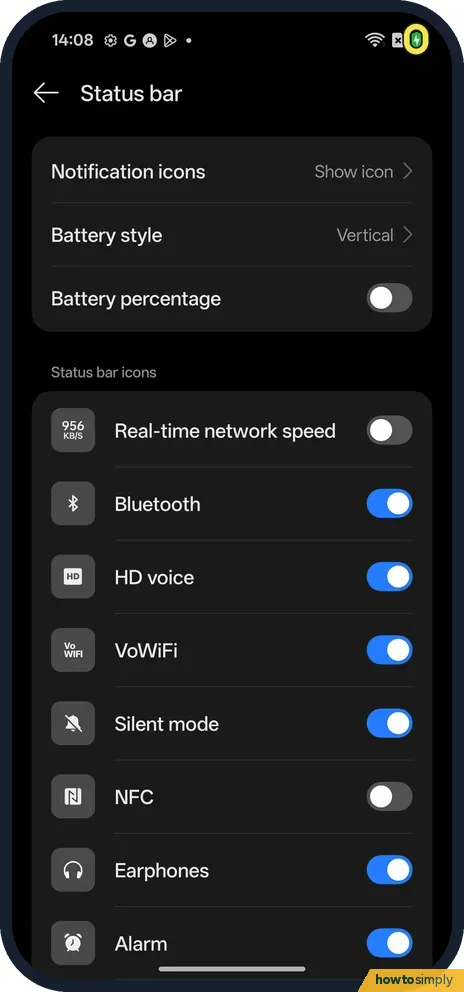
With the switch off, our status bar showed only the battery icon at the top right, with no number next to it.
- 4
On: the number shows
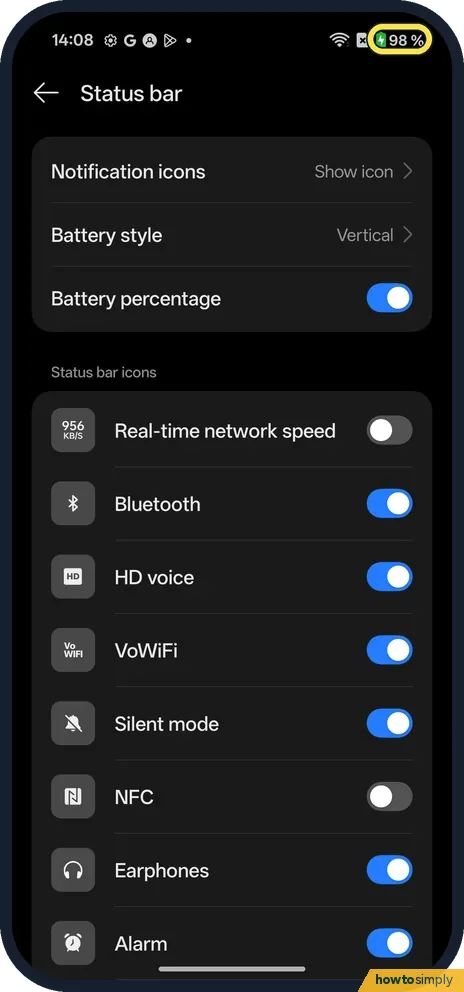
Turned back on, the percentage showed next to the battery again: 98 % on ours.
- 5
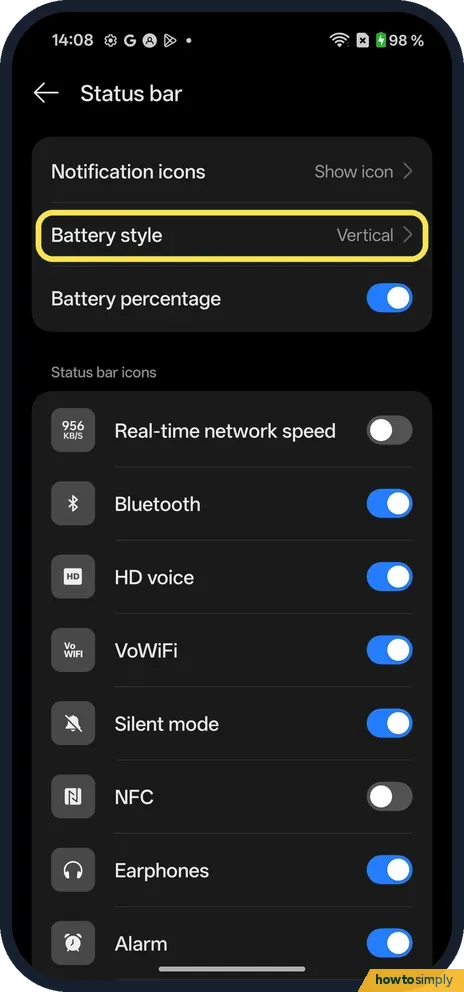
Tap Battery style
To change the icon itself, tap Battery style, just above. Ours said Vertical.
- 6
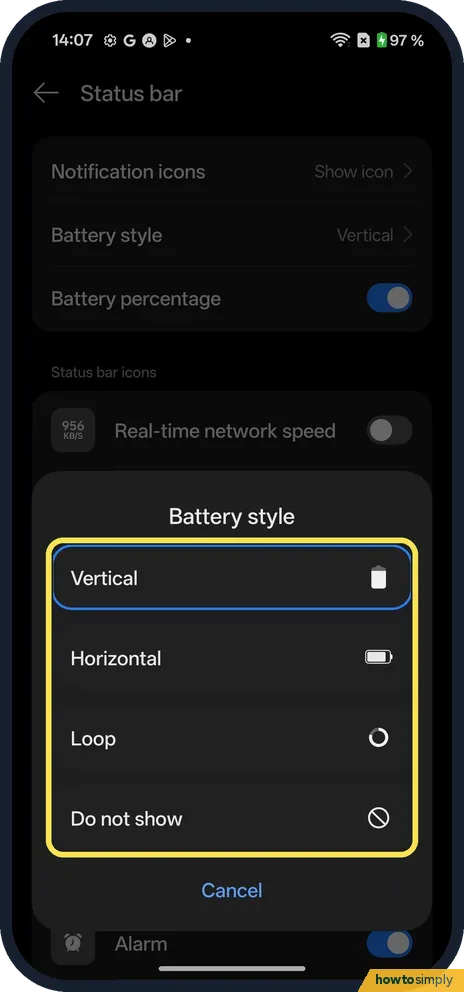
Pick a style
A box opens with Vertical, Horizontal, Loop and Do not show, each with a small picture of the icon. The current one has a blue outline.
- 7
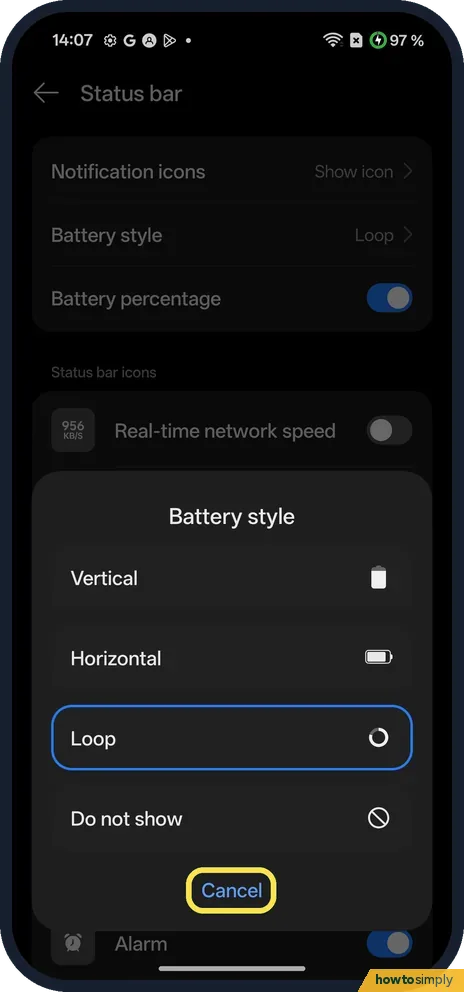
Close the box with Cancel
We tapped Loop. The outline moved to Loop, but the box stayed open. Tap Cancel to close it.
- 8
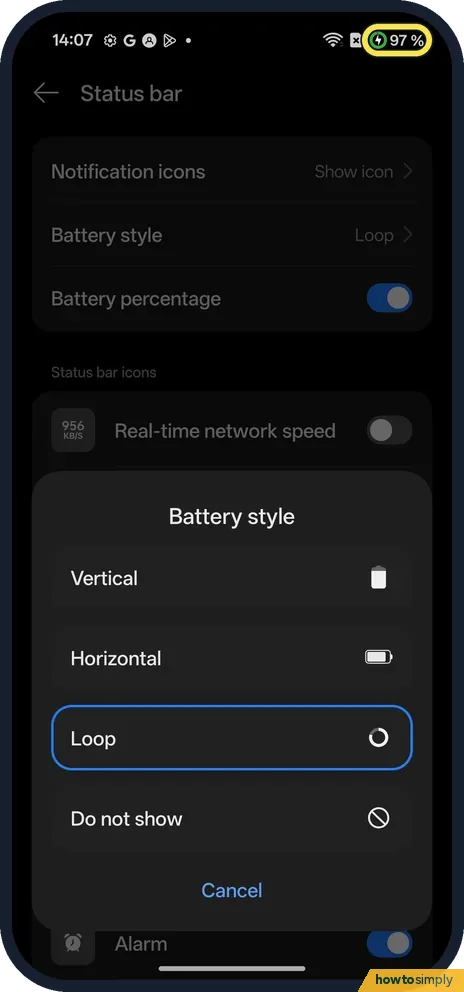
Check the new icon
With Loop, the battery in the status bar became a ring, with the percentage still next to it. We set Vertical back afterwards.
If you do not see this option
- Do not show? It is the last Battery style choice. We did not try it.
- Older OxygenOS? OnePlus's OxygenOS 14 manual puts Notification icons, Battery style and Battery percentage under Settings, Notifications & status bar. On our OxygenOS 16 phone it is Notifications & Quick Settings, Status bar. Source: OxygenOS 14.0 User Manual
- Other status bar icons? The same page has switches for Real-time network speed, Bluetooth, HD voice, VoWiFi, Silent mode, NFC, Earphones and Alarm. Real-time network speed and NFC were off on ours.
If this does not work
- No number after turning it on? Check that the switch is blue. On ours the number appeared at once.
- Battery icon looks different? Battery style changes it. Ours was Vertical; Loop shows a ring.
- Want the network speed up there too? Real-time network speed is on the same page: show network speed in the status bar.
- Number seems stuck or jumps? The percentage is the phone's estimate of the charge left. If it seems wrong for a long time, restart the phone. For the battery's real condition, see check battery health on a OnePlus.
Good to know
Change what the pull-down shows: Split or Classic notification shade.
On other phones: battery percentage on a Google Pixel or on a Xiaomi phone.
Showing the percentage does not change how long the battery lasts; it only adds a number next to the icon. To undo, switch Battery percentage off again. OnePlus's manual says a low battery alert pops up when the level drops below 20%, with the option to turn on Power saving mode, so you get a warning even without the number.
About this guide
- Device
- Android
- Shown on
- OnePlus Nord 5 (CPH2709), OxygenOS 16.0.5.1201, Android 16
- App
- Settings
- Path
- Settings › Notifications & Quick Settings › Status bar
- Real screenshots
- 8 of 8 steps
- Checked
- October 2026
- Sources
- 1 official, linked below
Sources
Links checked October 2026. Menus and features can change with updates.Spotted a mistake? Menus change with updates, and we want every step to match your screen. Email us about this page or use the contact form. We read every report, and fixes are listed on What changed.
Liked this guide?
Follow us for new guides and short how-to videos.
Did this guide work for you?
Sorry about that. What happened?