XIAOMI REDMI
How to show battery percentage on a Xiaomi phone (HyperOS 3)

In short
Go to Settings, Notifications & status bar and tap Battery indicator, under Status bar. Pick the battery with the number inside it, or the battery with the percentage next to it. The plain battery shows no number. Ours had the number inside the icon.
5 of 5 steps show a real screenshot from our Redmi Note 15 Pro 5G. Each step was checked against the maker's own instructions, linked at the end.
Steps
- 1
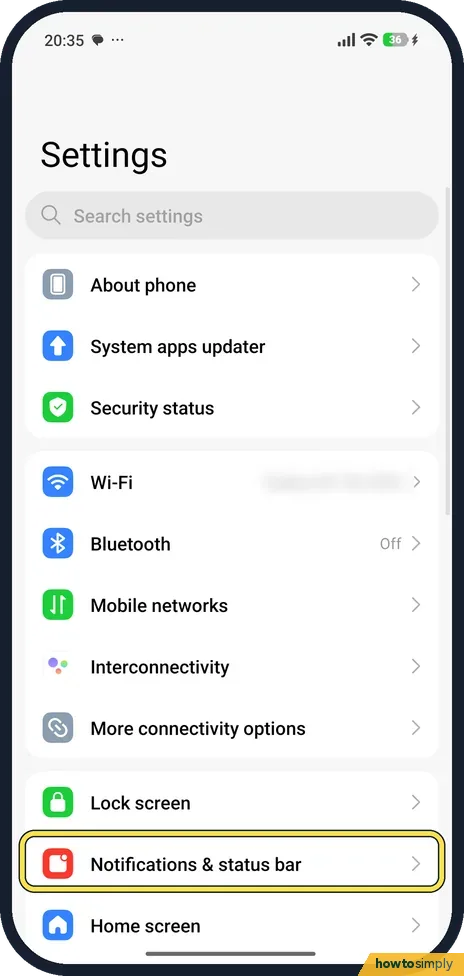
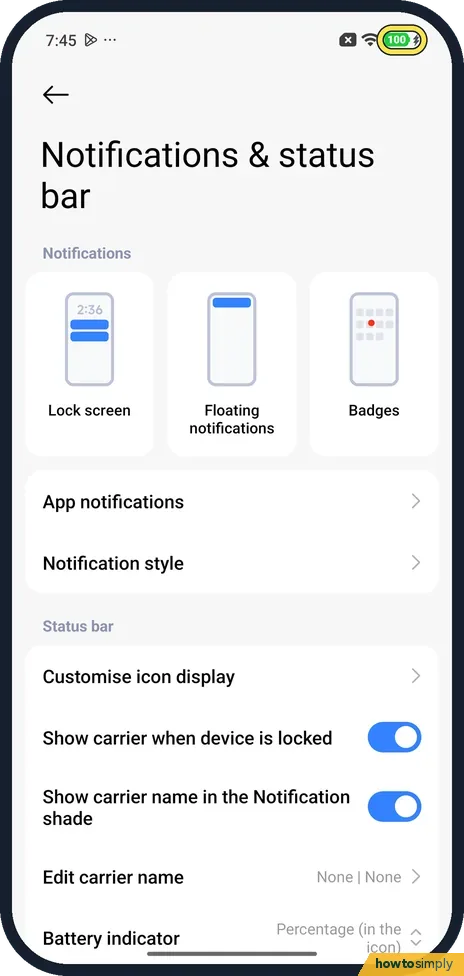
Open Notifications & status bar
Open Settings and tap Notifications & status bar.
- 2
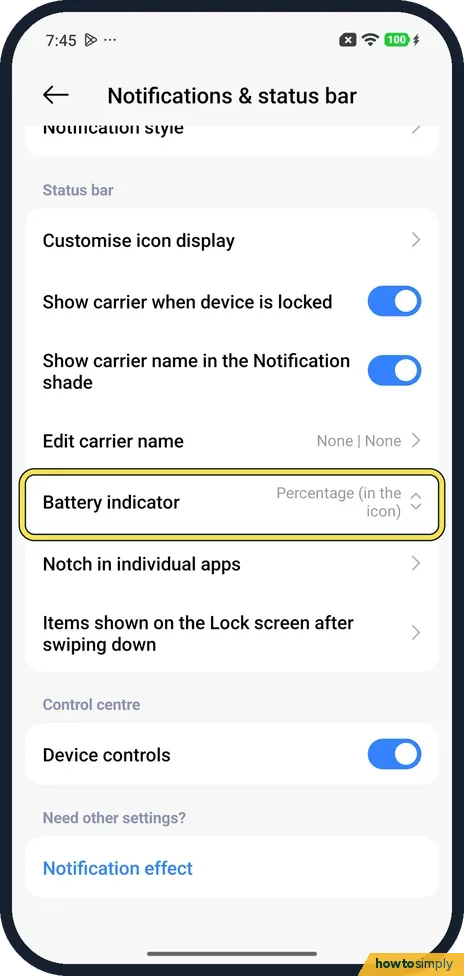
Tap Battery indicator
Scroll to Status bar and tap Battery indicator. Ours said Percentage (in the icon).
- 3
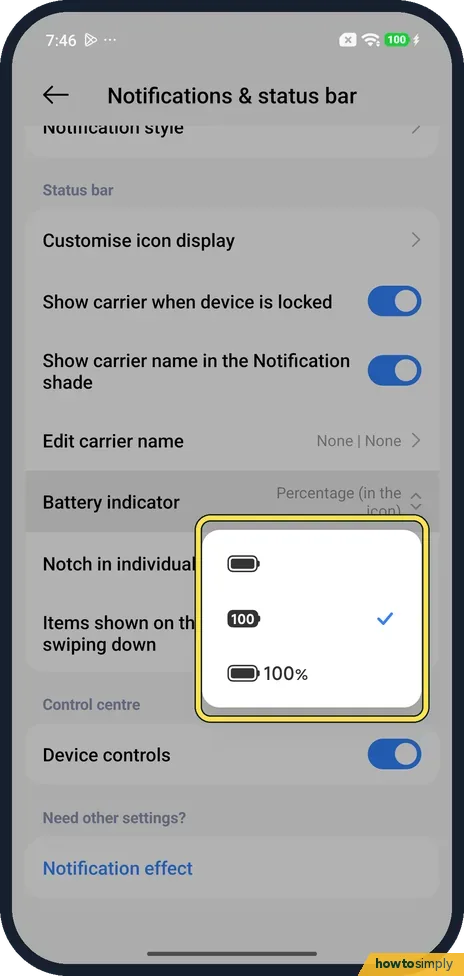
Pick a style
A small menu opens with three batteries: a plain one, one with 100 inside it, and one with 100% next to it. The tick was on the number inside the icon.
- 4
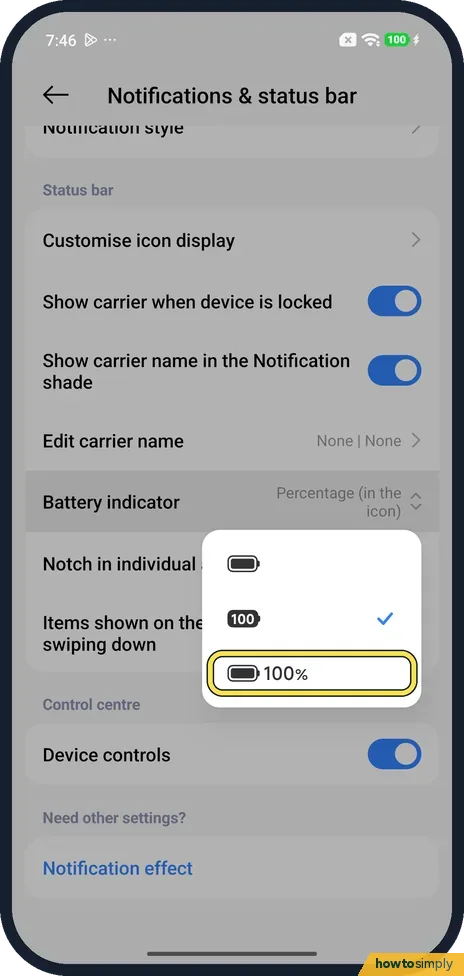
Number next to the icon
Tap the bottom choice to show the percentage next to the battery instead. We did not change ours.
- 5
Check the status bar
The battery icon at the top right uses the style that is ticked. With Percentage (in the icon), ours showed 100 inside a green battery while charging.
If you do not see this option
- Menu shows only pictures? On our phone the menu had no words, only three battery pictures. Xiaomi's HyperOS 3 guide gives the same route and says to choose one battery indicator style. Source: Generic User Guide for HyperOS 3.0
- No Notifications & status bar? Xiaomi's support page gives another route: Settings, Notifications & Control center, Status bar, Battery indicator. Source: How to choose Battery indicator?
If this does not work
- Still no number? The top choice is the plain battery, which shows no number. Pick the second (number inside) or the third (number next to it).
- Number hard to read inside the icon? Pick the bottom choice, which puts the percentage next to the battery instead.
- Battery icon colour changed? That is a status, not a fault. Xiaomi's user guide lists separate status bar icons for Charging, Low battery, Battery saver and Mi Turbo Charge. Ours showed a green battery while charging.
- Want the remaining time, not just a number? Open Settings, Battery. Xiaomi's guide says the battery settings show the remaining use time and battery capacity, and while charging the time left until full.
- Percentage jumps suddenly? A big drop or jump can happen when the phone is very cold or the battery is ageing. Let the phone warm up, and if it keeps happening, check the battery's health.
Good to know
Customise icon display, at the top of Status bar, picks which icons show. Xiaomi's guide says to tap the switch beside an icon to show it.
Battery runs down fast? See what uses it: battery mode and battery use. Weaker than before? Check its health.
Silence one noisy app: how to turn off notifications for an app.
Changing the indicator style only changes how the icon looks. It has no effect on battery life, charging or performance, and you can switch between the three styles as often as you like. The setting stays after a restart.
With the number on show, you can spot heavy drain sooner, for example after installing a new app or during long video calls. Battery saver can reduce background activity, stop sync and minimise system animations, according to Xiaomi's guide, when you need the battery to last.
About this guide
- Device
- Android
- Shown on
- Xiaomi Redmi Note 15 Pro 5G (25080RABDG), HyperOS 3.0.308.0, Android 16
- App
- Settings
- Path
- Settings › Notifications & status bar › Battery indicator
- Real screenshots
- 5 of 5 steps
- Checked
- October 2026
- Sources
- 2 official, linked below
Sources
Links checked October 2026. Menus and features can change with updates.Spotted a mistake? Menus change with updates, and we want every step to match your screen. Email us about this page or use the contact form. We read every report, and fixes are listed on What changed.
Liked this guide?
Follow us for new guides and short how-to videos.
Did this guide work for you?
Sorry about that. What happened?