
howtosimply.com/guides/how-to-change-what-the-power-button-does-on-an-honor-phone/ · Checked October 2026 · BRP-NX1M, EEA), MagicOS 10.0, Android 16 (build 10.0.0.169(C430E7R2P1) · HONOR Magic7 Lite
In this guide
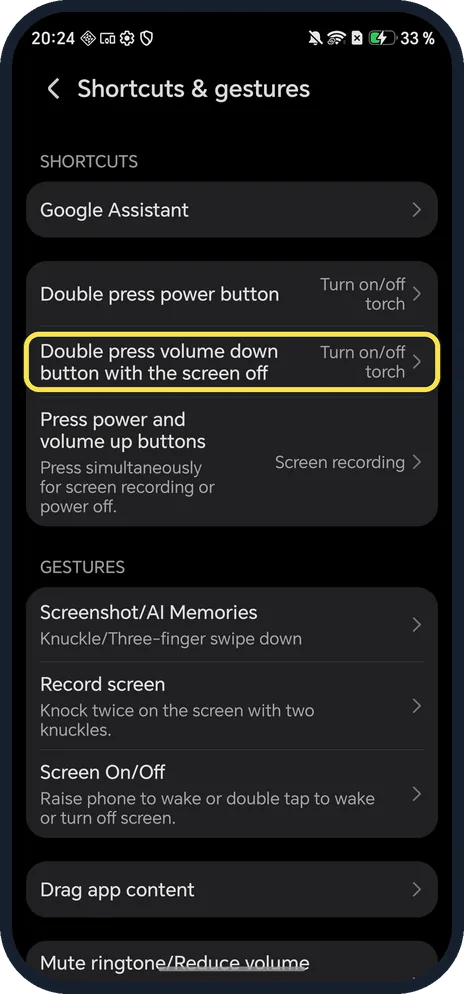
On our Magic7 Lite, holding Power for 1 second starts Google Assistant and 3 seconds powers off. Change it in Settings, Accessibility features, Shortcuts & gestures, Google Assistant. Double press Power was set to the torch; tap it there to pick Recorder, Timer, Calculator or another option.
3 of 3 steps with real screenshots · 3 official sources below
- Device
- Android
- Shown on
- HONOR Magic7 Lite (BRP-NX1M, EEA), MagicOS 10.0, Android 16 (build 10.0.0.169(C430E7R2P1))
- App
- Settings
- Path
- Settings › Accessibility features
- Real screenshots
- 3 of 3 steps
- Checked
- October 2026
- Sources
- 3 official, linked below
Step by step
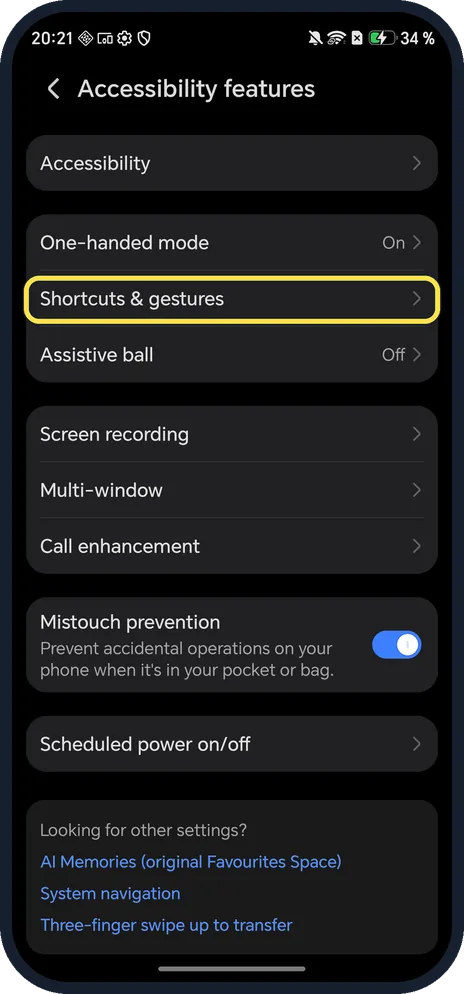
Open Shortcuts & gestures
Open Settings, Accessibility features, Shortcuts & gestures.
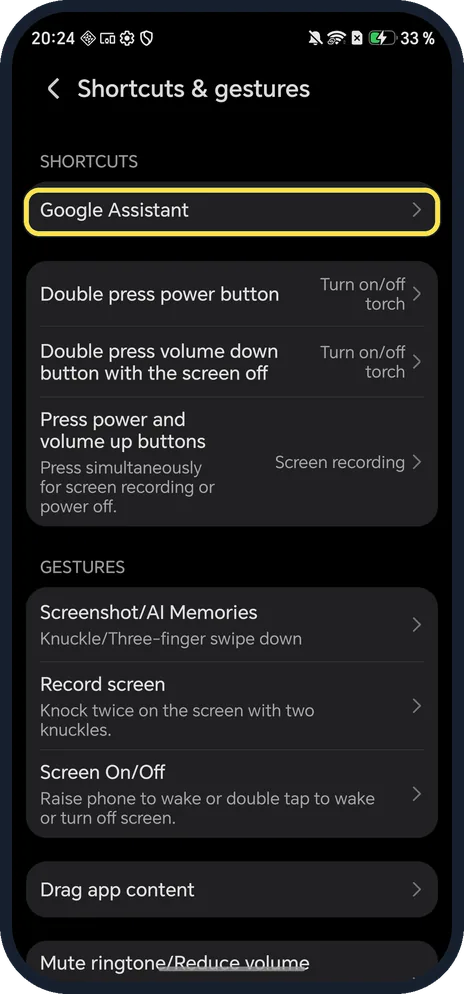
Tap Google Assistant
It is the first shortcut.
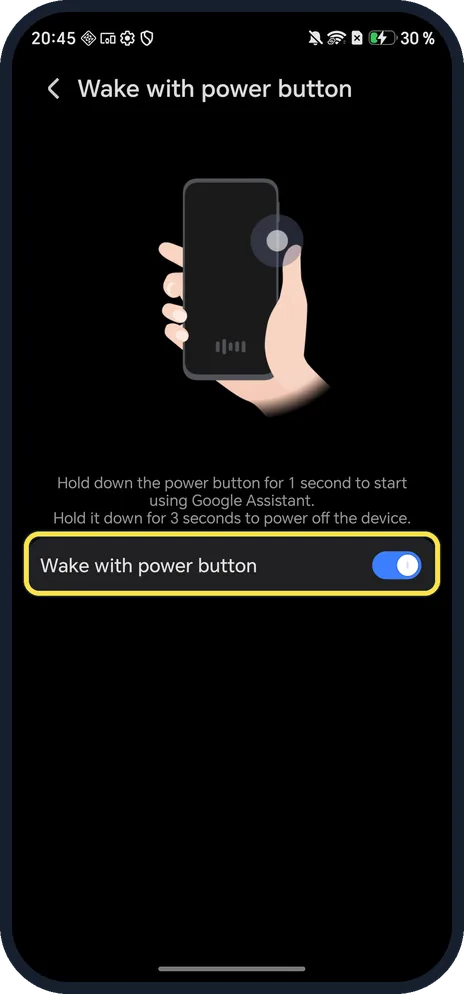
Turn off Wake with power button
The page says hold the power button for 1 second for Google Assistant, and 3 seconds to power off. With the switch off, holding Power opens the power menu.
If you do not see this option
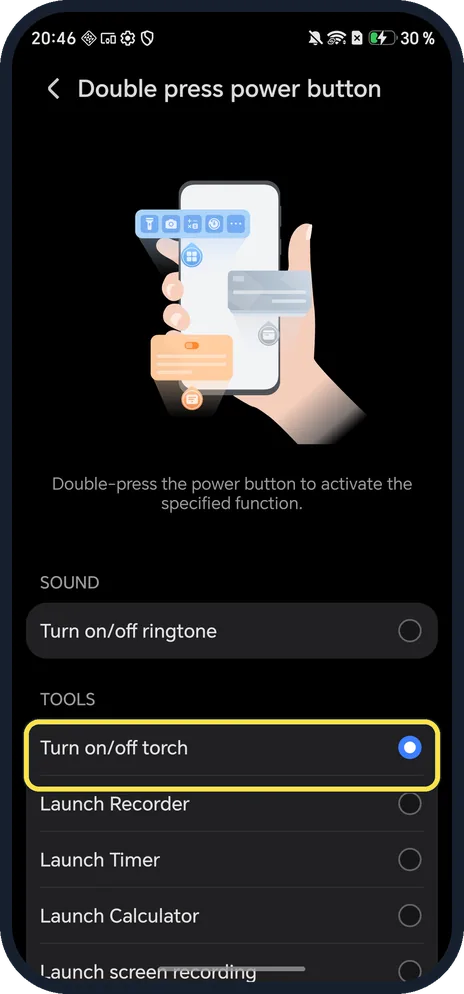
- Want a double-press shortcut too? Back on Shortcuts & gestures, tap Double press power button. Ours was set to Turn on/off torch. Choices included Turn on/off ringtone, Turn on/off torch, Launch Recorder, Launch Timer and Launch Calculator.
- Holding Power opens Gemini, not Google Assistant? HONOR's Magic7 Pro page says pressing and holding Power brings up Gemini. Ours said Google Assistant on the Wake with power button page. Source: Magic7 Pro
- No Wake with power button switch? Then holding Power goes straight to the power menu. HONOR says to hold Power for a few seconds, then tap Power off. Source: Power On and Off or Restart Your Device
- Torch with the screen off? Double press volume down with the screen off was also set to the torch on ours.
If this does not work
- Need to turn the phone off right now? Hold Power for 3 seconds, as the Wake with power button page says. Press power and volume up buttons can do screen recording or power off; ours was set to Screen recording.
- Phone frozen? HONOR says to hold Volume Down and Power for more than 10 seconds to force a restart. Source: Power On and Off or Restart Your Device
- Won't power on? HONOR says to charge it for at least 30 minutes with the original charger, then hold Power for 10 to 15 seconds. Source: Fixing Boot Problems on HONOR Devices
About this guide
Many people look for how to turn off an HONOR when holding Power opens the Assistant. You can hold longer, use the power menu, or turn the Assistant shortcut off.
The screenshots are from our HONOR Magic7 Lite, the European model BRP-NX1M, with MagicOS 10.0 and Android 16 (build 10.0.0.169(C430E7R2P1)), in Dark mode.
Good to know
To use the buttons for screenshots, take a screenshot on an HONOR phone.
To start a recording with buttons, screen record on an HONOR phone.
In short: Settings, Accessibility features, Shortcuts & gestures: Google Assistant (hold Power) and Double press power button.
- HONOR Support: Power On and Off or Restart Your Device
- HONOR Support: Fixing Boot Problems on HONOR Devices
- HONOR: Magic7 Pro
Links checked in October 2026. Menus and features can change after software updates. These steps match the version named at the top.
Did this guide work for you?
Sorry about that. What happened?