
howtosimply.com/guides/how-to-take-a-screenshot-on-an-honor-phone/ · Checked October 2026 · BRP-NX1M, EEA), MagicOS 10.0, Android 16 (build 10.0.0.169(C430E7R2P1) · HONOR Magic7 Lite
In this guide
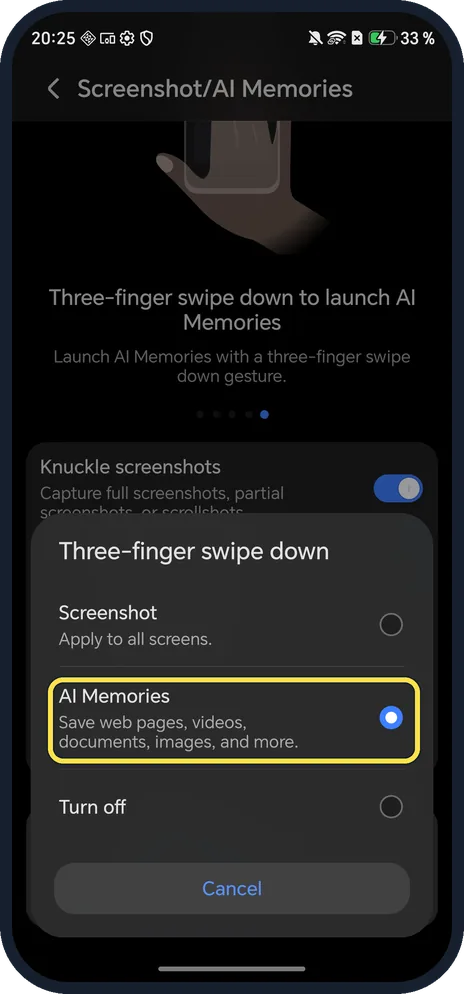
Knock twice on the screen with one knuckle, or press Power and Volume Down. On our HONOR Magic7 Lite, a three-finger swipe down opened AI Memories instead; change it to Screenshot in Settings, Accessibility features, Shortcuts & gestures, Screenshot/AI Memories.
8 of 8 steps with real screenshots · 2 official sources below
- Device
- Android
- Shown on
- HONOR Magic7 Lite (BRP-NX1M, EEA), MagicOS 10.0, Android 16 (build 10.0.0.169(C430E7R2P1))
- App
- Settings
- Path
- Settings › Accessibility features › Shortcuts & gestures › Screenshot/AI Memories › Screenshot
- Real screenshots
- 8 of 8 steps
- Checked
- October 2026
- Sources
- 2 official, linked below
Step by step
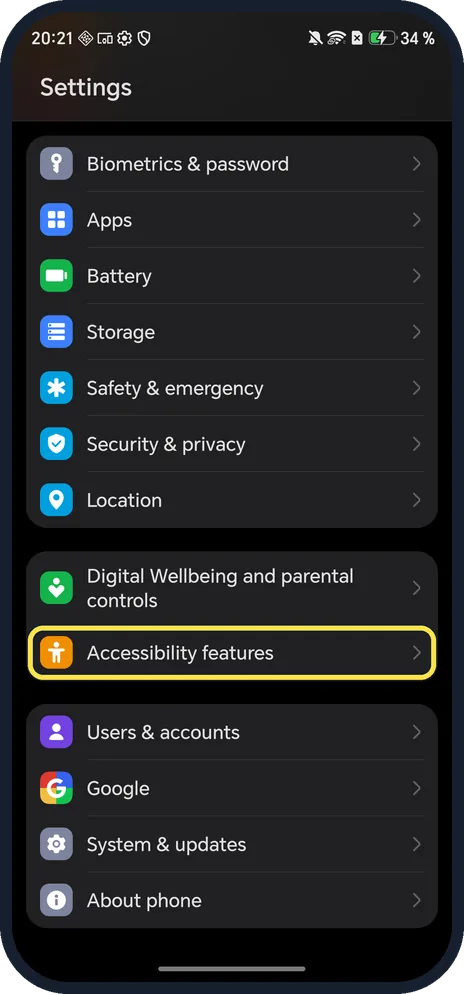
Open Accessibility features
Open Settings and tap Accessibility features, near the bottom of the list.
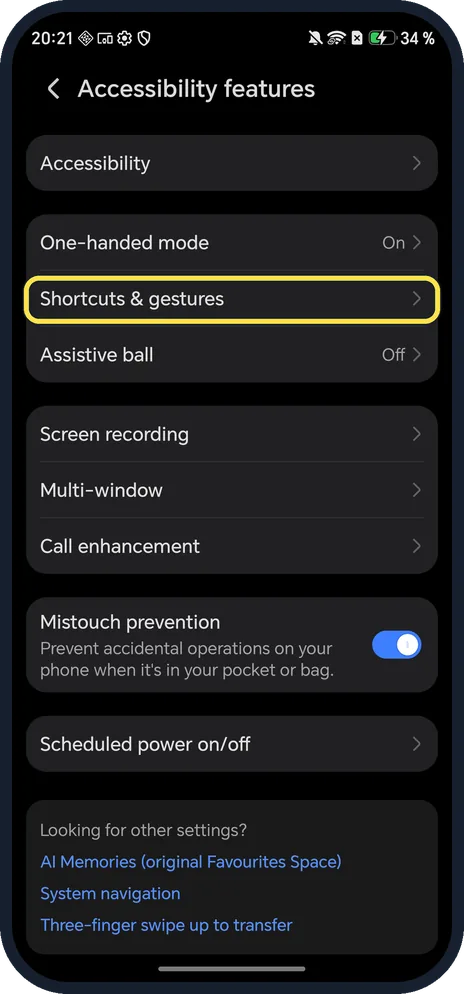
Tap Shortcuts & gestures
It is under One-handed mode.
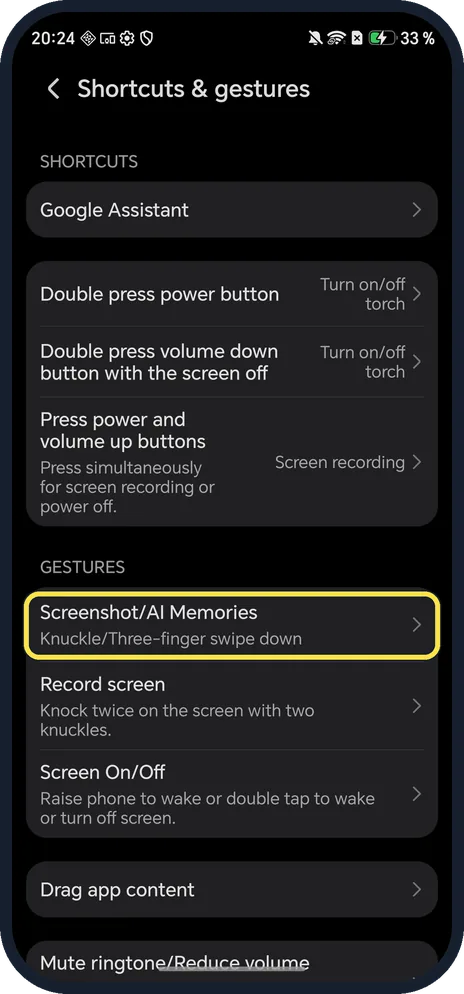
Tap Screenshot/AI Memories
Under Gestures, the row says Knuckle/Three-finger swipe down.
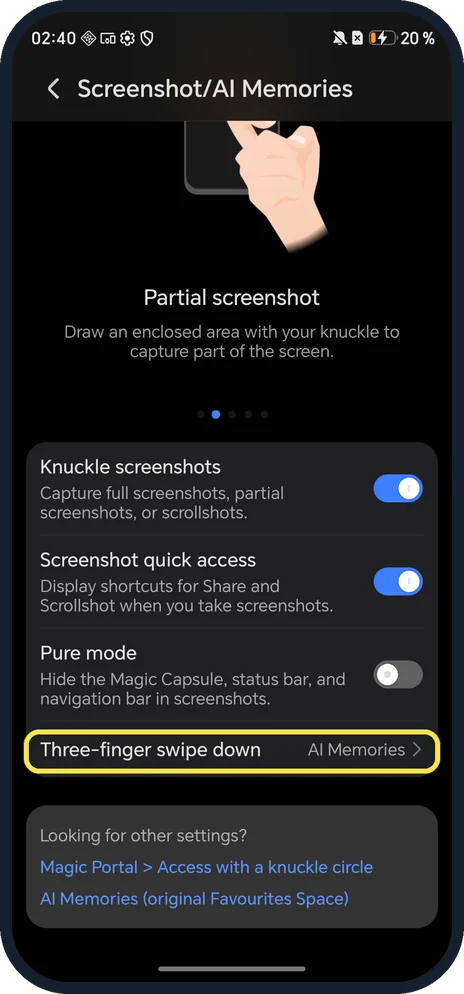
Tap Three-finger swipe down
It is near the bottom of the page; ours said AI Memories.
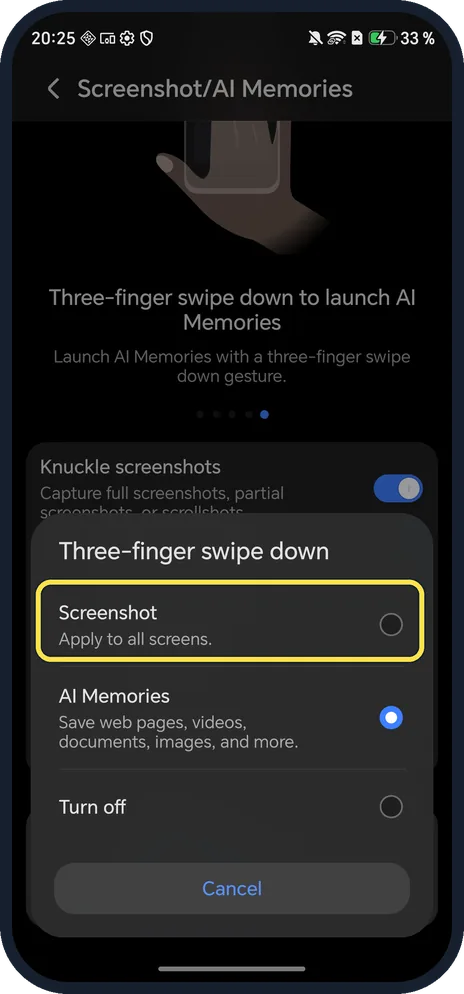
Choose Screenshot
Ours offered Screenshot, AI Memories (selected) and Turn off. Tap Screenshot; the row then reads Screenshot.
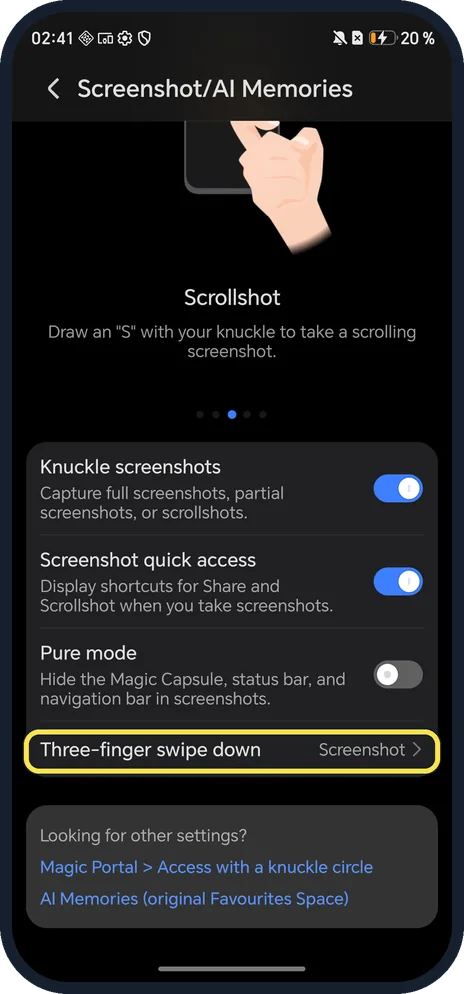
Check the row
Three-finger swipe down now reads Screenshot. (We set ours back to AI Memories afterwards.)
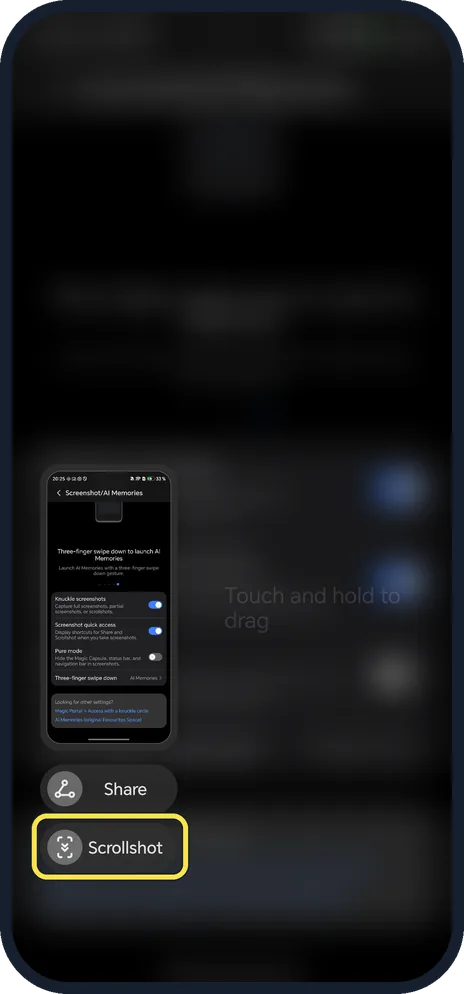
Take the screenshot
Swipe down with three fingers, knock twice with a knuckle (Knuckle screenshots was on), or press Power and Volume Down. A preview appears at the bottom left with Share and Scrollshot.
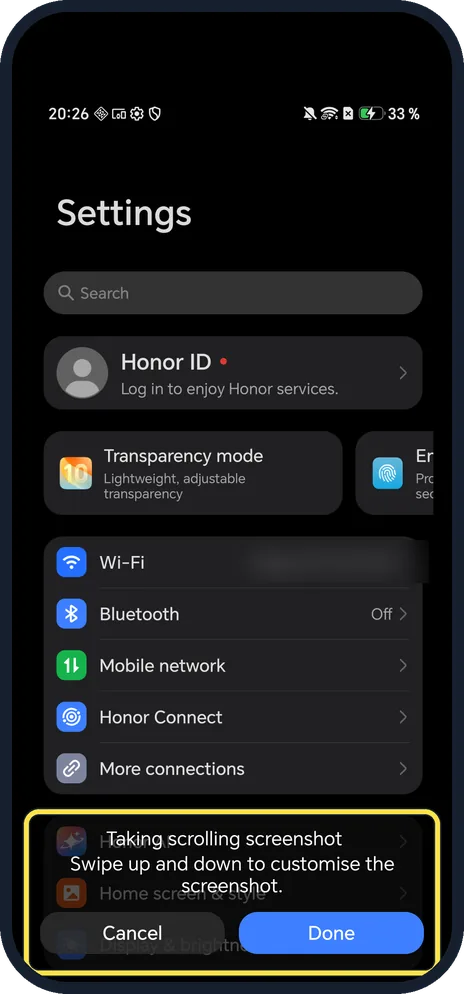
Tap Scrollshot for a long page
It says Taking scrolling screenshot, swipe up and down to customise. Tap Done to save, or Cancel.
If you do not see this option
- Three-finger swipe opens AI Memories? That was the setting on our Magic7 Lite: AI Memories, which saves web pages, videos, documents and images. Steps 4 to 6 switch it to Screenshot.
- No Screenshot/AI Memories row? HONOR's guide names the same page Take screenshot: Settings, Accessibility features, Shortcuts & gestures, Take screenshot, with the Knuckle screenshots switch on it. Source: Take a Screenshot
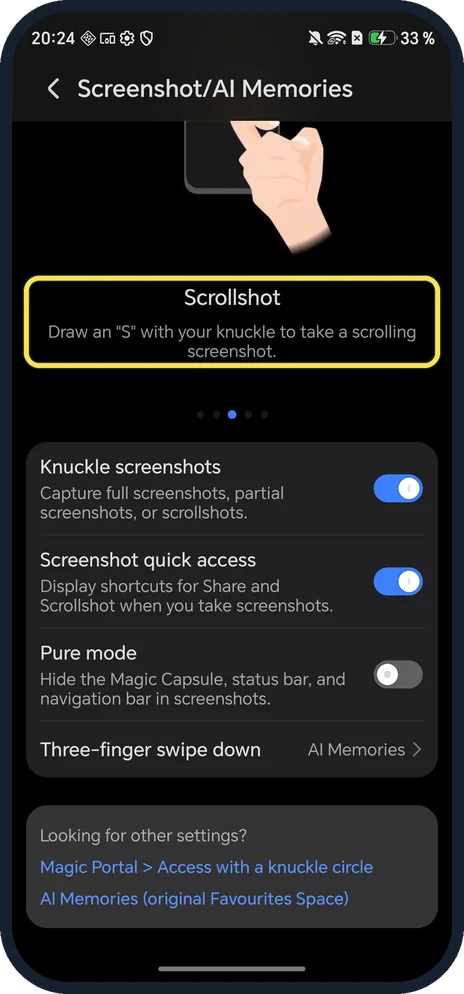
- No Scrollshot button on the preview? Draw an S on the screen with one knuckle; our Screenshot/AI Memories page shows that tip. HONOR also says you can swipe down on the thumbnail for a scrolling screenshot. Source: Take a Screenshot
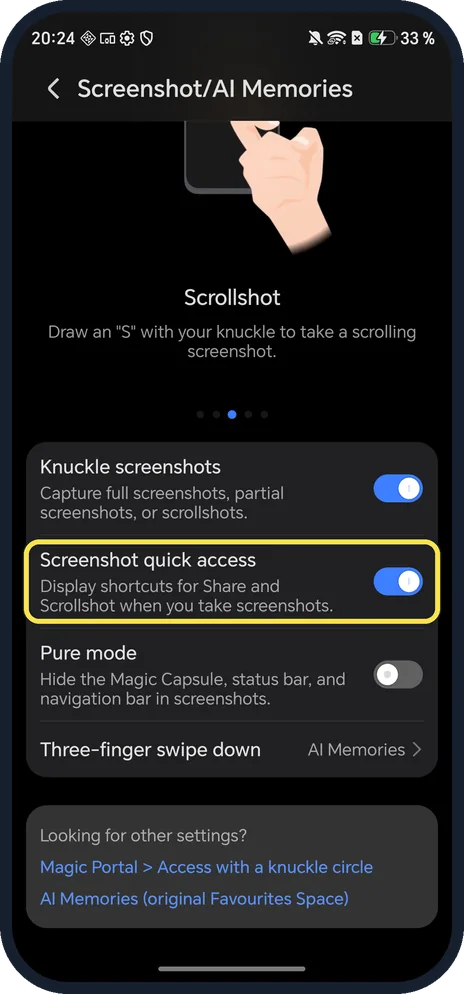
- No Share or Scrollshot shortcuts at all? Screenshot quick access shows them. It was on in ours; it is on the same page.
If this does not work
- Knuckle knock does nothing? Turn on Knuckle screenshots on the same page. HONOR says to knock twice on the screen with one knuckle, in quick succession. Source: Take a Screenshot
- Need only part of the screen? HONOR says to knock with a knuckle and hold, draw an outline round the part you want without lifting the knuckle, then drag or resize the frame and save. Source: Take a Partial Screenshot
- Magic Capsule or status bar in your screenshots? Turn on Pure mode on the same page: it hides the Magic Capsule, status bar and navigation bar in screenshots. It was off on ours.
- Can't find the screenshot? HONOR says screenshots are saved to Gallery by default. Source: Take a Screenshot
About this guide
MagicOS has knuckle gestures for screenshots, and the three-finger swipe many phones use for screenshots can be set to something else. On our phone it came set to AI Memories.
The screenshots are from our HONOR Magic7 Lite, the European model BRP-NX1M, with MagicOS 10.0 and Android 16 (build 10.0.0.169(C430E7R2P1)), in Dark mode. We took screenshots and a scrollshot and deleted them afterwards.
Good to know
To capture a video instead, screen record on an HONOR phone.
On an OPPO phone, take a screenshot on an OPPO phone instead.
In short: Knuckle double knock or Power + Volume Down. Three-finger swipe: Settings, Accessibility features, Shortcuts & gestures, Screenshot/AI Memories, Screenshot.
Links checked in October 2026. Menus and features can change after software updates. These steps match the version named at the top.
Did this guide work for you?
Sorry about that. What happened?