GOOGLE PIXEL
How to turn off or restart a Google Pixel (Android 17)
Swipe down twice from the top of the screen and tap the power icon at the bottom right of Quick Settings, then tap Power off or Restart. Or press and hold the Power and Volume up buttons together. Holding the Power button alone opens the digital assistant on our Pixel 10a.

4 of 4 steps show a real screenshot from our Pixel 10a. Each step was checked against the maker's own instructions, linked at the end.
Steps
- 1
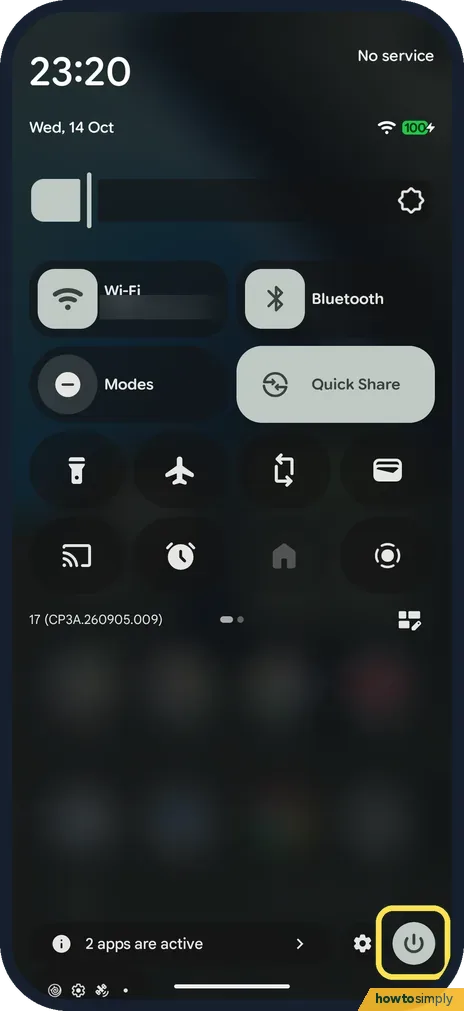
Open Quick Settings and tap the power icon
Swipe down twice from the top of the screen so Quick Settings opens fully. Tap the round power icon at the bottom right.
- 2
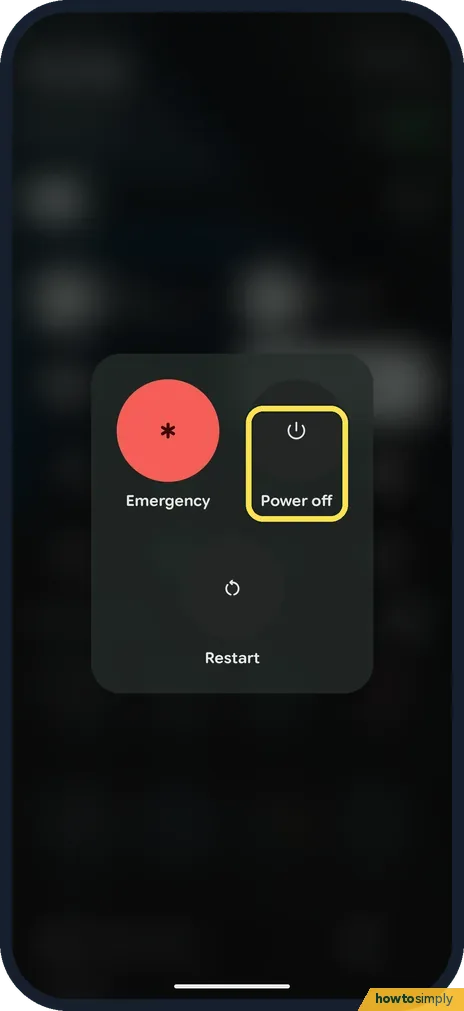
Tap Power off or Restart
The power menu shows Emergency, Power off and Restart. Tap Power off to switch the phone off, or Restart to restart it. Pressing and holding the Power and Volume up buttons together for a few seconds opens the same menu.
- 3
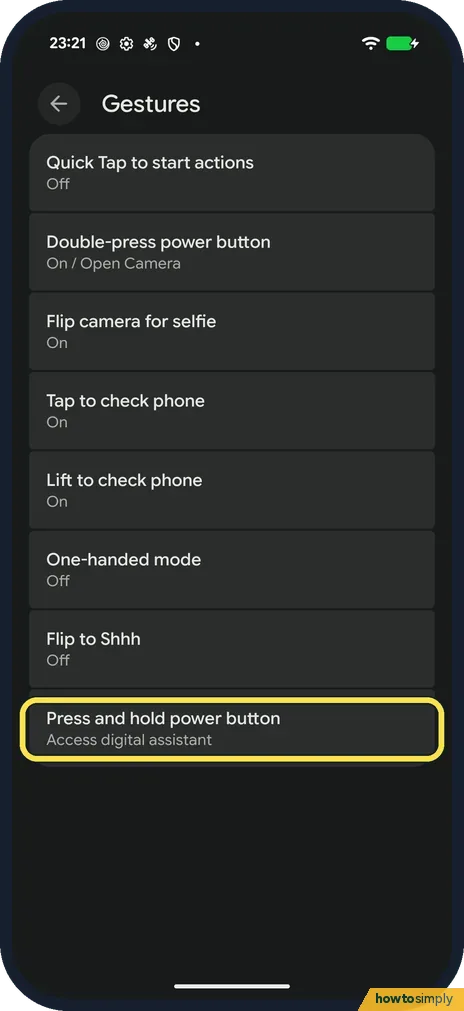
Make the Power button open the power menu
If you prefer the old way, open Settings, tap System, then Gestures, then Press and hold power button. Ours said Access digital assistant. The same page showed Double-press power button: On / Open Camera, so a quick double press opens the camera.
- 4
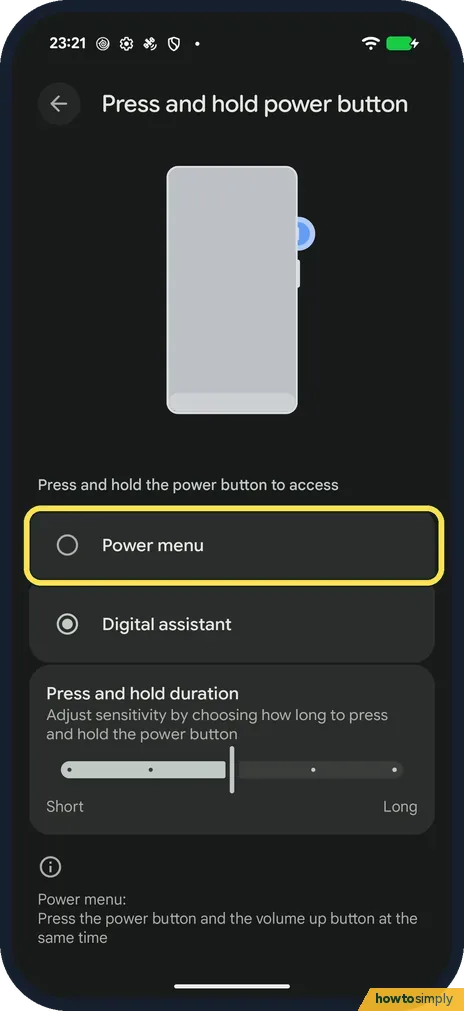
Choose Power menu
Tap Power menu. Holding the Power button now opens the power menu instead. Ours was set to Digital assistant, and we left it like that. Below, Press and hold duration sets how long you must hold, from Short to Long, and the note at the bottom confirms Power plus Volume up for the power menu.
If you do not see this option
- No power icon in Quick Settings? Swipe down a second time so the panel opens fully. On our Pixel the power icon is at the bottom right, next to the gear for Settings.
- Holding the Power button opens the assistant? That is the default on our Pixel 10a. Use the Power and Volume up buttons together, or change it in step 4. Source: Turn your Pixel phone on & off
If this does not work
- Phone won't turn back on? Press and hold the Power button until you feel a buzz; Google says this can take up to 7 seconds on Pixel 6 and later. If nothing happens, charge it first.
- Screen frozen and buttons do nothing? Press and hold the Power button for up to 60 seconds. When the G logo appears, let go: the phone restarts.
- Phone keeps freezing after a restart? Google's checklist for a phone that freezes goes on from the restart: install system updates, update apps, and make sure more than 10% of storage is free, as problems can start below that.
Good to know
Holding the Power button for the assistant is one of several gestures on the same Gestures page.
A restart closes every open app and clears temporary glitches, but it keeps your apps, photos, settings and alarms. After the phone starts again, you will usually need your PIN, pattern or password once before fingerprint or face unlock works, so have it ready. To keep the phone on but quiet, use Do Not Disturb instead of switching it off.
About this guide
- Device
- Android
- Shown on
- Google Pixel 10a, Android 17 (build CP3A.260905.009)
- Starts in
- Quick Settings
- Real screenshots
- 4 of 4 steps
- What we did
- Observed: looked at each screen, changed nothing
- Checked
- October 2026
- Sources
- 2 official, linked below
Sources
Links checked October 2026. Menus and features can change with updates.Spotted a mistake? Menus change with updates, and we want every step to match your screen. Email us about this page or use the contact form. We read every report, and fixes are listed on What changed.
Liked this guide?
Follow us for new guides and short how-to videos.
Did this guide work for you?
Sorry about that. What happened?