
howtosimply.com/guides/how-to-change-what-the-plus-key-does-on-a-oneplus-nord-5/ · Checked October 2026 · OnePlus Nord 5 (CPH2709), OxygenOS 16.0.5.1201(EX01C10P02), Android 16
In this guide
Open Settings and search for "Plus Key", or find it in the main list. Swipe or tap the icons along the bottom to pick Sound & vibration, Do Not Disturb, Camera, Torch, Recorder, Translate, Screenshot or No action, then tap Set. Ours was set to Plus to Mind Space. The Nord 5 has no Alert Slider.
- Device
- Android
- Shown on
- OnePlus Nord 5 (CPH2709), OxygenOS 16.0.5.1201(EX01C10P02), Android 16
- App
- Settings
- Path
- Settings › Plus Key
- Real screenshots
- 5 of 5 steps
- Checked
- October 2026
- Sources
- 1 official, linked below
Step by step
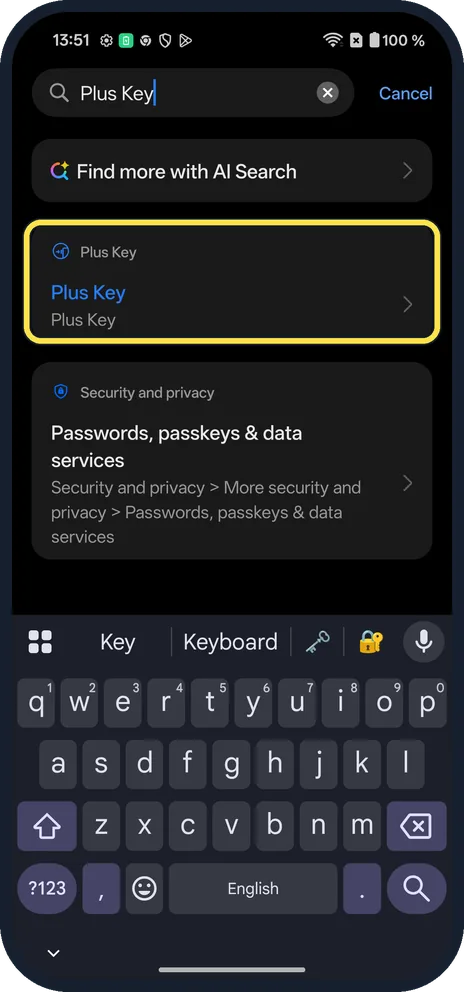
Open Plus Key
Search Settings for "Plus Key" and tap the Plus Key result. It also has its own row in the main Settings list.
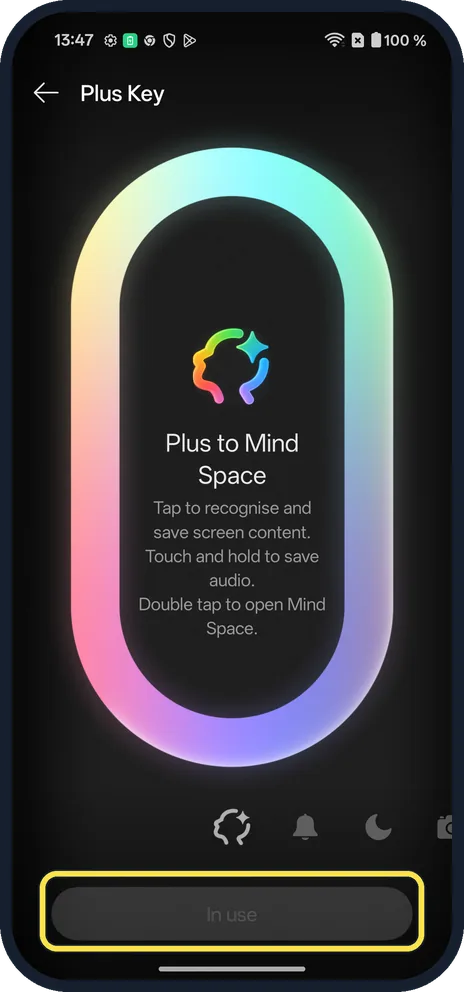
See the current action
The page opens on the action in use. Ours was Plus to Mind Space: tap to save screen content, touch and hold to save audio, double tap to open Mind Space. Its button reads In use.
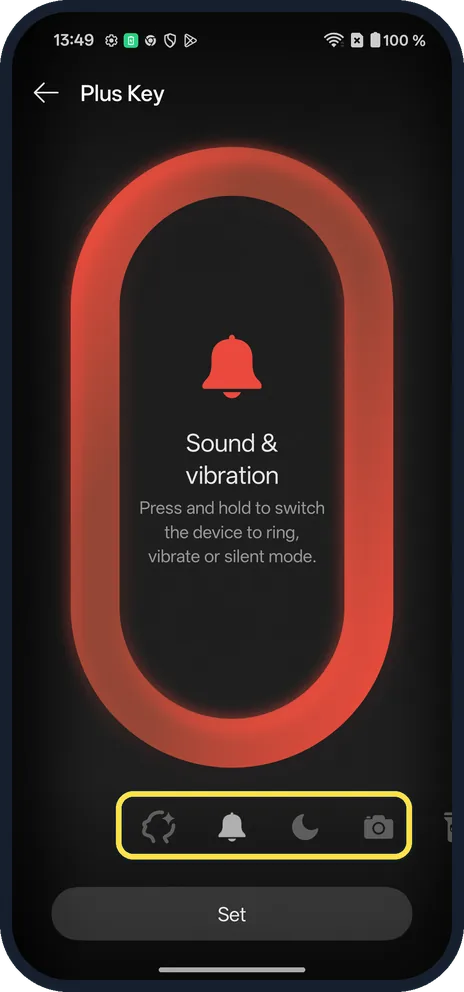
Browse the actions
Tap the icons along the bottom, or swipe. Each shows what a press and hold does. Sound & vibration switches between ring, vibrate and silent.
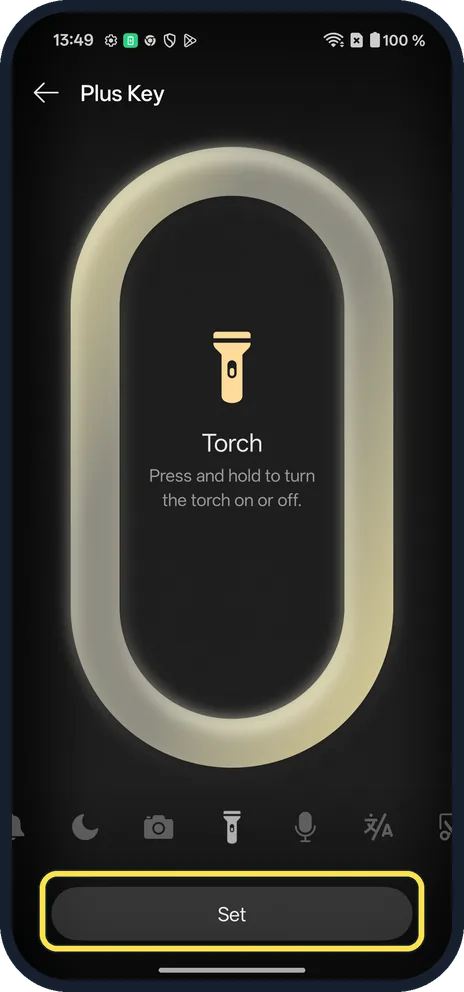
Tap Set
On the one you want, tap Set. Torch, for example, turns the torch on or off.
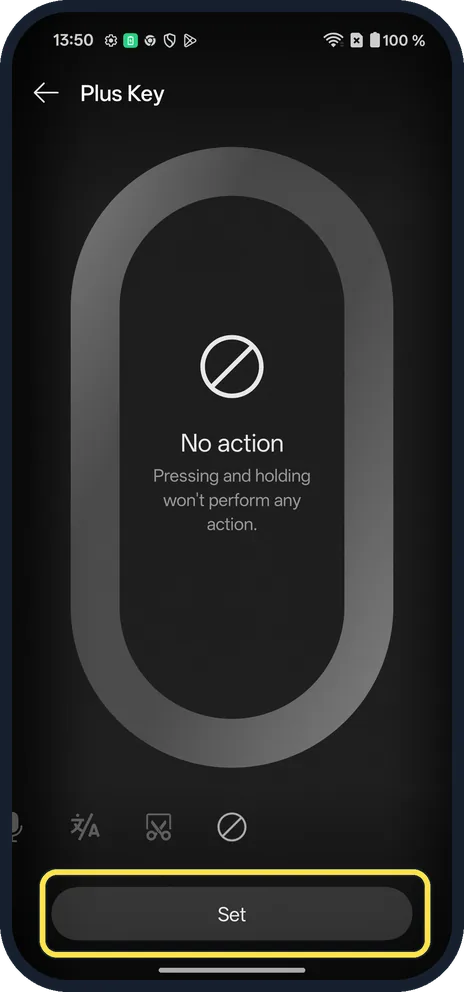
Or turn it off
No action, the last choice, makes a press and hold do nothing. Tap Set under it to use it.
If you do not see this option
- Looking for the Alert Slider? The Nord 5 has none: OnePlus lists the Plus Key in its place. For ring, vibrate and silent, set the key to Sound & vibration (step 3). Source: OnePlus Nord 5
- No Plus Key in Settings? Only phones with the key have it. Ours is a Nord 5 (CPH2709). Source: OnePlus Nord 5
If this does not work
- Key still does the old thing? You may only have previewed the action. Its button must read In use, as Plus to Mind Space did on ours (step 2); while it reads Set, nothing has changed. Tap Set.
- Pressing it by accident? Set No action (step 5). Ringtones themselves: change the ringtone and vibration on a OnePlus.
About this guide
On the Nord 5 the Plus Key replaces the Alert Slider: one press-and-hold action that you choose.
The screenshots are from our OnePlus Nord 5 with OxygenOS 16.0.5.1201(EX01C10P02) and Android 16, in Dark mode, taken on 18 October 2026. We previewed every action and never tapped Set, so ours stayed on Plus to Mind Space.
Good to know
Change what the power button does on a OnePlus. Take a screenshot on a OnePlus.
In short: Settings, Plus Key, pick an action, Set.
Links checked in October 2026. Menus and features can change after software updates. These steps match the version named at the top.
Did this guide work for you?
Sorry about that. What happened?