ONEPLUS
How to take a screenshot or record the screen on a OnePlus (OxygenOS 16)

In short
Swipe down with three fingers, or press Power and Volume Down together. Touch and hold with three fingers for a partial or scrolling screenshot. To record the screen, tap the Screen recording tile in Quick Settings; touch and hold it for more options.
9 of 9 steps show a real screenshot from our Nord 5. Each step was checked against the maker's own instructions, linked at the end.
Steps
- 1
Check the screenshot gestures
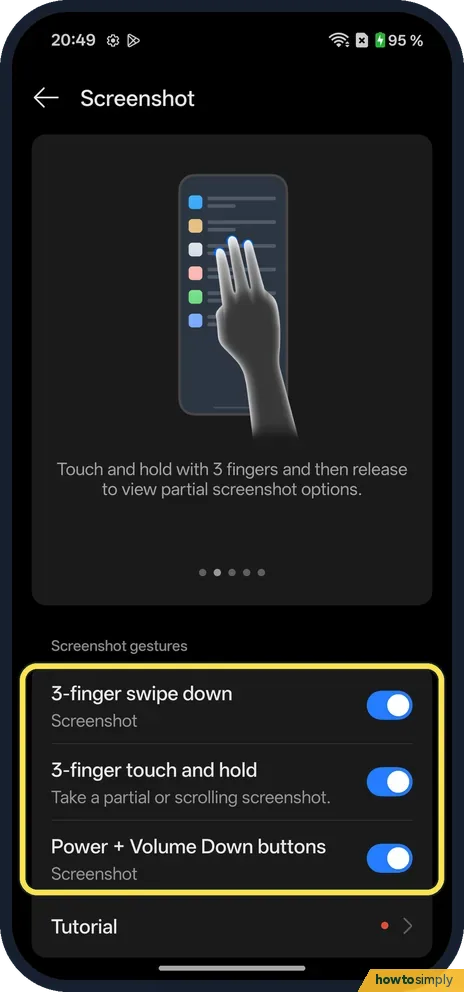
Search Settings for Screenshot. Ours had 3-finger swipe down, 3-finger touch and hold (a partial or scrolling screenshot) and Power + Volume Down buttons, all on.
- 2
Or use the tile
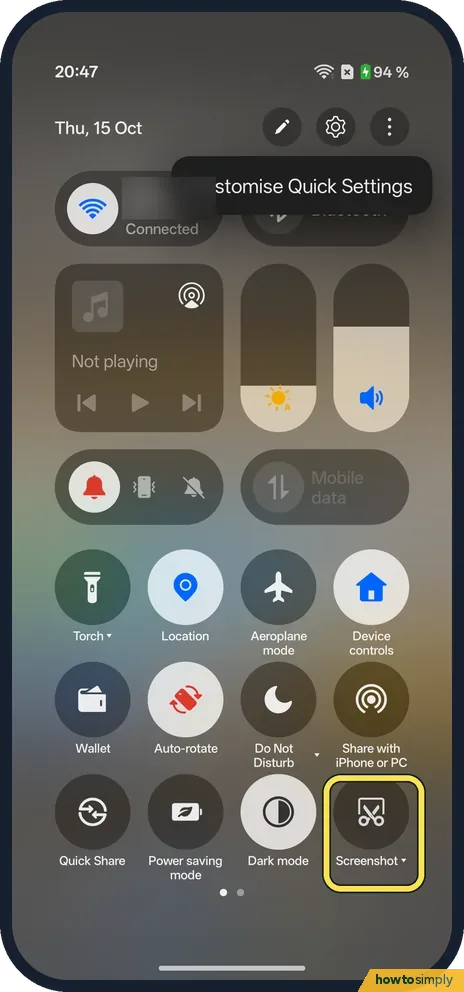
Quick Settings also has a Screenshot tile.
- 3
Find Screen recording
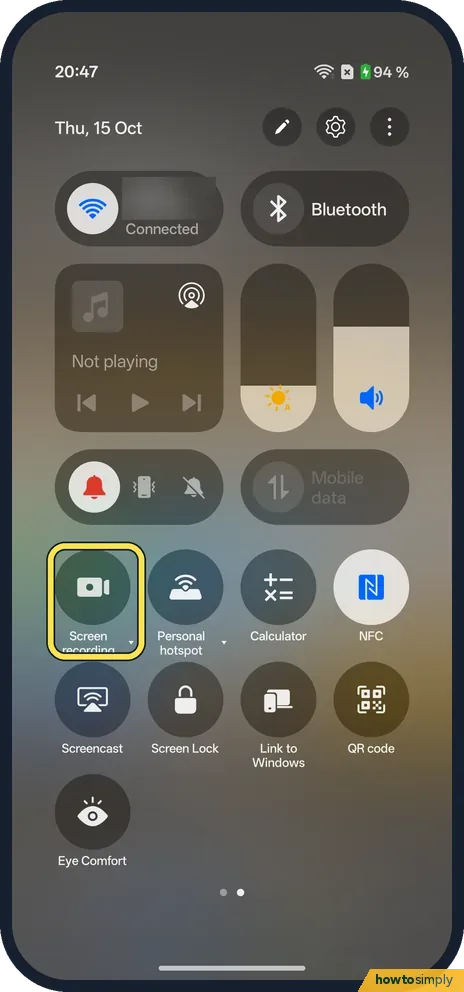
Swipe to the second page of Quick Settings. Screen recording was the first tile on ours.
- 4
Choose full or partial
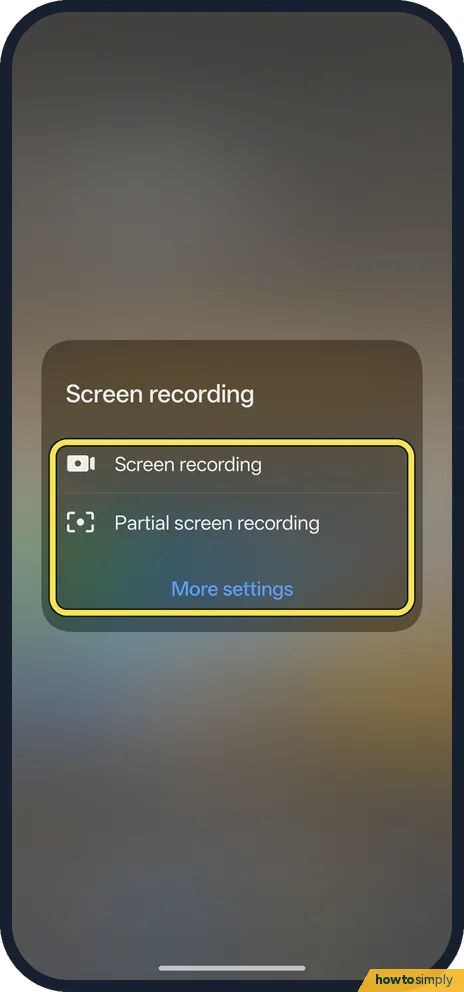
Touch and hold the tile: Screen recording, Partial screen recording or More settings.
- 5
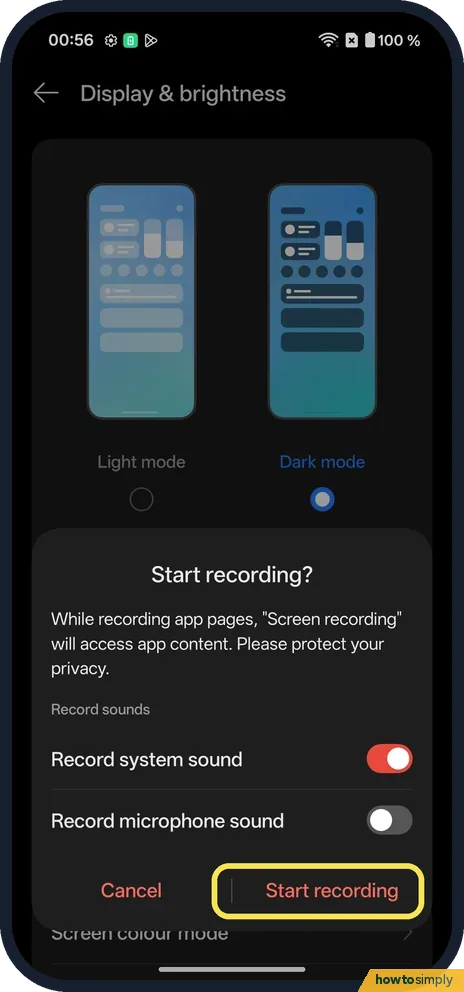
Start recording
Tap Screen recording. The first time, an intro says Record system sound: tap to record system sound. Tap Get started. Then Start recording? says it will access app content, with Record system sound on and Record microphone sound off. Tap Start recording.
- 6
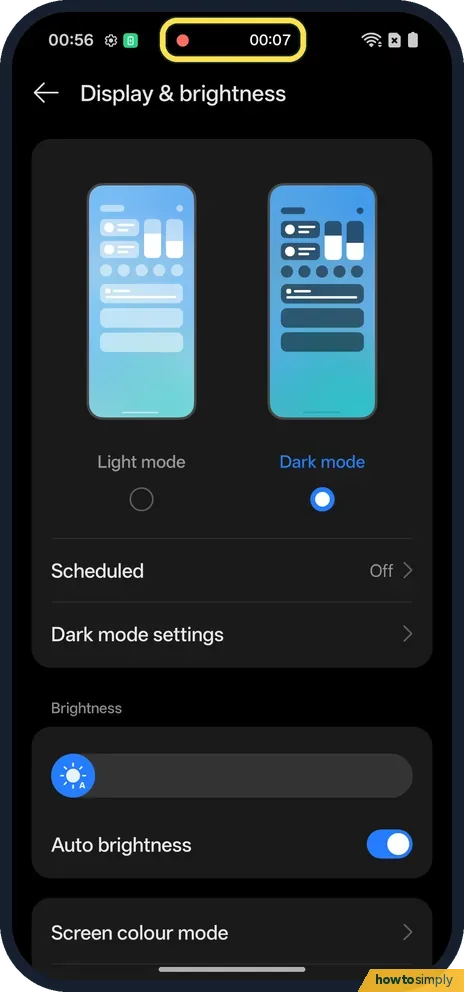
See it running
A red dot and the time recorded show at the top of the screen.
- 7
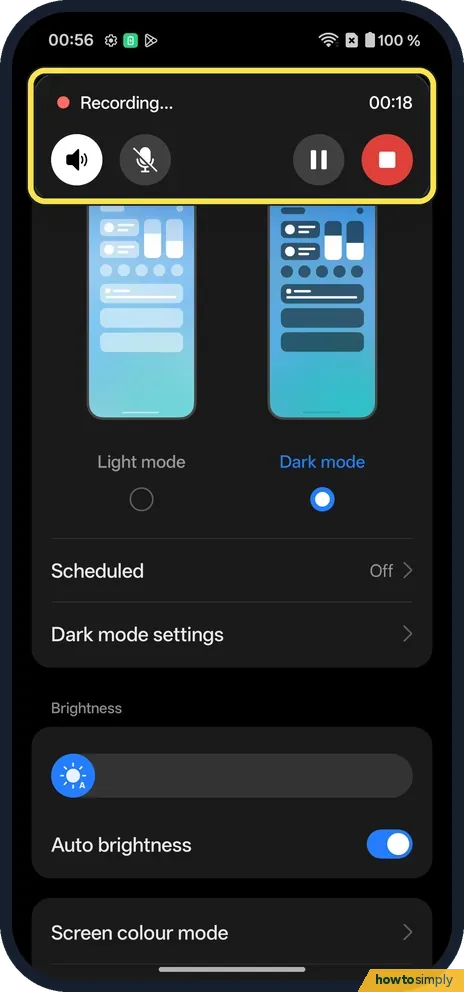
Stop it
Tap the time at the top. The card shows Recording..., sound and microphone buttons, pause and a red stop button. Tap stop.
- 8
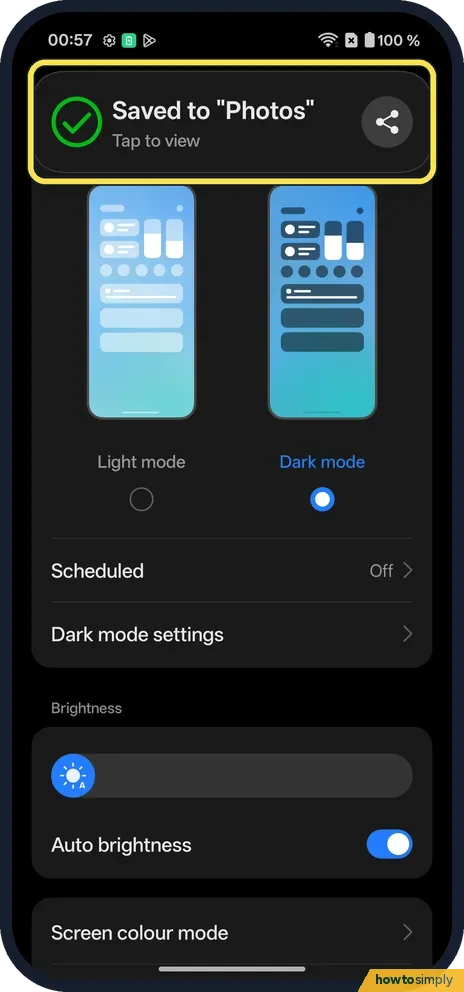
Find the video
The phone says Saved to "Photos", Tap to view.
- 9
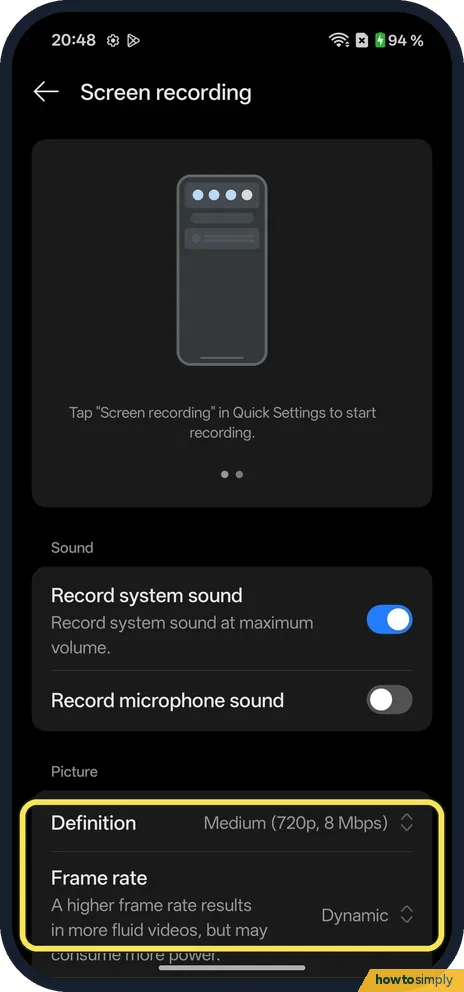
Set the quality
Touch and hold the tile and tap More settings. Ours: Definition Medium (720p, 8 Mbps) and Frame rate Dynamic.
If you do not see this option
- Older OxygenOS? OnePlus's OxygenOS 14 manual has these under Settings, Additional settings, Screenshot and Screen recording. On our OxygenOS 16 phone, search Settings for Screenshot. Source: OxygenOS 14.0 User Manual
- Scrolling screenshot? OnePlus's manual says to take a screenshot, then tap Scroll below the preview, and Done to save. Source: OxygenOS 14.0 User Manual
- Asked to allow audio? Ours asked: Allow Screen recording to record audio? Choose While using the app; the recorder needed it on ours even for system sound.
If this does not work
- 3-finger swipe does nothing? Check that 3-finger swipe down is on, on the Screenshot page, as the manual says.
- Power + Volume Down opens something else? Press both at the same time. See also what the power button does.
- Recording has no sound? Check Record system sound, and that you allowed audio. Turn on Record microphone sound for your voice.
- Screenshot is black or blocked? Banking, streaming and some messaging apps stop screenshots and recordings to protect what is on screen. This is set by the app, and there is no phone setting to override it.
- Scrolling option does not appear? Google says scrolling screenshots work on most screens that allow you to scroll. On a page that does not scroll, such as the home screen, only a normal screenshot is possible.
Good to know
Edit which tiles show in Quick Settings: Quick Settings.
Screenshots and recordings are saved as normal files in Photos, so they count against your storage; long recordings at higher quality take the most space. Delete test clips you no longer need. To share a screenshot straight away, use the preview that appears after you take it.
About this guide
- Device
- Android
- Shown on
- OnePlus Nord 5 (CPH2709), OxygenOS 16.0.5.1201, Android 16
- Starts in
- The phone's buttons
- Real screenshots
- 9 of 9 steps
- Checked
- October 2026
- Sources
- 1 official, linked below
Sources
Links checked October 2026. Menus and features can change with updates.Spotted a mistake? Menus change with updates, and we want every step to match your screen. Email us about this page or use the contact form. We read every report, and fixes are listed on What changed.
Liked this guide?
Follow us for new guides and short how-to videos.
Did this guide work for you?
Sorry about that. What happened?